
1. Product Overview
The GIZMORE GIZ WHEELZ T1000 Pro is a portable Bluetooth party speaker designed for versatile audio playback. It features Bluetooth connectivity, USB and SD card slots for MP3 playback, a wired microphone input for karaoke, and a built-in rechargeable battery for portability. The speaker is equipped with a trolley design for easy transport.
Key Features:
- Bluetooth Connectivity: Seamlessly connect to your Bluetooth-enabled devices for wireless audio streaming.
- Portable Design: Compact size with a rugged enclosure, telescopic handle, and wheels for easy mobility.
- Rechargeable Battery: Integrated battery provides power for on-the-go use.
- Multiple Playback Options: Supports MP3 playback via USB and SD/TF card slots.
- Wired Microphone Input: Includes a wired microphone for karaoke or public address.
- Multi-Color LED Lights: Features flashing DJ party lights for enhanced ambiance.
- High Fidelity Sound: Delivers 1000W P.M.P.O. output for clear audio.
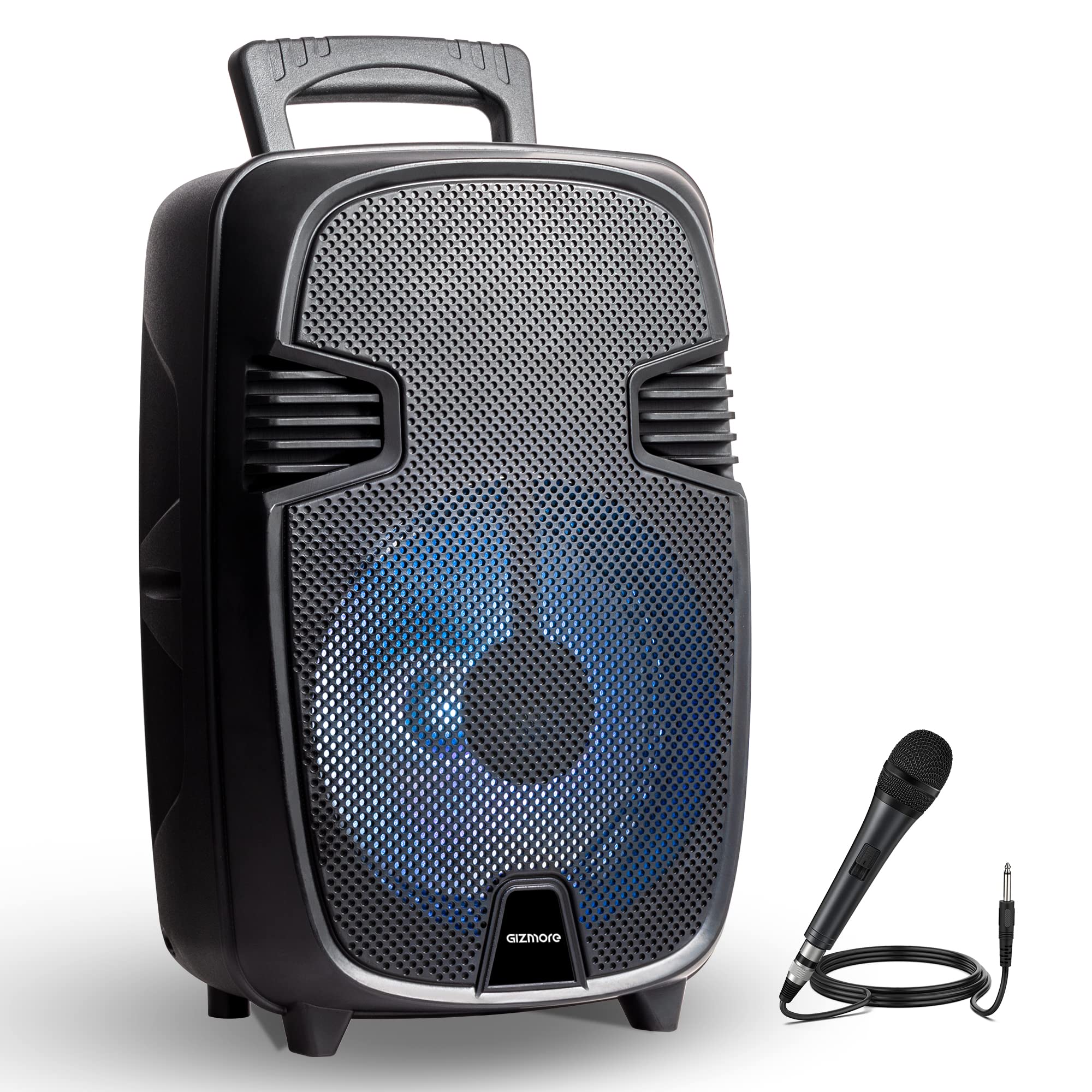
2. Product Components
The package includes the following items:
- Main Unit (GIZ WHEELZ T1000 Pro Speaker)
- Charging Cable
- User Manual
- Aux Cable
- Wired Microphone
Control Panel Layout:
Familiarize yourself with the control panel and ports located on the rear of the speaker.

3. Setup Instructions
3.1 Charging the Speaker
- Locate the Charging Slot on the rear control panel (refer to Figure 2).
- Connect the provided charging cable to the speaker's charging slot.
- Plug the other end of the charging cable into a suitable power outlet.
- Allow the speaker to charge fully before first use. The charging indicator light (if present) will typically change color or turn off when charging is complete.
Note: The speaker can be used while charging, but for optimal battery life, it is recommended to fully charge it before disconnecting.
3.2 Powering On/Off
- To power on the speaker, locate the Power switch (often integrated with the Volume knob or a separate switch) on the control panel and turn it to the "ON" position.
- To power off, turn the switch to the "OFF" position.
4. Operating Instructions
4.1 Bluetooth Pairing
- Ensure the speaker is powered on.
- Press the MODE button (refer to Figure 2) repeatedly until "Bluetooth" mode is selected. The speaker will typically emit an audible prompt or display "BT" on a screen (if available).
- On your Bluetooth-enabled device (smartphone, tablet, etc.), go to the Bluetooth settings and search for available devices.
- Select "GIZ WHEELZ T1000 Pro" (or similar name) from the list of devices.
- Once paired, the speaker will indicate a successful connection, and you can begin streaming audio.
4.2 USB/SD Card Playback
- Insert a USB flash drive or SD/TF card containing MP3 audio files into the respective slot on the control panel (refer to Figure 2).
- The speaker should automatically switch to USB or SD card mode and begin playing the audio files. If not, press the MODE button to select the correct input.
- Use the Previous Track, Play/Pause, and Next Track buttons to control playback.
4.3 AUX Input
- Connect one end of the provided AUX cable to the AUX IN port on the speaker (refer to Figure 2).
- Connect the other end of the AUX cable to the audio output jack of your external device (e.g., smartphone, MP3 player).
- Press the MODE button until "AUX" mode is selected.
- Control playback and volume from your external device.
4.4 Microphone Usage (Karaoke)
- Plug the wired microphone into the MIC Jack In port on the control panel (refer to Figure 2).
- Adjust the microphone volume using the MIC Volume knob.
- Adjust the echo effect using the ECHO Control knob for desired vocal enhancement.
- Ensure the main volume of the speaker is set to an appropriate level.
4.5 LED Light Control
The speaker features multi-color LED lights. Use the MODE/LED Switch (refer to Figure 2) to turn the LED lights on or off, or to cycle through different light modes if available.

5. Maintenance
5.1 Cleaning
- Always power off and unplug the speaker before cleaning.
- Use a soft, dry cloth to wipe the exterior surfaces of the speaker.
- Do not use liquid cleaners, aerosols, or solvents, as these may damage the finish or internal components.
- Keep the speaker free from dust and debris, especially around the grille and ports.
5.2 Battery Care
- To prolong battery life, avoid fully discharging the battery frequently.
- Charge the speaker regularly, even if not in use, to maintain battery health.
- Store the speaker in a cool, dry place when not in use for extended periods.
- Avoid exposing the speaker to extreme temperatures.
5.3 Storage
- When storing the speaker, ensure it is powered off.
- Keep it in its original packaging or a protective cover to prevent dust accumulation and physical damage.
- Avoid placing heavy objects on top of the speaker.
6. Troubleshooting
| Problem | Possible Cause | Solution |
|---|---|---|
| Speaker does not power on. | Battery is discharged. Power switch is off. | Connect the speaker to a power source using the charging cable and allow it to charge. Ensure the power switch is in the "ON" position. |
| No sound from the speaker. | Volume is too low. Incorrect input mode selected. Device not properly connected (Bluetooth/AUX). | Increase the speaker's main volume and the volume on your connected device. Press the MODE button to select the correct input source (Bluetooth, USB, SD, AUX). Re-pair Bluetooth device or re-connect AUX cable. |
| Bluetooth device cannot pair. | Speaker is not in pairing mode. Device is too far from the speaker. Interference from other devices. | Ensure the speaker is in Bluetooth mode and actively searching for devices. Move your device closer to the speaker (within 10 meters). Turn off other Bluetooth devices nearby. |
| Microphone not working or poor quality. | Microphone not fully plugged in. MIC Volume is too low. Faulty microphone. | Ensure the microphone is securely plugged into the MIC Jack In. Increase the MIC Volume knob. Test with another microphone if available. |
| USB/SD card not playing. | Incorrect file format. Card/drive not inserted correctly. Corrupted files. | Ensure files are in MP3 format. Re-insert the USB drive or SD card. Try a different USB drive or SD card. |
7. Specifications
| Brand | GIZMORE |
| Model Number | GIZ WHEELZ1000 |
| Item Type Name | Bluetooth Party Speaker |
| Connectivity Technology | Bluetooth, USB, Wireless |
| Audio Input | USB, SD Card, Wired Mic, Bluetooth |
| Output Wattage | 100 Watts (RMS, typically) / 1000W P.M.P.O. |
| Power Source | Battery Powered |
| Item Dimensions (L x W x H) | 18.2 x 24.5 x 37 Centimeters |
| Item Weight | 1.9 Kilograms |
| Enclosure Material | Plastic |
| Compatible Devices | Smartphone, Tablet |
| Color | Black |
8. Warranty Information
The GIZMORE GIZ WHEELZ T1000 Pro Portable Bluetooth Party Speaker comes with a 1 Year Manufacturer Warranty from the date of purchase. This warranty covers manufacturing defects. Please retain your purchase receipt for warranty claims. For detailed terms and conditions, please contact customer support.
9. Customer Support
For any queries, technical assistance, or warranty claims, please contact GIZMORE customer support:
- Manufacturer: Gizmore, Sales & Marketing In India By ZAZZ Technology Connect Pvt. Ltd.
- Address: A-30, First Floor, (F.I.E.E Complex) Okhla Industrial Area, Phase-2, New Delhi-110020, India
- Phone: +91-9654034400
- Email: customercare@gizmore.in