
Introduction
This manual provides essential information for the safe and efficient operation of your Thboxes KT107 10.1 Inch 4G-LTE Tablet. Please read this manual thoroughly before using the device and keep it for future reference.
Product Overview
The Thboxes KT107 is a 10.1-inch tablet featuring 4G-LTE connectivity, running Android 8.0. It is equipped with a powerful processor, ample storage, dual SIM support, and GPS functionality, designed for versatile use.
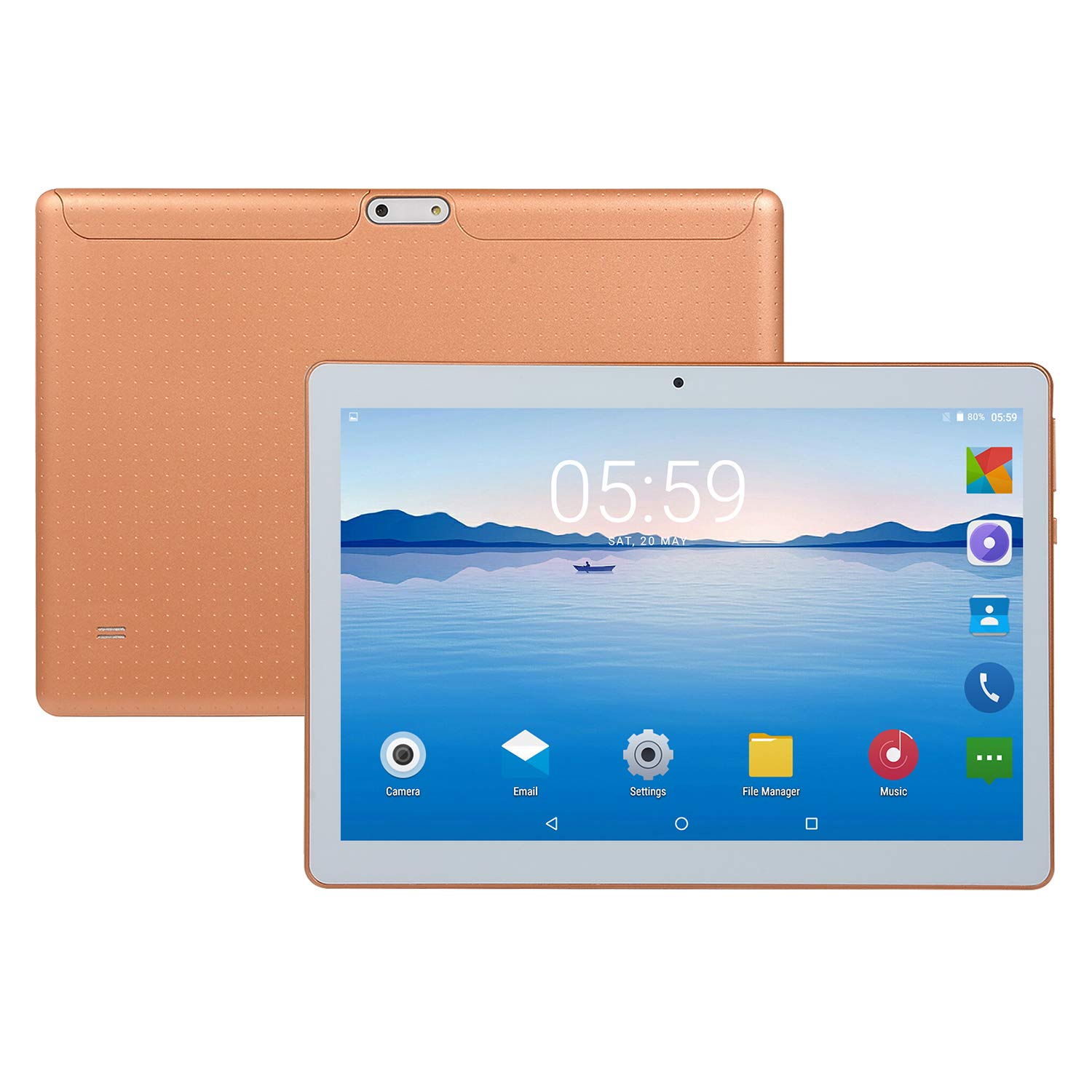
Figure 1: Front view of the Thboxes KT107 tablet displaying its home screen with various application icons and the current time.
Key Features
- Operating System: Android 8.0
- Processor: Top Ten Cores (MTK6797 CPU, Mali 400 GPU)
- Memory: 8GB RAM, 128GB ROM (expandable up to 64GB via Micro SD/TF)
- Display: 10.1-inch capacitive touch screen with 1960 * 1080 resolution
- Connectivity: Wi-Fi (IEEE 802.11 b/g/n), 3G, 4G LTE, Bluetooth 4.1, Micro-USB
- Cameras: Built-in 13.0MP rear camera, 8.0MP front camera
- Additional Features: Dual SIM support, GPS, G-sensor, OTG function, MP3 player, web browser, e-book reader.

Figure 2: Visual representation of the tablet's core specifications and capabilities, including its operating system, connectivity, and processing power.
Setup Guide
1. Charging the Tablet
Before initial use, fully charge the tablet using the provided power supply. Connect the Micro-USB cable to the tablet's charging port and the adapter to a power outlet. The battery indicator on the screen will show charging status.
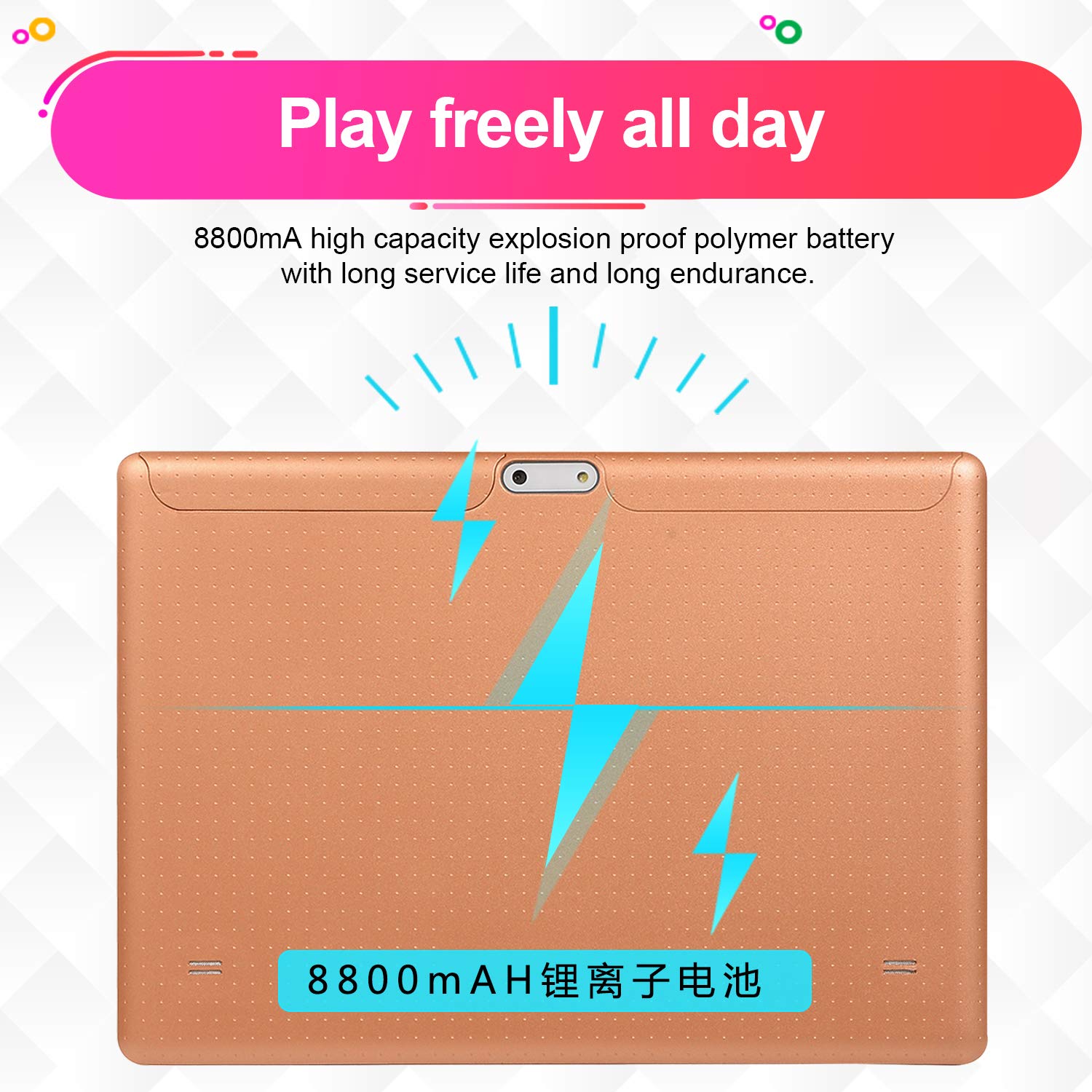
Figure 3: The tablet's robust 8800mAh battery, indicating long endurance for extended use.
2. Inserting SIM and Micro SD/TF Cards
The tablet supports dual SIM cards and a Micro SD/TF card for memory expansion.
- Locate the SIM/SD card tray on the side of the tablet.
- Carefully open the tray using the provided tool (if applicable) or by gently prying it open.
- Insert the SIM cards and Micro SD/TF card into their respective slots, ensuring correct orientation.
- Close the tray securely.

Figure 4: Diagram illustrating the location of the headphone jack, volume buttons, power button, and camera on the tablet's chassis, which also indicates the general area for card slots.
3. Powering On/Off
- To Power On: Press and hold the power button (refer to Figure 4) until the screen lights up.
- To Power Off: Press and hold the power button until a power options menu appears. Select "Power Off".
- To Restart: From the power options menu, select "Restart".
4. Initial Setup
Upon first power-on, the tablet will guide you through an initial setup process. Follow the on-screen prompts to select your language, connect to Wi-Fi, set up your Google account, and configure other basic settings.
Operating Instructions
1. Basic Navigation
The tablet features a capacitive touch screen for interaction:
- Tap: Touch the screen once to select an item or open an application.
- Tap and Hold: Touch and hold an item to access contextual menus or move icons.
- Swipe: Drag your finger across the screen to scroll through pages or lists.
- Pinch-to-Zoom: Use two fingers to zoom in or out on images and web pages.
2. Wi-Fi and Bluetooth Connectivity
To connect to Wi-Fi or Bluetooth devices:
- Go to Settings > Network & Internet (for Wi-Fi) or Connected devices (for Bluetooth).
- Toggle Wi-Fi or Bluetooth On.
- Select the desired network or device from the list and enter credentials if required.

Figure 5: The tablet's high-speed Wi-Fi capability, enabling smoother network experiences and connectivity with Bluetooth devices.
3. Using the Cameras
The tablet is equipped with both front (8.0MP) and rear (13.0MP) cameras.
- Open the Camera application from the home screen or app drawer.
- Tap the camera switch icon to alternate between the front and rear cameras.
- Tap the shutter button to take a photo or start/stop video recording.

Figure 6: The tablet's front-facing camera in action, demonstrating its capability for capturing images.
4. GPS Functionality
The built-in GPS allows for location services and navigation. Ensure GPS is enabled in Settings > Location for applications to utilize this feature.
5. Multimedia Playback
The tablet supports various video and audio formats. Use the pre-installed media players or download preferred applications from the Google Play Store.
- Video formats: 3GP, AVI, MP4, MKV, F4V, etc.
- Audio: MP3 player functionality.
6. OTG Function
The tablet supports On-The-Go (OTG) functionality, allowing you to connect USB devices such as flash drives, keyboards, or mice using an OTG cable (included in package).
Maintenance
1. Battery Care
- Avoid exposing the tablet to extreme temperatures.
- Do not allow the battery to fully discharge frequently.
- Use only the original charger or a certified compatible charger.
2. Cleaning the Tablet
- Use a soft, lint-free cloth to clean the screen and body.
- For stubborn smudges, slightly dampen the cloth with water or a screen cleaner.
- Avoid using harsh chemicals or abrasive materials.
3. Software Updates
Periodically check for system updates in Settings > System > System update to ensure optimal performance and security. Ensure your tablet is sufficiently charged and connected to Wi-Fi before performing updates.
4. Storage Management
Regularly manage your tablet's storage (128GB ROM, expandable with 64GB Micro SD/TF) by deleting unnecessary files, uninstalling unused apps, and moving media to external storage to maintain performance.
Troubleshooting
If you encounter issues with your tablet, refer to the following common solutions:
| Problem | Possible Solution |
|---|---|
| Tablet does not power on. | Ensure the battery is charged. Connect the charger and wait a few minutes before attempting to power on again. |
| Wi-Fi connection issues. | Restart the tablet and your Wi-Fi router. Forget the network in settings and reconnect. Ensure you are within range. |
| Slow performance or freezing. | Close unused applications. Clear cache for problematic apps. Restart the tablet. Consider a factory reset if issues persist (back up data first). |
| SIM card not detected. | Ensure the SIM card is correctly inserted and activated. Restart the tablet. |
| Screen not responding to touch. | Restart the tablet. Ensure the screen is clean and free of debris. |
Specifications
Detailed technical specifications for the Thboxes KT107 tablet:
| Feature | Detail |
|---|---|
| Brand | Thboxes |
| Model Name | KT107 |
| Operating System | Android 8.0 Oreo |
| Processor Brand | MediaTek (Top Ten Cores, MTK6797 CPU, Mali 400 GPU) |
| RAM | 8 GB |
| Internal Storage (ROM) | 128 GB |
| Memory Expansion | Up to 64 GB Micro SD/TF |
| Screen Size | 10.1 Inches |
| Screen Resolution | 1960 x 1080 pixels |
| Display Technology | LCD, Capacitive Touch Screen |
| Rear Camera | 13.0 MP |
| Front Camera | 8.0 MP |
| Battery Capacity | 8800 mAh |
| Connectivity | Wi-Fi (802.11 b/g/n), Bluetooth 4.1, 3G, 4G LTE, Micro-USB |
| SIM Support | Dual SIM Wireless |
| Sensors | G-sensor, GPS, Gravity Sensor |
| Special Features | Touch screen, OTG function, Face detection, E-book, Web browser, MP3 player |
| Languages Supported | German, English, Chinese, Simplified Chinese, Japanese, Korean, French, Russian, Italian, etc. |
Warranty Information
This product comes with a standard warranty. For detailed information regarding warranty terms, conditions, and duration, please refer to the warranty policy provided at the time of purchase or contact your retailer. Keep your proof of purchase for warranty claims.
Note: The warranty policy is subject to the terms and conditions of the seller and manufacturer.
Customer Support
If you require further assistance or encounter issues not covered in this manual, please contact Thboxes customer support or your authorized retailer. Please have your product model (KT107) and purchase details ready when contacting support.
For online resources, visit the official Thboxes website (if available).