
Introduction
This manual provides detailed instructions for the KSW KINGDO Stylus, designed for use with compatible Apple iPad models. Please read this manual thoroughly before using the stylus to ensure proper operation and to maximize its lifespan.
The KSW KINGDO Stylus features palm rejection technology, fast charging, and a replaceable tip, offering a seamless writing and drawing experience on your iPad.
Compatibility
The KSW KINGDO Stylus is compatible only with Apple iPad models released in 2018 or later. Ensure your iPad's operating system is updated to iOS 12.2 or above for optimal performance.
Compatible Models:
- iPad Pro (3rd Gen, 11 Inch and 12.9 Inch): Models A1980, A2013, A1934, A1979, A1876, A2014, A1895, A1983
- iPad (6th Gen, 9.7 Inch): Models A1893, A1954
- iPad (7th Gen, 10.2 Inch): Models A2197, A2200, A2198
- iPad Air (3rd Gen, 2018): Models A2152, A2153, A2154, A2123
- iPad mini (5th Gen, 2018): Models A2124, A2125, A2126, A2133
Important: This stylus is not compatible with earlier versions of iPad, iPhone, Android devices, or Microsoft devices. It does not work with iPad Pro 1st & 2nd generation, iPad Pro 10.5", or iPad Pro 9.7".
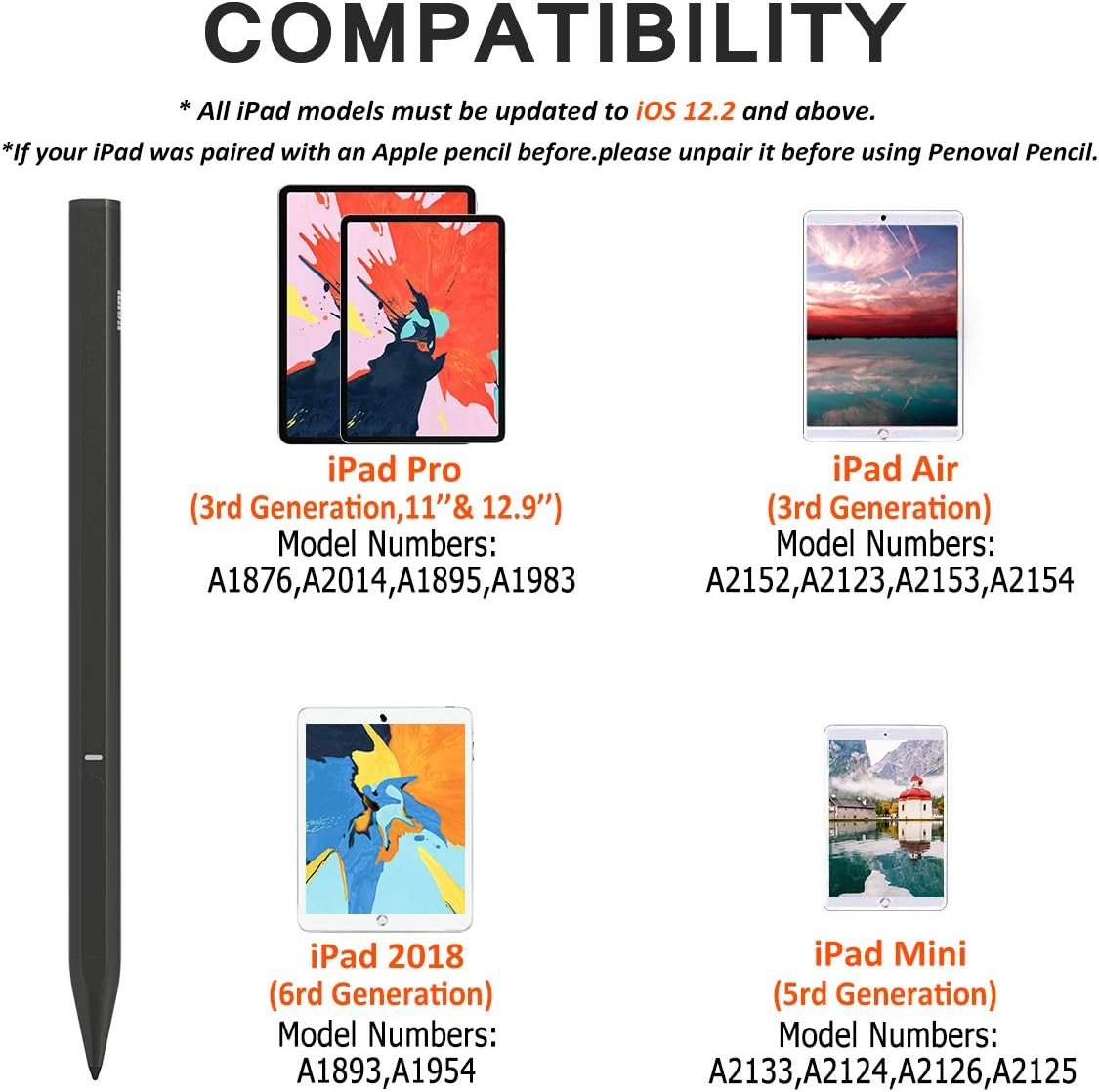
Image: Compatibility chart illustrating compatible iPad models and their specific model numbers.
Package Contents
Verify that all items are present in the package:
- 1x KSW KINGDO Stylus Pen
- 1x Micro USB Charging Cable
- 1x Spare Replacement Small Tip
- 1x User Manual (this document)

Image: The KSW KINGDO Stylus, its packaging, and included carrying case.
Setup and Initial Use
Charging the Stylus
Before first use, fully charge the stylus. Connect the provided Micro USB charging cable to the stylus's charging port and to a USB power source. The LED indicator light will show charging status.
- A 4-minute charge provides approximately 60 minutes of use.
- A full 1-hour charge provides up to 12 hours of continuous use.

Image: Detail of the Micro USB charging port and fast charging capability.
Powering On/Off
Press the Power On button located on the side of the stylus to turn it on. Press the Power Off button to turn it off. The LED indicator light will confirm the power status.

Image: Labeled diagram of the stylus components, including power buttons and charging port.
No Pairing Required
The KSW KINGDO Stylus does not require Bluetooth pairing or drivers. Simply power it on and begin using it with your compatible iPad.
If you have previously paired an Apple Pencil with your iPad, please unpair it before using the KSW KINGDO Stylus to avoid conflicts.
Operating Instructions
Using the Stylus
Once powered on, the stylus is ready for immediate use. Hold the stylus as you would a traditional pen and interact with your iPad screen. It is suitable for writing, drawing, navigating, and other touch-based interactions.

Image: Stylus in use on an iPad, highlighting its precision and smooth performance.
Palm Rejection Technology
The stylus incorporates palm rejection technology, allowing you to rest your palm comfortably on the iPad screen while writing or drawing. This prevents unintended marks or actions from your hand touching the display.

Image: Demonstration of palm rejection, showing a user's hand resting on the iPad screen while writing with the stylus.
Maintenance
Replacing the Stylus Tip
The stylus comes with a spare replacement tip. If the original tip becomes worn or damaged, it can be easily replaced. Gently pull the old tip straight out from the stylus body. Insert the new tip firmly until it clicks into place.
Image: Detailed view of the stylus tip and the process for replacement.
Cleaning
Wipe the stylus body with a soft, dry cloth. Do not use abrasive cleaners or immerse the stylus in water.
Troubleshooting
Stylus Not Writing or Responding
- Check Compatibility: Ensure your iPad model is listed in the "Compatibility" section and that its iOS version is 12.2 or above.
- Charge the Stylus: The stylus may have insufficient battery. Charge it for at least 4 minutes.
- Disable Apple Pencil Settings: If you previously used an Apple Pencil, its settings might interfere. Go to your iPad's Settings > Apple Pencil and turn off "Apple Pencil". Also, go to Settings > Notes and turn off "Only Draw with Apple Pencil".
- Restart iPad: A simple restart of your iPad can resolve temporary software glitches.
- Check Stylus Tip: Ensure the stylus tip is securely attached and not damaged. Replace if necessary.
Stylus Disconnecting or Intermittent Performance
- Battery Level: Low battery can cause intermittent performance. Ensure the stylus is adequately charged.
- Interference: Ensure no other active styluses or Bluetooth devices are causing interference.
Specifications
| Brand | KSW KINGDO |
| Model | B081SXWLNF |
| Color | Black |
| Material | Aluminum |
| Item Weight | 1.45 ounces (41 Grams) |
| Batteries | 1 Lithium Ion battery (included) |
| Charging Time | 1 Hour for full charge |
| Usage Time | Up to 12 hours (from 1-hour charge); 60 minutes (from 4-minute charge) |
| Compatible Devices | Specific iPad models (2018 or later) |
Warranty and Support
The KSW KINGDO Stylus comes with a 30-Day Money Back Guarantee and a 12-Month Replacement Warranty.
For warranty claims, technical support, or any inquiries regarding your product, please refer to the contact information provided with your purchase or visit the official KSW KINGDO store on Amazon.


