
1. Introduction
This manual provides detailed instructions for the Pendoo T95 Android TV Box. Please read this manual carefully before using the device to ensure proper operation and to maximize your viewing experience. The Pendoo T95 features Android 10.0, an Allwinner H616 Quad-core 64bit processor, 4GB RAM, 32GB ROM, 2.4G/5GHz Dual WiFi, Bluetooth, and supports 6K/4K Ultra HD video playback.
2. Package Contents
Verify that all items are present in the package:
- Pendoo T95 Android TV Box
- Remote Control
- Power Adapter
- HDMI Cable
- User Manual

Image: The Pendoo T95 Android TV Box and its accompanying remote control, showcasing the main unit and its primary input device.

Image: All components included in the Pendoo T95 package, including the TV box, HDMI cable, remote control, power supply, and user manual.
3. Setup Guide
Follow these steps to set up your Pendoo T95 Android TV Box:
- Connect to TV: Connect the HDMI cable from the TV Box to an HDMI input port on your television.
- Connect Power: Plug the power adapter into the DC port on the TV Box, then plug the adapter into a wall outlet.
- Network Connection:
- Wi-Fi: Go to Settings > Network and select your Wi-Fi network. Enter the password if required.
- Ethernet: Connect an Ethernet cable from your router to the LAN port on the TV Box.
- Initial Boot: The device will automatically power on and boot up. The Pendoo logo will appear on your screen.
- Remote Control: Insert two AAA batteries (not included) into the remote control.
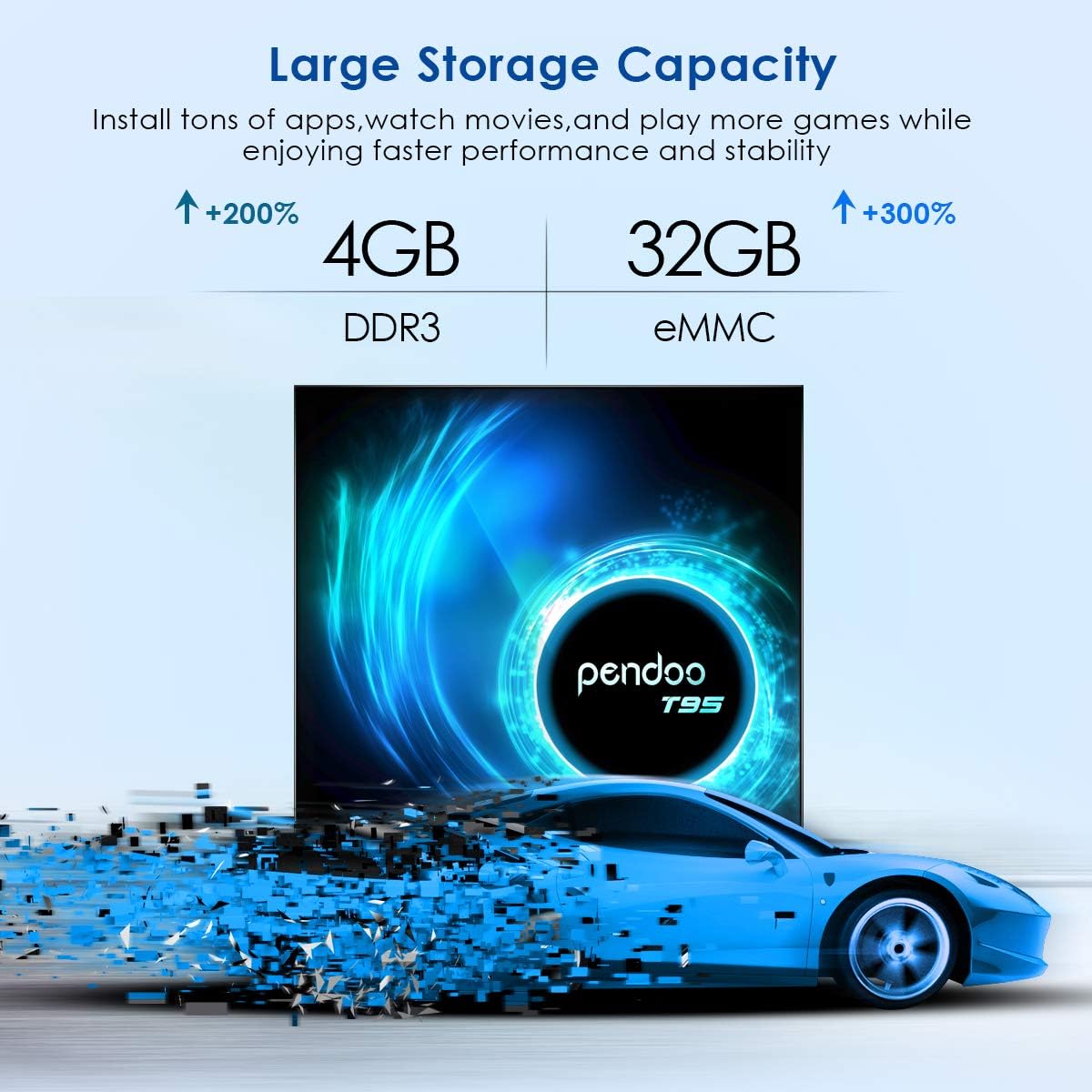
Image: Rear and side views of the Pendoo T95 TV Box, highlighting its various ports such as AV, Ethernet, HDMI, Power, USB, and TF Card slot for connectivity.
Video: An official Pendoo video demonstrating the features and interfaces of the T95 Android TV Box, including its high-performance processor and various connectivity options.
4. Operating Instructions
4.1 Navigating the Interface
The Pendoo T95 runs on Android 10.0, offering a user-friendly interface. Use the remote control to navigate through menus and select applications.
- Use the directional pad (up, down, left, right) to move between icons.
- Press the "OK" button to select an item.
- Press the "Back" button to return to the previous screen.
- Press the "Home" button to return to the main home screen.

Image: The Pendoo T95's home screen, showcasing the Android 10.0 operating system and pre-installed applications for streaming and entertainment.
4.2 Media Playback
The device supports 6K/4K Ultra HD video playback and various media formats. You can play media from:
- USB Drives: Insert a USB drive into one of the USB ports.
- TF Card: Insert a TF card into the designated slot.
- Network Storage: Access media from network-attached storage (NAS) or shared folders on your local network.
- Streaming Apps: Use pre-installed or downloaded streaming applications.

Image: A television screen displaying vibrant 6K UHD content, illustrating the Pendoo T95's capability to deliver high-resolution video with HDR and 3D support.
4.3 Screen Mirroring
The Pendoo T95 supports screen mirroring technologies like Airplay, DLNA, and Miracast, allowing you to cast content from your smartphone or tablet to your TV.
- Ensure your mobile device and the TV Box are connected to the same Wi-Fi network.
- Open the screen mirroring application on the TV Box (e.g., Miracast Receiver).
- On your mobile device, enable screen mirroring/casting and select the TV Box from the list of available devices.

Image: A visual representation of the screen mirroring function, showing a smartphone and tablet casting their displays to a television via the Pendoo T95.
5. Maintenance
To ensure the longevity and optimal performance of your Pendoo T95 Android TV Box, follow these maintenance guidelines:
- Cleaning: Use a soft, dry cloth to clean the exterior of the device. Do not use liquid cleaners or abrasive materials.
- Ventilation: Ensure the device is placed in a well-ventilated area to prevent overheating. Do not block the ventilation holes.
- Software Updates: Periodically check for system updates in the device settings to ensure you have the latest features and security patches.
- Power Cycle: If the device becomes unresponsive, disconnect the power adapter, wait 10 seconds, and then reconnect it.
Video: An official Pendoo video highlighting the design and features of the T95 Android TV Box, including its ventilation system for optimal performance.
6. Troubleshooting
If you encounter issues with your Pendoo T95, refer to the following common problems and solutions:
| Problem | Solution |
|---|---|
| No power/Device not turning on |
|
| No display on TV |
|
| Wi-Fi connection issues |
|
| Remote control not working |
|
| Slow performance or freezing |
|
7. Specifications
| Feature | Detail |
|---|---|
| Model | Pendoo T95 |
| Operating System | Android 10.0 |
| Processor | Allwinner H616 Quad-core 64bit |
| RAM | 4GB DDR3 |
| ROM | 32GB eMMC |
| Wi-Fi | 2.4G/5GHz Dual-Band |
| Bluetooth | Yes |
| Video Output | 6K/4K Ultra HD, 3D, H.265 |
| Connectivity | HDMI, USB (2x), Ethernet, AV, TF Card Slot |
| Dimensions | 3.93 x 3.93 x 0.59 inches |
| Weight | 12.8 ounces |
8. Warranty and Support
For warranty information and technical support, please refer to the contact details provided with your purchase or visit the official Pendoo website. Keep your purchase receipt as proof of purchase for warranty claims.
For further assistance, you may contact Pendoo customer service through their official channels.