
Introduction
The Plume Labs Flow 2 is an advanced personal air quality sensor designed to help you understand and reduce your exposure to air pollution. It provides real-time measurements of various pollutants, including Particulate Matter (PM1, PM2.5, PM10), Volatile Organic Compounds (VOCs), and Nitrogen Dioxide (NO2). This manual provides essential information for setting up, operating, maintaining, and troubleshooting your Flow 2 device.
What's in the Box
Upon unboxing your Plume Labs Flow 2, please ensure all the following components are present:
- Plume Labs Flow 2 Personal Air Quality Sensor
- USB-C to USB-C Charging Cable (1m / 3ft)
- USB-C Power Dock
- Welcome Guide / Quick Start Manual

Image: The Plume Labs Flow 2 packaging and its contents, showing the sensor, USB-C cable, power dock, and a welcome booklet.
Product Overview and Features
The Flow 2 sensor is designed for portability and ease of use, allowing you to monitor air quality wherever you go. It connects to your smartphone via Bluetooth, providing detailed insights through the dedicated Flow app.

Image: An illustration highlighting the key features of the Flow 2: detection of VOC, PM1, PM2.5, PM10, and NO2, along with its 24+ hour battery life and Bluetooth connectivity.
Key Features:
- Comprehensive Air Quality Monitoring: Measures PM1, PM2.5, PM10, VOC, and NO2.
- Real-time Data: Provides instant readings and historical data via the Flow app.
- Portable Design: Compact and lightweight, ideal for on-the-go monitoring.
- Long Battery Life: Offers 24+ hours of continuous use on a single charge.
- Bluetooth Connectivity: Seamlessly connects to your smartphone for data visualization and alerts.

Image: The Flow 2 sensor shown alongside a smartphone screen displaying the companion app, illustrating how the device and app work together to provide air quality information.

Image: A user with the Flow 2 sensor attached to their backpack, checking air quality data on their smartphone, demonstrating the device's portability and real-time monitoring capability during daily activities.
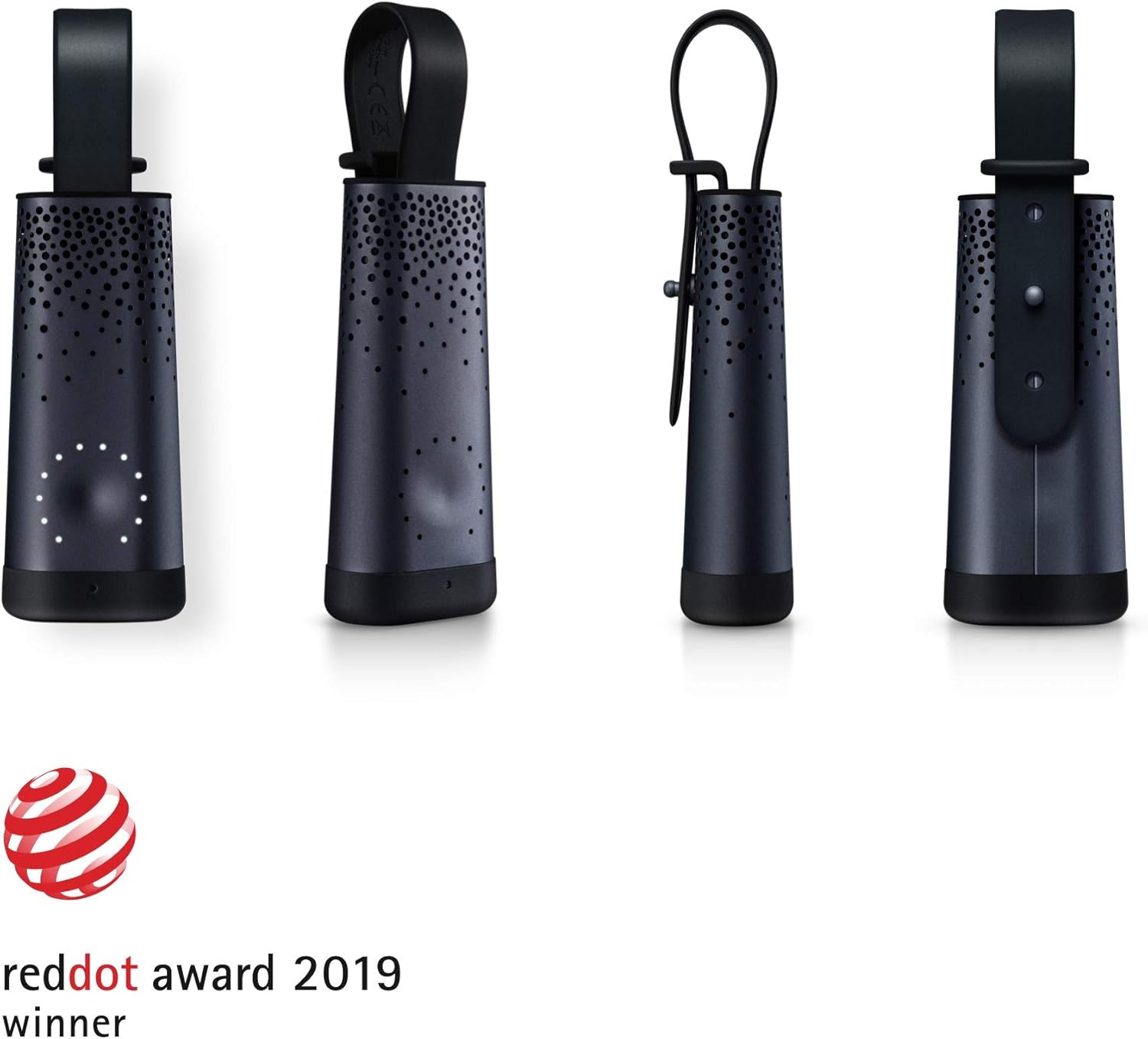
Image: Multiple angles of the Flow 2 device, highlighting its aesthetic design and the recognition it received as a Red Dot Award 2019 winner.
Setup
1. Charging the Flow 2
Before first use, fully charge your Flow 2 device. Connect the USB-C cable to the Flow 2 sensor and the USB-C Power Dock, then plug the Power Dock into a compatible USB power source (e.g., wall adapter, computer USB port). The device's LED indicator will show charging status and turn off when fully charged. A full charge typically takes a few hours.
2. Installing the Flow App
The Plume Labs Flow 2 requires the companion mobile application to function. Download the 'Flow by Plume Labs' app from your smartphone's app store:
- For iOS devices: Search for 'Flow by Plume Labs' on the Apple App Store.
- For Android devices: Search for 'Flow by Plume Labs' on Google Play Store.
Follow the on-screen instructions to install the app.
3. Pairing Your Flow 2 with the App
- Ensure your Flow 2 device is charged and powered on.
- Enable Bluetooth on your smartphone.
- Open the 'Flow by Plume Labs' app.
- Follow the in-app instructions to create an account or log in.
- The app will guide you through the pairing process. You may need to press a button on the Flow 2 or bring it close to your phone to initiate pairing.
- Once paired, the app will display real-time air quality data from your Flow 2.
Operating the Flow 2
Powering On/Off
The Flow 2 typically powers on automatically when removed from its charger or when a button (if present) is pressed. Refer to the in-app guide or the physical welcome guide for specific power controls. The device is designed for continuous monitoring when active.
Understanding Air Quality Readings
The Flow 2 measures the following pollutants:
- Particulate Matter (PM1, PM2.5, PM10): Microscopic solid or liquid particles suspended in the air. PM2.5 and PM10 are commonly monitored due to their health impacts. PM1 refers to even finer particles.
- Volatile Organic Compounds (VOCs): Gases emitted from certain solids or liquids, including a variety of chemicals that can have short- and long-term adverse health effects.
- Nitrogen Dioxide (NO2): A reddish-brown gas that is a prominent air pollutant, often associated with combustion processes (e.g., vehicle exhaust, power plants).
The Flow app provides an easy-to-understand Air Quality Index (AQI) and detailed breakdowns for each pollutant, often with color-coded indicators for different pollution levels (e.g., Good, Moderate, Unhealthy for Sensitive Groups, Unhealthy, Very Unhealthy, Hazardous).
Using the Flow App
The Flow app is your primary interface for interacting with the sensor and understanding your air quality data. Key features include:
- Real-time Dashboard: View current air quality levels.
- Historical Data: Track air quality trends over hours, days, or weeks.
- Personalized Insights: Receive recommendations based on your exposure.
- Map View: See air quality data from other Flow users in your area (if enabled and available).
- Alerts: Set up notifications for when air quality reaches certain thresholds.
Explore the app's various sections to fully utilize your Flow 2 sensor.
Maintenance
Cleaning
To maintain optimal performance, keep your Flow 2 sensor clean. Gently wipe the exterior with a soft, dry, or slightly damp cloth. Do not use harsh chemicals, abrasive cleaners, or immerse the device in water. Ensure the sensor openings are free from dust and debris.
Battery Care
The Flow 2 uses a Lithium Polymer battery. To prolong battery life:
- Avoid fully discharging the battery frequently.
- Store the device in a cool, dry place when not in use for extended periods.
- Charge the device regularly, even if not in daily use, to prevent deep discharge.
Troubleshooting
If you encounter issues with your Plume Labs Flow 2, try the following steps:
Device Not Turning On/Charging:
- Ensure the USB-C cable is securely connected to both the Flow 2 and the power source.
- Try a different USB-C cable or power adapter.
- Verify the power source is active.
Cannot Connect to App / Bluetooth Issues:
- Ensure Bluetooth is enabled on your smartphone.
- Make sure the Flow 2 is within Bluetooth range (typically 10 meters or 30 feet).
- Restart your Flow 2 device (if applicable, refer to welcome guide for specific restart instructions).
- Close and reopen the Flow app.
- Try unpairing and re-pairing the device through your phone's Bluetooth settings and the Flow app.
- Check for app updates in your app store.
Inaccurate Readings:
- Ensure the sensor openings are not blocked or dirty.
- Allow the device to acclimate to a new environment for a few minutes before taking readings.
- Avoid placing the device directly in front of strong air currents, vents, or sources of pollution (e.g., cooking fumes, smoke).
If problems persist, please refer to the support section of the Flow app or contact Plume Labs customer support.
Specifications
| Attribute | Detail |
|---|---|
| Model Number | PL-002 |
| Manufacturer | Plume Labs |
| Dimensions | 4.92 x 1.57 x 0.98 inches |
| Item Weight | 11.6 ounces (0.33 Kilograms) |
| Battery Type | Lithium Polymer |
| Connectivity | Bluetooth |
| Pollutants Measured | PM1, PM2.5, PM10, VOC, NO2 |
| First Available Date | November 25, 2019 |
Warranty and Support
The Plume Labs Flow 2 comes with a standard manufacturer's warranty. Please refer to the warranty information provided in your product packaging or on the official Plume Labs website for specific terms and conditions.
For technical support, troubleshooting assistance, or warranty claims, please visit the Plume Labs support page or contact their customer service directly. You can often find support contact information within the Flow mobile application or by visiting the official Plume Labs website: www.plumelabs.com/en/support (Note: This is a placeholder URL, please refer to the actual manufacturer's website for current support information).