
Blyss B081QF516T
Blyss Wired Video Intercom System User Manual
Model: B081QF516T
Introduction
This manual provides detailed instructions for the installation, operation, and maintenance of your Blyss Wired Video Intercom System. Please read this manual thoroughly before using the product to ensure proper function and safety.
Safety Information
- Ensure the power supply is disconnected before installation or maintenance.
- Do not expose the device to extreme temperatures, humidity, or direct sunlight.
- Avoid dropping or subjecting the device to strong impacts.
- Do not attempt to disassemble or repair the unit yourself. Refer all servicing to qualified personnel.
- Keep out of reach of children.
Package Contents
Please check the package contents upon opening to ensure all components are present:
- 1 x Indoor Monitor Unit
- 1 x Outdoor Peephole Camera Unit
- Mounting Screws and Wall Plugs
- User Manual (this document)
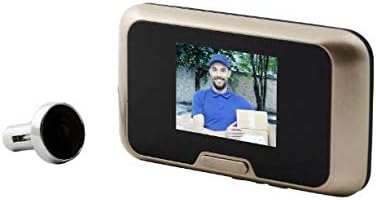
Image: The main components of the Blyss Wired Video Intercom System, showing the indoor monitor and the outdoor peephole camera.
Setup and Installation
Follow these steps for proper installation of your video intercom system:
- Prepare the Door: Ensure the existing peephole hole is clean and of the correct diameter for the outdoor camera unit. If no peephole exists, drill a suitable hole according to the product specifications (typically 14-22mm).
- Install Outdoor Camera: Insert the outdoor peephole camera unit through the hole from the outside of the door. Ensure the cable is fed through to the inside.
- Mount Indoor Monitor: Secure the mounting bracket for the indoor monitor unit on the inside of the door, aligning it with the camera cable. Use the provided screws and wall plugs if necessary.
- Connect Cables: Connect the cable from the outdoor camera unit to the corresponding port on the indoor monitor unit. Ensure a secure connection.
- Power On: Insert the required batteries (if applicable, though specifications state "No" for batteries included/required, implying wired power or internal battery) or connect the power adapter to the indoor monitor unit. The system should power on automatically.
- Test Functionality: Check the display on the indoor monitor to ensure it shows a clear image from the outdoor camera. Test the doorbell function if applicable.
Operating Instructions
Using your Blyss Video Intercom System is straightforward:
- Viewing Outside: When someone presses the doorbell button on the outdoor unit, the indoor monitor will automatically display the live video feed. You can also manually press the view button on the indoor monitor to see outside at any time.
- Taking Photos/Recording: If your model supports it, there may be a button to capture a still image or record a short video clip of the visitor. Refer to the on-screen icons for these functions.
- Adjusting Settings: Access the system settings via the menu button on the indoor monitor. Here you can adjust brightness, contrast, ringtone volume, and other preferences.
Maintenance
To ensure the longevity and optimal performance of your intercom system:
- Cleaning: Use a soft, dry cloth to clean the indoor monitor screen and the outdoor camera lens. Do not use abrasive cleaners or solvents.
- Outdoor Unit: Periodically check the outdoor camera lens for dirt, dust, or cobwebs that may obstruct the view.
- Connections: Ensure all wired connections remain secure.
Troubleshooting
If you encounter issues with your Blyss Video Intercom System, refer to the following common problems and solutions:
| Problem | Possible Cause | Solution |
|---|---|---|
| No image on indoor monitor. | Power disconnected; loose cable connection; faulty camera/monitor. | Check power supply. Ensure all cables are securely connected. If problem persists, contact support. |
| Image is blurry or distorted. | Dirty camera lens; poor lighting; cable interference. | Clean the camera lens. Ensure adequate lighting. Check cable for damage or interference. |
| Doorbell not ringing. | Ringtone volume too low; faulty doorbell button; wiring issue. | Check ringtone volume in settings. Inspect doorbell button for damage. Verify wiring connections. |
| System frequently cuts off or shows "camera error". | Loose connection; power instability; internal fault. | Ensure all connections are firm. Check power source stability. If issues persist, professional inspection may be required. |
If the problem cannot be resolved using the above solutions, please contact customer support.
Specifications
- Model: B081QF516T
- Manufacturer: Blyss
- Package Dimensions: 18.6 x 10.9 x 4.6 cm
- Item Weight: 296 g
- Batteries Required: No (implies wired power or internal rechargeable battery)
- First Available: 19 Nov. 2019
Warranty and Support
For warranty information or technical support, please refer to the contact details provided at the point of purchase or visit the official Blyss website. Keep your purchase receipt as proof of purchase for warranty claims.
For further assistance, you may contact Blyss customer service through their official channels. Please have your product model number (B081QF516T) ready when contacting support.