
1. Introduction
The TP-Link HC220-G1 AC1300 Home Wi-Fi System is designed to provide a unified wireless network throughout your entire home. It utilizes a single Wireless network name (SSID) for seamless connectivity. Advanced features like AP Steering and Band Steering intelligently connect your devices to the node with the strongest signal, eliminating sudden dropouts as you move devices between rooms and ensuring a truly seamless online experience.
Key features include:
- Seamless Roaming: AP Steering and Band Steering features ensure seamless handover while moving through the home.
2. Setup Guide
2.1 What's in the Box
Before you begin, ensure all components are present:
- TP-Link HC220-G1 Wi-Fi System Unit(s)
- Power Adapter(s)
- Ethernet Cable
- Quick Installation Guide
2.2 Initial Placement
Place the primary HC220-G1 unit near your modem or main internet connection point. For optimal coverage, position additional units (if applicable) strategically throughout your home, avoiding obstructions like thick walls or large metal objects.
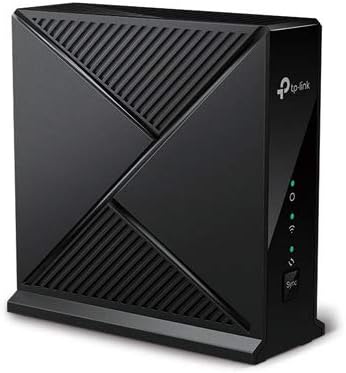
Figure 1: Front view of the TP-Link HC220-G1 unit, showing its compact black design and indicator lights.
2.3 Connection Steps
- Power Off: Disconnect your modem and existing router (if any) from power.
- Connect Primary Unit: Connect one end of the provided Ethernet cable to the LAN port of your modem and the other end to the WAN/LAN port on the primary HC220-G1 unit.
- Power On: Connect the power adapter to the primary HC220-G1 unit and plug it into a power outlet. Wait for the unit to power on and the indicator light to turn solid blue (or as indicated in the Quick Installation Guide).
- Connect Additional Units (if applicable): For multi-unit systems, place additional units in desired locations and power them on. They will automatically connect to the primary unit.
- Network Configuration: Download the TP-Link Deco app (or similar, refer to Quick Installation Guide) on your smartphone and follow the on-screen instructions to set up your Wi-Fi network name (SSID) and password.
3. Operating Instructions
3.1 Network Configuration and Management
The TP-Link HC220-G1 system is primarily managed through the dedicated mobile application. This app allows you to:
- Change Wi-Fi name (SSID) and password.
- View connected devices.
- Set up parental controls.
- Prioritize devices (QoS).
- Perform firmware updates.
3.2 Seamless Roaming Technology
The HC220-G1 system employs AP Steering and Band Steering technologies to ensure a smooth Wi-Fi experience. Your devices will automatically switch to the strongest Wi-Fi band (2.4 GHz or 5 GHz) and the nearest HC220-G1 unit as you move around your home, without requiring manual reconnection.
4. Maintenance and Care
- Cleaning: Use a soft, dry cloth to clean the exterior of the unit. Do not use liquid cleaners or aerosols.
- Ventilation: Ensure the units are placed in well-ventilated areas and that their ventilation openings are not blocked.
- Firmware Updates: Regularly check for and install firmware updates via the mobile application. Updates often include performance improvements and security enhancements.
- Environmental Conditions: Operate the device within its specified temperature and humidity ranges to ensure longevity.
5. Troubleshooting
| Problem | Possible Cause | Solution |
|---|---|---|
| No Internet Connection | Modem issue, incorrect cable connection, or ISP outage. |
|
| Weak Wi-Fi Signal / Dead Zones | Poor placement of units, interference from other devices. |
|
| Cannot Connect to Wi-Fi | Incorrect Wi-Fi password, device compatibility, or network settings. |
|
6. Technical Specifications
| Feature | Detail |
|---|---|
| Brand | TP-Link |
| Model Number | HC220-G1 |
| Wireless Type | 802.11ac |
| Frequency Band Class | Single-Band |
| Frequency | 5 GHz |
| Operating System | ZyNOS |
| Item Weight | 2 pounds |
| Package Dimensions | 14.65 x 9.53 x 2.56 inches |
| Color | Black |
| Voltage | 12 Volts |
| Connectivity Technology | Wi-Fi |
| Compatible Devices | Personal Computer |
| Recommended Uses For Product | Home |
| Special Feature | WPS |
7. Warranty and Support
TP-Link products typically come with a limited warranty. Please refer to the warranty card included with your product or visit the official TP-Link website for detailed warranty terms and conditions specific to your region and model.
For technical support, troubleshooting assistance, or to download the latest drivers and firmware, please visit the TP-Link support website or contact their customer service. Contact information can usually be found on the TP-Link official website or in the product packaging.
Note: Warranty and support policies are subject to change without notice. Always refer to the most current information provided by the manufacturer.