
HP M283fdn
HP Color LaserJet Pro M283fdn User Manual
Model: M283fdn (7KW74A#B19)
1. Product Overview
The HP Color LaserJet Pro M283fdn is an efficient multifunction printer designed for high-quality color printing and enhanced productivity. This device integrates printing, scanning, copying, and faxing capabilities into a single unit. It features Smart Tasks via the HP Smart app for streamlined operations and robust security features to protect against attacks.
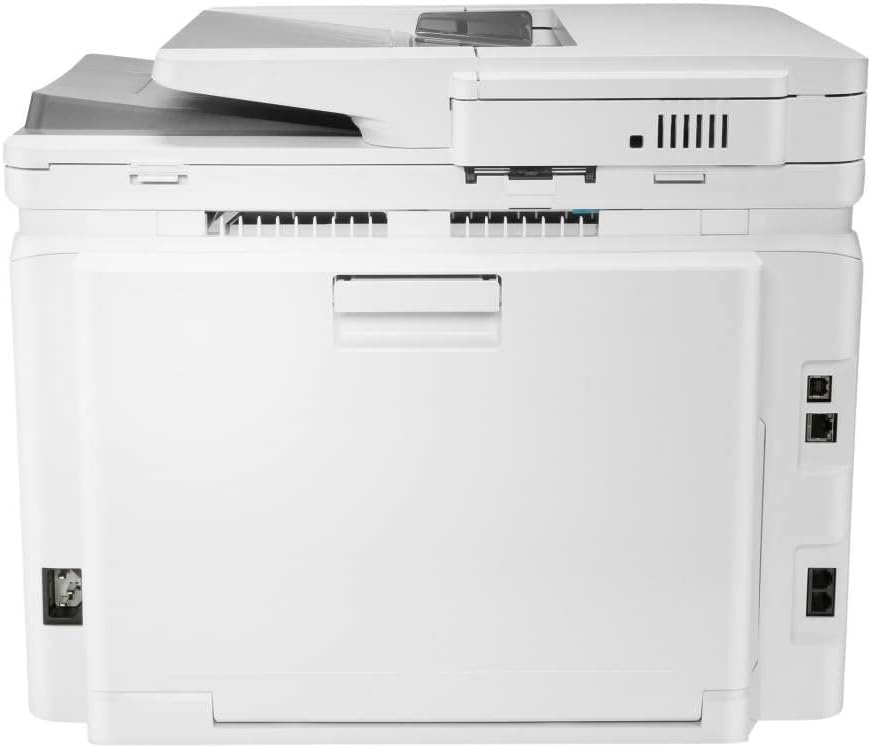
Figure 1.1: Front view of the HP Color LaserJet Pro M283fdn, showing the control panel and paper output tray.
2. Setup Guide
2.1 Unpacking and Placement
Carefully remove the printer from its packaging. Ensure all packing materials, tapes, and protective films are removed from the device. Place the printer on a stable, flat surface with adequate space around it for ventilation and access to connections.
- Ensure the printer is placed near a power outlet and a network connection point if using wired Ethernet.
- Avoid placing the printer in direct sunlight or near heat sources.
2.2 Connecting the Printer
The HP Color LaserJet Pro M283fdn supports USB and Ethernet connectivity.
- Power Connection: Connect the power cord to the printer and then to a grounded electrical outlet.
- USB Connection (Optional): For direct connection to a computer, connect a USB 2.0 cable from the printer's USB port to your computer's USB port.
- Ethernet Connection (Recommended for Network): For network printing, connect an Ethernet cable from the printer's Ethernet port to your router or network switch.

Figure 2.1: Rear view of the printer, showing the power, USB, and Ethernet ports.
2.3 Software Installation
After connecting the hardware, install the necessary drivers and software.
- Insert the installation CD (if included) or download the latest drivers from the official HP support website (www.hp.com/support).
- Follow the on-screen instructions to complete the installation. This typically includes setting up network connectivity (if applicable) and registering the printer.
3. Operating Instructions
3.1 Loading Paper
The main input tray has a maximum capacity of 250 sheets.
- Pull out the paper tray located at the bottom front of the printer.
- Adjust the paper guides to the correct paper size (e.g., A4, Letter).
- Load the paper stack into the tray, ensuring it is flat and within the guides.
- Gently push the paper tray back into the printer until it clicks into place.

Figure 3.1: Top view of the printer, showing the paper input and output areas.
3.2 Printing Documents
To print from your computer:
- Open the document you wish to print.
- Select File > Print (or the print icon).
- Choose the HP Color LaserJet Pro M283fdn from the list of available printers.
- Adjust print settings such as paper size, orientation, and color/monochrome. This model supports automatic duplex (two-sided) printing.
- Click Print.
3.3 Scanning Documents
You can scan documents using the flatbed scanner or the automatic document feeder (ADF).
- Flatbed Scanning: Place the document face-down on the scanner glass.
- ADF Scanning: Load multiple pages face-up into the automatic document feeder.
- From the printer's control panel or your computer's scanning software, select the scan function.
- Choose scan settings (e.g., resolution, color mode, destination).
- Initiate the scan.
3.4 Copying Documents
To make copies:
- Place the original document on the scanner glass or in the ADF.
- On the printer's control panel, select the Copy option.
- Adjust settings such as number of copies, color/monochrome, and scaling.
- Press the Start Copy button.
3.5 Faxing Documents
To send a fax:
- Connect a phone line to the printer's fax port.
- Place the document on the scanner glass or in the ADF.
- On the printer's control panel, select the Fax option.
- Enter the recipient's fax number using the keypad.
- Press the Start Fax button.
4. Maintenance
4.1 Replacing Toner Cartridges
When a toner cartridge is low or empty, the printer's control panel will display a message. Follow these steps to replace it:
- Open the front access door of the printer.
- Pull out the toner cartridge drawer.
- Identify the cartridge to be replaced. Grasp its handle and pull it straight out.
- Unpack the new HP toner cartridge, shaking it gently to distribute the toner.
- Insert the new cartridge into its corresponding slot until it clicks into place.
- Close the toner cartridge drawer and the front access door.
4.2 Cleaning the Printer
Regular cleaning helps maintain print quality and extends the printer's lifespan.
- Exterior: Wipe the exterior surfaces with a soft, lint-free cloth dampened with water. Do not use abrasive cleaners.
- Scanner Glass: Clean the scanner glass with a soft, lint-free cloth and a non-abrasive glass cleaner.
- ADF Rollers: Refer to the printer's internal menu or HP support website for instructions on cleaning the ADF rollers if paper jams occur frequently.
5. Troubleshooting
5.1 Common Issues and Solutions
| Problem | Possible Cause | Solution |
|---|---|---|
| Printer not responding | Loose cable connection, printer off, driver issue. | Check power and USB/Ethernet cables. Ensure printer is on. Reinstall printer drivers. |
| Poor print quality | Low toner, incorrect paper type, clogged print heads (less common for laser). | Check toner levels. Use recommended paper. Perform a print quality diagnostic from the printer's menu. |
| Paper jams | Incorrectly loaded paper, foreign objects, worn rollers. | Remove jammed paper carefully. Ensure paper is loaded correctly. Clean rollers if necessary. |
| Cannot scan | Scanner software issue, connectivity problem. | Restart the printer and computer. Ensure scanning software is up-to-date. Check network/USB connection. |
5.2 Resetting the Printer
If issues persist, a factory reset may resolve them. Consult the HP support website or the printer's control panel menu for specific instructions on performing a factory reset for your model.
6. Specifications
- Model Name: HP Color LaserJet Pro M283fdn
- Model Number: 7KW74A#B19
- Functions: Print, Scan, Copy, Fax
- Print Technology: Laser
- Print Speed (Color/Mono): Up to 21 ppm (pages per minute)
- Print Resolution (Color/Mono): Up to 600 x 600 dpi
- Duplex Printing: Automatic (Standard)
- Scanner Type: Flatbed, ADF (Automatic Document Feeder)
- Max Sheet Capacity: 250 sheets (main input tray)
- Supported Media Sizes: A4, Letter, etc. (Max 8.5 x 11 inches)
- Connectivity: Ethernet, USB 2.0
- Display: 2.7-inch LED Touchscreen
- Compatible Operating Systems: Mac OS 10.15 Catalina and later, Windows (check HP support for full list)
- Dimensions (L x W x H): 42.4 x 47.5 x 33.8 cm (16.7 x 18.7 x 13.3 inches)
- Weight: 19.7 kg (43.4 lbs)
- Included Components: HP Color LaserJet Pro M283fdn, USB cable, Phone cable.
7. Warranty and Support
7.1 Manufacturer's Warranty
This HP product comes with a one-year limited hardware warranty with unit exchange. Warranty and support options vary by product, country, and local legal obligations. For detailed information, please refer to the official HP support website.
7.2 Technical Support
For technical assistance, driver downloads, and further troubleshooting, visit the HP support website:
HP provides award-winning service and support options in your region.
Ask a question about this manual
Ask about setup, troubleshooting, compatibility, parts, safety, or missing instructions. Manuals+ will review the question and use this page’s manual context to help answer it.