
1. Introduction
This manual provides detailed instructions for the setup, operation, and maintenance of your Vbestlife C120 USB 2.4G Wireless Air Mouse Keyboard Remote Control. Please read this manual thoroughly before using the device to ensure optimal performance and longevity.
2. Product Overview
The Vbestlife C120 is a versatile 2.4G wireless remote control combining air mouse functionality with a full QWERTY keyboard. It is designed for seamless interaction with various devices, offering precise control and ease of use.
Key Features:
- 2.4G Wireless Transmission: Provides a stable connection via a USB receiver, ensuring easy installation.
- Full QWERTY Keyboard: Supports full keyboard input, compatible with PC and other devices.
- Optimized for Android: Remote control functions are optimized for Android systems and set-top boxes.
- Built-in 6-Axis Sensor: Features 360° free space motion recognition and detection for precise and flexible control.
- Wide Operating System Support: Compatible with OS, Android, and Linux.
- Broad Hardware Compatibility: Works with desktop computers, smart TVs, set-top boxes, network players, tablets, game consoles, and more.

Image: The Vbestlife C120 Air Mouse Remote Control, showing both the remote and the included USB receiver and charging cable.
3. Setup
- Insert Batteries: Open the battery compartment on the back of the remote control. Insert 2 AAA batteries (not included), ensuring correct polarity. Close the battery compartment securely.
- Connect USB Receiver: Plug the 2.4G USB receiver into an available USB port on your target device (e.g., Smart TV, PC, Android TV Box).
- Power On: The device should automatically recognize the remote control. If not, press the power button on the remote to activate it.
- Pairing (if necessary): In most cases, the remote will pair automatically. If pairing issues occur, ensure the receiver is properly connected and the remote has fresh batteries. Some devices may require navigating to their settings to enable USB input devices.
4. Operating Instructions
4.1 Air Mouse Function
- Hold the remote firmly in your hand.
- Move your wrist to control the cursor on the screen. The 6-axis sensor allows for precise and fluid movement.
- Press the "OK" button to select items.
- Use the directional pad for fine adjustments or traditional navigation.

Image: A hand holding the Vbestlife C120 Air Mouse, demonstrating its ergonomic design for air mouse control.
4.2 Keyboard Function
- Flip the remote to access the full QWERTY keyboard on the reverse side.
- Type as you would on a standard keyboard.
- Special function keys (Fn, Ctrl, Alt, Shift) are available for advanced input.

Image: The reverse side of the Vbestlife C120 Air Mouse, displaying the full QWERTY keyboard layout.
4.3 Compatibility
The Vbestlife C120 is compatible with a wide range of devices and operating systems, including:
- Operating Systems: OS, Android, Linux, Windows 7, Windows Vista.
- Devices: Desktop computers, laptops, tablets, smart TVs, set-top boxes, network players, game consoles, and projectors.
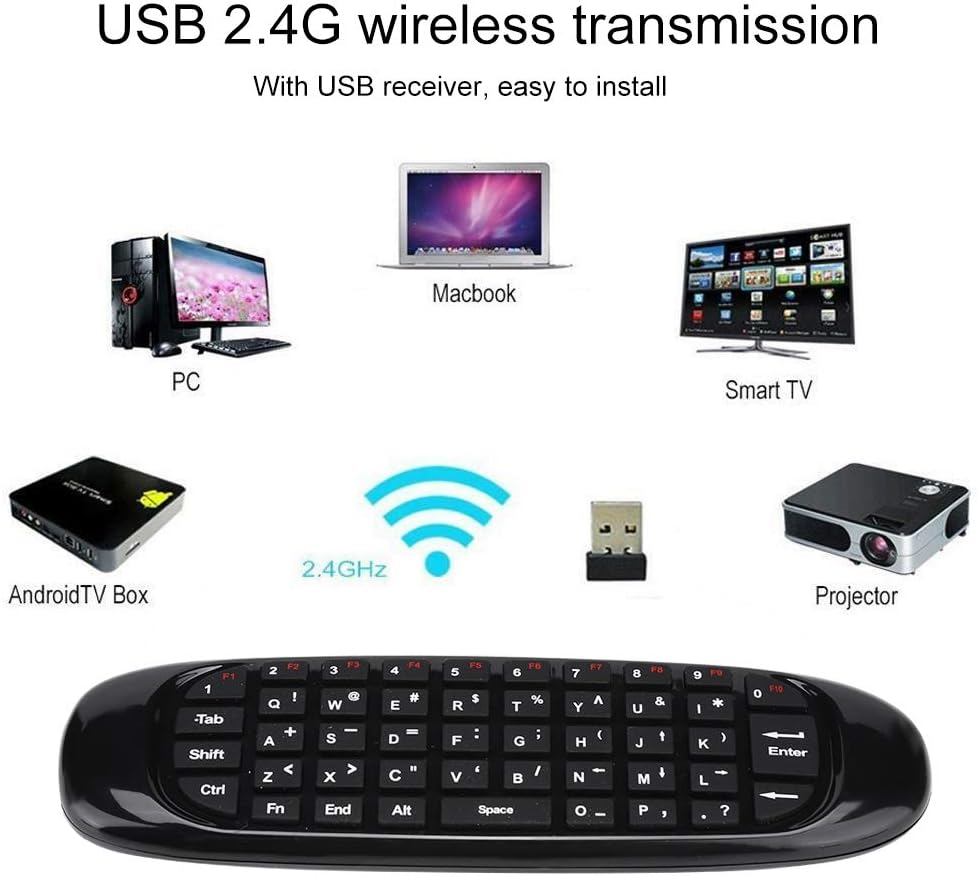
Image: A diagram illustrating the broad compatibility of the Vbestlife C120 Air Mouse with various devices like PCs, Macbooks, Smart TVs, Android TV Boxes, and Projectors.
5. Maintenance
- Cleaning: Use a soft, dry cloth to clean the surface of the remote. Avoid using liquid cleaners or abrasive materials.
- Battery Replacement: Replace batteries when the remote's performance degrades or it stops responding. Always use new batteries of the specified type (AAA).
- Storage: Store the remote in a cool, dry place away from direct sunlight and extreme temperatures. If storing for extended periods, remove the batteries to prevent leakage.
6. Troubleshooting
- Remote not responding:
- Ensure batteries are correctly inserted and have sufficient charge. Replace if necessary.
- Verify the USB receiver is securely plugged into the device.
- Try plugging the USB receiver into a different USB port.
- Restart the host device (PC, TV Box, etc.).
- Cursor movement is erratic or inaccurate:
- Calibrate the air mouse by placing it on a flat surface for a few seconds.
- Ensure there are no obstructions between the remote and the USB receiver.
- Check for strong electromagnetic interference from other devices.
- Keyboard input not working:
- Ensure the remote is flipped to the keyboard side.
- Verify the host device supports keyboard input via USB.
7. Specifications
| Feature | Detail |
|---|---|
| Acceleration Sensor | 3-axis ST gyroscope sensor |
| Gyroscope Sensor | 3-axis ST acceleration sensor |
| Material | Plastic + Silicone |
| Wireless Communication | 2.4Ghz, for Nordic Soc |
| Wireless Distance | 10 meters |
| Working Current | 20mA |
| Battery Capacity | 200 mAh |
| Dimensions | Approx. 15 * 4.5 * 1.3 cm (5.91 * 1.78 * 0.51 inches) |
| Color | Black |
| Connectivity Technology | USB |
| Keyboard Layout | QWERTY |
| Number of Keys | 104 |
| Power Source | Batteries (2x AAA, not included) |
| Supported OS | OS, Android, Linux, Windows 7, Windows Vista |
| Compatible Devices | Desktop PC, Laptop, Tablet, Smart TV, Set-top Box |
8. Warranty and Support
For warranty information and technical support, please refer to the documentation provided with your purchase or contact Vbestlife customer service. Keep your purchase receipt as proof of purchase.
This product is designed for ease of use and durability. Should you encounter any issues not covered in this manual, please reach out to our support team for assistance.