
1. Product Overview
The Cubilux USB to 3.5mm Audio Adapter (Model: AT35-BK) is a compact external sound card designed to enhance your audio experience. It features a built-in 96KHz/24bit Digital-to-Analog Converter (DAC) for high-fidelity sound output and a 48KHz/16-bit Analog-to-Digital Converter (ADC) for clear microphone input. Its plug-and-play design ensures broad compatibility across various operating systems and devices.

Image 1.1: The Cubilux USB to 3.5mm Audio Adapter, showcasing its compact design and USB-A connector.
Key Features:
- High-Resolution Audio: Integrated 96KHz/24bit DAC delivers clean, natural sound with rich detail.
- Virtual Surround Sound: Provides spatial audio cues, beneficial for gaming applications.
- Clear Voice Input: 48KHz/16-bit ADC supports 3.5mm TRRS microphones for clear communication.
- Compact and Durable: Small form factor (1.8” x 0.6” x 0.33”) with a full aluminum alloy enclosure to minimize electrical interference.
- Driverless Plug & Play: No additional drivers required for most compatible operating systems.

Image 1.2: The adapter held in hand, illustrating its compact dimensions of 1.8 inches by 0.6 inches.
2. Setup and Installation
The Cubilux USB to 3.5mm Audio Adapter is designed for simple plug-and-play operation, requiring no driver installation on most compatible systems.
Compatibility:
- Operating Systems: Windows 11/10/8.1/8/7/Vista/2003/XP, Mac OS, Linux, Raspberry Pi.
- Compatible Devices: Mac Pro/Mini, Microsoft Surface laptops, PS4, PS5, Lenovo ThinkPad Yoga Legion, and other PC computers with a USB-A port.
- Incompatible Devices: This adapter is not designed for use with TV or Car USB ports.

Image 2.1: Diagram illustrating the adapter's compatibility with various operating systems and devices, including Linux, Raspberry Pi, Mac OS, and Windows.
Installation Steps:
- Locate an available USB-A port on your computer or gaming console.
- Insert the Cubilux USB Audio Adapter firmly into the USB-A port.
- Connect your 3.5mm headphones, speakers, or TRRS microphone into the 3.5mm audio jack on the adapter.
- Your operating system should automatically detect the new audio device.
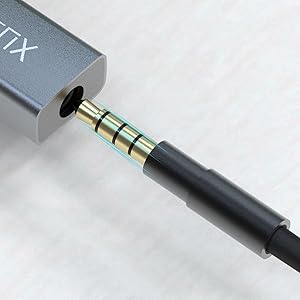
Image 2.2: The adapter connected to a laptop's USB port, with a 3.5mm audio cable plugged into the adapter's jack.
3. Operating Instructions
Once installed, the Cubilux USB Audio Adapter functions as your system's external sound card.
Audio Output:
- Connect your headphones or speakers to the 3.5mm jack.
- In your operating system's sound settings, ensure the "Cubilux USB Audio Device" (or similar name) is selected as the default playback device.
- Adjust volume levels through your operating system or connected audio device.

Image 3.1: The adapter connected to a gaming console (PS4/PS5) with headphones, demonstrating its use for gaming audio.
Microphone Input:
- If using a microphone, ensure it is a 3.5mm TRRS type for full compatibility.
- In your operating system's sound settings, select the "Cubilux USB Audio Device" as the default recording device.
- Adjust microphone input levels as needed.
Virtual Surround Sound:
- The adapter supports virtual surround sound, which can enhance directional audio in games.
- This feature is typically enabled automatically or can be configured within your game's audio settings or operating system's sound enhancements.

Image 3.2: A gaming screenshot with visual cues indicating 360-degree virtual surround sound, highlighting the ability to locate sound sources.
4. Maintenance
Proper care ensures the longevity and optimal performance of your Cubilux USB Audio Adapter.
- Cleaning: Use a soft, dry cloth to wipe the adapter. Avoid liquid cleaners or abrasive materials.
- Storage: Store the adapter in a cool, dry place away from direct sunlight and extreme temperatures when not in use.
- Handling: Avoid dropping the adapter or subjecting it to strong impacts. Do not force connectors.
- Environment: Keep the adapter away from water, moisture, and corrosive substances.
5. Troubleshooting
If you encounter issues with your Cubilux USB Audio Adapter, refer to the following common solutions:
- No Sound Output:
- Ensure the adapter is fully inserted into a functional USB-A port.
- Verify your headphones or speakers are securely connected to the adapter's 3.5mm jack.
- Check your computer's sound settings to confirm that the "Cubilux USB Audio Device" is selected as the default playback device.
- Test with another pair of headphones or speakers to rule out issues with your audio device.
- Microphone Not Working:
- Confirm that you are using a 3.5mm TRRS microphone.
- In your computer's sound settings, ensure the "Cubilux USB Audio Device" is selected as the default recording device.
- Check microphone privacy settings in your operating system.
- Static or Unwanted Noise:
- Try plugging the adapter into a different USB port on your device.
- Ensure the adapter and connected cables are not near sources of strong electromagnetic interference (e.g., power cables, large electronic devices).
- Ensure the adapter is not being wiggled or moved during use, as this can sometimes cause temporary disconnections or noise.
- Incompatibility Issues:
- Remember that this adapter is not compatible with TV or Car USB ports. Ensure your device is listed under compatible systems.
6. Specifications
| Model Number | AT35-BK |
| Audio Output Quality | 96KHz/24bit DAC |
| Microphone Input Quality | 48KHz/16-bit ADC |
| Connectors | USB-A Male, 3.5mm TRRS Female |
| Dimensions (L x W x H) | 1.8” x 0.6” x 0.33” (44.5mm x 14.5mm x 8.3mm) |
| Weight | 0.634 ounces |
| Housing Material | Aluminum Alloy |
| Compatibility | Windows, Mac OS, Linux, Raspberry Pi, PS4, PS5 |

Image 6.1: A detailed view of the internal Hi-Res DAC chip, emphasizing the adapter's audio processing capabilities.
7. Warranty Information
Specific warranty details for the Cubilux USB to 3.5mm Audio Adapter (Model: AT35-BK) are not provided in this manual. For information regarding product warranty, please refer to the official Cubilux website or contact their customer support directly. Keep your purchase receipt as proof of purchase for any warranty claims.
8. Support
For further assistance, technical support, or inquiries not covered in this manual, please visit the official Cubilux website or consult the product packaging for contact information. Online resources, FAQs, and driver updates (if applicable) may also be available on the manufacturer's support pages.