
1. Introduction
This manual provides comprehensive instructions for the installation, operation, and maintenance of your BXLIYER PX6 Android Car Stereo. Please read this manual thoroughly before using the product to ensure proper functionality and safety.
2. Applicable Car Models
This car stereo is designed for specific vehicle models. Please verify compatibility before installation.
- Compatible with: AUDI A3 (2003-2011)
- Unit Size: 240 mm (9.45") x 228 mm (8.98")
If you are unsure about compatibility, please contact technical support with images of your car's dashboard.

Image: BXLIYER car stereo integrated into an Audi A3 dashboard, showing the unit's fit and appearance within the vehicle's interior.
3. System Information and Specifications
The BXLIYER PX6 Car Stereo features advanced hardware for optimal performance.
System Hardware:
- Operating System: Android 9.0 (some models may feature Android 10)
- CPU: PX6 RK3399 64-bit HEXA Core Processor (Dual Cortex-A72 + Quad Cortex-A53) - 2.0 GHz
- RAM: DDR3 4GB
- ROM: 64GB
- Touch Screen: 7-inch Digital Screen with 1024x600 resolution
- Radio IC: NXP TEF7786
- Amplifier IC: TDA7388
- Audio Output: 4 * 50W max.
Dimensions:
| Measurement | Value |
|---|---|
| Width (Top) | 240 mm (9.45") |
| Width (Bottom) | 228 mm (8.98") |
| Height | 122 mm (4.8") |
| Depth (Top) | 18 mm (0.71") |
| Depth (Main Body) | 142 mm (5.59") |

Image: Detailed diagram illustrating the precise measurements of the car stereo unit, including width, height, and depth, crucial for installation planning.
4. Setup and Installation
Proper installation is crucial for the optimal performance of your car stereo. It is recommended to have this unit installed by a professional.
Pre-Installation Checks:
- Ensure the unit dimensions match your car's dashboard opening.
- Verify all included accessories and cables are present.
- Disconnect the car battery before starting installation to prevent electrical damage.
Wiring Connections:
- Power Connection: Connect the main power harness to your vehicle's power supply. Ensure correct polarity.
- Speaker Connections: Connect the speaker wires to the corresponding car speakers. Pay attention to positive and negative terminals.
- Antenna Connection: Connect the radio antenna cable.
- GPS Antenna: Connect the GPS antenna and place it in a location with a clear view of the sky (e.g., dashboard).
- USB/HDMI/Other Ports: Connect any additional accessories like USB drives, external cameras, or HDMI devices as needed.
- CANBUS Decoder: If your vehicle requires a CANBUS decoder for steering wheel controls or other vehicle data, connect it according to the vehicle-specific wiring diagram.
Camera Input (Rear Camera FREE):
The unit supports a rear view camera. Connect the camera's video output to the designated camera input on the stereo. The unit will automatically switch to the rear camera view when reverse gear is engaged.
OBD2 Connection (Optional):
The unit is compatible with most ELM327 and Wi-Fi OBD2 scanners. Connect your OBD2 scanner to the vehicle's OBD2 port and pair it with the stereo via Bluetooth or Wi-Fi. Use compatible applications like "Torque" to view real-time data and vehicle fault codes.
5. Operating Instructions
This section details the various functions and features of your BXLIYER PX6 Android Car Stereo.
5.1. Basic Operation
- Power On/Off: Press and hold the power button to turn the unit on or off.
- Volume Control: Use the rotary knob or on-screen controls to adjust volume.
- Home Screen: Tap the Home icon to return to the main Android interface.
- App Drawer: Swipe up or tap the app icon to access all installed applications.
5.2. Steering Wheel Control (SWC)
Control the unit using your vehicle's existing steering wheel buttons. This enhances safety and convenience by allowing you to manage audio, calls, and navigation without taking your hands off the wheel.
- Access the SWC settings in the unit's system menu.
- Follow the on-screen prompts to map your steering wheel buttons to specific functions.
5.3. Connectivity (WiFi & 4G)
Stay connected on the go with Wi-Fi and 4G capabilities.
- Wi-Fi: Connect to a Wi-Fi hotspot (e.g., from your smartphone) to access online content, browse the web, and download apps.
- 4G: Purchase a compatible 4G dongle (sold separately) for direct 4G network access.

Image: The car stereo display showing icons for WiFi and 4G connectivity, indicating the unit's ability to connect to wireless networks for internet access.
5.4. Bluetooth 5.0
Enjoy hands-free calling and audio streaming via Bluetooth 5.0.
- Pairing: Enable Bluetooth on your smartphone and search for the car stereo. Select the stereo from the list and confirm pairing.
- Hands-Free Calling: Make and receive calls directly from the stereo screen. Access your phonebook and call history.
- Audio Streaming: Stream music from your smartphone to the car stereo.
Image: The car stereo display showing the Bluetooth 5.0 icon and a music playback interface, demonstrating its audio streaming capabilities.
5.5. Mirrorlink / Screen Mirroring
Mirror your smartphone's screen onto the car stereo display.
- Connect your smartphone via USB cable or Wi-Fi.
- Follow the on-screen instructions to activate screen mirroring.
- View and control your phone's content directly from the car stereo screen.
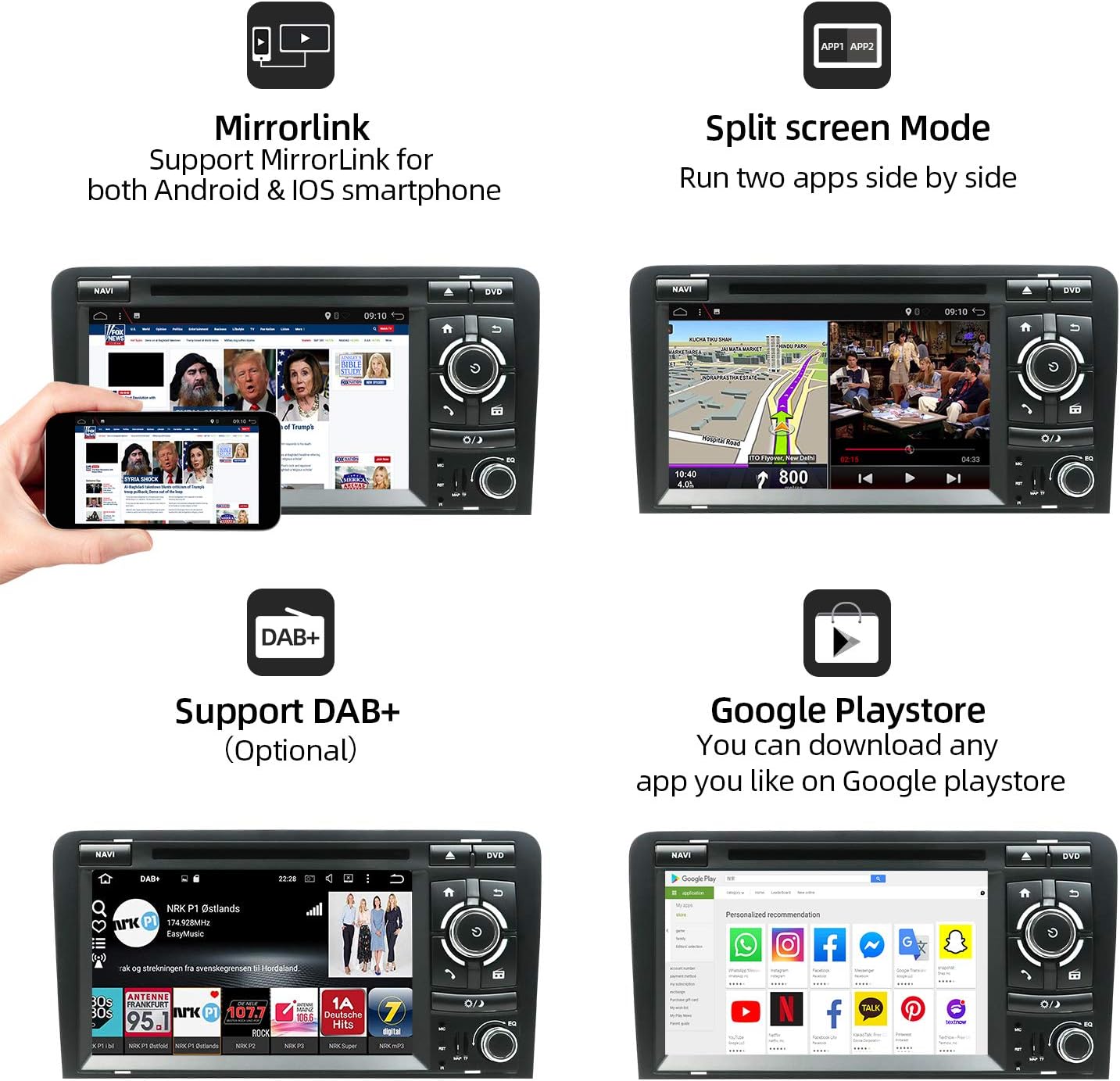
Image: The car stereo display showing a mirrored smartphone screen, demonstrating the Mirrorlink feature in action.
5.6. Split Screen Mode
Run two applications side-by-side on the screen simultaneously.
- While an app is open, long-press the recent apps button or drag from the side (depending on Android version) to activate split screen.
- Select a second app to open on the other half of the screen.
- Example: Use navigation on one side and music playback on the other.
Image: The car stereo display in split screen mode, showing a navigation map on one side and another application (e.g., media player) on the other, illustrating multitasking capability.
5.7. GPS Navigation
The unit supports both online and offline navigation maps.
- Online Navigation: Use pre-installed map apps (e.g., Google Maps) with an internet connection.
- Offline Navigation: Download map data for offline use.
- Ensure the GPS antenna is properly installed for accurate positioning.
Image: The car stereo display showing a detailed GPS navigation map, indicating routes and current location.
5.8. 4K Video Playback & HDMI Output
Enjoy ultra-high definition video playback and connect external displays via HDMI.
- The unit supports 4K (3840x2160 pixels) video formats.
- Connect an external monitor or display to the HDMI output port for extended viewing.
Image: The car stereo display showing a high-resolution 4K video playing, highlighting its multimedia capabilities.
5.9. DAB+ Digital Radio (Optional)
Experience high-quality digital radio with silent transmission.
- Requires an external digital radio tuner (e.g., B07Y5DYNMT, B083Q7YG4F) sold separately.
- Connect the DAB+ tuner to the unit and scan for available digital radio stations.
- Enjoy CD-like audio quality and a wider selection of stations.
Image: The car stereo display showing the interface for DAB+ digital radio, including station information and signal strength.
5.10. Google Play Store
Download and install your favorite Android applications directly from the Google Play Store.
- Ensure the unit is connected to the internet via Wi-Fi or 4G.
- Log in with your Google account to access the Play Store.
- Browse and download apps like Spotify, YouTube, navigation apps, etc.
Image: The car stereo display showing the Google Play Store interface, with various popular applications available for download.
5.11. Apple Carplay & Android Auto (Optional)
Integrate your smartphone for a smarter and safer driving experience.
- Requires a separate adapter (e.g., ASIN: B086W6ZD74) to enable Carplay and Android Auto functionality.
- Connect your iPhone or Android phone to the adapter.
- Access maps, music, phone calls, and messages via voice commands or the stereo's touch screen.

Image: The car stereo display showing the Apple Carplay interface, with an iPhone connected, illustrating how the smartphone's features are integrated into the car's display.
5.12. Audio Features
- AM/FM RDS Radio: Tune into your favorite radio stations with RDS (Radio Data System) support for station information.
- Audio Output: 4 x 50W max. power output for clear and powerful sound.
- Equalizer: Adjust audio settings using the built-in equalizer to customize sound profiles.
5.13. Storage and Media Playback
- USB & MicroSD: Supports USB memory and MicroSD cards up to 500GB for media playback.
- Full HD 1080P Video Playback: Play various video formats in high definition.
- AV Output Function: Connect to external displays for audio/video output.
6. Maintenance
Regular maintenance ensures the longevity and optimal performance of your car stereo.
- Cleaning: Use a soft, dry cloth to clean the screen and unit exterior. Avoid abrasive cleaners or solvents.
- Software Updates: Periodically check for and install software updates to improve performance and add new features.
- Temperature: Avoid exposing the unit to extreme temperatures, direct sunlight for prolonged periods, or high humidity.
- Ventilation: Ensure the unit's ventilation openings are not blocked to prevent overheating.
7. Troubleshooting
This section addresses common issues you might encounter with your car stereo.
| Problem | Possible Cause | Solution |
|---|---|---|
| Unit does not power on. | No power supply; Blown fuse; Incorrect wiring. | Check power connections and fuses. Ensure wiring is correct. |
| No sound from speakers. | Incorrect speaker wiring; Volume too low; Mute activated. | Verify speaker connections. Increase volume. Check if mute is on. |
| GPS signal weak or lost. | GPS antenna not properly placed or connected. | Ensure GPS antenna has a clear view of the sky and is securely connected. |
| Bluetooth pairing issues. | Bluetooth not enabled; Device not discoverable; Interference. | Ensure Bluetooth is on for both devices. Make device discoverable. Try re-pairing. |
| Unit resets randomly or loses settings. | Unstable power supply; Software glitch. | Check power connections for stability. Perform a factory reset (backup data first). Contact support if issue persists. |
| Screen unresponsive or frozen. | Software crash; Temporary glitch. | Press the reset button (if available) or power cycle the unit. |
For persistent issues, please contact customer support.
8. Warranty and Support
For warranty information and technical assistance, please refer to the following:
- Return Policy: 30-day refund/replacement policy.
- Seller: JOYX Navi
- Contact: joyx_techsupport@163.com (as per product description)
- Please provide your product model number and purchase details when contacting support.