
1. Introduction
Thank you for choosing the ENBUER HDMI Matrix Switch 4x2. This device allows you to connect up to four HDMI source devices to two HDMI display devices, offering flexible switching and splitting capabilities. It supports advanced features such as 4K HDR, HDMI 2.0b, HDCP 2.2, and audio extraction, providing a versatile solution for your home theater or professional AV setup.
2. Key Features
- 4x2 HDMI Matrix Functionality: Connects four HDMI sources to two HDMI displays, allowing independent or simultaneous output.
- High Resolution Support: Supports 4K@60Hz, 4K HDR, 3840x2160@60Hz, Ultra HD, and 3D video formats.
- Advanced Color and Bandwidth: Features RGB 4:4:4, 18.5Gbps data rate, and TMDS clock up to 600Mhz. Supports deep color 8/10/12/24/32/48bit.
- Audio Extraction: Provides Toslink SPDIF optical fiber and 3.5mm stereo headphone outputs for HDMI input audio signals. Supports LPCM/Dolby/DTS 5.1 channel audio.
- EDID Management: Smart EDID management with settable EDID modes to ensure optimal compatibility between source and display devices.
- Broad Compatibility: Compatible with HDCP 2.2 and HDMI 2.0b. Supports various input devices like computers, PS3/PS4 Pro, Xbox, Nintendo Switch, HD players, Fire TV, Apple TV, and output devices like projectors and HDTVs.
- Control Options: Manual button switching and IR remote control for convenient input selection.
3. Package Contents
Please verify that all items are present in your package:
- ENBUER HDMI Matrix Switch 4x2 Unit
- IR Remote Control
- 5V DC Power Adapter
- USB Power Cable
- User Manual
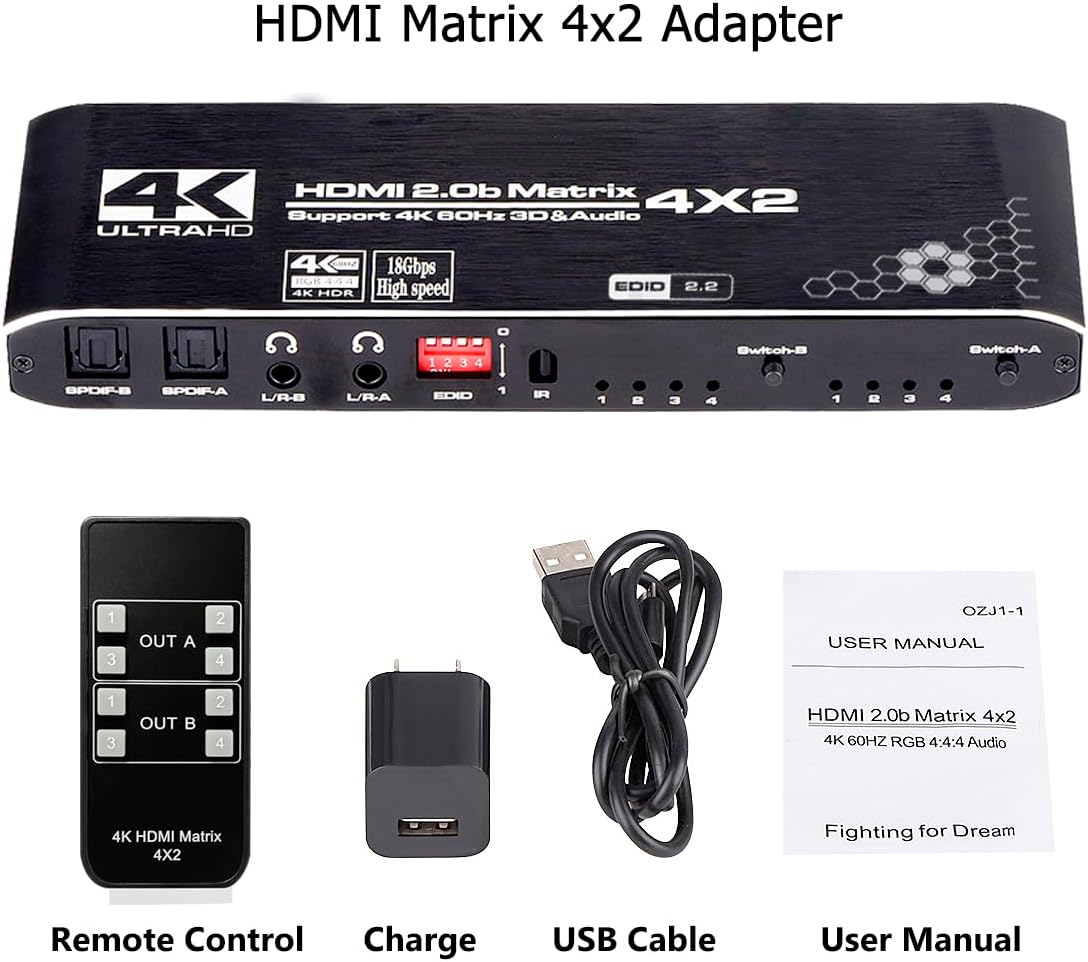
This image displays all items included in the product package: the HDMI Matrix Switch unit, an IR remote control, a 5V DC power adapter, a USB power cable, and the user manual.
4. Product Layout and Ports

Front view of the ENBUER HDMI Matrix Switch 4x2, showcasing its compact design and the accompanying infrared remote control for convenient operation.
Front Panel
- SPDIF-A / SPDIF-B: Optical audio output for Output A and Output B.
- L/R-A / L/R-B: 3.5mm stereo audio output for Output A and Output B.
- EDID Switch: DIP switches for configuring EDID settings.
- IR: Infrared signal receiving port for remote control.
- Input Indicators (1-4): LEDs indicating the currently selected input for Output A and Output B.
- Switch-A / Switch-B: Buttons to manually switch inputs for Output A and Output B.
Rear Panel
- DC-5V: Power input port.
- OUT-A / OUT-B: HDMI output ports for connecting to displays.
- IN-1 / IN-2 / IN-3 / IN-4: HDMI input ports for connecting source devices.
5. Installation and Connection
Follow these steps to set up your HDMI Matrix Switch:
- Power Off Devices: Ensure all HDMI source devices and display devices are powered off before making connections.
- Connect HDMI Sources: Connect up to four HDMI source devices (e.g., Blu-ray player, game console, PC) to the IN-1, IN-2, IN-3, and IN-4 ports on the matrix switch using high-quality HDMI cables.
- Connect HDMI Displays: Connect your two HDMI display devices (e.g., TV, projector) to the OUT-A and OUT-B ports on the matrix switch using high-quality HDMI cables.
- Connect Audio Outputs (Optional): If you wish to extract audio, connect your audio receiver, soundbar, or headphones to the SPDIF-A/B or L/R-A/B ports as needed.
- Connect Power: Connect the 5V DC power adapter to the DC-5V port on the matrix switch, then plug the adapter into a power outlet.
- Power On Devices: Power on the HDMI matrix switch, then power on your display devices, and finally your source devices.
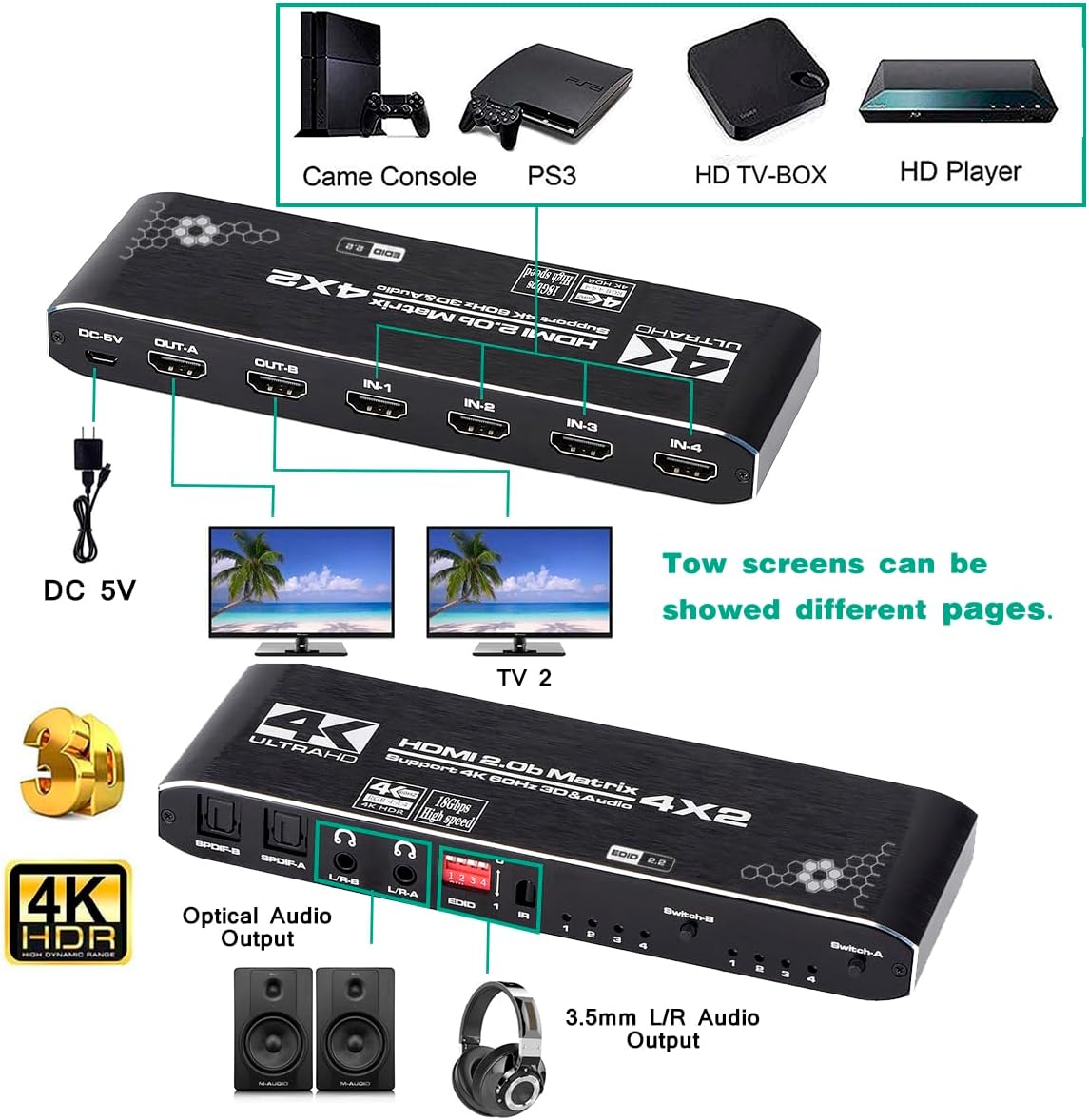
This diagram demonstrates how to connect up to four HDMI source devices (e.g., game consoles, HD players) to the matrix switch, and then connect two display devices (TVs) to the outputs. It also shows the DC 5V power input.
6. Operating Instructions
6.1 Switching Inputs
You can switch between HDMI inputs using two methods:
- Manual Switching: Press the 'Switch-A' or 'Switch-B' buttons on the front panel to cycle through the inputs for the respective output.
- Remote Control: Use the included IR remote control to directly select inputs for Output A (OUT A buttons) or Output B (OUT B buttons). The remote allows selection of inputs 1 through 4 for each output.

Inputs can be switched either by pressing the physical buttons on the device or conveniently using the included IR remote control from a distance of up to 5 meters.
6.2 Matrix Mode vs. Splitter Mode
The device can operate in two primary modes:
- Matrix Mode: Allows you to display different HDMI sources on different outputs simultaneously (e.g., Input 1 on Output A, Input 2 on Output B).
- Splitter Mode: Allows you to display the same HDMI source on both outputs simultaneously (e.g., Input 1 on Output A and Output B).

The image visually explains the two primary operating modes: Matrix Mode, where different inputs can be routed to different outputs, and Splitter Mode, where a single input is duplicated across both outputs.
6.3 EDID Settings
The EDID (Extended Display Identification Data) settings determine the video and audio capabilities reported to the source device. This ensures optimal compatibility. The EDID setting for Output A will be applied. If two displays require different EDID settings, select an EDID mode that is compatible with both displays.
To change the EDID setting, adjust the DIP switches on the front panel according to the table below. After changing EDID settings, restart the HDMI Matrix Switch for changes to take effect.

This image highlights the EDID DIP switches on the device and provides a table detailing the 16 different EDID settings, allowing users to configure audio and video output preferences (e.g., 1080P, 4K30, 4K60, Dolby/DTS 5.1, 2CH Audio).
6.4 Audio Extraction
The matrix switch can extract audio from the HDMI input signal and output it through dedicated audio ports:
- SPDIF Optical Output: Connect to a soundbar, AV receiver, or amplifier for multi-channel audio (LPCM/Dolby/DTS 5.1).
- 3.5mm L/R Stereo Output: Connect to headphones or stereo speakers for 2-channel audio.

The device supports audio extraction via SPDIF optical output for soundbars or amplifiers, and a 3.5mm L/R stereo headphone output for headphones or stereo speakers.
7. Maintenance
- Keep the device in a cool, dry, and well-ventilated area.
- Avoid exposing the device to direct sunlight, high temperatures, or humidity.
- Clean the device with a soft, dry cloth. Do not use liquid or aerosol cleaners.
- Ensure proper cable management to prevent strain on ports.
- It is recommended to power off the unit when not in use for extended periods to prolong its lifespan.
8. Troubleshooting
- No Picture/Signal:
- Ensure all HDMI cables are securely connected.
- Verify the correct input is selected on the matrix switch for the corresponding output.
- Check the EDID settings. Try a different EDID mode (e.g., TV Copy or a lower resolution) if your display or source has compatibility issues. Remember to restart the switch after changing EDID.
- Try connecting the source directly to the display to rule out cable or source issues.
- Ensure the power adapter is correctly connected and the device is powered on.
- No Audio/Poor Audio Quality:
- Check audio cable connections (SPDIF, 3.5mm L/R).
- Verify the audio settings on your source device and display.
- Adjust EDID settings to ensure the desired audio format is selected (e.g., Dolby/DTS 5.1, 2CH Audio).
- Ensure the volume on your audio receiver/speakers is not muted or too low.
- Remote Control Not Working:
- Ensure there are no obstructions between the remote and the IR receiver on the switch.
- Check if the remote control batteries need replacement.
- Ensure you are within the effective range (typically 5 meters).
- Intermittent Signal/Flickering:
- Use high-quality, certified HDMI cables, especially for 4K resolutions and longer lengths.
- Reduce cable length if possible.
- Try a different EDID setting.
- Ensure the power supply is stable.
9. Technical Specifications
| Feature | Specification |
|---|---|
| HDMI Version | HDMI 2.0b |
| HDCP Version | HDCP 2.2 |
| Input Ports | 4 x HDMI |
| Output Ports | 2 x HDMI, 2 x SPDIF, 2 x 3.5mm L/R Audio |
| Video Resolution | Up to 4K@60Hz (3840x2160@60Hz), 3D, 1080P |
| Color Space | RGB 4:4:4, YUV 4:4:4/4:2:2/4:2:0 |
| HDR Support | 4K HDR |
| Data Rate | 18.5Gbps |
| TMDS Clock | Up to 600Mhz |
| Deep Color | 8/10/12/24/32/48bit |
| Audio Formats | LPCM, Dolby Digital, DTS 5.1 |
| Power Supply | DC 5V |
| Dimensions | 8 x 4 x 2 inches (approx.) |
| Weight | 3.52 ounces (approx.) |
| Operating Temperature | 0°C to 40°C (32°F to 104°F) |
10. Warranty and Customer Support
ENBUER provides customer service to ensure satisfaction with your purchase. If you encounter any issues or have questions regarding your HDMI Matrix Switch 4x2, please contact our customer support team.
For assistance, please refer to the contact information provided with your product or visit the official ENBUER website.
Note: The warranty period and terms may vary. Please retain your proof of purchase for warranty claims.