Introduction
This manual provides detailed instructions for the installation, operation, and maintenance of your Lock Connection F-Q32 Fingerprint Biometric Cabinet Lock. Please read this manual thoroughly before using the product to ensure proper function and longevity.
The F-Q32 is a flush-mounted fingerprint lock designed for cabinets, drawers, wardrobes, and other furniture. It features a semiconductor fingerprint module, a Micro USB interface for emergency power, and supports up to 20 fingerprints.
Product Overview

The F-Q32 Fingerprint Biometric Cabinet Lock, shown here installed in a white drawer, provides secure access to your belongings. Its flush-mounted design ensures a sleek and integrated appearance.

This image illustrates the F-Q32 lock flush-mounted on a wooden panel, highlighting its compact and unobtrusive design when installed.
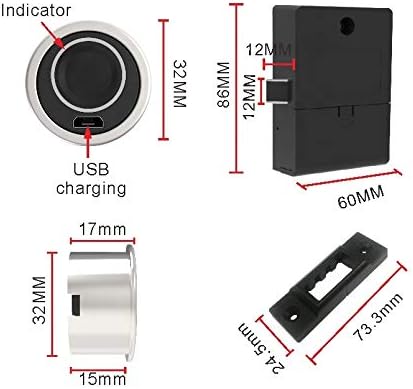
Detailed view of the F-Q32 lock components and their dimensions, including the front fingerprint module with indicator and USB charging port, the main lock body, and the strike plate.
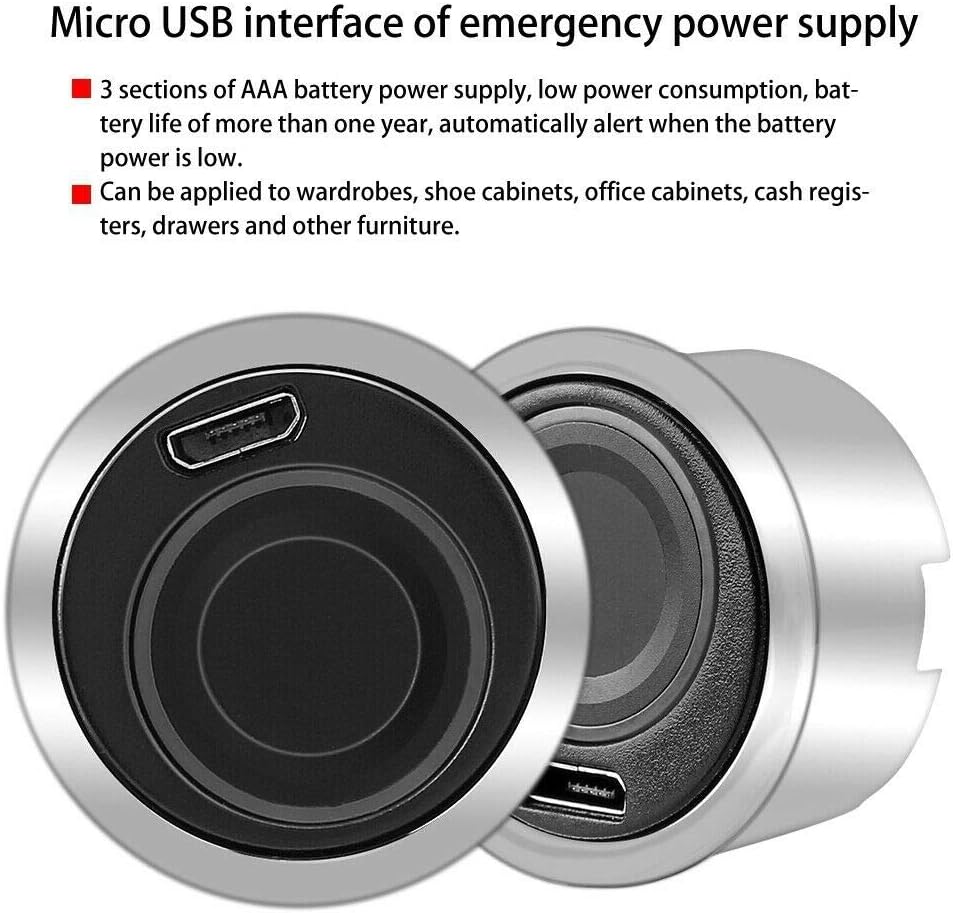
Close-up of the Micro USB interface on the F-Q32 lock, which allows for emergency power supply if the AAA batteries are depleted. The image also notes the long battery life and suitable applications.
Key Features:
- Flush Mounted design for a clean aesthetic.
- Micro USB interface for emergency power supply.
- Ring-shaped fingerprint indicator for user feedback.
- Utilizes industry-leading semiconductor fingerprint module.
- Stores 1-20 unique fingerprints.
- Supports two door lock modes: Automatic and Manual.
- Low power consumption, with battery life exceeding one year.
- Automatic low battery alert system.
- Requires 3 AAA batteries (Alkaline or Energizer Lithium recommended).
Setup and Installation
Package Contents:
- 1 x F-Q32 Fingerprint Biometric Cabinet Lock
- 1 x Strike Plate
- Mounting Screws
- User Manual (this document)
Battery Installation:
- Locate the battery compartment on the main lock body.
- Open the battery compartment cover.
- Insert 3 AAA batteries, ensuring correct polarity (+/-).
- Close the battery compartment cover securely.
Note: Alkaline or Energizer Lithium (disposable, not rechargeable) batteries are recommended for optimal performance and battery life.
Mounting the Lock:
The F-Q32 is designed for flush mounting. Ensure the cabinet or drawer material is suitable for drilling and securing the lock.
- Determine the desired installation location on your cabinet or drawer. Consider the thickness of the material.
- Drill a circular hole for the fingerprint module (refer to the dimensions provided in the Product Overview section, specifically the image showing dimensions).
- Secure the main lock body to the inside of the cabinet/drawer using the provided mounting screws, ensuring the fingerprint module is properly seated in the drilled hole.
- Install the strike plate on the cabinet frame or adjacent surface, aligning it with the lock's bolt mechanism. Ensure proper alignment for smooth locking and unlocking.
Tip: Test the lock's mechanism before fully tightening all screws to ensure smooth operation.
Operating Instructions
Initial Setup (Administrator Fingerprint):
The first fingerprint registered will automatically be set as the administrator fingerprint. This fingerprint is required to add or delete other user fingerprints.
- With the lock powered on, touch the fingerprint sensor. The indicator light will flash blue.
- Place your finger on the sensor. Lift and place your finger repeatedly (approximately 5-10 times) from different angles until the indicator light turns green, indicating successful registration.
Note: If registration fails, the light may flash red. Repeat the process.
Adding User Fingerprints:
The lock can store up to 20 fingerprints (including the administrator).
- Touch the administrator fingerprint to the sensor. The indicator light will flash blue.
- Once verified, the light will remain blue. Now, have the new user place their finger on the sensor.
- Instruct the user to lift and place their finger repeatedly (approximately 5-10 times) from different angles until the indicator light turns green, confirming successful registration.
- Repeat for additional user fingerprints.
Deleting Fingerprints:
To delete all registered fingerprints (factory reset):
- Touch the administrator fingerprint to the sensor and hold it for approximately 5-7 seconds.
- The indicator light will flash red, then turn off, indicating all fingerprints have been deleted.
Note: This action deletes ALL registered fingerprints, including the administrator. You will need to register a new administrator fingerprint after this process.
Unlocking the Lock:
- Place a registered fingerprint on the sensor.
- If the fingerprint is recognized, the indicator light will turn green and the lock will unlock.
- If the fingerprint is not recognized, the indicator light will flash red and the lock will remain locked.
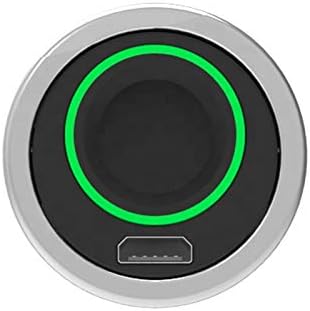
The F-Q32 lock displaying a green ring indicator, signifying a successful fingerprint scan and unlocking action.
Locking the Lock:
The F-Q32 supports two locking modes:
- Automatic Door Lock (Default): The lock will automatically re-lock after a few seconds once it has been unlocked.
- Manual Door Lock: The lock will remain unlocked until a registered fingerprint is placed on the sensor again to manually lock it.
To switch between modes, consult the manufacturer's specific instructions or contact support if not detailed here. The product ships in Automatic Door Lock mode.
Maintenance
- Cleaning: Use a soft, dry cloth to clean the fingerprint sensor and the lock body. Avoid abrasive cleaners or solvents.
- Battery Replacement: When the low battery alert is activated, replace all 3 AAA batteries promptly. Use high-quality Alkaline or Energizer Lithium (disposable) batteries.
- Emergency Power: If batteries are completely dead, connect a Micro USB cable to the emergency power port and connect it to a power source (e.g., power bank, USB charger) to temporarily power the lock and gain access.
- Environmental Conditions: Avoid exposing the lock to extreme temperatures, humidity, or direct water contact.
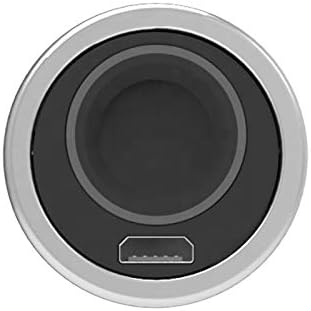
A detailed view of the F-Q32 lock's front face, highlighting the Micro USB port located at the bottom of the fingerprint sensor for emergency power supply.
Troubleshooting
| Problem | Possible Cause | Solution |
|---|---|---|
| Lock does not respond. | Dead batteries. | Replace AAA batteries. Use Micro USB for emergency power. |
| Fingerprint not recognized. | Incorrect finger placement; dirty sensor; unregistered fingerprint. | Ensure full finger contact; clean sensor; register fingerprint if new. Try different angles. |
| Cannot add new fingerprints. | No administrator fingerprint registered; maximum fingerprints reached (20). | Register administrator fingerprint first. Delete existing fingerprints if capacity is full. |
| Lock constantly re-locks. | Lock is in Automatic Door Lock mode. | This is normal behavior for Automatic mode. If you prefer manual locking, refer to the Operating Instructions or contact support for mode change instructions. |
Specifications
| Feature | Detail |
|---|---|
| Model | F-Q32 |
| Brand | Lock Connection |
| Lock Type | Biometric Fingerprint Lock |
| Material | Zinc |
| Fingerprint Capacity | 1-20 (including 1 administrator) |
| Power Supply | 3 x AAA Batteries |
| Emergency Power | Micro USB Interface |
| Battery Life | More than one year (typical) |
| Special Features | Keyless, Fingerprint, Low Battery Alert, Automatic/Manual Lock Modes |
| UPC | 639196105048 |
Warranty and Support
Warranty Information:
For warranty details, please refer to the documentation provided with your purchase or contact Lock Connection directly. Standard warranty terms typically cover manufacturing defects for a specified period from the date of purchase.
Customer Support:
If you encounter any issues or have questions not covered in this manual, please contact Lock Connection customer support. Contact information can usually be found on the product packaging or the official Lock Connection website.
Lock Connection is based in Lancaster, PA, USA.