
NYIEFADA M9
NYIEFADA Bluetooth Wireless Arc Travel Mouse (M9) User Manual
Dual Mode (2.4G+BT5.1) Rotating Foldable Mouse
1. Introduction
Thank you for choosing the NYIEFADA Bluetooth Wireless Arc Travel Mouse (Model M9). This innovative mouse offers dual-mode connectivity (2.4G wireless and Bluetooth 5.1), a unique rotating foldable design for portability, and a silent click experience. This manual provides detailed instructions for setup, operation, maintenance, and troubleshooting to ensure optimal performance and longevity of your device.
2. Package Contents
Please check the package for the following items:
- NYIEFADA Bluetooth Wireless Arc Travel Mouse (M9)
- 2.4G USB Receiver (stored inside the mouse)
- Micro-USB Charging Cable
- Portable Bag
3. Product Overview
Familiarize yourself with the components of your NYIEFADA Arc Travel Mouse.
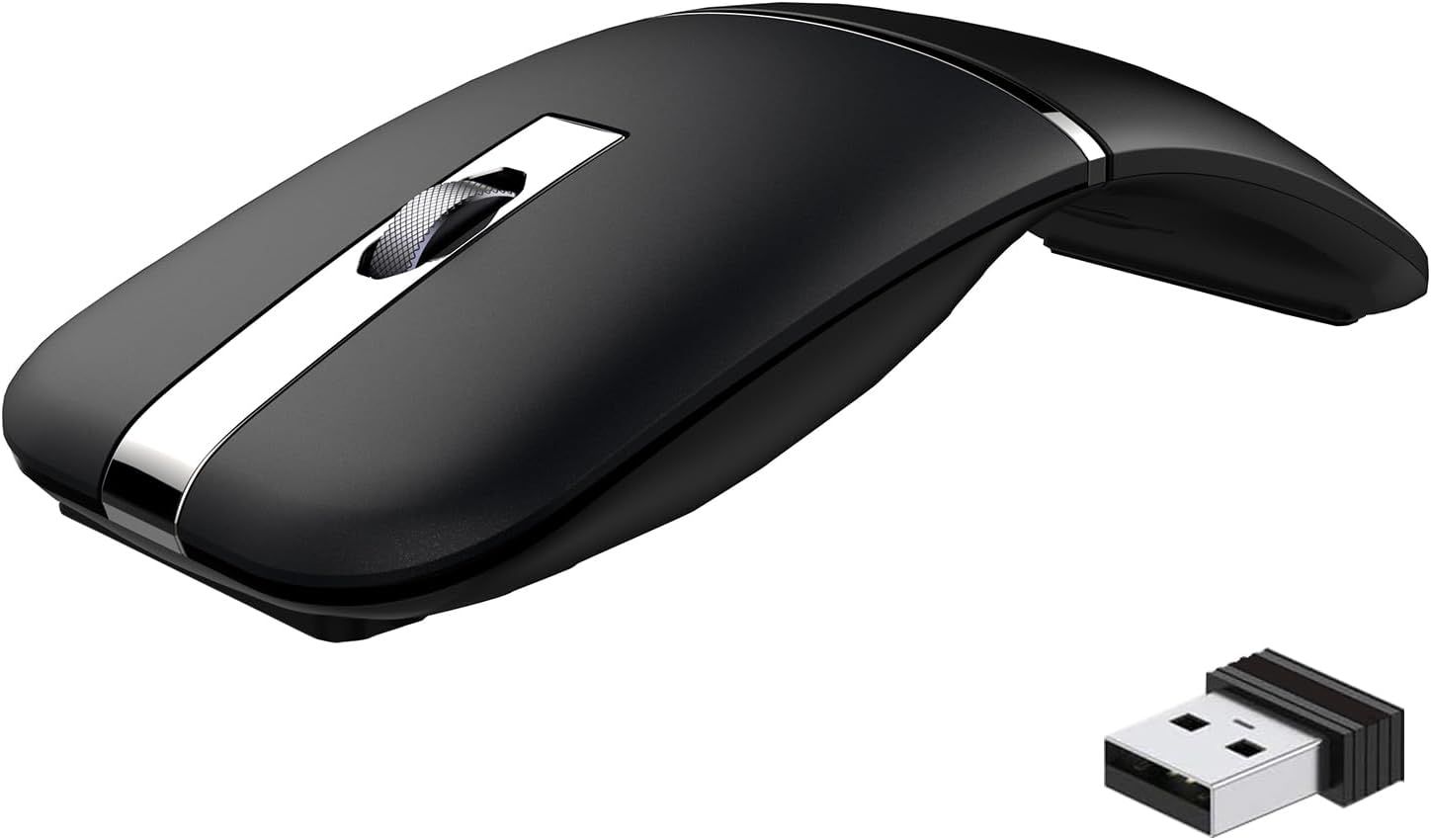
The NYIEFADA Arc Travel Mouse in its arched, operational form, alongside its compact 2.4G USB receiver.

An exploded view diagram of the mouse's underside, labeling key components such as the mouse sensor, mode switch (2.4G/OFF/BT), Micro Charging Port, Bluetooth Pairing button, DPI Switch, Receiver, and Receiver Case.
- Mouse Sensor: Optical sensor for tracking movement.
- Mode Switch: Toggle between 2.4G, OFF, and Bluetooth modes.
- Micro Charging Port: For recharging the internal battery.
- Bluetooth Pairing Button: Initiates Bluetooth pairing mode.
- DPI Switch: Adjusts cursor sensitivity.
- Receiver: 2.4G USB dongle.
- Receiver Case: Storage compartment for the 2.4G USB receiver.
4. Charging the Mouse
The NYIEFADA Arc Travel Mouse features a built-in rechargeable lithium battery. Before first use, or when the battery is low, please charge the mouse.

An image of the mouse's underside, highlighting the Micro-USB charging port for convenient recharging.
- Locate the Micro-USB charging port on the underside of the mouse.
- Connect the provided Micro-USB charging cable to the mouse and a USB power source (e.g., computer USB port, USB wall adapter).
- The charging indicator light will illuminate during charging.
- A full charge typically takes approximately 3 hours.
Once fully charged, the mouse can operate for up to 50 days, depending on usage. The mouse is designed to conserve power and will automatically switch off when the 2.4G receiver is disconnected or the connected PC is powered off.

A graphic illustrating the mouse's battery features: 3 hours fast charging, 300mAh capacity, and up to 50 days of battery life, with a visual gauge.
5. Setup and Connection
The mouse supports two connection modes: 2.4G Wireless and Bluetooth 5.1. It can connect to two devices simultaneously, one via each mode.

The mouse connected via Bluetooth to a tablet and via 2.4G wireless to a laptop, demonstrating dual-device capability.
5.1. 2.4G Wireless Mode Connection
- Open the receiver case on the underside of the mouse and remove the 2.4G USB receiver.
- Insert the 2.4G USB receiver into an available USB port on your computer.
- Slide the Mode Switch on the underside of the mouse to the "2.4G" position.
- The mouse should automatically connect to your computer. No additional drivers are typically required.
5.2. Bluetooth Mode Connection
- Slide the Mode Switch on the underside of the mouse to the "BT" position.
- Press and hold the Bluetooth Pairing Button (usually near the mode switch) for approximately 5 seconds until the scroll light flashes, indicating it's in pairing mode.
- On your computer or device (Windows, macOS, Linux, Android, iOS), go to Bluetooth settings.
- Search for new devices and select "NYIEFADA M9" (or similar name) from the list.
- Follow any on-screen prompts to complete the pairing process. The scroll light will stop flashing once connected.
5.3. Switching Between Devices
To switch between a device connected via 2.4G wireless and a device connected via Bluetooth, simply slide the Mode Switch on the underside of the mouse to the desired connection mode (2.4G or BT).
6. Operation
6.1. Adjusting DPI Sensitivity
The mouse features 3 adjustable DPI (Dots Per Inch) levels to customize cursor sensitivity and speed. To change the DPI, press the DPI Switch button on the underside of the mouse. Each press cycles through the available DPI settings (800, 1200, 1600 DPI).

A visual representation of the mouse's three adjustable DPI levels (800, 1200, 1600), indicating customizable sensitivity.
6.2. Folding and Unfolding
The unique rotating design allows the mouse to fold flat for easy portability and arch for ergonomic comfort during use.

Illustrates the mouse's ability to fold flat for portability and arch for ergonomic use, showing the 360-degree rotation.

The mouse shown folding flat and being easily slipped into a laptop bag, emphasizing its portability.
- To Arch: Gently twist the rear section of the mouse upwards until it locks into the arched position. This is the operational state.
- To Fold Flat: Gently twist the rear section downwards until it lies flat. This is the portable, power-saving state.
6.3. Silent Click Feature
The mouse is designed with silent and soft click buttons, providing a quiet and comfortable clicking experience, ideal for environments where noise reduction is desired.

Highlights the quiet click design of the mouse, showing a user comfortably operating it in a quiet environment.
6.4. Scroll Wheel
The mouse features an aluminum alloy anti-skid scroll wheel for smooth and precise scrolling.

A detailed view of the mouse's aluminum alloy scroll wheel, highlighting its anti-skid design for precise control.
7. Maintenance
To ensure the longevity and optimal performance of your mouse, follow these maintenance guidelines:
- Cleaning: Use a soft, dry cloth to clean the mouse. For stubborn dirt, slightly dampen the cloth with water or a mild electronic cleaner. Avoid harsh chemicals or abrasive materials.
- Storage: When not in use, especially during travel, fold the mouse flat and store it in the provided portable bag to protect it from scratches and damage.
- Avoid Liquids: Do not expose the mouse to water or other liquids.
- Temperature: Avoid extreme temperatures and direct sunlight.
8. Troubleshooting
If you encounter issues with your NYIEFADA Arc Travel Mouse, please refer to the following common solutions:
- Mouse not responding:
- Ensure the mouse is charged. Connect it to a power source using the Micro-USB cable.
- Check the Mode Switch on the underside of the mouse. Ensure it is set to the correct mode (2.4G or BT) for your connection type.
- If using 2.4G mode, ensure the USB receiver is securely plugged into your computer. Try a different USB port.
- If using Bluetooth mode, ensure Bluetooth is enabled on your device and the mouse is properly paired. Try re-pairing the mouse.
- Restart your computer or device.
- Cursor movement is erratic or slow:
- Clean the mouse sensor on the underside of the mouse with a soft, dry cloth.
- Ensure you are using the mouse on a suitable surface. Avoid highly reflective or transparent surfaces.
- Adjust the DPI sensitivity using the DPI Switch button.
- Cannot pair via Bluetooth:
- Ensure the mouse is in Bluetooth pairing mode (scroll light flashing). If not, press and hold the Bluetooth Pairing Button.
- Make sure your device's Bluetooth is turned on and discoverable.
- Remove any previous pairings of the mouse from your device's Bluetooth settings and try pairing again.
- Ensure the mouse is within the effective range of your device (typically up to 10 meters).
- Charging issues:
- Ensure the Micro-USB cable is securely connected to both the mouse and the power source.
- Try using a different Micro-USB cable or a different USB power source.
9. Specifications
| Feature | Detail |
|---|---|
| Model Number | M9 |
| Connectivity Technology | Bluetooth 5.1, 2.4G Wireless |
| Movement Detection Technology | Optical |
| DPI Levels | 800, 1200, 1600 |
| Battery Type | 1 Lithium Polymer battery (included) |
| Charging Port | Micro-USB |
| Product Dimensions (arched) | 4.6 x 2 x 1.4 inches (approx.) |
| Product Dimensions (folded) | 4.6 x 2 x 0.82 inches (approx.) |
| Item Weight | 4.2 ounces |
| Special Features | Quiet Click, 360-degree Rotate, Rechargeable, Slim, Portable |
| Compatibility | Windows 7/8/8.1/10/11, Linux, macOS, Chromebook, PC, Laptop, Notebook |
10. Warranty and Support
Your NYIEFADA Arc Travel Mouse is covered by a 12-month worry-free warranty from the date of purchase. Additionally, we offer a 30-day money-back guarantee.
If you experience any issues or have questions regarding your product, please contact NYIEFADA customer support through the retailer's platform where you purchased the item. Please have your order number ready for faster service.
Ask a question about this manual
Ask about setup, troubleshooting, compatibility, parts, safety, or missing instructions. Manuals+ will review the question and use this page’s manual context to help answer it.