
1. Introduction
The SOMKTN Northern Lights Galaxy Aurora Projector is designed to transform your space into a mesmerizing aurora and starry sky. It features dynamic aurora light effects, a built-in white noise sound machine, a Bluetooth speaker, and multiple control options including remote, app, and voice commands via Alexa or Google Assistant.

Image 1.1: The Northern Lights Galaxy Aurora Projector, showcasing its compact design and various control methods.
2. Package Contents
- Northern Lights Galaxy Aurora Projector
- Remote Control
- USB Cable (Power Adapter not always included, use a 5V/2A adapter)
- User Manual
3. Safety Information
- Do not disassemble or modify the device.
- Keep away from water and high humidity.
- Use only the specified power adapter (5V/2A recommended).
- Avoid direct eye exposure to the laser light.
- Keep out of reach of children.
4. Setup
4.1 Power Connection
Connect the provided USB cable to the projector and plug the other end into a compatible 5V/2A USB power adapter (not included) or a USB port. The projector will automatically power on.
4.2 App Installation and Connection (Smart Life App)
- Download the "Smart Life" app from your smartphone's app store (iOS or Android).
- Ensure the projector is connected to power and turned on.
- Repeatedly toggle the projector's slide button (OFF-WiFi-OFF-WiFi-OFF-WiFi) until the white light flashes rapidly. Keep the button on "WiFi" mode.
- Open the Smart Life app, tap "Add device".
- Select "Lighting - Light Source (BLE+WiFi)" and enter your 2.4GHz Wi-Fi network password.
- The app will begin adding the device. Once connected, you can control the projector via the app.

Image 4.1: Connecting the projector to the Smart Life app via 2.4GHz Wi-Fi.
4.3 Connecting to Amazon Alexa / Google Assistant
- Download the "Amazon Alexa" app on your phone.
- In the Alexa app, search for the "Smart Life" skill.
- Enable the skill and authorize Alexa to log in to your Smart Life App account.
- Once linked, you can control your projector with voice commands.

Image 4.2: The projector is compatible with Amazon Alexa for convenient voice control.
5. Operating Instructions
5.1 Basic Operation (Device Buttons & Remote Control)
The projector can be controlled directly using the buttons on the device or the included remote control. The remote allows for power on/off, rotation control, and brightness adjustment (10%, 40%, 70%, 100%).

Image 5.1: Control the projector using the included remote or your smartphone via the app.
5.2 Light Modes and Colors
The projector offers 14 dynamic aurora light colors. Through the Smart Life App, you can access 16 million color options, supporting solid, bi-color, tri-color, and four-color combinations. You can also adjust the brightness of both aurora and star lights.

Image 5.2: Explore 16 million colors and 48 scenario models for diverse lighting effects.
5.3 Sound Machine (White Noise)
The projector features 8 built-in soothing sounds to aid relaxation and sleep. These include White Noise, Ocean Waves, Summer Night, Thunder, Stream, and 3 Lullabies. You can switch between white noise and Bluetooth speaker modes via the "BT/WN" button on the host device or through the app.
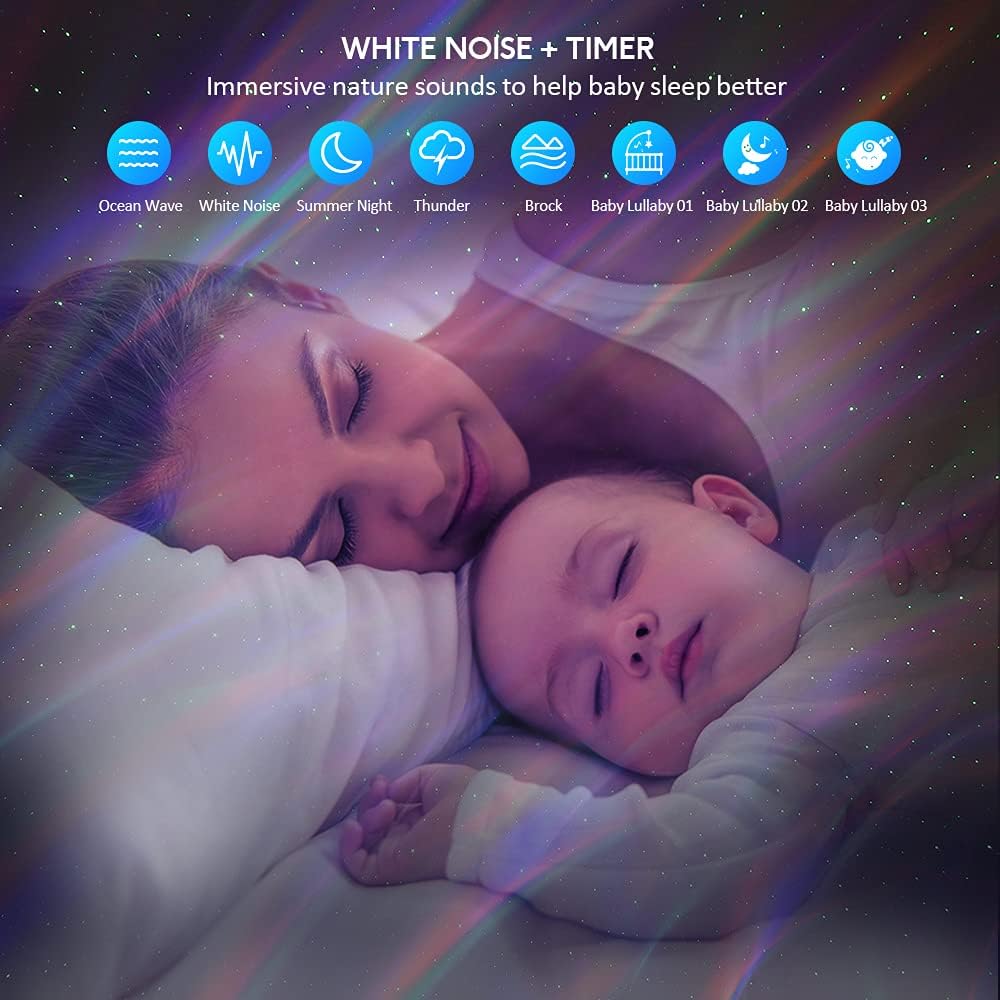
Image 5.3: The integrated white noise function provides soothing sounds for relaxation and sleep.
5.4 Bluetooth Speaker
The built-in Bluetooth 5.0 speaker allows you to play your favorite music. In voice control mode, the aurora light can synchronize with the music beats or hand claps, creating a dynamic disco effect.

Image 5.4: Enjoy your favorite music through the built-in Bluetooth speaker, with lights syncing to the beat.
5.5 Timer Function
The projector includes 1-hour and 2-hour auto-off timing functions in manual mode. You can also customize power on/off schedules at any time using the Smart Life App.

Image 5.5: Utilize the auto-off timer and adjust brightness for a personalized experience.
5.6 App Control Features
Beyond basic controls, the Smart Life App allows for advanced customization:
- Change between 16 million Northern Light effects.
- Adjust aurora light and star light brightness independently.
- Switch between Bluetooth music speaker and white noise sounds.
- Customize up to 48 scenarios and create your own mood scenes.
5.7 Voice Control (Alexa / Google Assistant)
After connecting to Alexa or Google Assistant, use simple voice commands to control the projector. Examples include:
- "Alexa, turn on Music Star Light."
- "Alexa, set star projector to blue."
- "Alexa, set star projector to 60 percent."
Video 5.6: Demonstration of the projector's features, including app control, white noise, and Alexa integration.
6. Maintenance
- Clean the projector's surface with a soft, dry cloth.
- Do not use abrasive cleaners or solvents.
- Store in a cool, dry place when not in use.
7. Troubleshooting
| Problem | Possible Cause | Solution |
|---|---|---|
| Projector does not turn on. | No power or faulty connection. | Ensure power cable is securely connected and power adapter is working. |
| No projection. | Light source off or obstructed. | Check if the light is turned on via remote/app. Ensure nothing is blocking the projection lens. |
| Cannot connect to Smart Life App. | Incorrect Wi-Fi band or pairing mode. | Ensure your Wi-Fi is 2.4GHz. Re-enter pairing mode by toggling the WiFi switch as per setup instructions. |
| Bluetooth speaker not connecting. | Bluetooth not enabled or device not in pairing mode. | Ensure Bluetooth is enabled on your phone and the projector is in Bluetooth mode. |
8. Specifications
- Model: SKE-JBP-J01
- Dimensions: 6.4"D x 6.3"W x 4.5"H
- Item Weight: 10 Ounces
- Material: Acrylonitrile Butadiene Styrene (ABS)
- Power Source: Corded Electric
- Voltage: 5 Volts
- Wattage: 10 Watts
- Light Source Type: LED
- Connectivity: Bluetooth 5.0, Wi-Fi (2.4GHz)
- Control Methods: Device Buttons, Remote Control, Smart Life App, Voice Control (Alexa, Google Assistant)
- White Noise Sounds: 8 (White Noise, Ocean Waves, Summer Night, Thunder, Stream, 3 Lullabies)
- Timer: 1H, 2H Auto-off (customizable via App)
9. Warranty and Support
For warranty information and technical support, please refer to the contact details provided on the product packaging or the official SOMKTN website. Keep your purchase receipt for warranty claims.