
1. Introduction
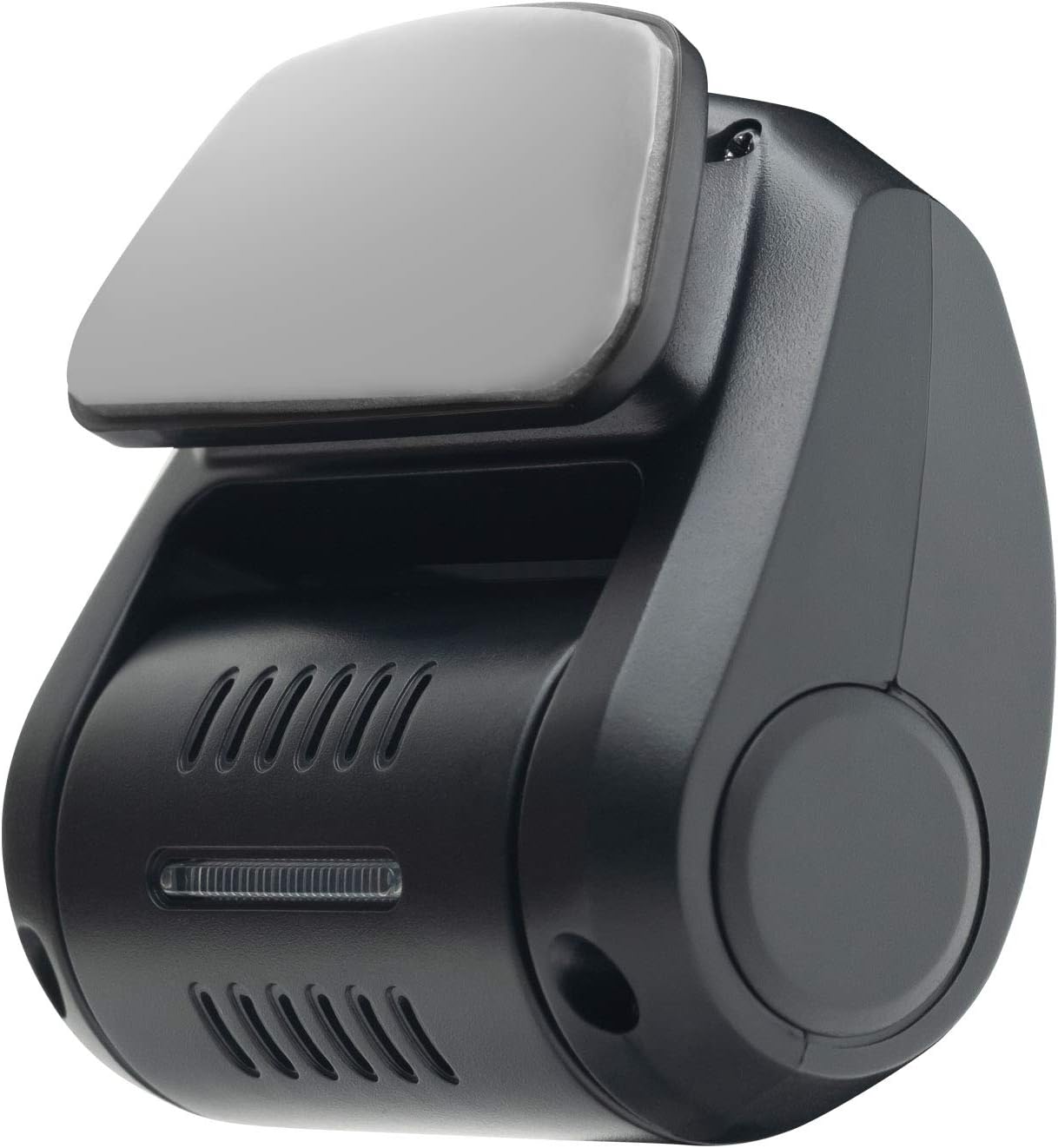
The Kenwood KCA-R100 is a Full HD rear camera designed to enhance the functionality of your Kenwood DRV-A501W dashcam. It records rear-view footage, saving it as a separate file on the DRV-A501W's memory card. This camera is exclusively compatible with the DRV-A501W dashcam.
2. Safety Information
- Ensure professional installation if you are unsure about wiring or vehicle electrical systems.
- Do not obstruct the driver's view or interfere with vehicle safety features.
- Avoid installing the camera in locations exposed to extreme temperatures or direct sunlight for prolonged periods.
- Disconnect power before cleaning the device.
- Keep the device away from moisture and liquids.
3. Product Overview
The KCA-R100 rear camera features a compact design and is equipped with a high-quality lens for clear recording.
Key Features:
- Full HD rear camera (1980 x 1080 pixels)
- 2-megapixel CMOS sensor
- 161° wide-angle lens
- 180° rotatable lens for optimal angle adjustment
- 8-meter USB connection cable for direct connection to Kenwood DRV-A501W
- Adhesive disc mount for discreet and secure installation
Components:



4. Setup and Installation
The KCA-R100 is designed for easy installation as an accessory to your Kenwood DRV-A501W dashcam. Ensure your vehicle is turned off before beginning installation.
Installation Steps:
- Choose Mounting Location: Select a suitable location on your rear window that provides a clear, unobstructed view of the road behind your vehicle. Ensure it does not interfere with the rear wiper or defroster lines.
- Clean Surface: Thoroughly clean the chosen area on the rear window with an alcohol wipe and allow it to dry completely. This ensures optimal adhesion.
- Attach Adhesive Mount: Peel the protective film from the adhesive disc mount on the camera. Carefully press the camera firmly onto the cleaned surface for at least 30 seconds.
- Route USB Cable: Connect the 8-meter USB cable to the KCA-R100 camera. Carefully route the cable along the vehicle's headliner, pillar trims, and floor mats to conceal it and prevent interference with driving.
- Connect to DRV-A501W: Connect the other end of the USB cable to the designated rear camera input port on your Kenwood DRV-A501W dashcam.
- Adjust Camera Angle: Once mounted and connected, power on your DRV-A501W and check the rear camera's live view. Adjust the KCA-R100's 180° rotatable lens to achieve the desired recording angle.
5. Operating Instructions
The Kenwood KCA-R100 rear camera operates in conjunction with your Kenwood DRV-A501W dashcam. Its functionality is controlled directly through the DRV-A501W unit.
- Automatic Recording: Once connected and the DRV-A501W is powered on, the KCA-R100 will automatically begin recording simultaneously with the front camera.
- File Storage: Rear camera footage is saved as separate video files on the DRV-A501W's memory card. These files are typically labeled to distinguish them from front camera recordings.
- Viewing Footage: To view recorded footage from the KCA-R100, access the playback function on your DRV-A501W dashcam or transfer the memory card to a computer and use compatible viewing software. Refer to your DRV-A501W manual for detailed instructions on file management and playback.
6. Maintenance
Regular maintenance ensures optimal performance and longevity of your KCA-R100 rear camera.
- Cleaning the Lens: Gently wipe the camera lens with a soft, lint-free cloth to remove dust or smudges. Do not use abrasive cleaners or solvents, as these can damage the lens.
- Checking Cable Connections: Periodically inspect the USB cable connection between the KCA-R100 and the DRV-A501W to ensure it is secure and free from damage.
- Adhesive Mount Inspection: Occasionally check the adhesive mount to ensure it remains firmly attached to the rear window. If it shows signs of loosening, re-secure it or replace the adhesive if necessary.
7. Troubleshooting
If you encounter issues with your KCA-R100 rear camera, refer to the following common problems and solutions.
- No Image from Rear Camera:
- Ensure the USB cable is securely connected to both the KCA-R100 and the DRV-A501W.
- Check the settings on your DRV-A501W to confirm the rear camera is enabled.
- Verify that the DRV-A501W itself is functioning correctly.
- Poor Image Quality:
- Clean the camera lens with a soft, dry cloth to remove any dirt or smudges.
- Ensure there are no obstructions on the rear window blocking the camera's view.
- Check for condensation on the inside of the rear window.
- Camera Not Recording:
- Confirm that the DRV-A501W is recording properly.
- Check the memory card in the DRV-A501W for sufficient space or errors.
- Ensure the KCA-R100 is correctly recognized by the DRV-A501W.
8. Specifications
| Model | KCA-R100 |
| Resolution | Full HD (1080p) |
| Optical Sensor | 2-megapixel CMOS |
| Lens Type | Wide-angle |
| Actual Viewing Angle | 161° (horizontal), 180° (rotatable) |
| Connection Type | USB |
| Cable Length | 8 meters |
| Mounting Type | Adhesive holder |
| Compatible Devices | Kenwood DRV-A501W Dashcam |
| Product Dimensions (W x H x D) | 3.6 x 6.3 x 6.6 cm |
| Product Weight | 334 g |
| Supported Standards | MOV |
9. Warranty and Support
The Kenwood KCA-R100 rear camera comes with a standard warranty period. For specific details regarding your warranty coverage, please refer to the warranty card included with your product or visit the official Kenwood website.
For technical support, troubleshooting assistance beyond what is provided in this manual, or inquiries about replacement parts, please contact Kenwood customer service or your authorized Kenwood dealer. Contact information can typically be found on the official Kenwood website or in your product packaging.