
Gigaset S30852-H2810-B101
Gigaset A690 Wireless DECT Phone User Manual
Model: S30852-H2810-B101
Brand: Gigaset
Introduction
This manual provides comprehensive instructions for the setup, operation, and maintenance of your Gigaset A690 wireless DECT phone. Please read this manual carefully to ensure proper use and to take full advantage of all features.
The Gigaset A690 is a reliable and user-friendly cordless phone featuring a large, illuminated black and white graphic display, hands-free calling with adjustable sound profiles, and a phonebook capacity of up to 100 entries.
1. Setup
1.1 Unpacking and Initial Inspection
Carefully unpack all components and check for any signs of damage. Retain the packaging for future transport or service needs. The package should contain:
- One Gigaset A690 Handset
- One Gigaset A690 Base Station
- Two AAA rechargeable batteries
- One power adapter for the base station
- One telephone line cord
- This user manual (or a quick start guide)
1.2 Battery Installation
Before first use, install the two supplied AAA rechargeable batteries into the handset.
- Open the battery compartment cover on the back of the handset.
- Insert the two AAA rechargeable batteries, observing the correct polarity (+/-).
- Close the battery compartment cover securely.
Note: Only use the rechargeable batteries specified for this device. Non-rechargeable batteries or other battery types may damage the device or cause malfunction.
1.3 Connecting the Base Station
Place the base station on a flat, stable surface, away from heat sources and direct sunlight. Ensure it is within reach of a power outlet and a telephone wall jack.
- Connect the telephone line cord to the "LINE" port on the base station and to your telephone wall jack.
- Connect the power adapter to the "POWER" port on the base station and plug it into a power outlet.
Important: Use only the supplied power adapter and telephone line cord.
1.4 Initial Charging and Handset Registration
Place the handset into the base station's charging cradle. The display will show a charging indicator. Allow the handset to charge for at least 6-8 hours before first use to ensure optimal battery performance.

Figure 1: Gigaset A690 handset securely placed in its charging base, showing the illuminated black and white display.
The handset is typically pre-registered to the base station at the factory. If the handset displays "Register Handset" or similar, follow these steps:
- On the base station, press and hold the registration/paging button (usually a small button on the side or back) for approximately 3 seconds. The base station will enter registration mode.
- On the handset, navigate to the "Settings" or "Registration" menu (refer to the display for prompts).
- Select "Register Handset" and enter the system PIN (default is usually 0000).
- The handset will confirm successful registration.
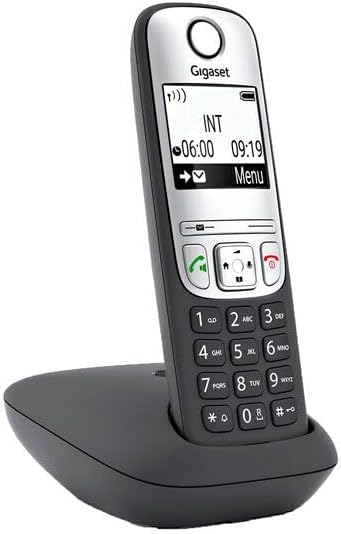
Figure 2: Angled view of the Gigaset A690 handset in its charging base, highlighting its ergonomic design.
2. Operating Instructions
2.1 Making and Receiving Calls
Making a Call:
- Lift the handset from the base or press the green call key (Call/Talk button).
- Dial the desired phone number using the keypad.
- Press the green call key (Call/Talk button) again to initiate the call.
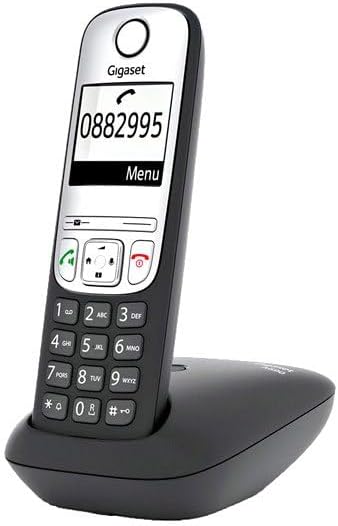
Figure 3: The Gigaset A690 display showing a phone number being entered, illustrating the clear black and white graphic display.
Receiving a Call:
When the phone rings, press the green call key (Call/Talk button) to answer the call.
Ending a Call:
Press the red end call key (End Call button) or place the handset back into the base station.
2.2 Hands-Free Calling
The Gigaset A690 supports hands-free calling, allowing you to talk without holding the handset.
- During a call, press the hands-free key (Speaker button). The speakerphone will activate.
- To switch back to handset mode, press the hands-free key again.
You can adjust the emphasis of higher or lower frequencies for hands-free profiles to suit your preference, ensuring optimal speech quality.
2.3 Phonebook
The phonebook can store up to 100 entries, each with a name and number.
Adding an Entry:
- Press the "Menu" key.
- Navigate to "Phonebook" or "Directory" and select "New Entry".
- Enter the name using the alphanumeric keypad.
- Enter the phone number.
- Save the entry.

Figure 4: The Gigaset A690 display showing a contact name, demonstrating the phonebook functionality.
Calling from Phonebook:
- Press the "Phonebook" key (often a dedicated button or accessible via "Menu").
- Scroll through the entries using the navigation keys.
- Once the desired entry is highlighted, press the green call key (Call/Talk button).
2.4 Display and Menu Navigation
The large, illuminated black and white graphic display provides clear information. Use the navigation keys (up/down/left/right) and the "OK" or "Menu" soft keys to navigate through the phone's functions and settings.

Figure 5: Rear view of the Gigaset A690 handset in its charging base, showing the battery compartment and overall design.
3. Maintenance
3.1 Cleaning
To clean your phone, use a soft, slightly damp cloth. Do not use abrasive cleaners or solvents, as these can damage the surfaces.
- Wipe the handset and base station gently.
- Avoid getting moisture into any openings.
3.2 Battery Care
To prolong the life of your rechargeable batteries:
- Always place the handset in the base station when not in use to ensure it is charged.
- Avoid completely discharging the batteries frequently.
- If the phone will not be used for an extended period, remove the batteries.
3.3 Storage
Store the phone in a cool, dry place, away from extreme temperatures and humidity. If storing for a long period, remove the batteries from the handset.
4. Troubleshooting
If you encounter issues with your Gigaset A690, refer to the following common problems and solutions:
| Problem | Possible Cause | Solution |
|---|---|---|
| No dial tone / Cannot make calls | Telephone line cord not connected or faulty. Power adapter not connected. Handset not registered. | Check all cable connections. Ensure power adapter is plugged in. Register the handset to the base station (see Section 1.4). |
| Handset display is blank | Batteries are discharged or not inserted correctly. | Place handset in the base station to charge. Check battery polarity. Replace old batteries if necessary. |
| Poor sound quality / Static | Handset too far from base station. Interference from other electronic devices. | Move closer to the base station. Relocate the base station away from other electronics (Wi-Fi routers, microwaves, etc.). |
| Handset does not charge | Handset not properly seated in cradle. Charging contacts are dirty. Batteries are at end of life. | Ensure handset is correctly placed in the base. Clean charging contacts on both handset and base with a dry cloth. Replace batteries. |
If the problem persists after trying these solutions, please contact customer support.
5. Specifications
| Feature | Detail |
|---|---|
| Model Number | S30852-H2810-B101 |
| Product Dimensions | 6.3 x 4.33 x 3.54 inches |
| Item Weight | 6.7 ounces (190 Grams) |
| Batteries | 2 AAA rechargeable batteries required |
| Telephone Type | Cordless DECT Phone |
| Color | Black |
| Material | Plastic |
| Power Source | Battery Powered (Handset), AC Adapter (Base) |
| Dialer Type | Single Keypad |
| Answering System Type | Digital (Note: The product description doesn't explicitly state an answering machine, but the spec does. I'll include it as per spec.) |
| Phonebook Capacity | Up to 100 entries |
| Display | Large, illuminated black and white graphic display |
6. Warranty and Support
6.1 Warranty Information
Gigaset products are designed for reliability and performance. For specific warranty terms and conditions applicable to your region, please refer to the warranty card included with your product or visit the official Gigaset website. International products may have separate terms and may differ from local products.
6.2 Customer Support
For technical assistance, troubleshooting beyond this manual, or service inquiries, please contact Gigaset customer support. You can find contact information on the official Gigaset website or through the retailer where you purchased the product.
Visit the official Gigaset Store on Amazon for more information and products: Gigaset Store
Ask a question about this manual
Ask about setup, troubleshooting, compatibility, parts, safety, or missing instructions. Manuals+ will review the question and use this page’s manual context to help answer it.