
1. Introduction
This manual provides detailed instructions for the setup, operation, maintenance, and troubleshooting of your XPPen Artist 22R Pro Drawing Tablet. Please read this manual thoroughly before using the product to ensure proper functionality and to maximize your creative experience.

Image 1.1: XPPen Artist 22R Pro Drawing Tablet and accessories.
The XPPen Artist 22R Pro is a 21.5-inch pen display designed for digital artists, featuring a full HD screen, 20 customizable shortcut keys, two red dial wheels, and a battery-free stylus with 8192 levels of pressure sensitivity and 60° tilt function. It offers broad compatibility with various operating systems and creative software.
2. Package Contents
Verify that all items listed below are present in your package:
- 1 x XPPen Artist 22R Pro Drawing Tablet
- 2 x Battery-free Stylus
- 1 x USB-C to USB-C Cable
- 1 x VGA Cable
- 1 x HDMI Cable
- 1 x Power Adapter
- 1 x Power Cord
- 1 x Pen Holder (includes 8 replacement pen nibs)
- 1 x USB-C to USB Adapter
- 1 x Quick Guide
- 1 x Cleaning Cloth
- 1 x Black Drawing Glove
3. Setup
3.1. Physical Connection
The Artist 22R Pro can be connected to your computer using either a USB-C to USB-C cable (for full-featured Type-C ports) or an HDMI cable combined with a USB-A to USB-C cable for data transmission.
3.1.1. USB-C Connection (Full-featured Type-C)
- Connect one end of the included USB-C to USB-C cable to the Type-C port on the Artist 22R Pro.
- Connect the other end of the USB-C to USB-C cable to a full-featured Type-C port on your computer.
- Connect the power adapter and power cord to the drawing display and a wall outlet.
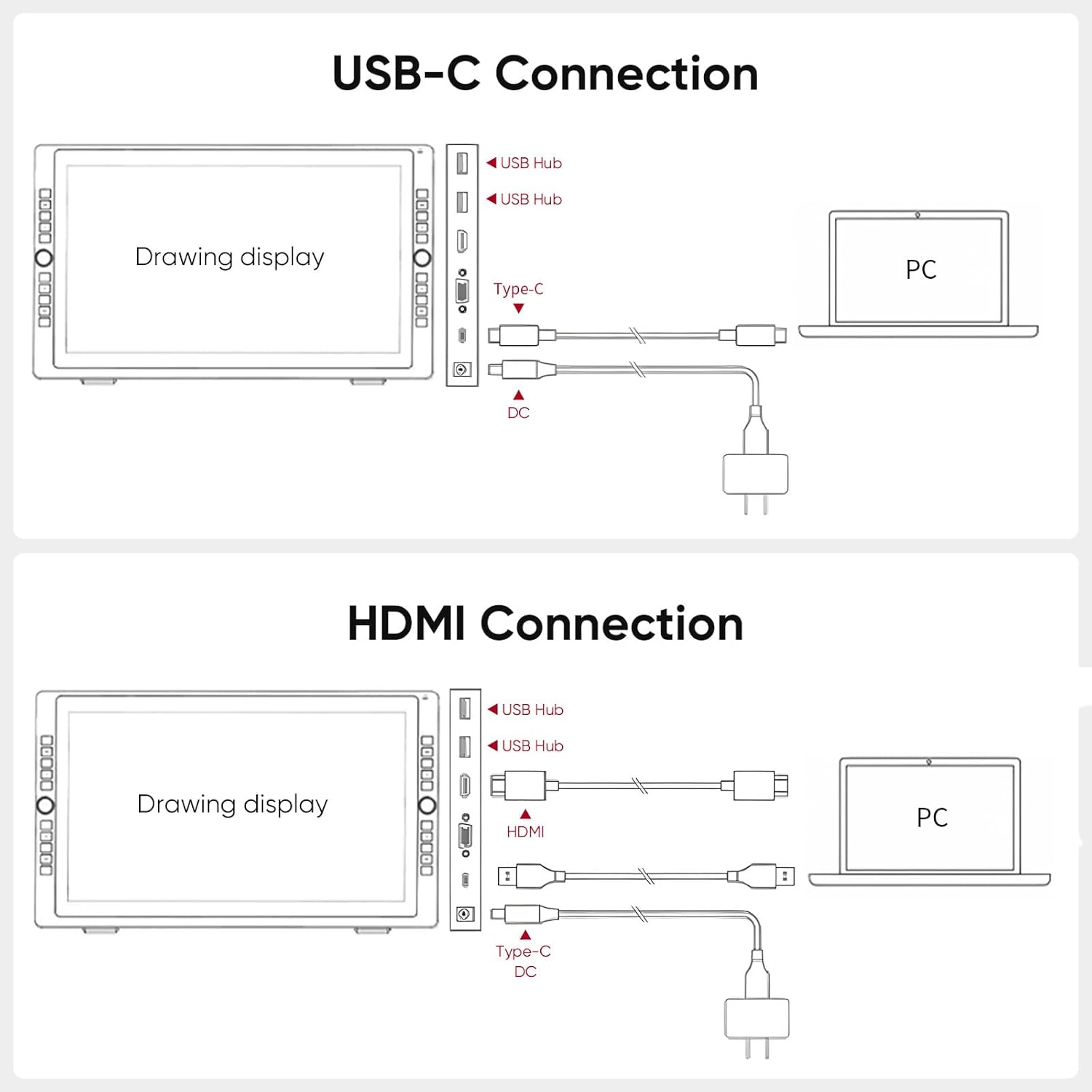
Image 3.1: USB-C connection diagram.
3.1.2. HDMI Connection
- Connect one end of the included HDMI cable to the HDMI port on the Artist 22R Pro.
- Connect the other end of the HDMI cable to the HDMI port on your computer.
- Connect the included USB-C to USB-A cable (or USB-C to USB adapter if needed) from the Artist 22R Pro to a USB port on your computer for data transmission.
- Connect the power adapter and power cord to the drawing display and a wall outlet.

Image 3.2: HDMI connection diagram.
3.2. Driver Installation
After connecting the hardware, you must install the latest driver for your operating system. Drivers can be downloaded from the official XPPen website.
- Visit the official XPPen support website.
- Locate the drivers for the Artist 22R Pro model.
- Download the appropriate driver for your operating system (Windows, macOS, Chrome OS, Linux).
- Important: Before installation, uninstall any existing tablet drivers from other brands or older XPPen drivers to prevent conflicts.
- Run the installer and follow the on-screen instructions.
- Restart your computer after installation is complete.
The Artist 22R Pro supports Windows 11/10/8/7, macOS 10.10 or later, Chrome OS 88 or later, and Linux.
4. Operating the Device
4.1. Stylus Usage
The included PA2 battery-free stylus offers precise control for drawing and navigation.
- Pressure Sensitivity: The stylus features 8192 levels of pressure sensitivity, allowing for varied line thickness and opacity based on the pressure applied.
- Tilt Function: Supports up to 60° of tilt, enabling natural shading and brush effects.
- Programmable Buttons: The stylus has two customizable buttons. Their functions can be configured in the XPPen driver settings.

Image 4.1: PA2 Stylus features.
4.2. Shortcut Keys and Dial Wheels
The Artist 22R Pro is equipped with 20 customizable shortcut keys and two red dial wheels on both sides of the display to enhance workflow efficiency.
- Customization: All shortcut keys and dial wheels can be programmed to perform various functions (e.g., undo, redo, zoom, brush size) through the XPPen driver software.
- Ergonomics: The symmetrical design allows comfortable use for both left-handed and right-handed users.

Image 4.2: Customizable shortcut keys and dial wheels.
4.3. Adjustable Stand
The integrated stand allows for angle adjustment from 16° to 90°, providing ergonomic comfort during long creative sessions.
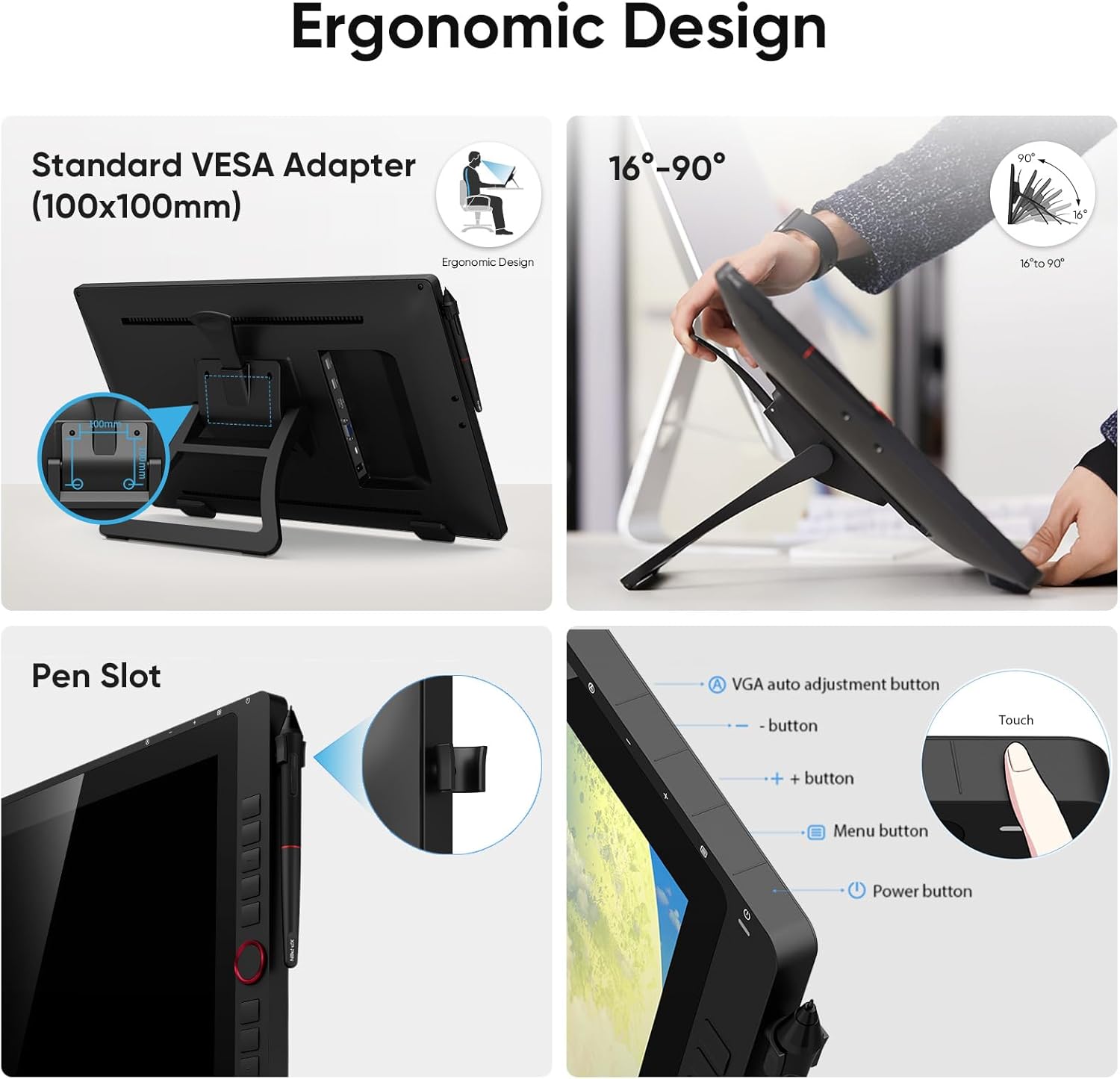
Image 4.3: Adjustable stand and pen slot.
5. Maintenance
5.1. Cleaning the Screen
To maintain optimal display clarity, regularly clean the screen using the provided cleaning cloth.
- Gently wipe the screen surface with the dry cleaning cloth to remove dust and smudges.
- For stubborn marks, lightly dampen the cloth with water or a screen-safe cleaning solution. Avoid harsh chemicals.
- Do not spray liquid directly onto the screen.
5.2. Stylus Nib Replacement
The stylus nibs are consumable items and will wear down over time. Replace them when they become too short or sharp to ensure smooth drawing.
- Unscrew the cap at the tail end of the pen holder to access the replacement nibs and the nib removal tool.
- Use the nib removal tool to gently pull out the worn nib from the stylus.
- Insert a new nib firmly into the stylus until it clicks into place.
6. Troubleshooting
If you encounter issues with your Artist 22R Pro, refer to the following common solutions:
- No Display/Black Screen:
- Ensure all cables (HDMI/USB-C, power) are securely connected.
- Verify the power adapter is plugged into a working outlet and the tablet's power button is on.
- Check your computer's display settings to ensure the tablet is detected and set as an extended or duplicate display.
- Try a different port on your computer or a different cable if available.
- Pen Not Working/No Pressure Sensitivity:
- Ensure the XPPen driver is correctly installed and running. Reinstall the driver if necessary, making sure to uninstall any previous tablet drivers first.
- Check if the stylus nib is properly inserted or replace it with a new one.
- Verify that the USB data cable (USB-A to USB-C or full-featured USB-C) is connected.
- Calibrate the pen in the XPPen driver settings.
- Inaccurate Cursor/Offset:
- Perform screen calibration through the XPPen driver software.
- Ensure your display resolution is set to the recommended 1920 x 1080.
- Shortcut Keys/Dial Wheels Not Responding:
- Open the XPPen driver settings and verify that the keys and dials are correctly configured.
- Ensure the driver software is running in the background.
For further assistance, refer to the official XPPen support resources or contact customer service.
7. Specifications
Key technical specifications for the XPPen Artist 22R Pro:
| Feature | Specification |
|---|---|
| Product Dimensions | 22.44 x 13.18 x 1.76 inches |
| Item Weight | 15.4 pounds |
| Screen Size | 21.5 inches |
| Resolution | 1920 x 1080 (FHD) |
| Color Accuracy | sRGB≥120%, Adobe RGB≥90%, 88% NTSC |
| Color Depth | 16.7 Million Colors |
| Contrast Ratio | 1000:1 |
| Viewing Angle | 178° |
| Pressure Sensitivity | 8192 Levels |
| Tilt Function | 60° |
| Report Rate | 200 RPS (Reports Per Second) |
| Shortcut Keys | 20 (customizable) |
| Dial Wheels | 2 (customizable) |
| Connectivity | USB-C (full-featured), HDMI, USB-A |
| Operating System Compatibility | Windows 11/10/8/7, macOS 10.10+, Chrome OS 88+, Linux |
8. Warranty and Support
8.1. Warranty Information
The XPPen Artist 22R Pro comes with a 1-Year Protection Plan. For specific terms and conditions regarding support, returns, and refunds, please refer to the warranty documentation included with your product or contact XPPen customer service.
8.2. Customer Support
If you have any questions or require assistance with your product, you can contact XPPen customer support via Amazon Message or through the official XPPen website. Additional resources, including FAQs and driver updates, are available on the XPPen support page.
You can also find the official User Manual (PDF) here.


