
Zeetopin ZS-GX6S-T
Zeetopin Security Camera User Manual
Model: ZS-GX6S-T
1. Introduction
Thank you for choosing the Zeetopin Security Camera. This manual provides detailed instructions for the setup, operation, and maintenance of your new wireless security camera. Please read this manual thoroughly before use to ensure proper functionality and safety.
The Zeetopin Security Camera is a versatile, battery-powered WiFi camera designed for both outdoor and indoor surveillance. It features PIR motion detection, two-way audio, and night vision capabilities, all housed within an IP65 waterproof casing.
2. Package Contents
Please verify that all items listed below are included in your package:
- Security Camera (1)
- Mounting Bracket (1)
- Screws (4)
- User Manual (1)
- 1A USB Cable (1)
3. Product Overview
Familiarize yourself with the components of your Zeetopin Security Camera.
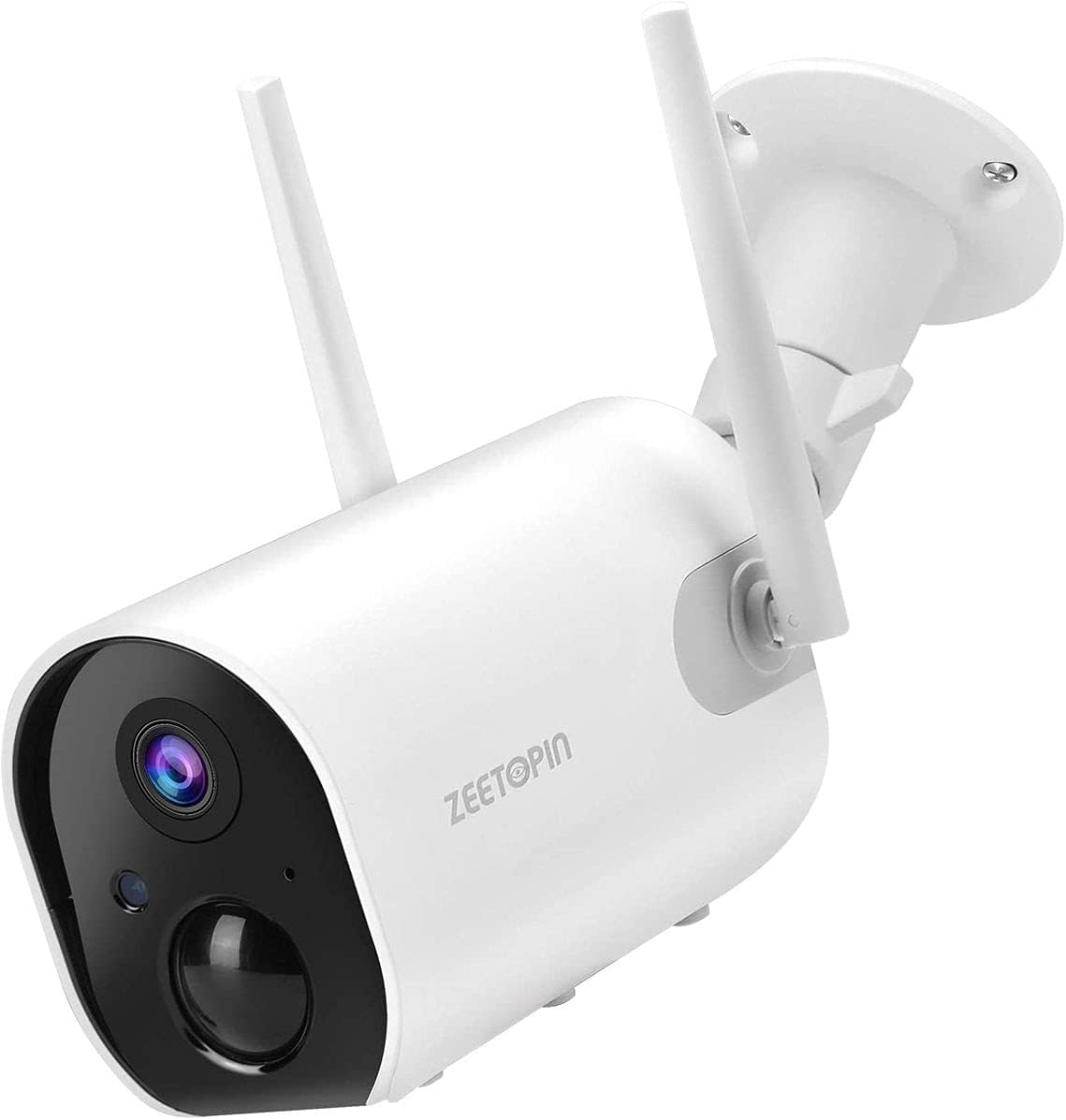
Figure 3.1: Front view of the Zeetopin Security Camera, showing the lens, PIR sensor, and dual antennas.
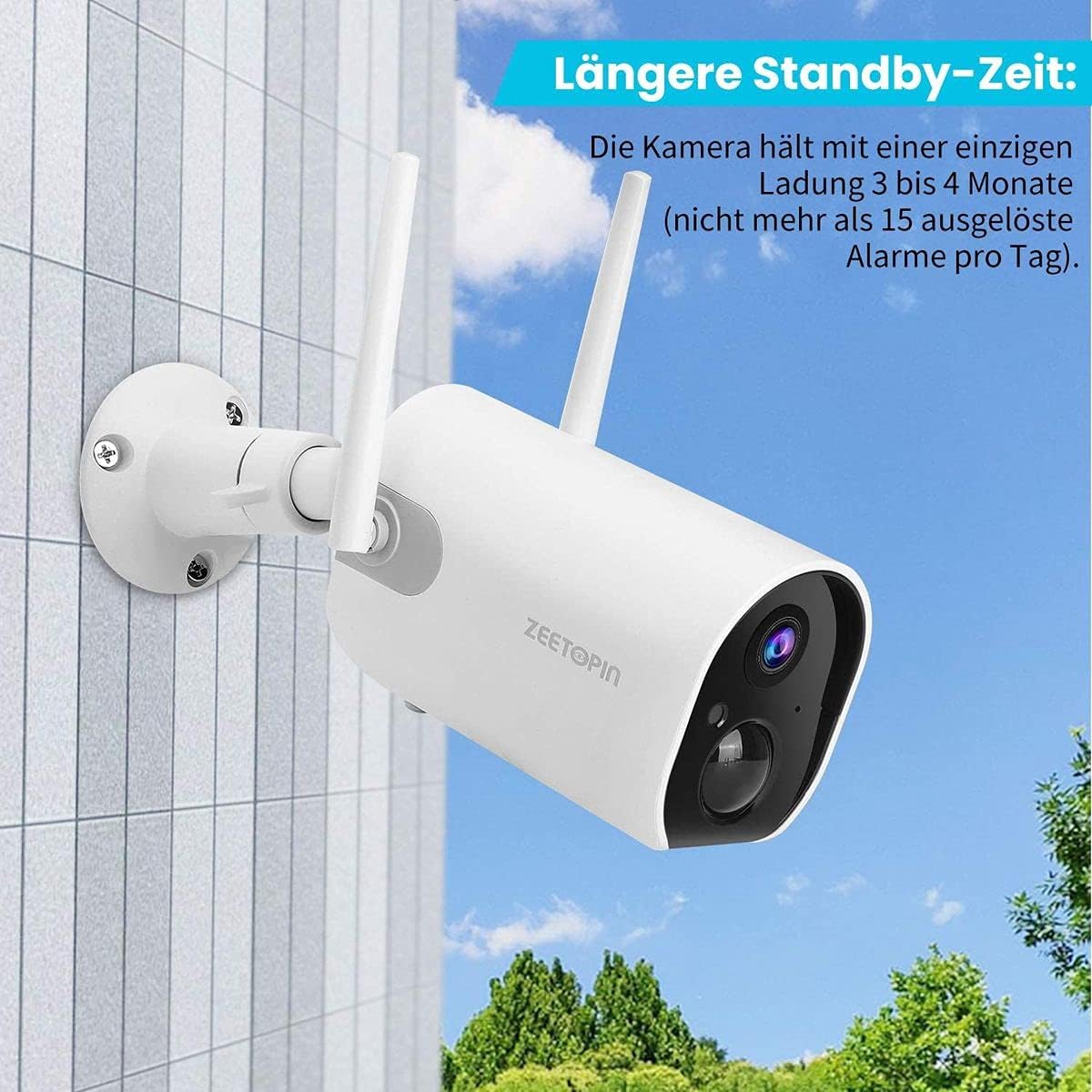
Figure 3.2: Zeetopin Security Camera installed outdoors on a building wall, demonstrating its weather-resistant design.
Key Features:
- 100% Wireless Installation: Built-in 10400mAh rechargeable battery for 3-4 months of operation on a full charge (based on 15 daily triggers).
- Full HD 1080P & Night Vision: Provides 1920x1080P @30fps images and videos with 65ft/20m night vision via 4 infrared lights.
- Enhanced WiFi Connectivity: Equipped with 4dBi Dual Antennas for stable 2.4GHz WiFi connection.
- PIR Motion Detection & Instant Alerts: Customizable sensitivity and monitoring time with instant app alerts.
- Two-Way Audio: Built-in microphone and speaker for remote communication.
- IP65 Waterproof: Suitable for various outdoor and indoor environments.
- Storage Options: Supports SD Card (Up to 128GB, Not Included) and cloud storage.
4. Setup and Installation
4.1 Charging the Camera
Before initial use, fully charge the camera using the provided 1A USB cable. The charging indicator light will show the charging status.
4.2 App Download and Account Registration
Download the official Zeetopin app (e.g., "CloudEdge" as mentioned in reviews) from your device's app store (iOS App Store or Google Play Store). Register for an account and log in.
4.3 Connecting the Camera to WiFi
- Power On: Hold the device power button to start the camera.
- Add Device: Open the app and tap "Add Device" or the "+" icon. Select "Battery Camera" from the device list.
- Reset Camera: If necessary, hold the RESET button on your device for 4-5 seconds until you hear a tone and the red indicator light flashes.
- WiFi Setup: Choose your 2.4GHz Wi-Fi network and enter the password. Note: This device does not work with 5GHz Wi-Fi networks.
- Scan QR Code: The app will display a QR code. Position your phone 5-8 inches (15-25cm) in front of the camera lens for the camera to scan the code. A tone will be heard upon successful scan.
- Connection: Wait for the camera to connect to the network. Keep the camera and phone close to your router for the best signal during this process.
- Device Found: Once connected, the app will indicate "Device Found!" and you can name your camera.
Video 4.1: This video demonstrates the initial setup process for the Zeetopin Security Camera, including app pairing and Wi-Fi connection steps.
4.4 Mounting the Camera
Select a suitable location for mounting. Ensure the camera has a clear field of view and is within range of your 2.4GHz Wi-Fi network. Use the provided mounting bracket and screws to securely attach the camera to a wall or ceiling.
For optimal battery life, consider pairing with a compatible Zeetopin solar panel charger (sold separately) to avoid frequent recharging.
5. Operation
5.1 Live View
Open the app and select your camera to access the live video feed. You can view real-time footage from your camera anytime, anywhere.
5.2 Two-Way Audio
Tap the microphone icon in the app to activate two-way audio. You can speak through the camera's speaker and hear audio from the camera's microphone.
5.3 Motion Detection and Alerts
The camera uses a PIR (Passive Infrared) sensor to detect motion. When motion is detected, you will receive an instant alert notification on your mobile device.
- Customizing Sensitivity: Navigate to the camera settings in the app to adjust the motion detection sensitivity.
- Monitoring Time: Set specific times for motion detection to be active.
5.4 Recording and Playback
The camera supports both local storage (SD card, up to 128GB, not included) and cloud storage (subscription may be required).
- Local Recording: Insert a compatible SD card into the camera's SD card slot. Recordings triggered by motion will be saved to the card.
- Cloud Storage: Refer to the app for options to subscribe to cloud storage services.
- Playback: Access recorded videos through the app's "History" or "Cloud" sections.
5.5 Night Vision
The camera automatically switches to night vision mode in low-light conditions, providing clear black and white images up to 65 feet (20 meters).
6. Maintenance
6.1 Battery Management
The camera's built-in 10400mAh battery provides extended usage. To maximize battery life:
- Reduce motion detection sensitivity if you receive excessive alerts.
- Limit live view streaming time.
- Consider connecting to a Zeetopin solar panel charger for continuous power.
6.2 Cleaning
Regularly clean the camera lens and body with a soft, dry cloth to ensure clear image quality. Do not use harsh chemicals or abrasive cleaners.
6.3 Firmware Updates
Periodically check the app for available firmware updates. Keeping your camera's firmware up-to-date ensures optimal performance and access to new features.
7. Troubleshooting
| Problem | Possible Cause | Solution |
|---|---|---|
| Camera won't connect to Wi-Fi. | Incorrect Wi-Fi password; 5GHz Wi-Fi network; Camera too far from router. | Ensure correct 2.4GHz Wi-Fi password. Move camera closer to router. Reset camera and try again. |
| Poor image quality. | Dirty lens; Low light conditions; Poor Wi-Fi signal. | Clean the lens. Ensure adequate lighting or check night vision. Improve Wi-Fi signal strength. |
| Motion detection not working or too sensitive. | Incorrect sensitivity settings; Obstructions in view. | Adjust PIR sensitivity in the app. Ensure no obstructions block the sensor. |
| Battery drains quickly. | Frequent motion triggers; Excessive live view. | Reduce motion detection frequency/sensitivity. Limit live view. Consider solar panel charging. |
8. Specifications
| Feature | Detail |
|---|---|
| Model Number | ZS-GX6S-T |
| Battery | 4 Lithium Ion batteries (included), 10400mAh |
| Connectivity | Wireless (2.4GHz Wi-Fi only) |
| Resolution | 1080P Full HD (1920 x 1080P @30 fps) |
| Night Vision Distance | Up to 65ft (20m) |
| Waterproof Rating | IP65 |
| Storage | SD Card (up to 128GB, not included), Cloud Storage |
| Dimensions | 7 x 8 x 11.7 cm; 400 g |
| Manufacturer | ZEETOPIN |
9. Warranty and Support
Zeetopin offers a 3-month return/exchange service and a 2-year warranty for this product. For any questions or assistance, please contact Zeetopin customer support via email or the QA section on the product page.
For further assistance, please visit the official product page.