
Introduction
Welcome to the user manual for the BLU Vivo X5 smartphone. This guide provides essential information for setting up, operating, maintaining, and troubleshooting your device.
The BLU Vivo X5 features a 5.7-inch HD+ 18:9 Curved Glass Display, an Octa-Core 1.6GHz processor, 13MP A.I. main camera, 8MP front camera, 64GB internal storage, 3GB RAM, and runs on Android 9 Pie. It supports 4G LTE connectivity and includes a fingerprint sensor for enhanced security.
What's in the Box
Upon unboxing your BLU Vivo X5, verify that all standard components are present:
- BLU Vivo X5 Device
- Charger
- Quick Guide

This image displays the BLU Vivo X5 smartphone, its packaging, a screen protector, a protective case, a charger, a USB cable, earphones, and a quick guide.
Device Setup
Inserting SIM and MicroSD Cards
Your BLU Vivo X5 supports dual SIM cards and one MicroSD card for expandable storage.
- Locate the SIM/MicroSD card tray on the side of the device.
- Use the provided SIM ejector tool to open the tray.
- Carefully place your Nano-SIM cards and MicroSD card into their respective slots, ensuring correct orientation.
- Gently push the tray back into the device until it clicks into place.
Charging the Device
Before initial use, fully charge your BLU Vivo X5.
- Connect the USB cable to the charger adapter.
- Plug the charger adapter into a power outlet.
- Connect the USB cable to the charging port on your phone.
- The battery indicator on the screen will show charging progress.
Initial Power On and Configuration
To power on your device, press and hold the power button located on the side until the BLU logo appears. Follow the on-screen prompts to complete the initial setup, including language selection, Wi-Fi connection, Google account setup, and security settings.
Operating Your Device
Basic Navigation
The BLU Vivo X5 runs on Android 9 Pie. Navigate using on-screen gestures or the traditional navigation bar (Back, Home, Recent Apps).
Making Calls and Sending Messages
Use the Phone app to make calls and the Messages app for SMS/MMS.
Camera Functions
Your device is equipped with a 13MP A.I. main camera with flash and an 8MP front camera with flash.
- Open the Camera app from the home screen or app drawer.
- Select your desired mode (Photo, Video, Portrait, etc.).
- Tap the shutter button to capture images or start/stop video recording.
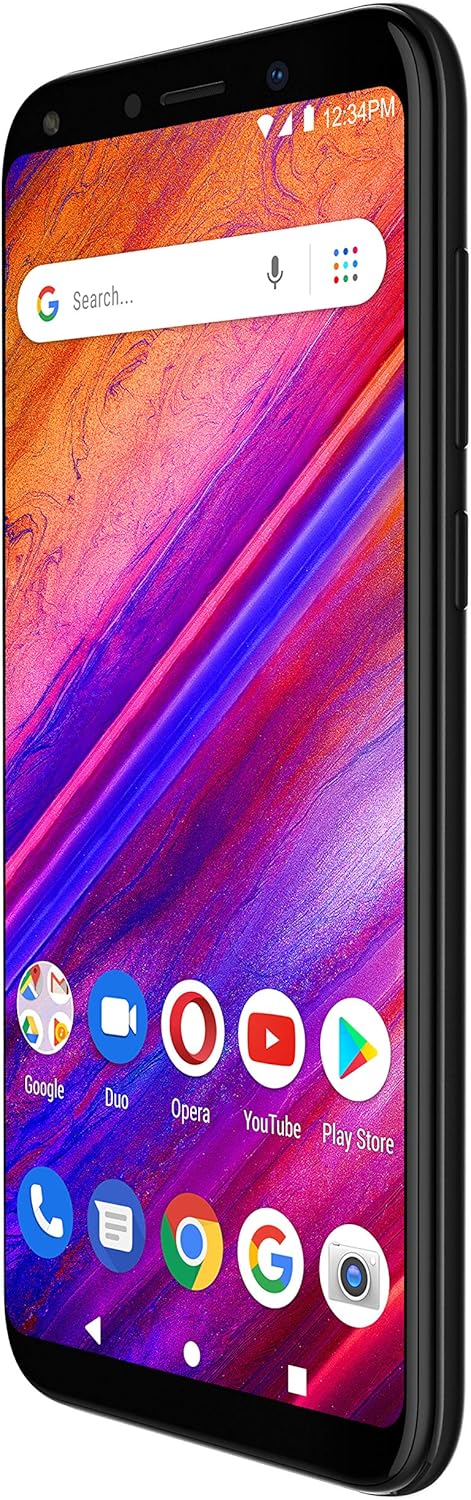
This image shows the front of the BLU Vivo X5 smartphone with its display active, showcasing the Android home screen with various application icons and a search bar.
Connectivity
The BLU Vivo X5 supports 4G LTE for cellular data and Wi-Fi for wireless internet access.
- Wi-Fi: Go to Settings > Network & internet > Wi-Fi to connect to available networks.
- Mobile Data: Ensure mobile data is enabled in Settings > Network & internet > Mobile network.
- Bluetooth: For connecting wireless accessories, go to Settings > Connected devices > Bluetooth.
Fingerprint Sensor
For enhanced security, set up the fingerprint sensor.
- Go to Settings > Security & location > Fingerprint.
- Follow the on-screen instructions to register your fingerprints.
- The sensor is located on the back of the device.

This image displays the back of the BLU Vivo X5 smartphone, highlighting the leather-patterned finish and the circular fingerprint sensor below the camera module.
Device Maintenance
Battery Care
To prolong battery life, avoid extreme temperatures and fully discharging the battery frequently. Use only the provided charger.
Software Updates
Regularly check for system updates to ensure optimal performance and security. Go to Settings > System > Advanced > System update.
Cleaning Your Device
Use a soft, lint-free cloth to clean the screen and body of your phone. Avoid harsh chemicals.
Data Backup
Regularly back up your important data to a cloud service or a computer to prevent data loss.
Troubleshooting Common Issues
Device Not Powering On
Ensure the battery is charged. Connect the charger and wait a few minutes before attempting to power on again. If the issue persists, contact support.
Network Connectivity Issues
Check if your SIM card is properly inserted. Verify that mobile data or Wi-Fi is enabled. Restart the device.
Slow Performance
Close unused applications. Clear cache from apps. Consider performing a factory reset if performance issues continue after other troubleshooting steps (Warning: A factory reset will erase all data on your device).
Technical Specifications
| Feature | Specification |
|---|---|
| Model Number | V0490LL |
| Operating System | Android 9.0 Pie |
| Display | 5.7" HD+ 18:9 Curved Glass (1280 x 720 resolution) |
| Processor | Octa-Core 1.6GHz |
| RAM | 3 GB |
| Internal Storage | 64 GB |
| Expandable Storage | Micro SD up to 64GB |
| Main Camera | 13MP A.I. with Flash |
| Front Camera | 8MP with Flash |
| Connectivity | 4G LTE (1/3/4/5/7/28), 3G (850/1900/2100), Wi-Fi, Bluetooth, GPS |
| Security | Fingerprint Sensor |
| Battery | 1 Lithium Ion (included) |
| Dimensions | 6 x 1.97 x 3.43 inches |
| Item Weight | 0.018 ounces |
| Color | Black |
Warranty and Support
For warranty information, please refer to the warranty card included with your product or visit the official BLU website.
For technical support or service inquiries, please contact BLU customer service. Contact details can typically be found on the BLU website or in the quick guide provided with your device.


