
Introduction
This manual provides detailed instructions for the Snpurdiri ST-M1 PRO Wired Lightweight Gaming Mouse. Please read this manual carefully before using the product to ensure proper operation and to maximize your gaming experience.
The Snpurdiri ST-M1 PRO is designed for precision and comfort, featuring a lightweight honeycomb shell, a high-DPI optical sensor, and customizable buttons.
Package Contents
- Snpurdiri ST-M1 PRO Gaming Mouse
- User Manual (this document)
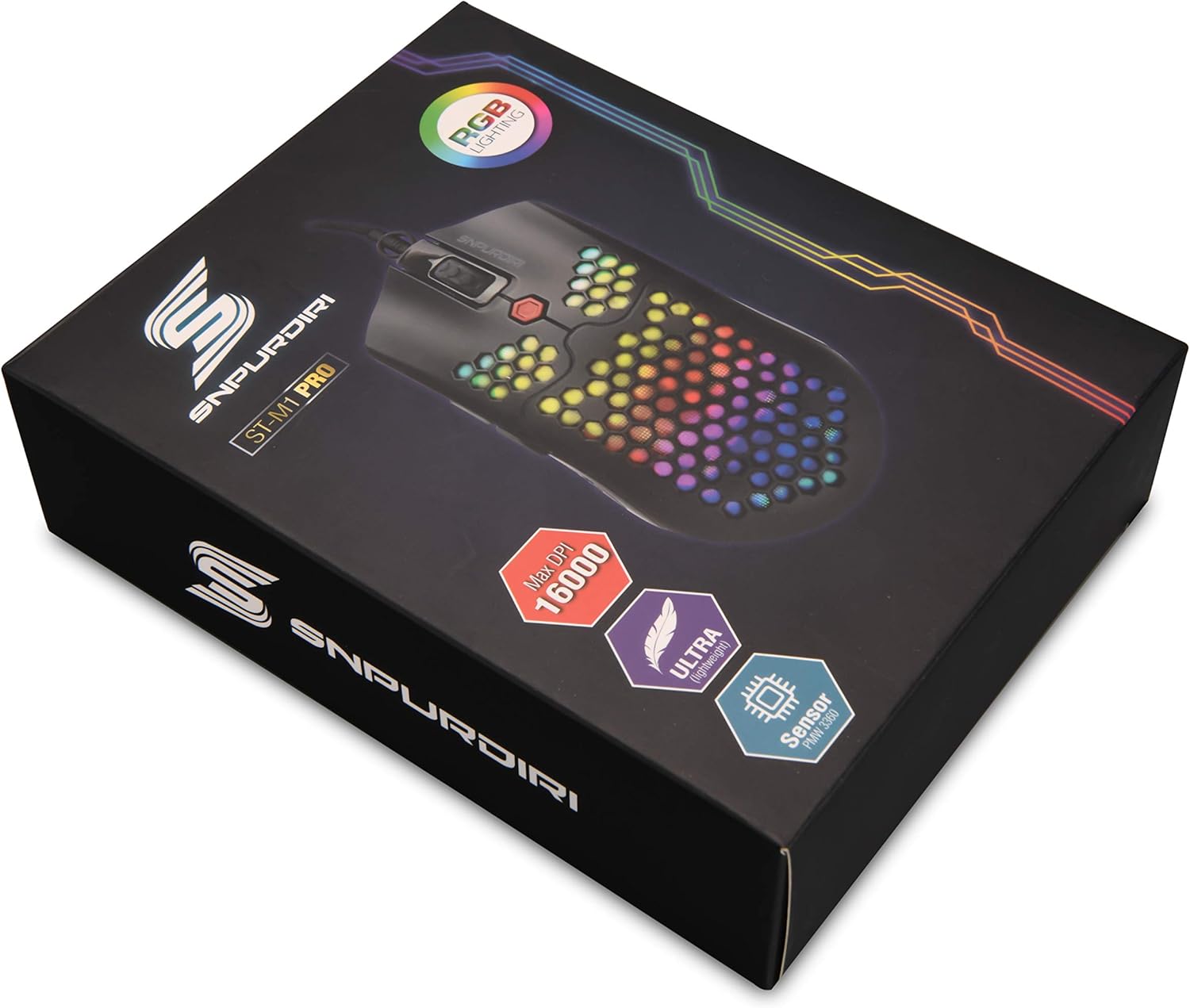
Image: The Snpurdiri ST-M1 PRO Gaming Mouse packaging box, showing the mouse with RGB lighting and key features.
Product Overview

Image: Top-down view of the Snpurdiri ST-M1 PRO Gaming Mouse, highlighting its honeycomb shell design and central scroll wheel.

Image: Angled view of the Snpurdiri ST-M1 PRO Gaming Mouse, showcasing its vibrant RGB lighting through the honeycomb shell.
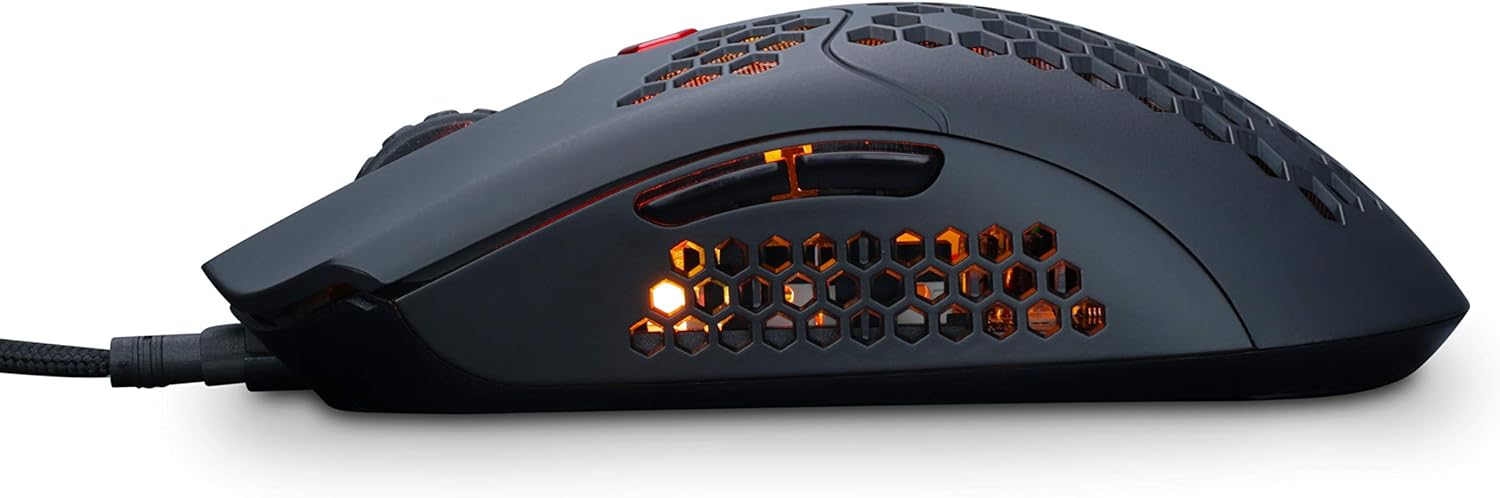
Image: Side view of the Snpurdiri ST-M1 PRO Gaming Mouse, showing the ergonomic shape and side buttons.

Image: Internal view of the Snpurdiri ST-M1 PRO Gaming Mouse, revealing its internal components and circuit board.

Image: Bottom view of the Snpurdiri ST-M1 PRO Gaming Mouse, showing the optical sensor, power switch, and model number ST-M1 PRO.
Setup Instructions
- Connect the Mouse: Plug the USB connector of the Snpurdiri ST-M1 PRO mouse into an available USB port on your computer.
- Driver Installation: The mouse is plug-and-play for basic functionality. For advanced features and button programming, download the official driver software from the Snpurdiri website.
- System Compatibility: The mouse is compatible with Windows 7 and later operating systems.
Operating Instructions
Button Functions
The Snpurdiri ST-M1 PRO features 7 programmable buttons:
- Left Click Button
- Right Click Button
- Scroll Wheel (Clickable)
- DPI Cycle Button (usually located behind the scroll wheel)
- Forward Side Button
- Backward Side Button
- Additional Programmable Button (location may vary, often on the side or top)
Note: Specific button assignments can be customized using the driver software.
DPI Adjustment
The mouse offers 6 adjustable DPI speeds. Press the DPI cycle button to switch between the following settings:
- 800 DPI
- 1600 DPI
- 2400 DPI
- 4000 DPI
- 6000 DPI
- 16000 DPI (Maximum)
Each DPI setting may be indicated by a specific LED color on the mouse (refer to driver software for details).
RGB Lighting Modes
The Snpurdiri ST-M1 PRO features 10 cool RGB lighting modes and 1 office mode. These modes can typically be cycled through using a dedicated button (often combined with the DPI button or a side button) or customized via the driver software.
Maintenance
- Cleaning: Use a soft, dry cloth to clean the mouse surface. For honeycomb areas, a soft brush or compressed air can remove dust. Avoid using harsh chemicals or abrasive materials.
- Sensor Care: Keep the optical sensor on the bottom of the mouse clean and free from obstructions for optimal tracking performance.
- Cable Management: Avoid sharp bends or excessive pulling on the USB cable to prevent damage.
Troubleshooting
| Problem | Solution |
|---|---|
| Mouse not responding |
|
| Inaccurate tracking or cursor lag |
|
| RGB lighting not working |
|
| Buttons not programmable |
|
Specifications
| Feature | Detail |
|---|---|
| Model | ST-M1 PRO |
| Product Dimensions | 128.5mm x 67mm x 38mm |
| Product Weight | 65g ± 3g (mouse only) |
| Cable Length | 1.8 meters |
| Number of Buttons | 7 (Programmable) |
| Coating | Matte |
| Acceleration | 50 g |
| Polling Rate | 125Hz - 1000Hz |
| Tracking Speed | 400 IPS |
| DPI Settings | 800, 1600, 2400, 4000, 6000, 16000 (Adjustable) |
| RGB Lighting | 10 RGB Modes + 1 Office Mode |
| Connectivity | Wired USB |
| Movement Detection | Optical (PMW3360 sensor) |
| Compatibility | Windows 7 and later |
| Manufacturer | DIRI |
| Date First Available | November 12, 2019 |
Warranty Information
Snpurdiri products are manufactured to high quality standards. This product is covered by a limited warranty against defects in materials and workmanship from the date of purchase. Please retain your proof of purchase for warranty claims. Specific warranty terms and conditions may vary by region. For detailed warranty information, please refer to the official Snpurdiri website or contact customer support.
Support
For further assistance, technical support, or to download the latest driver software, please visit the official Snpurdiri website:
Visit the Snpurdiri Store on Amazon
You may also find answers to common questions in the FAQ section of the Snpurdiri website.