
1. Product Overview
The ENBUER 1x8 HDMI Splitter is an HD audio and video distributor designed to connect a single HDMI signal source to the input of the splitter, then distribute that signal to eight independent HDMI output ports simultaneously. This device supports high-resolution video and audio formats, making it suitable for various applications.
Key Features:
- Supports HDMI 1.4b version.
- Supports 3D video format.
- Supports resolutions up to 3840x2160/30Hz (4K x 2K@30Hz).
- Highest data rate of 3.4G, with TMDS clock up to 340 MHz.
- Compatible with AWG26 HDMI standard cables: input up to 15 meters, output up to 15 meters (for 1080P). For 4K resolution, input and output up to 8 meters each.
- Allows one HDMI source (e.g., DVD player, A/V receiver, set-top box) to access multiple HDMI sinks (displays).
- Features buffering and amplifying capabilities.
- Durable cool metal enclosure for protection and heat dissipation.
- Supports various audio formats including LPCM, Dolby-AC3, DTS7.1, DSD/Dolby TrueHD/DTS-HD master audio.
- Compatible with a wide range of devices such as PCs, Blu-ray players, media players, PS3, HDMI displays, projectors, monitors, and HDTVs.

Image 1.1: Front and back view of the ENBUER 1x8 HDMI Splitter, highlighting the ON/OFF switch, Power Indicator, HDMI Indicator lights (L1-L8), HDMI Input Port, HDMI Output Ports, and DC/5V power input.
2. Setup Instructions
Follow these steps to properly set up your ENBUER 1x8 HDMI Splitter:
- Prepare Devices: Ensure all devices (HDMI source, displays, and the splitter) are powered off before making any connections.
- Connect HDMI Source: Connect one end of an HDMI cable to your HDMI source device (e.g., Blu-ray player, PC, PS3) and the other end to the HDMI IN port on the splitter.
- Connect HDMI Displays: Connect one end of up to eight HDMI cables to the HDMI OUT ports (HDMI OUT1 to HDMI OUT8) on the splitter. Connect the other end of each HDMI cable to an HDMI input port on your respective display devices (e.g., HDTVs, projectors, monitors).
- Connect Power Adapter: Insert the DC 5V power adapter into the DC/5V port on the splitter. Plug the power adapter into a standard electrical outlet.
- Power On: Turn on the splitter using the ON/OFF switch. Then, power on your HDMI source device and all connected display devices.
- Verify Connection: The HDMI Indicator lights (L1-L8) on the splitter will illuminate for each active output. Verify that the video and audio signals are displayed correctly on all connected screens.

Image 2.1: Connection diagram illustrating how to connect a Blu-ray DVD player, PC, or PS3 to the HDMI IN port, and multiple HDTVs to the HDMI OUT ports of the splitter, along with the power adapter connection.

Image 2.2: The ENBUER 1x8 HDMI Splitter, its included 5V DC power adapter, and the user manual.
3. Operating Instructions
The ENBUER 1x8 HDMI Splitter is designed for straightforward operation:
- Automatic Signal Distribution: Once all connections are made and devices are powered on, the splitter will automatically detect the HDMI input signal and distribute it to all connected HDMI output displays.
- Independent Outputs: Each of the eight HDMI output ports operates independently. This means the splitter will function correctly even if only one display is connected and active.
- 3D Video Support: To experience 3D content, ensure that your HDMI source device, all connected display devices, and the HDMI cables used are fully compatible with 3D video formats.
- Resolution Handling: The splitter supports resolutions up to 4K (3840x2160) at 30Hz. It will pass through the highest common resolution supported by the source and connected displays.
- Audio Support: The splitter passes through various audio formats, including LPCM, Dolby-AC3, DTS7.1, DSD/Dolby TrueHD/DTS-HD master audio, ensuring high-quality sound reproduction on your connected audio systems.
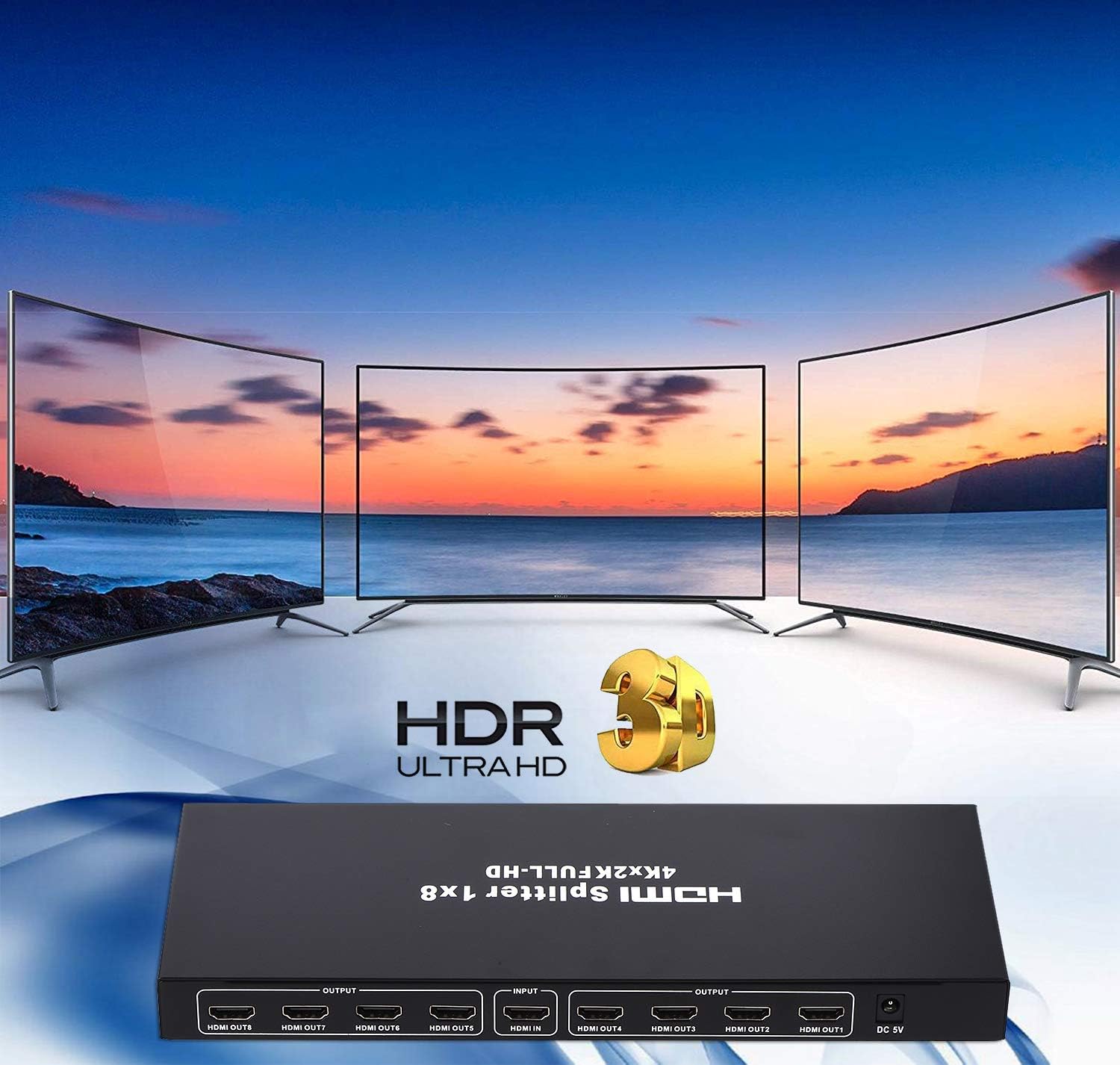
Image 3.1: The splitter supports high-definition formats including HDR Ultra HD and 3D, enabling a rich visual experience across multiple displays.
4. Maintenance
To ensure the longevity and optimal performance of your HDMI splitter, consider the following maintenance guidelines:
- Cleaning: Use a soft, dry cloth to clean the exterior of the unit. Avoid using liquid or aerosol cleaners, as they may damage the device.
- Ventilation: Ensure the splitter is placed in a well-ventilated area to prevent overheating. Do not block any ventilation openings.
- Environmental Conditions: Keep the device away from direct sunlight, heat sources, moisture, and excessive dust. Operate within recommended temperature and humidity ranges.
- Cable Management: Avoid bending or kinking HDMI cables excessively, as this can damage the internal wires and affect signal quality.
- Power Disconnection: If the splitter will not be used for an extended period, disconnect the power adapter from the electrical outlet.
5. Troubleshooting
If you encounter issues with your ENBUER 1x8 HDMI Splitter, refer to the following common problems and solutions:
- No Picture or Sound on Display:
- Ensure the splitter is powered on and the power indicator light is illuminated.
- Check all HDMI cable connections. Ensure they are securely plugged into the correct input and output ports.
- Verify that the HDMI source device is powered on and outputting a signal.
- Confirm that your display devices are set to the correct HDMI input channel.
- Try using different HDMI cables, as faulty cables can cause signal loss.
- Test with a single display connected to one output port to isolate the issue.
- Flickering or Intermittent Signal:
- Check the length and quality of your HDMI cables. Longer cables, especially for 4K resolution, require higher quality (AWG26 or better).
- Ensure the power adapter is providing stable power to the splitter.
- Reduce the resolution of the source device to see if the issue persists.
- 3D Content Not Displaying:
- All devices in the chain (source, splitter, displays) must support 3D video.
- Ensure the 3D settings are correctly configured on your source device and displays.
- Resolution Issues (e.g., not getting 4K):
- Verify that your source device and all connected displays support the desired 4K resolution.
- Check HDMI cable specifications. For 4K, ensure you are using high-speed HDMI cables, and adhere to the recommended cable lengths (up to 8 meters for 4K).
If these steps do not resolve your issue, please contact customer support for further assistance.
6. Specifications

Image 6.1: Visual representation of the splitter's features and specifications.
| Feature | Description |
|---|---|
| Product Type | HDMI 1x8 Splitter |
| Interface Type | 1 HDMI In, 8 HDMI Out |
| Color | Black |
| Power Supply | DC 5V |
| HDMI Version | HDMI 1.4b |
| 3D Support | Yes |
| Max Resolution | 3840x2160/30Hz (4K x 2K@30Hz) |
| Max Data Rate | 3.4G |
| TMDS Clock | Up to 340 MHz |
| Input Cable Length (AWG26 HDMI Standard) | Up to 15 meters (1080P), Up to 8 meters (4K) |
| Output Cable Length (AWG26 HDMI Standard) | Up to 15 meters (1080P), Up to 8 meters (4K) |
| Supported Audio Formats | LPCM, Dolby-AC3, DTS7.1, DSD/Dolby TrueHD/DTS-HD Master Audio |
| Video Format | Deep Color 480i/576i/480p/576p/720p/1080i/1080P/1440i/1440p |
| EIDI Duration | 6 seconds |
| HDCP Compliance | HDCP 1.2 Protocol Compliant |
| Compatible Devices | Blu-Ray Player, DVD Player, Gaming Console, Monitor, Personal Computer, Projector, Television |
| Item Weight | 1.8 pounds |
| Package Dimensions | 15.7 x 6.4 x 2.4 inches |
| Model Number | NXA194-L2 |
7. Warranty and Support
ENBUER is committed to customer satisfaction. While specific warranty details are not provided in this manual, we offer friendly and accessible customer service to address any issues you may encounter with your purchase.
Customer Support:
If you have any questions, concerns, or require assistance with your ENBUER 1x8 HDMI Splitter, please do not hesitate to contact our customer service team. We are dedicated to resolving your problems promptly and ensuring your long-term satisfaction.
Please refer to the contact information provided with your product packaging or on the official ENBUER website for the most current support channels.