
1. Introduction
The Vividia HT-A2 / T-200 Thermal Inspection Camera is a compact, cost-effective, and user-friendly tool designed for various diagnostic and inspection purposes. It is suitable for applications in building, electrical, mechanical, and automotive fields. This manual provides detailed instructions to help users effectively operate and maintain their thermal inspection camera.
The HT-A2 / T-200 features a thermal resolution of 256x192 pixels, enabling clear visualization of temperature differences. Its lightweight design and 3.2-inch screen enhance portability and ease of use, allowing for detailed inspections and temperature measurements.
2. Product Overview
Familiarize yourself with the components and controls of your Vividia HT-A2 / T-200 Thermal Inspection Camera.

Figure 2.1: Front and Rear View of the HT-A2 / T-200 Thermal Inspection Camera with labeled components.
Key Components:
- 3.2" Full Angle TFT Camera Screen: Displays thermal images, temperature readings, and menu options.
- Micro USB Port: Used for charging the device and transferring data to a computer.
- Save Button: Captures and saves thermal images or video recordings.
- Navigation Buttons (Up, Down, Left, Right): Used to navigate through menus and adjust settings.
- On/Off Button: Powers the device on or off.
- Menu Button: Accesses the main menu for settings and options.
- Selection/Entry Button: Confirms selections or enters sub-menus.
- Digital Camera Lens: Captures visible light images for image fusion.
- Infrared Lens: Detects infrared radiation to create thermal images.
- Camera Lamp: Provides illumination for the digital camera in low-light conditions.
- Attachment Point: For securing a wrist strap or lanyard.
3. Key Features
- High thermal resolution of 256x192 pixels for detailed thermal imaging.
- Compact and lightweight design for enhanced portability and easy storage.
- Wide view angles for comprehensive area coverage.
- Ability to capture still images and record videos.
- Large 3.2-inch touchscreen display for intuitive viewing and operation.
- Built-in Wi-Fi connectivity for seamless data transfer to PCs, iPhones, iPads, and Android devices.
- Accurate temperature measurement capabilities.
4. What's in the Box
The standard package for the Vividia HT-A2 / T-200 Thermal Inspection Camera includes:
- Vividia HT-A2 / T-200 Thermal Inspection Camera Body
- USB Cable (for charging and data transfer)
- User Manual
5. Setup
5.1 Initial Charging
Before first use, fully charge the camera's internal battery. Connect the provided USB cable to the Micro USB port on the camera and the other end to a compatible USB power adapter or a computer's USB port. The charging indicator will show the charging status.

Figure 5.1: Micro USB port for charging and data transfer.
5.2 Powering On/Off
- To Power On: Press and hold the On/Off button until the screen illuminates.
- To Power Off: Press and hold the On/Off button until the shutdown prompt appears, then confirm.
6. Operating Instructions
6.1 Basic Navigation
Use the Navigation Buttons (Up, Down, Left, Right) to move the cursor or selection on the screen. Press the Selection/Entry Button to confirm an action or enter a menu option. The Menu Button provides access to various settings.

Figure 6.1: Adjusting measurement points using navigation keys.
6.2 Capturing Images and Videos
- To Capture an Image: Frame the desired area on the screen and press the Save Button. The image will be stored internally.
- To Record Video: Navigate to the video recording mode in the menu and press the Save Button to start/stop recording.
6.3 Viewing Saved Media
Access the gallery or playback option through the main menu to review captured images and videos.
6.4 Color Palettes
The camera offers multiple color palettes to visualize temperature differences. These can be selected from the menu to best suit the inspection environment and highlight specific thermal patterns.

Figure 6.2: Examples of thermal imaging applications.
6.5 Data Transfer (Wi-Fi and USB)
- USB Connection: Connect the camera to a computer using the USB cable. The camera will appear as a removable storage device, allowing you to transfer images and videos.
- Wi-Fi Connection: Enable Wi-Fi in the camera's settings. Follow the instructions to connect to a PC, iPhone, iPad, or Android device for wireless data transfer and remote viewing (if supported by companion app).
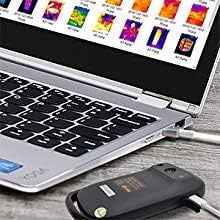
Figure 6.3: Connecting the camera to a laptop for data transfer.
6.6 Applications
The Vividia HT-A2 / T-200 is a versatile tool for various inspection tasks:
- Automotive Inspections: Detect parasitic draws, inspect HVAC systems, identify exhaust system blockages, check for misfires in engine manifolds, and verify correct flow in cooling systems.
- Home Inspections: Locate insulation deficiencies, identify moisture intrusion, detect electrical hot spots, and assess HVAC performance.
- HVAC Repair: Diagnose issues in heating, ventilation, and air conditioning systems by visualizing temperature distribution.
- Plumbing: Identify leaks or blockages in pipes by observing temperature anomalies.
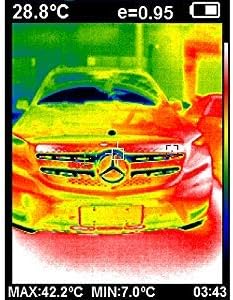
Figure 6.4: Thermal inspection of a vehicle.

Figure 6.5: The compact design allows for easy handling during inspections.
Video 6.1: This video demonstrates the Vividia HT-A2 Thermal Imaging Camera in various applications, including automotive diagnostics, HVAC inspection, and home inspection, showcasing its thermal resolution and ease of use.
7. Maintenance
7.1 Cleaning
- Gently wipe the camera body with a soft, dry cloth.
- For the lenses and screen, use a lens cleaning cloth and a specialized lens cleaning solution to avoid scratches. Do not use abrasive cleaners.
7.2 Storage
Store the camera in a cool, dry place away from direct sunlight and extreme temperatures. Use the original packaging or a protective case to prevent damage.
7.3 Battery Care
To prolong battery life, avoid fully discharging the battery frequently. If storing the camera for an extended period, ensure the battery is charged to approximately 50-70%.
8. Troubleshooting
| Problem | Possible Cause | Solution |
|---|---|---|
| Camera does not power on. | Low battery. | Charge the camera using the provided USB cable. |
| Image is blurry or unclear. | Dirty lens; incorrect focus. | Clean the infrared and digital lenses. Ensure the camera is within the optimal focal range. |
| Cannot transfer files to computer. | Loose USB connection; driver issue; Wi-Fi not enabled. | Ensure USB cable is securely connected. Try a different USB port or cable. Check Wi-Fi settings on the camera and connecting device. |
| Temperature readings seem inaccurate. | Incorrect emissivity setting; object too far or too close. | Adjust the emissivity setting in the menu to match the material being inspected. Ensure proper distance to the target. |
9. Specifications

Figure 9.1: Visual comparison of different infrared image resolutions.
| Feature | Detail |
|---|---|
| Model Name | HT-A2 / T-200 |
| Thermal Resolution | 256x192 pixels |
| Screen Size | 3.2 Inches |
| Photo Sensor Technology | CMOS |
| Supported File Format | RAW, MP4 (Video) |
| Optical Zoom | 1x |
| Exposure Control Type | Automatic |
| Form Factor | Compact |
| Special Feature | Lightweight, Wi-Fi |
| Shooting Modes | Automatic, Movie |
| Compatible Devices | Computers, Smartphones, Tablets |
| Battery Type | Lithium Ion (internal) |
| Water Resistance Level | Not Water Resistant |
| Auto Focus Technology | Contrast Detection |
| White Balance Settings | Auto |
10. Warranty and Support
10.1 Return Policy
This product is subject to a 30-day return policy. Please refer to your purchase documentation for specific terms and conditions.
10.2 Technical Support
For technical assistance, questions regarding operation, or warranty inquiries, please contact Oasis Scientific Inc., the manufacturer and seller of this product. Contact information can typically be found on the product packaging or their official website.
