
1. Introduction
The Translite Global TL-MC84 MoCA 2.5 Adapter allows you to extend your home network using existing coaxial cables, providing a high-speed, reliable wired connection without running new Ethernet cables. MoCA (Multimedia over Coax Alliance) 2.5 technology offers actual data rates up to 2.5 Gigabits per second (Gbps), ensuring robust performance for demanding network activities.
This adapter is backward compatible with MoCA 2.0 and MoCA 1.1 standards and includes features such as MoCA Protected Setup (MPS), Management Proxy, Enhanced Privacy, Network-wide Beacon Power, Bridge detection, and TR-069 remote management.
2. Package Contents
Verify that all items are present in your package:
- Translite Global TL-MC84 MoCA 2.5 Adapter (quantity as purchased, e.g., 1 or 2 units)
- Ethernet Cable (Cat 5e or higher)
- Coaxial Cable
- USB Power Adapter (5V, 1A)
- Micro-USB Power Cable

Image: Contents of the package, showing the MoCA adapter, power adapter, and micro-USB cable.
3. Product Overview
The TL-MC84 MoCA 2.5 Adapter features several ports and indicator lights for easy setup and monitoring.
3.1 Front Panel Indicators
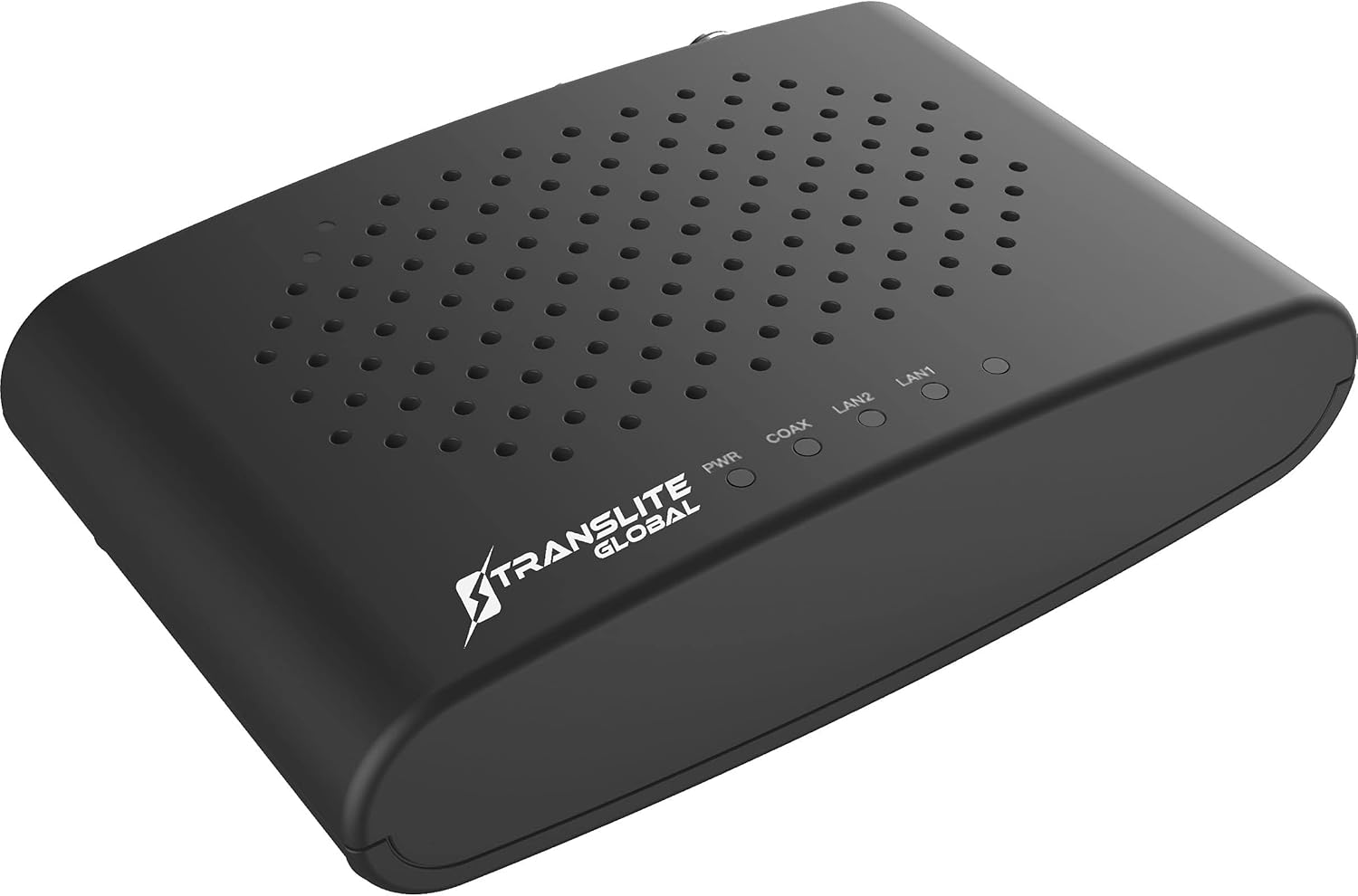
Image: Front view of the TL-MC84 adapter, highlighting the indicator lights.
- PWR (Power): Indicates the power status. Solid green when the device is powered on.
- COAX: Indicates the MoCA link status. Solid green when a MoCA connection is established.
- LAN1: Indicates the status of the Ethernet port 1. Solid green for a link, blinking for activity.
- LAN2: Indicates the status of the Ethernet port 2. Solid green for a link, blinking for activity.
3.2 Rear Panel Ports
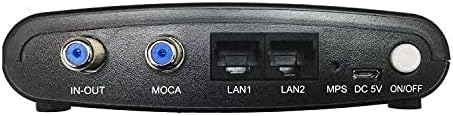
Image: Rear view of the TL-MC84 adapter, showing the various connection ports.
- IN-OUT (Coax In/Out): Connects to the existing coaxial network. Use the "IN" port for the incoming coaxial line and "OUT" for connecting to a TV or other coaxial device.
- MOCA (Coax): Connects to the coaxial network for MoCA signal transmission.
- LAN1 & LAN2 (Ethernet Ports): Connects to Ethernet-enabled devices such as computers, routers, or gaming consoles.
- MPS (MoCA Protected Setup): Button for secure pairing of MoCA devices.
- DC 5V: Power input port for the micro-USB power cable.
- ON/OFF: Power button for the device.
4. Setup Instructions
Follow these steps to set up your Translite Global TL-MC84 MoCA 2.5 Adapters.
4.1 Basic Network Configuration

Image: A diagram illustrating how MoCA adapters connect to a home's coaxial network to extend Ethernet connectivity.
- First Adapter (Near Router/Modem):
- Connect one end of an Ethernet cable to an available LAN port on your router or modem.
- Connect the other end of the Ethernet cable to either the LAN1 or LAN2 port on the first TL-MC84 adapter.
- Connect a coaxial cable from your wall's coaxial outlet to the "MOCA" port on the first TL-MC84 adapter. If you also need to connect a TV or set-top box, connect the incoming coaxial line to the "IN" port and then connect the "OUT" port to your TV/set-top box.
- Connect the micro-USB power cable to the DC 5V port on the adapter and plug the power adapter into an electrical outlet. Turn on the adapter using the ON/OFF switch.
- Second Adapter (Remote Location):
- At the desired remote location, connect a coaxial cable from the wall's coaxial outlet to the "MOCA" port on the second TL-MC84 adapter.
- Connect one end of an Ethernet cable to either the LAN1 or LAN2 port on the second TL-MC84 adapter.
- Connect the other end of the Ethernet cable to your device (e.g., computer, smart TV, gaming console).
- Connect the micro-USB power cable to the DC 5V port on the adapter and plug the power adapter into an electrical outlet. Turn on the adapter using the ON/OFF switch.
- Verify Connection:
- Once both adapters are powered on, observe the indicator lights. The PWR light should be solid green on both units.
- The COAX light on both adapters should turn solid green, indicating a successful MoCA network connection.
- The LAN light(s) corresponding to connected Ethernet devices should be solid green or blinking, indicating an active Ethernet link.
Important Note: For optimal performance and security, it is recommended to install a MoCA Point of Entry (POE) filter at the main coaxial input to your home. This prevents your MoCA signal from leaving your home and interfering with neighbors' networks, and also enhances your network's security.
5. Operating Instructions
Once the MoCA adapters are set up and connected, they operate automatically. The adapters create a high-speed Ethernet bridge over your existing coaxial cabling.
- Network Extension: Any device connected via Ethernet to a TL-MC84 adapter will have a wired network connection, leveraging the speed and reliability of MoCA 2.5.
- MoCA Protected Setup (MPS): To securely add new MoCA devices to an existing MoCA network, press the MPS button on an already connected adapter, then press the MPS button on the new adapter within two minutes. This establishes a secure, encrypted connection.
- Coexistence with TV Services: The TL-MC84 operates at frequencies (1125-1675 MHz) that typically do not interfere with standard cable TV or internet services (which usually operate at lower frequencies).
6. Maintenance
The Translite Global TL-MC84 MoCA 2.5 Adapter requires minimal maintenance.
- Cleaning: Use a soft, dry cloth to clean the exterior of the adapter. Do not use liquid cleaners or aerosols.
- Ventilation: Ensure the adapter is placed in a well-ventilated area to prevent overheating. Do not block the ventilation holes.
- Firmware Updates: Check the manufacturer's website periodically for any available firmware updates. Follow the instructions provided by the manufacturer for any update process.
7. Troubleshooting
If you encounter issues with your MoCA adapters, refer to the following troubleshooting tips:
- No Power (PWR light off):
- Ensure the micro-USB power cable is securely connected to the adapter and the power adapter is plugged into a working electrical outlet.
- Verify the ON/OFF switch is in the "ON" position.
- Try a different electrical outlet or power adapter.
- No MoCA Link (COAX light off or blinking):
- Ensure all coaxial cables are securely connected to the "MOCA" ports on both adapters and the wall outlets.
- Confirm that both MoCA adapters are powered on.
- Check if the coaxial network in your home is active and continuous between the two adapter locations. Old or damaged coaxial cables can prevent a MoCA link.
- Ensure there are no incompatible devices (e.g., certain satellite TV equipment) on the coaxial network that might interfere with MoCA signals.
- If using a coaxial splitter, ensure it is a MoCA-compatible splitter (typically rated for frequencies up to 1675 MHz or higher).
- Try restarting both MoCA adapters by cycling their power.
- No Ethernet Connection (LAN light off):
- Verify the Ethernet cable is securely connected between the MoCA adapter and your device/router.
- Ensure the connected device is powered on and its Ethernet port is active.
- Try a different Ethernet cable.
- Confirm that the COAX light is solid green, indicating a successful MoCA link.
- Slow Network Speed:
- Ensure your coaxial cabling is in good condition and free from excessive splitters or old, non-MoCA compatible components.
- Verify that your router/modem and connected devices support Gigabit Ethernet to fully utilize the MoCA 2.5 speeds.
- Consider installing a MoCA POE filter if you haven't already, as external interference can sometimes impact performance.
8. Specifications
| Model Number | TL-MC84 |
| MoCA Standard | MoCA 2.5 (Backward compatible with MoCA 2.0, MoCA 1.1) |
| Data Transfer Rate | Up to 2.5 Gbps (actual data rates), 3.0 Gbps throughput |
| Frequency Range | 1125 - 1675 MHz |
| Ethernet Ports | 2 x Gigabit Ethernet (RJ45) |
| Coaxial Ports | 1 x MoCA (F-type), 1 x IN-OUT (F-type) |
| Power Input | DC 5V, 1A (via Micro-USB) |
| Dimensions | 5 x 3.25 x 1.25 inches (12.7 x 8.25 x 3.17 cm) |
| Item Weight | 1 pound (0.45 kg) |
| UPC | 0860004300717 |
9. Warranty and Support
For warranty information and technical support, please refer to the documentation included with your purchase or visit the official Translite Global website. Please note that some users have reported difficulty accessing the Translite Global website and support email. If direct contact is unsuccessful, please refer to your retailer's return and support policies.
Manufacturer: Translite Global LLC


