
MageGee Cap87-EN-grey
MageGee Rapid Trigger Gaming Keyboard User Manual
Brand: MageGee | Model: Cap87-EN-grey
1. Introduction
The MageGee Rapid Trigger Gaming Keyboard (Model: Cap87-EN-grey) is a high-performance mechanical keyboard designed for gamers and professionals seeking precision, speed, and comfort. Featuring advanced rapid trigger technology, robust construction, and extensive customization options, this keyboard enhances your gaming and typing experience.
Key Features:
- Rapid Trigger Technology: Allows key reset with sensitivity up to 0.1mm, significantly improving response time in games. Ideal for FPS and music games, enabling more precise and speedy gameplay.
- Reduced Typing Sound & Noise Prevention: Incorporates five layers of sound-absorbing foam beneath the gasket mount, providing effective sound dampening for a quieter typing experience.
- Premium Typing Feel & Durability: Constructed with thick double-shot PBT keycaps and a sturdy CNC machined aluminum keyboard case, offering a satisfying tactile feel and exceptional durability for heavy use.
- High Customizability: Equipped with 2-in-1 action keys and dynamic RGB lighting effects. Easily customize light patterns and colors to match your setup.
- Wired USB Connectivity: Ensures stable and reliable performance with a direct USB connection.

Figure 1.1: MageGee Rapid Trigger Gaming Keyboard. This image displays the keyboard with its USB-C cable and a graphic highlighting its rapid trigger feature.
2. Setup Guide
Follow these steps to set up your MageGee Rapid Trigger Gaming Keyboard:
- Connect the Keyboard: Use the provided Type-C USB cable to connect the keyboard to an available USB port on your computer. The keyboard is plug-and-play and should be recognized automatically by your operating system.
- Install Software (Optional but Recommended): For full customization of actuation points, RGB lighting, and other advanced features, it is recommended to download and install the dedicated MageGee software.
Software Installation:
The software allows you to fine-tune your keyboard settings for optimal performance.
- Visit the official MageGee support website.
- Navigate to the 'Drivers' or 'Support' section.
- Locate and download the driver/software for the 'Captain87' model.
- Follow the on-screen instructions to complete the installation.

Figure 2.1: Included Accessories. This image shows the keyboard, user guide, keycap puller, Type-C cable, manufacturer warranty card, and instruction manual.
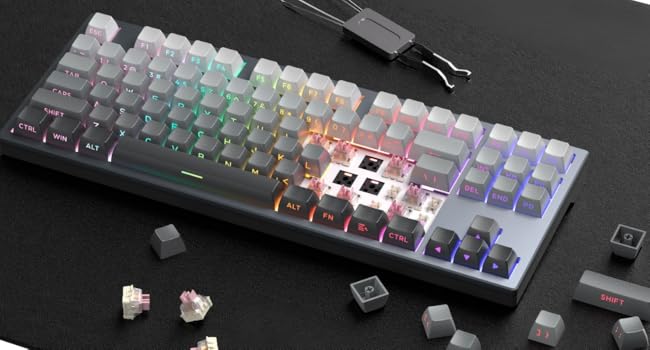
Figure 2.2: Keyboard Software Interface. This screenshot displays the main key settings section of the MageGee customization software.
3. Operating Instructions
Rapid Trigger Functionality:
The rapid trigger feature allows for extremely fast key resets, enabling quicker repeated inputs. This is particularly beneficial in games where rapid key presses are crucial.
- Adjustable Actuation: The actuation point can be adjusted with precision down to 0.1mm using the dedicated software.
- Custom Mode: In custom mode within the software, you can freely set actuation points for individual keys. For gaming, setting Windows keys to 0.1mm is recommended for maximum responsiveness. For general work, a 4mm actuation point can provide a more comfortable typing experience.

Figure 3.1: Rapid Trigger Actuation Diagram. This diagram illustrates how the rapid trigger function allows for key actuation and reset with sensitivity as fine as 0.1mm.

Figure 3.2: Keystroke Settings in Software. This screenshot shows the software interface where users can customize keystroke actuation points, including a custom mode for precise adjustments.
RGB Lighting Customization:
The keyboard features dynamic RGB lighting with various patterns and colors. These can be customized directly on the keyboard using FN key combinations or through the dedicated software.
FN Key Combinations:
The Function (FN) key allows access to secondary functions printed on the keycaps.
- FN + ESC: Resets the keyboard to factory default settings.
- FN + S: Switches between Windows and Mac OS compatibility modes.
- FN + INS: Toggles RGB lighting ON/OFF.
- FN + Arrow Keys: Adjusts RGB lighting patterns and brightness.

Figure 3.3: Keyboard Customization Features. This image highlights the FN key combinations for resetting settings, switching OS modes, and controlling RGB lighting.
Game/Work Mode Switch:
The keyboard features a physical switch to quickly toggle between game and work modes, optimizing performance settings for each scenario.

Figure 3.4: Game/Work Mode. This image shows the keyboard in a typical desk setup, illustrating the physical switch that allows for one-touch toggling between game and work modes.
4. Maintenance
Proper maintenance ensures the longevity and optimal performance of your keyboard.
Cleaning:
- Keycaps: The PBT keycaps are durable and resistant to shine. To clean, gently wipe with a damp cloth. For deeper cleaning, remove keycaps using the provided keycap puller and wash with mild soap and water. Ensure they are completely dry before reattaching.
- Keyboard Case: Wipe the CNC aluminum case with a soft, dry cloth. Avoid abrasive cleaners or solvents.
- Between Keys: Use compressed air to remove dust and debris from between the keycaps and switches.

Figure 4.1: PBT Keycaps. This image highlights the durable PBT keycaps used on the MageGee keyboard, contrasting them with less durable ABS keycaps found on other models.
Switch Maintenance:
The keyboard features hot-swappable switches, allowing for easy replacement or customization without soldering.
- To remove a switch, first remove the keycap using the keycap puller. Then, use a switch puller (not included, but compatible with standard mechanical switch pullers) to carefully extract the switch.
- When inserting a new switch, align the pins with the holes on the PCB and press down gently until it clicks into place. Do not force the switch, as this may bend the pins.
Figure 4.2: Hot-Swappable Switches. This image shows the keyboard with several keycaps removed, illustrating the accessibility of the hot-swappable switches for maintenance or replacement.
5. Troubleshooting
If you encounter any issues with your MageGee keyboard, refer to the following common problems and solutions:
- Keyboard Not Responding:
- Ensure the USB cable is securely connected to both the keyboard and the computer.
- Try connecting the keyboard to a different USB port.
- Restart your computer.
- Settings Resetting Unexpectedly:
- This can sometimes occur if the keyboard loses power or if there's a software glitch. Try resetting the keyboard using FN + ESC.
- Ensure your keyboard software is up to date.
- Keys Not Registering or Double-Typing:
- Check the actuation point settings in the software. If set too low (e.g., 0.1mm), even slight pressure can trigger a key. Adjust to a higher value if unintended presses occur.
- Clean around the affected switch to ensure no debris is interfering with its operation.
- If a specific switch is faulty, it can be replaced due to the hot-swappable design.
- RGB Lighting Not Working or Incorrect:
- Ensure lighting is enabled using FN + INS.
- Check RGB settings in the software for desired patterns and colors.
- Perform a keyboard reset (FN + ESC) to restore default lighting.
If the issue persists after trying these steps, please refer to the Warranty & Support section for further assistance.
6. Specifications
| Feature | Detail |
|---|---|
| Brand | MageGee |
| Model Number | Cap87-EN-grey |
| Color | Gray |
| Connectivity | Wired USB (Type-C) |
| Keycap Material | Double-shot PBT |
| Case Material | CNC Machined Aluminum |
| Switch Type | Magnetic Hall Effect (Hot-swappable) |
| Actuation Point | Adjustable (down to 0.1mm) |
| Lighting | RGB Backlit |
| Sound Dampening | 5-layer sound-absorbing foam, Gasket Mount |
| Dimensions (approx.) | 40.5 x 17 x 6.5 cm |
| Weight (approx.) | 1 Kilogram |
| Compatibility | Windows, Mac OS |
7. Warranty & Support
Product Warranty:
The MageGee Rapid Trigger Gaming Keyboard comes with a 1-year product warranty from the date of purchase. This warranty covers manufacturing defects and issues arising from normal use. Please retain your proof of purchase for warranty claims.
Customer Support:
For technical assistance, troubleshooting not covered in this manual, or warranty inquiries, please contact MageGee customer support. Support is available in English and Japanese.
- Online Resources: Visit the official MageGee website for user guides, FAQs, and driver downloads. Look for the 'Support' section.
- After-Sales Service: Information regarding after-sales service can typically be found on the product's official support page or by contacting the seller directly.
Ask a question about this manual
Ask about setup, troubleshooting, compatibility, parts, safety, or missing instructions. Manuals+ will review the question and use this page’s manual context to help answer it.