
DUODUOGO P8
DUODUOGO DGO-P8 2-in-1 Tablet User Manual
Model: P8 | Brand: DUODUOGO
1. Overview
The DUODUOGO DGO-P8 is a versatile 2-in-1 tablet PC designed for both productivity and entertainment. Running on Android 10.0, it features a 10-inch HD touchscreen, a powerful 64-bit quad-core processor, 4GB RAM, and 64GB/128GB ROM. It supports dual 4G SIM cards for cellular connectivity and calls, Wi-Fi, GPS, and includes dual cameras. The tablet comes with essential peripherals such as a wireless keyboard, a protective case with a double magnetic lock, and a dual-use stylus pen, transforming it into a portable workstation or a media consumption device.
2. What's in the Box
Upon unboxing your DUODUOGO DGO-P8 tablet, you should find the following items:
- DUODUOGO DGO-P8 Tablet PC
- Wireless Keyboard
- Tablet Case with Double Magnetic Lock
- Dual-Use Stylus Pen
- Power Adapter
- USB Charging Cable
- OTG Adapter
- Earphones
- Screen Protector (pre-applied or included)
- User Manual (this document)
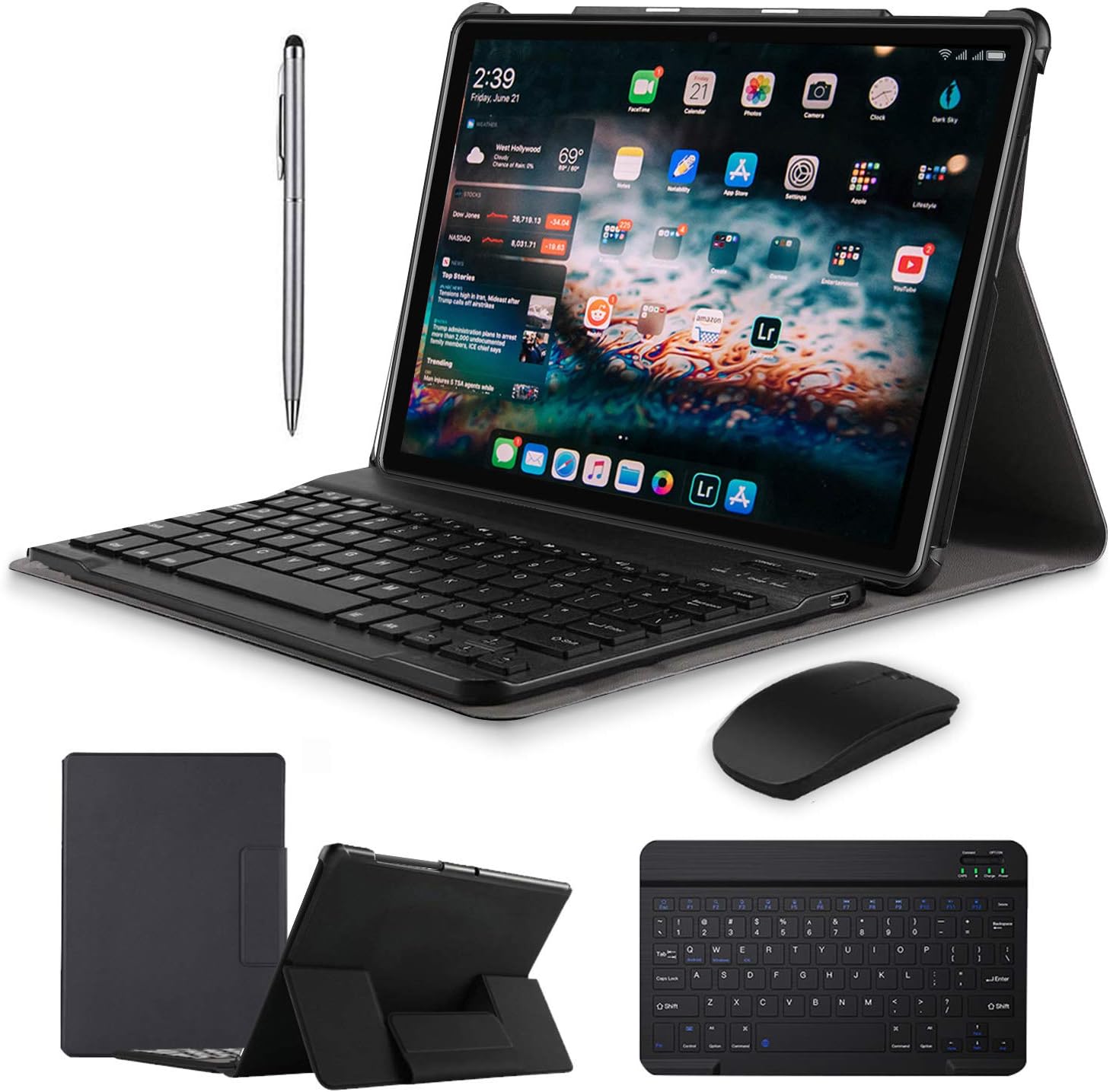
Figure 2.1: DUODUOGO DGO-P8 Tablet and its accessories.
3. Product Features
- High Performance: Dual SIM 4G Tablet PC with 10-Inch HD touch screen, Android 10.0 system, High-power 64-bit quad-core processor, 4GB RAM and 64GB ROM/128GB ensure fast loading of all content and runs fast. Built-in Bluetooth, WIFI, GPS, dual camera and micro SD card slot.
- Tablet Cases: Built-in double magnet design, automatic adsorption, make the appearance more concise and beautiful. Premium composition leather exterior and soft interior offer not only great protection against daily use, but also support the tablet to sit stably.
- Premium Peripherals: Bluetooth Keyboard connects with computer tablets, transforming it into a laptop for office or entertainment. The tablet case features a double magnetic lock for automatic adsorption, protecting both the tablet and keyboard.
- Dual-Use Pen: The touch screen pen is dual-purpose. One end is a silicone capacitive pen for the tablet screen, and the other is a ballpoint pen for writing on paper. It can be used on mobile phones or tablets and can be attached to the case for easy access.
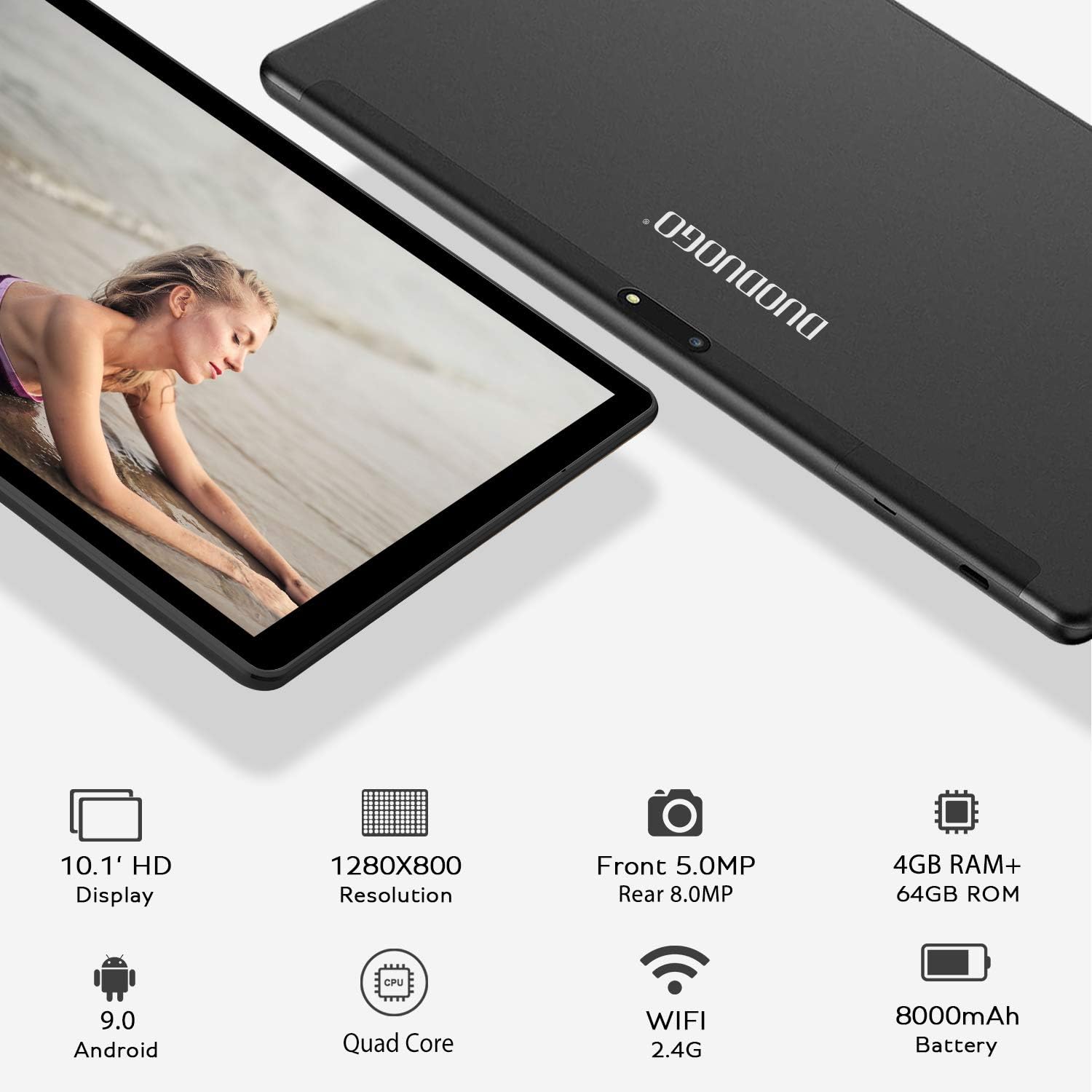
Figure 3.1: Rear view of the DUODUOGO DGO-P8 Tablet.
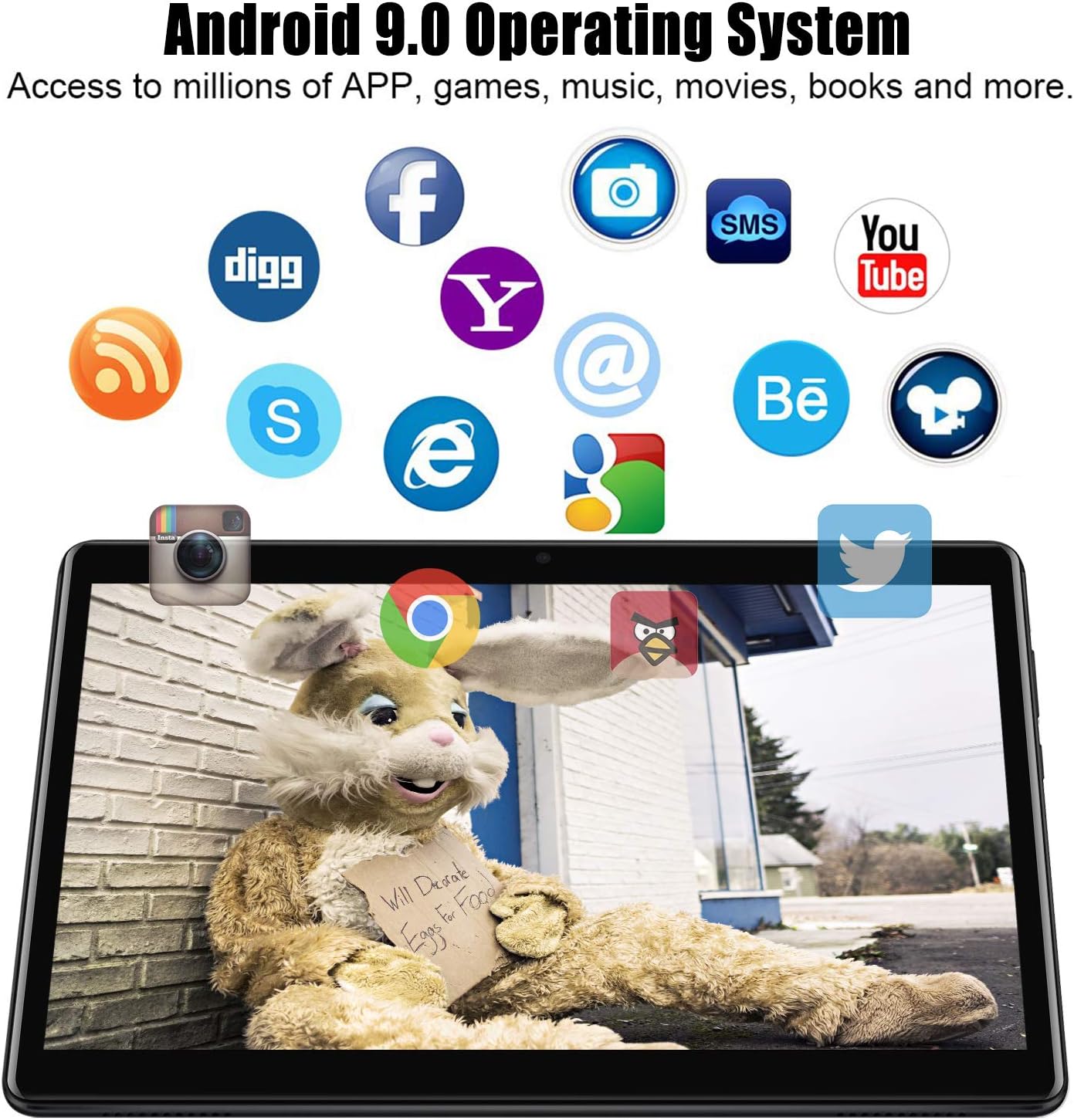
Figure 3.2: Android 9.0 Operating System interface.
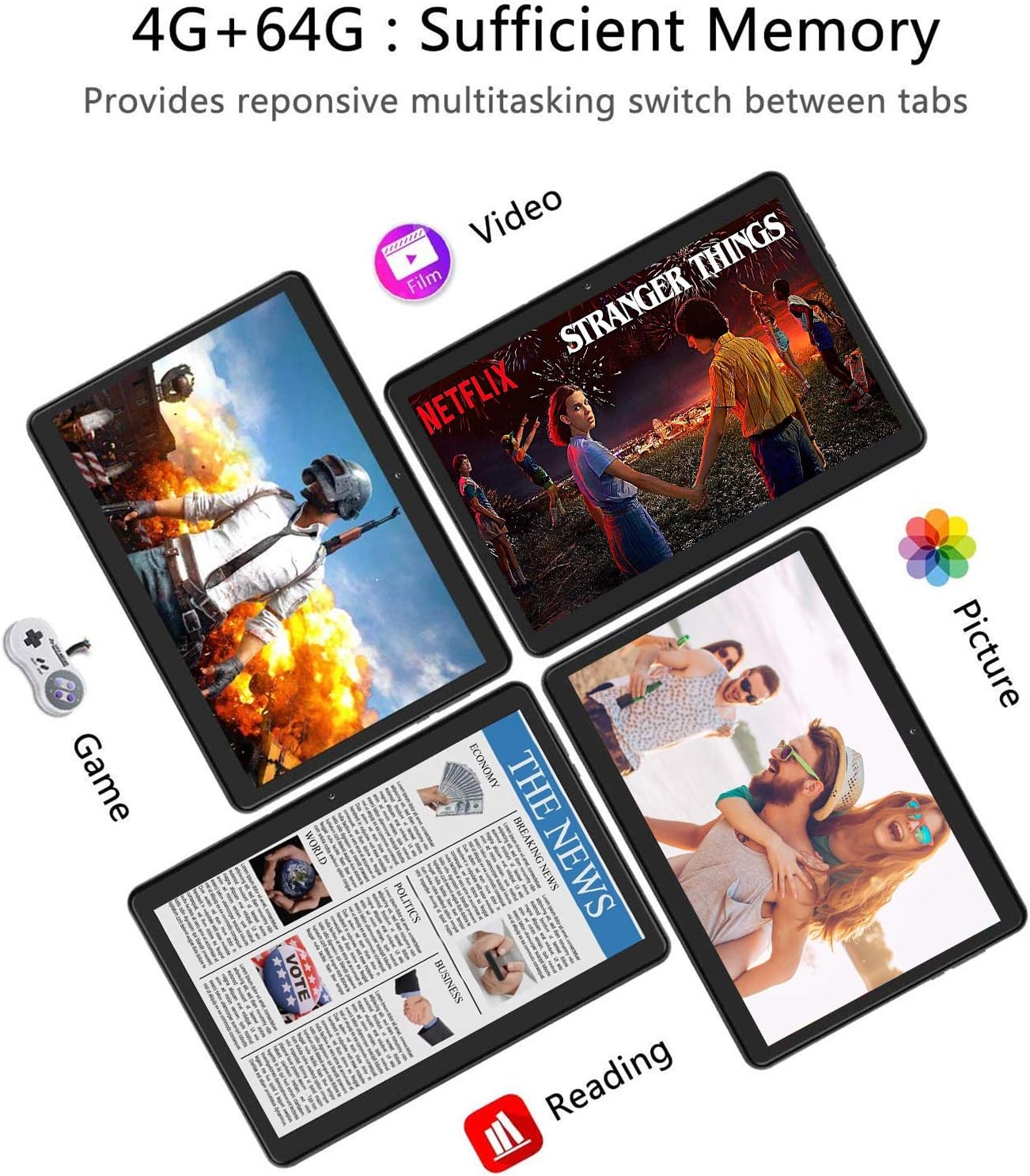
Figure 3.3: Diverse usage scenarios for the tablet.
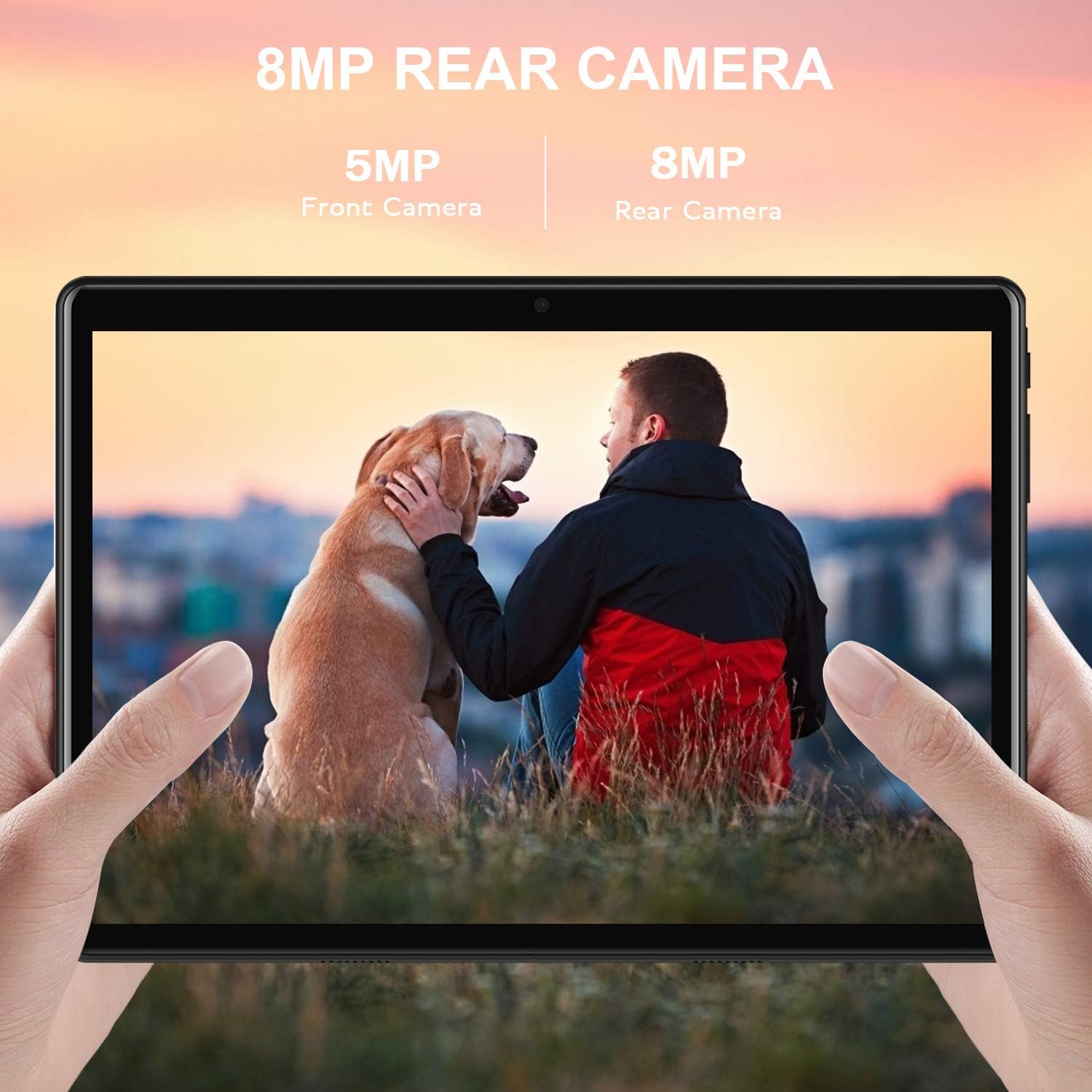
Figure 3.4: Camera quality demonstration.

Figure 3.5: Display clarity for text and video.
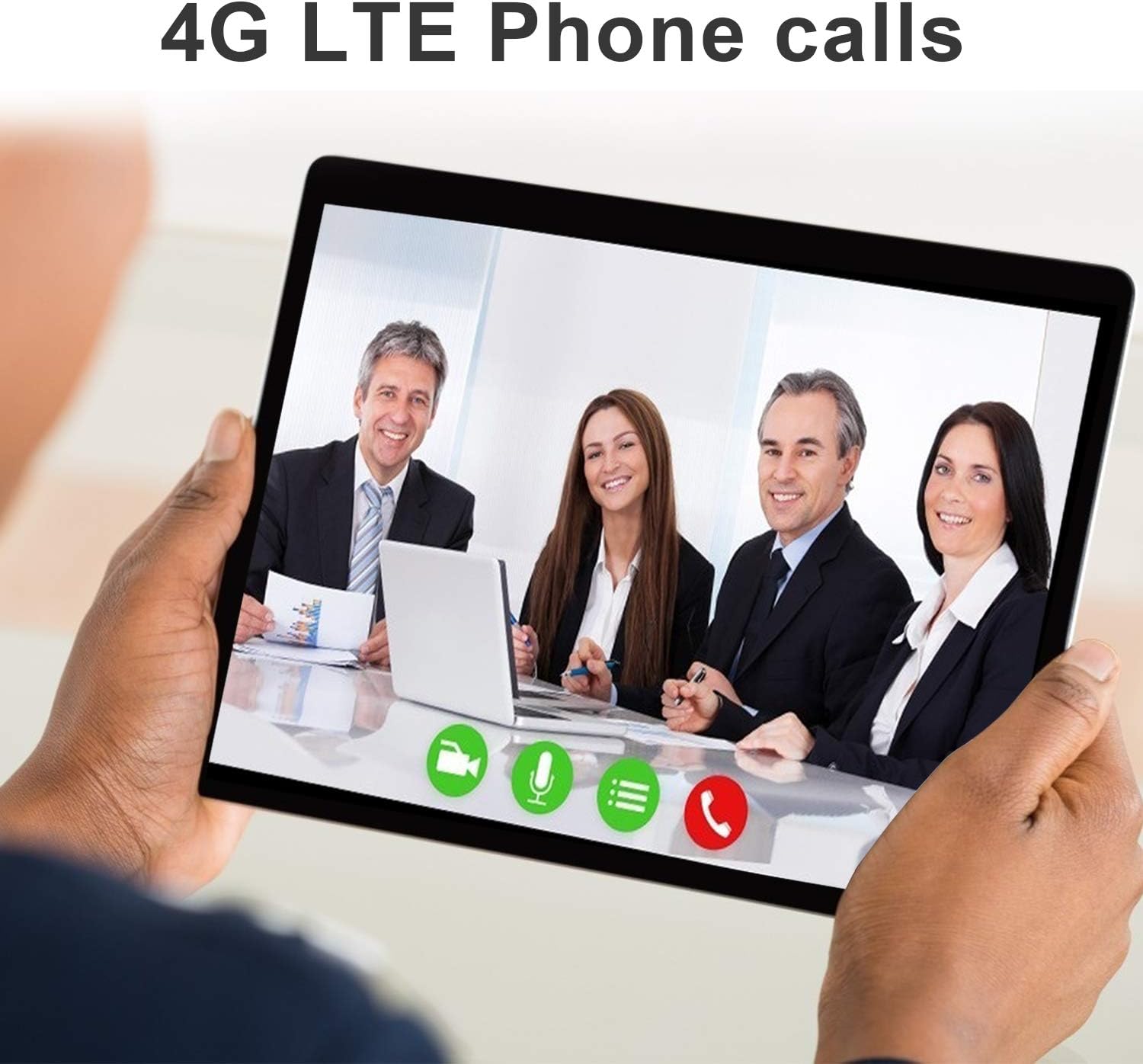
Figure 3.6: 4G LTE phone call functionality.
4. Setup
4.1 Initial Power On
- Ensure the tablet has sufficient charge. If not, connect the provided USB charging cable and power adapter to charge the device.
- Press and hold the Power button (usually located on the side or top edge) for a few seconds until the DUODUOGO logo appears on the screen.
- Follow the on-screen prompts to complete the initial setup, including selecting your language, connecting to a Wi-Fi network, and signing in with your Google account.
4.2 Connecting Peripherals
4.2.1 Wireless Keyboard
- Ensure the wireless keyboard is charged and powered on. Look for a power switch on the keyboard.
- On your tablet, go to Settings > Connected devices > Bluetooth.
- Turn on Bluetooth. The tablet will scan for available devices.
- Put the keyboard into pairing mode (refer to the keyboard's specific instructions, often by pressing a "Connect" or "Pair" button).
- Select the keyboard from the list of available devices on your tablet. Follow any on-screen prompts to complete the pairing process.
4.2.2 Wireless Mouse
- Ensure the wireless mouse is powered on and in pairing mode (if Bluetooth) or has its USB receiver plugged into the tablet via the OTG adapter.
- For Bluetooth mice, follow the same steps as for the wireless keyboard (Section 4.2.1).
- For USB receiver mice, simply plug the receiver into the OTG adapter, then plug the OTG adapter into the tablet's USB port. The tablet should automatically detect the mouse.
4.2.3 Dual-Use Stylus Pen
The provided dual-use stylus pen is a passive stylus and does not require Bluetooth pairing or charging. Simply use the silicone tip for touchscreen navigation and input, or the ballpoint end for writing on paper.
4.3 SIM Card Installation
The DUODUOGO DGO-P8 supports dual 4G SIM cards for cellular data and phone calls.
- Locate the SIM card tray on the side of the tablet.
- Carefully open the SIM card slot cover.
- Insert your 4G SIM card(s) into the designated slots, ensuring correct orientation as indicated by the diagram near the slots.
- Close the SIM card slot cover securely.
- The tablet will detect the SIM card(s) and connect to the cellular network. You may need to configure APN settings for mobile data if it doesn't connect automatically.
4.4 Micro SD Card Installation
Expand your tablet's storage by installing a micro SD card.
- Locate the micro SD card slot, usually next to the SIM card slots.
- Carefully open the slot cover.
- Insert the micro SD card into the slot with the gold contacts facing down, pushing gently until it clicks into place.
- Close the slot cover securely.
- The tablet will recognize the new storage. You can then format it for internal or portable storage via Settings > Storage.
5. Operating Instructions
5.1 Basic Navigation
- Touch: Tap an icon to open an app, select an item, or activate a button.
- Touch & Hold: Press and hold an item to access more options or move it.
- Swipe: Drag your finger across the screen to scroll through lists or switch between home screens.
- Pinch-to-Zoom: Place two fingers on the screen and pinch them together or spread them apart to zoom in or out.
- Navigation Bar: Use the Back, Home, and Recent Apps buttons at the bottom of the screen for navigation.
5.2 Using the Keyboard and Mouse
- Once connected (as per Section 4.2), the wireless keyboard and mouse function similarly to a desktop computer.
- The keyboard allows for faster typing and text input.
- The mouse provides precise cursor control for navigating the interface, clicking, and dragging.
5.3 Making Calls (4G SIM)
With an active 4G SIM card installed, you can make and receive phone calls directly from your tablet.
- Open the Phone app.
- Dial the desired number or select a contact from your address book.
- Press the call button to initiate the call.
5.4 Camera Usage
The tablet features dual cameras (front and rear) for photos and video calls.
- Open the Camera app.
- Tap the camera switch icon to toggle between the front and rear cameras.
- Tap the shutter button to take a photo or start/stop video recording.
- Explore various modes and settings within the camera app for different effects and adjustments.

Figure 5.1: Video call functionality.
5.5 Battery Management
The tablet is equipped with an 8000mAh battery. To optimize battery life:
- Adjust screen brightness: Go to Settings > Display > Brightness level.
- Enable Battery Saver: Go to Settings > Battery > Battery Saver.
- Close unused apps: Swipe up from the bottom of the screen (or tap the Recent Apps button) and swipe away apps you are not using.
- Turn off Wi-Fi, Bluetooth, or GPS when not in use.

Figure 5.2: 8000mAh Battery capacity.
5.6 Language Settings
To change the system language:
- Go to Settings > System > Languages & input > Languages.
- Tap Add a language to add your preferred language.
- Once added, drag your preferred language to the top of the list to set it as the primary system language.
6. Maintenance
6.1 Cleaning Your Tablet
- Use a soft, lint-free cloth to clean the screen and body of the tablet.
- For stubborn smudges, slightly dampen the cloth with water or a screen-cleaning solution. Avoid harsh chemicals.
- Ensure all ports are free of dust and debris.
6.2 Software Updates
Regularly check for and install software updates to ensure optimal performance, security, and access to new features.
- Connect your tablet to a stable Wi-Fi network.
- Go to Settings > System > About tablet > Wireless Update (or System Update).
- Follow the on-screen instructions to download and install any available updates.
6.3 Storage Management
To maintain smooth operation, manage your tablet's internal storage.
- Go to Settings > Storage to view storage usage.
- Clear cached data regularly.
- Uninstall unused apps.
- Move large files (photos, videos) to the micro SD card or cloud storage.
7. Troubleshooting
If you encounter issues with your DUODUOGO DGO-P8 tablet, try the following solutions:
| Problem | Possible Solution |
|---|---|
| Tablet won't turn on | Ensure the battery is charged. Press and hold the Power button for 10-15 seconds to force a restart. |
| Slow performance | Close unused apps, clear cached data (Settings > Storage), uninstall unnecessary apps, or perform a factory reset (backup data first). |
| Wi-Fi/Bluetooth connectivity issues | Toggle Wi-Fi/Bluetooth off and on. Restart the tablet. Forget the network/device and reconnect. Ensure you are within range of the Wi-Fi router or Bluetooth device. |
| SIM card not detected | Ensure the SIM card is correctly inserted and activated by your carrier. Restart the tablet. Check Settings > SIM cards. |
| Screen not responding | Restart the tablet. Ensure the screen is clean and free of debris. If a screen protector is installed, ensure it is properly applied. |
8. Specifications
| Feature | Detail |
|---|---|
| Standing Screen Display Size | 10 Inches |
| Screen Resolution | 1280 x 800 |
| Max Screen Resolution | 1280x800 |
| Processor | 1.5 GHz Quad-Core (MediaTek) |
| RAM | 3 GB |
| Hard Drive / Internal Storage | 128 GB |
| Flash Memory Size | 64 GB |
| Wireless Type | 802.11n, 802.11abg, 802.11a (Wi-Fi) |
| Operating System | Android 10 |
| Item Weight | 2.42 pounds |
| Product Dimensions (LxWxH) | 10.1 x 6.7 x 0.3 inches |
| Color | Black |
| Rear Webcam Resolution | 13 MP |
| Front Camera | 5 MP |
| Battery | 8000mAh Lithium Metal (included) |
| SIM Support | Dual 4G SIM |
Note: Some specifications may vary slightly based on production batch or regional models. The primary storage is 64GB/128GB as per product title and feature bullets, with 4GB RAM. Camera resolution is 13MP as per feature bullets.
9. Warranty and Support
DUODUOGO offers comprehensive support for its products:
- Satisfaction Guarantee: Tablet with Keyboard supports one month free replacement and one year service (except intentional damage).
- Customer Service: For any questions or issues, please contact DUODUOGO customer service through Amazon. They aim to reply and resolve your problem within 12 hours.
- GMS Certified: DUODUOGO devices are GMS certified, allowing you to download applications from Google Play.
For further assistance, refer to the official DUODUOGO brand store on Amazon or contact their support team directly.
Ask a question about this manual
Ask about setup, troubleshooting, compatibility, parts, safety, or missing instructions. Manuals+ will review the question and use this page’s manual context to help answer it.