
SpyCentre Security 00854041008712
Micro Voice Recorder User Manual
Model: 00854041008712 | Brand: SpyCentre Security
1. Introduction
This manual provides comprehensive instructions for the SpyCentre Security Micro Voice Recorder. Designed for discreet and efficient audio capture, this device features voice-activated recording, extended battery life, and ample memory storage. Please read this manual carefully to ensure proper use and to maximize the performance of your device.
2. Product Overview
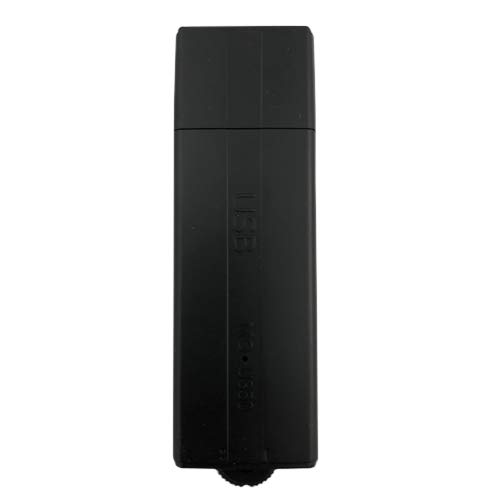
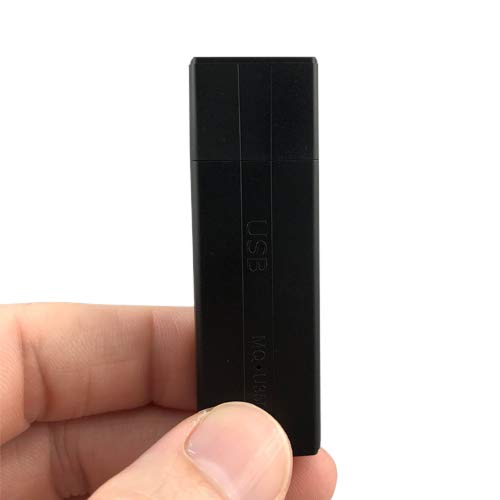
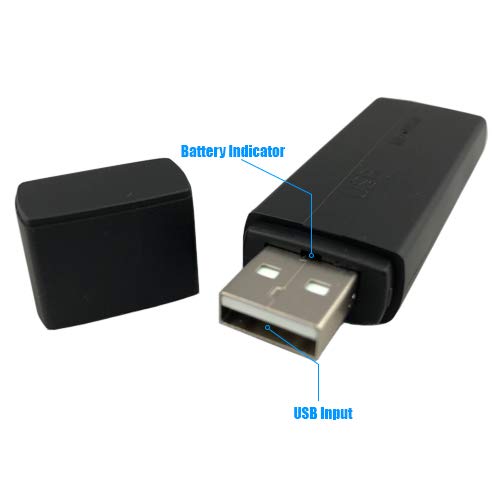
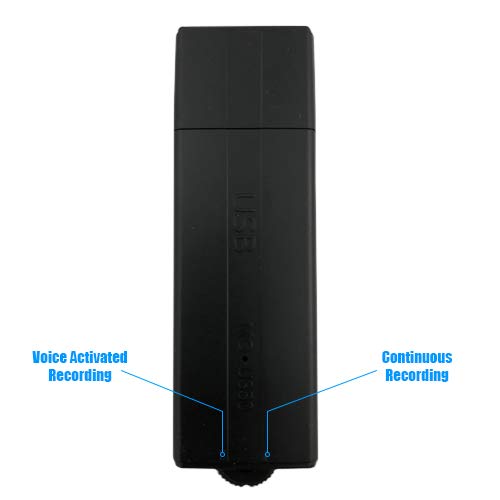
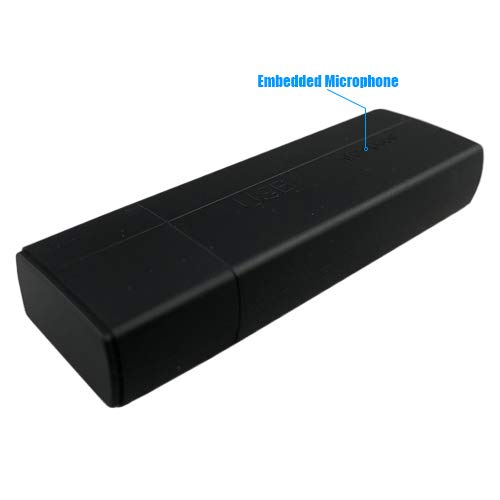
The Micro Voice Recorder is a compact USB flash drive-style device. It integrates a high-quality microphone and internal memory for audio recording. Below are key components and their functions:
Product Demonstration Video
This video provides a visual overview of the Micro Voice Recorder, demonstrating its compact size, key features, and how to connect it for charging and file transfer. It highlights the discreet design and ease of use.
3. Setup
3.1 Initial Charging
Before first use, fully charge the device. Plug the Micro Voice Recorder into any standard USB port (e.g., on a computer or a USB wall adapter). The device is not compatible with USB-C ports. A full charge typically takes approximately 2 hours. The battery indicator light will provide feedback on charging status.
3.2 Setting Date and Time Stamp (Windows Only)
To ensure your recordings are accurately time-stamped, connect the device to a Windows computer. Use the provided Windows-only software to set the current date and time. This software also allows you to adjust recording quality and automatic recording level control.
4. Operating Instructions
4.1 Recording Modes
The device offers two recording modes, selected via a physical dial on the unit:
- Voice Activated Recording (VOS Mode): Move the dial to the position marked with two dots. In this mode, the recorder will only activate and record when it detects sound, conserving battery life and memory. The battery can last up to 25 days in VOS mode, depending on environmental noise.
- Continuous Recording: Move the dial to the position marked with a dash. The device will record continuously until the battery runs out or memory is full. It can record continuously for up to 24 hours on a full battery.
4.2 Starting and Stopping Recording
To begin recording, simply move the recording dial to your desired mode (Voice Activated or Continuous). Recording starts within seconds. To stop recording, move the dial back to the off position.
4.3 Accessing and Managing Recordings
To listen to or transfer recordings:
- Ensure the device is in the off position.
- Plug the Micro Voice Recorder into a standard USB port on a Windows or Mac computer.
- The device will appear as a removable drive. Navigate to the drive to find your audio files (MP3 format).
- You can play, copy, or delete files as you would with any other USB flash drive. No additional software is required for basic file management.
4.4 Memory and Recording Quality
The device features 8GB of internal flash memory. Recording capacity varies based on selected quality settings (adjustable via Windows-only software):
- PCM Quality: Approximately 23 hours of recording.
- XHQ Quality: Approximately 144 hours of recording.
- HQ Quality: Approximately 288 hours of recording.
5. Maintenance
5.1 Battery Care
To prolong battery life, avoid fully discharging the device frequently. Recharge the device promptly when the battery indicator suggests low power. Store the device in a cool, dry place when not in use for extended periods.
5.2 Cleaning
Wipe the exterior of the device with a soft, dry cloth. Do not use liquid cleaners or abrasive materials, as these can damage the device or its internal components.
5.3 Storage
When not in use, store the device with its USB cap on to protect the connector from dust and damage.
6. Troubleshooting
| Problem | Possible Cause | Solution |
|---|---|---|
| Device not recording. | Incorrect recording mode selected; Battery is low or depleted; Memory is full. | Ensure the dial is set to either Voice Activated (two dots) or Continuous (dash) mode. Charge the device fully. Transfer files to your computer and delete them from the device to free up space. |
| Recordings have poor quality or are silent. | Microphone obstructed; Device too far from sound source; Low recording quality setting. | Ensure the embedded microphone is not covered. Place the device closer to the sound source. Adjust recording quality to PCM or XHQ using the Windows-only software. |
| Date and Time Stamp is incorrect. | Date/Time not synchronized. | Connect the device to a Windows computer and use the dedicated software to synchronize the date and time. This feature is only available on Windows. |
| Device not recognized by computer. | Loose USB connection; Damaged USB port; Device not in off position. | Ensure the device is firmly plugged into a standard USB port. Try a different USB port or computer. Make sure the recording dial is in the off position before connecting to a computer. |
7. Specifications
- Model Number: 00854041008712
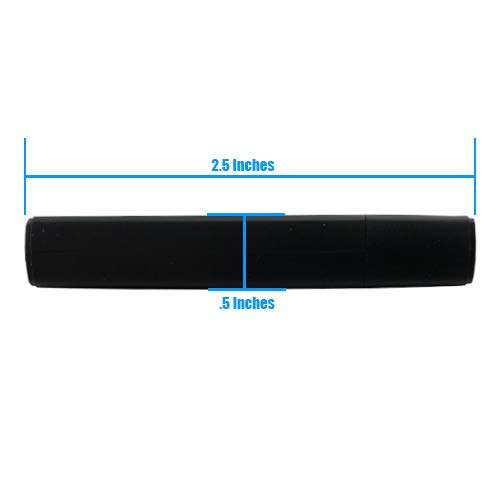
- Product Dimensions: 2.67 x 0.43 x 0.82 inches
- Item Weight: 0.4 ounces
- Memory Storage Capacity: 8 GB
- Battery Type: 1 Lithium Polymer battery (included)
- Battery Life (Continuous Recording): Up to 24 Hours
- Battery Life (Voice Activated Mode): Up to 25 Days (standby, depending on noise)
- Charging Time: Approximately 2 hours
- Audio Format: MP3
- Microphone: Built-In
- Hardware Interface: USB (Standard USB-A, not USB-C compatible)
- Compatible Devices: Personal Computer (Windows/Mac for file access, Windows for advanced settings)
- Manufacturer: Esonic
- Date First Available: October 7, 2019
8. Warranty and Support
SpyCentre Security offers a 1-year warranty on this product from the date of purchase. Additionally, lifetime technical support is available for all customers. For assistance, please contact SpyCentre Security customer service through their official website or the retailer where the product was purchased.
For further information or to access the Windows-only software for advanced settings, please visit the SpyCentre Security Store.
Related documents00854041008712


Ask a question about this manual
Ask about setup, troubleshooting, compatibility, parts, safety, or missing instructions. Manuals+ will review the question and use this page’s manual context to help answer it.