
1. Introduction
This manual provides essential information for the safe and efficient use of your Philips TAUH202 Wireless Bluetooth On-Ear Headphones. Please read these instructions carefully before using the product.
The Philips TAUH202 headphones offer wireless audio with crisp sound and punchy bass, designed for comfort and portability. They feature a lightweight headband and a flat-fold design for easy storage.
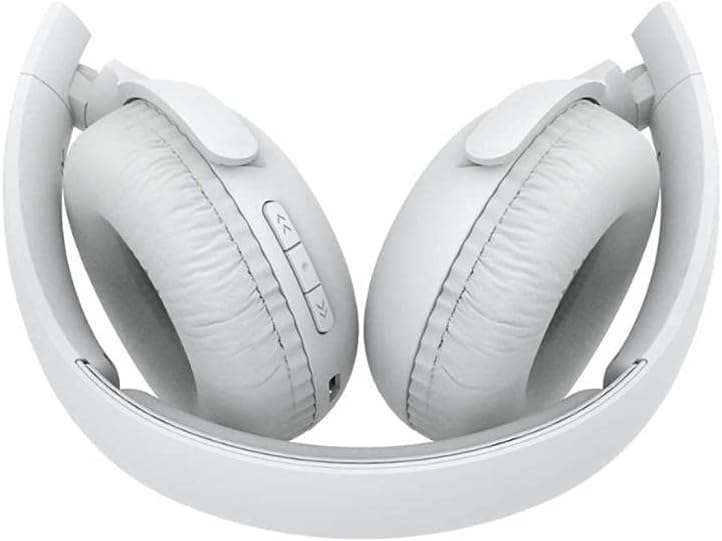
Image 1.1: A user wearing the Philips TAUH202 wireless on-ear headphones, demonstrating their comfortable fit and sleek design.
2. Product Overview
Familiarize yourself with the components of your Philips TAUH202 headphones.

Image 2.1: Front view of the Philips TAUH202 headphones, highlighting the on-ear design and the Philips branding on the earcups.

Image 2.2: Rear view of the Philips TAUH202 headphones, displaying the control buttons located on the earcup for volume adjustment and playback control.
Controls and Indicators:
- Power Button: Used to power the headphones on/off and initiate Bluetooth pairing.
- Volume Control Buttons: Adjust audio volume.
- Multi-function Button: For play/pause, track skipping, and call management.
- LED Indicator: Displays power status, charging status, and Bluetooth pairing status.
- Microphone: Built-in for hands-free calls with echo cancellation.
- Charging Port: For connecting the charging cable.
3. Setup
3.1. Charging the Headphones
- Connect the charging cable to the charging port on the headphones.
- Connect the other end of the charging cable to a USB power source (e.g., computer USB port, USB wall adapter).
- The LED indicator will illuminate to show charging status.
- A full charge typically takes 2-3 hours. The LED indicator will change or turn off once charging is complete.
A fully charged battery provides approximately 15 hours of playback time.
3.2. Pairing with Bluetooth Devices
- Ensure the headphones are turned off.
- Press and hold the Power button for several seconds until the LED indicator flashes alternately blue and red. This indicates the headphones are in pairing mode.
- On your Bluetooth-enabled device (smartphone, tablet, laptop, etc.), go to the Bluetooth settings and enable Bluetooth.
- Search for available devices. You should see "Philips TAUH202" in the list.
- Select "Philips TAUH202" to connect. Once paired, the LED indicator on the headphones will typically flash blue slowly or turn solid blue.
- If prompted for a password, enter "0000".
The headphones will automatically attempt to reconnect to the last paired device when powered on.
4. Operating Instructions
4.1. Power On/Off
- To Power On: Press and hold the Power button until the LED indicator lights up.
- To Power Off: Press and hold the Power button until the LED indicator turns off.
4.2. Volume Control
- Increase Volume: Press the Volume Up button.
- Decrease Volume: Press the Volume Down button.
4.3. Music Playback
- Play/Pause: Press the Multi-function button once.
- Next Track: Press and hold the Volume Up button (or specific forward button if available).
- Previous Track: Press and hold the Volume Down button (or specific backward button if available).
4.4. Call Management
The built-in microphone with echo cancellation ensures clear communication during calls.
- Answer/End Call: Press the Multi-function button once.
- Reject Call: Press and hold the Multi-function button for 2 seconds.
- Switch Call (between headphones and phone): During a call, press and hold the Multi-function button for 2 seconds.
5. Maintenance
5.1. Cleaning
- Wipe the headphones with a soft, dry cloth.
- Do not use cleaning agents containing alcohol, ammonia, benzene, or abrasives, as these may damage the unit.
- Avoid getting moisture into any openings.
5.2. Storage
The Philips TAUH202 headphones feature a flat-fold design for convenient storage and portability.
- Gently fold the earcups inward until they lie flat against the headband.
- Store the headphones in a cool, dry place, away from direct sunlight and extreme temperatures.

Image 5.1: The Philips TAUH202 headphones shown in their flat-folded position, illustrating the compact design for easy storage.
6. Troubleshooting
If you encounter issues with your headphones, refer to the following common problems and solutions.
| Problem | Possible Cause | Solution |
|---|---|---|
| Headphones do not power on. | Battery is depleted. | Charge the headphones for 2-3 hours. |
| Cannot pair with Bluetooth device. | Headphones not in pairing mode; Bluetooth on device is off; device too far. | Ensure headphones are in pairing mode (flashing blue/red LED). Turn on Bluetooth on your device. Move device closer to headphones (within 10 meters). |
| No sound or low volume. | Volume too low; headphones not connected; audio source issue. | Increase volume on both headphones and connected device. Re-pair headphones. Check audio output settings on your device. |
| Poor sound quality. | Interference; device too far; low battery. | Move away from other wireless devices. Move closer to the connected device. Charge the headphones. |
7. Specifications
- Model: TAUH202
- Brand: Philips
- Connectivity: Wireless, Bluetooth 4.2
- Audio Drivers: 32 mm Neodymium Acoustic Drivers, Dynamic Driver Type
- Impedance: 32 Ohm
- Earpiece Shape: On-Ear
- Battery Life: Up to 15 hours playtime
- Charging Time: 2-3 hours
- Special Features: Built-in microphone with Echo Cancellation, Flat-fold design, Volume Control
- Compatible Devices: Smartphones, Tablets, Laptops, Desktops, Smart Speakers, Televisions, Car Audio Systems, Cellphones
- Dimensions (L x W x H): 7.87 x 7.68 x 3.35 inches
- Item Weight: 1.41 ounces (40 Grams)
- Water Resistance: Not Water Resistant
- Batteries: 1 Lithium Metal battery (included)
8. Official Product Video
Watch this official video for a visual overview of the Philips Wireless Bluetooth On-Ear Headphones.
Video 8.1: An official product video showcasing the Philips Wireless Bluetooth On-Ear Headphones, highlighting key features and design elements.
9. Warranty and Support
For warranty information and customer support, please refer to the documentation included with your product or visit the official Philips support website. Keep your proof of purchase for warranty claims.
For further assistance, you may also visit the Philips Store on Amazon.