
1. Product Overview
The Baldwin 8225.ZW Touchscreen Minneapolis Z-Wave Deadbolt offers secure keyless entry and smart home integration. This single-cylinder deadbolt allows locking and unlocking via a touchscreen keypad, a traditional key, or wirelessly through Z-Wave technology. It is designed for front, side, back, and garage entry doors, combining convenience with robust security features.
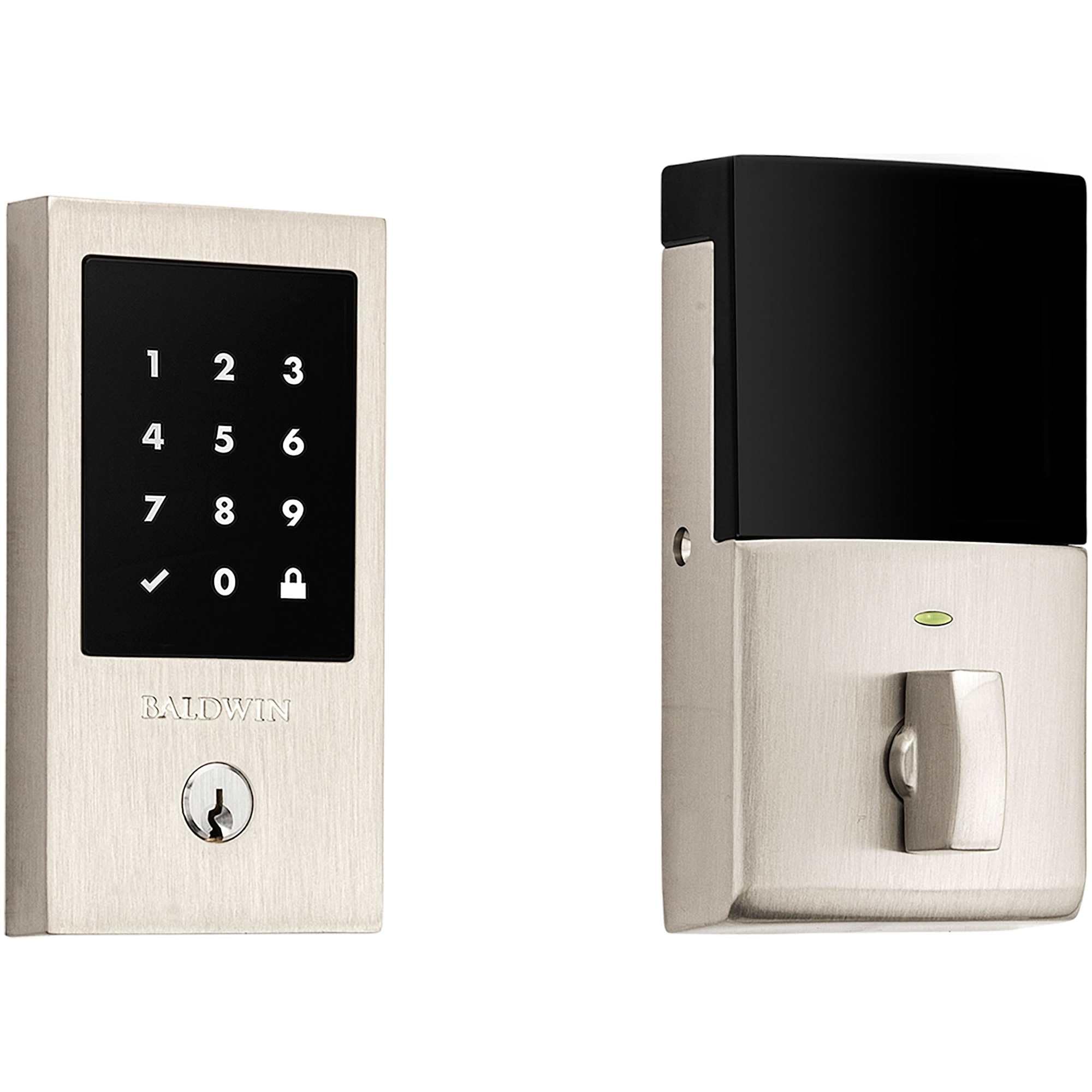
Figure 1: Exterior view of the Baldwin 8225.ZW Touchscreen Deadbolt. This image shows the sleek design of the deadbolt's exterior component, featuring the touchscreen keypad and keyhole.
2. Setup and Installation
The Baldwin 8225.ZW deadbolt is designed for straightforward installation. All necessary mounting hardware is included. For detailed step-by-step instructions, refer to the separate installation guide provided with your product packaging. This section provides a general overview of the setup process.
2.1 Mechanical Installation
Ensure your door is prepared according to standard deadbolt specifications. Install the latch, exterior keypad assembly, interior assembly, and strike plate. Proper alignment is crucial for smooth operation.

Figure 2: Front view of the exterior keypad. This image highlights the numerical touchscreen and the Baldwin branding below it, with the keyhole at the bottom.
2.2 Battery Installation
After mechanical installation, install the required batteries into the interior assembly. Use high-quality alkaline batteries for optimal performance. Incorrect battery installation or low-quality batteries can affect the lock's electronic functions and battery life.
2.3 Z-Wave Pairing
To integrate your deadbolt with a Z-Wave compatible security or home automation system, follow the pairing instructions provided by your Z-Wave hub manufacturer. The deadbolt wirelessly communicates with these systems, enabling remote control and monitoring. Refer to your Z-Wave controller's manual for specific pairing procedures.
3. Operation
The Baldwin 8225.ZW deadbolt offers multiple methods for locking and unlocking, providing flexibility and security.
3.1 Using the Touchscreen Keypad
- To Unlock: Touch the screen to activate the keypad. Enter your 4-8 digit user code. The deadbolt will retract, and the door can be opened.
- To Lock: Touch the screen to activate, then press the lock icon (🔒) or enter your user code and press the checkmark (✓). The deadbolt will extend.
The deadbolt features Secure Screen Technology, which helps prevent fingerprint analysis on the touchscreen by requiring you to touch two random digits before entering your code.

Figure 3: Close-up view of the touchscreen keypad and keyhole. This image provides a detailed look at the numerical layout and the lock/unlock icons.
3.2 Using a Traditional Key
Insert the provided key into the keyhole on the exterior assembly and turn to lock or unlock the deadbolt, similar to a standard mechanical deadbolt.
3.3 Interior Thumb Turn
From the interior side of the door, simply rotate the thumb turn to manually lock or unlock the deadbolt.

Figure 4: Interior view of the Baldwin 8225.ZW deadbolt. This image shows the thumb turn for manual operation and the battery compartment cover.
3.4 Z-Wave Control
Once paired with a Z-Wave system, you can lock and unlock the deadbolt remotely using your cell phone or other smart devices connected to your home automation system. This functionality depends on your specific Z-Wave controller and its associated application.
3.5 User Code Management
The deadbolt supports up to 30 customizable user codes, each 4-8 digits long. Refer to the detailed programming instructions in your full product manual for adding, deleting, or modifying user codes. This can often be done directly on the keypad or through your Z-Wave system interface.
4. Maintenance
Proper maintenance ensures the longevity and optimal performance of your Baldwin deadbolt.
4.1 Cleaning
Clean the exterior and interior surfaces with a soft, damp cloth. Avoid abrasive cleaners, solvents, or harsh chemicals, as these can damage the finish and electronic components. For the touchscreen, use a microfiber cloth to prevent scratches.
4.2 Battery Replacement
When the batteries are low, the deadbolt will typically provide an indicator (e.g., a flashing LED or audible alert). Replace all batteries simultaneously with new, high-quality alkaline batteries. Do not mix old and new batteries or different battery types. Refer to the installation guide for specific battery compartment access.
4.3 Finish Care
Baldwin's Finishes™ are designed for durability. However, regular cleaning and avoiding harsh conditions will help maintain their appearance. For coastal environments, more frequent cleaning may be beneficial.
5. Troubleshooting
This section addresses common issues you might encounter with your Baldwin 8225.ZW deadbolt.
| Problem | Possible Cause | Solution |
|---|---|---|
| Deadbolt does not lock/unlock electronically. | Low batteries; incorrect user code; mechanical binding; Z-Wave communication issue. | Replace batteries. Verify user code. Check for door/frame alignment issues. Re-pair with Z-Wave hub. |
| Touchscreen is unresponsive or inaccurate. | Low batteries; environmental factors (moisture, extreme cold); temporary software glitch. | Replace batteries. Ensure screen is dry and clean. Try power cycling the lock (remove and reinsert batteries). |
| Poor battery life. | Low-quality batteries; frequent usage; Z-Wave network issues (lock constantly searching). | Use high-quality alkaline batteries. Optimize Z-Wave network if applicable. |
| Cannot pair with Z-Wave hub. | Lock too far from hub; interference; incorrect pairing procedure. | Move hub closer or add Z-Wave repeater. Ensure no strong interference sources. Follow Z-Wave hub's specific pairing instructions carefully. |
| Keys are missing. | Product packaging incomplete. | Contact Baldwin customer support or your retailer for assistance. |
If the issue persists after attempting these solutions, please contact Baldwin customer support for further assistance.
6. Specifications
- Brand: Baldwin
- Model Number: 8225.056.ZW
- UPC: 723079505466
- Lock Type: Deadbolt
- Special Feature: Touchscreen
- Material: Solid Brass
- Connectivity Protocol: Z-Wave
- Control Method: Touch, Hand Control (thumb turn), Key
- Item Dimensions (L x W x H): 1 x 1 x 1 inches (approximate, for internal components)
- Item Weight: 4.4 Pounds
- User Codes: Up to 30 customizable (4-8 digits each)
- UL Rating: 20 minute UL deadbolt rating
- BHMA Certification: Grade 2 certified
7. Warranty Information
Baldwin products are backed by a comprehensive warranty to ensure customer satisfaction.
- Mechanical Warranty: Covered by Baldwin's limited mechanical warranty.
- Electronic Warranty: 1-year limited electronic warranty.
- Finish Warranty (Exterior): 1-year limited warranty for exterior applications on standard finishes.
- Finish Warranty (Interior): 5-year limited warranty for interior applications on standard finishes.
For full details regarding warranty terms, conditions, and claims, please refer to the official Baldwin warranty documentation included with your product or visit the Baldwin website.
8. Customer Support
If you require assistance with installation, operation, troubleshooting, or warranty claims, please contact Baldwin customer support.
- Online Resources: Visit the official Baldwin website for FAQs, product documentation, and support contact information.
- Contact Information: Refer to your product packaging or the Baldwin website for the most current customer service phone numbers and email addresses.
When contacting support, please have your product model number (8225.056.ZW) and purchase information readily available.


