Introduction
The Canon imageFORMULA R40 Office Document Scanner is designed to enhance productivity and organization in both home and office environments. This user-friendly device allows for quick conversion of paper documents into searchable digital files, streamlining your workflow and reducing physical clutter.

Figure 1: Front view of the Canon imageFORMULA R40 Document Scanner.
Key Features
- Efficient Document Conversion: Easily convert paper documents into searchable digital formats, improving organization. Supports grayscale scanning at 8-bit, with a long document mode up to 118 inches. Simplex scanning up to 40 pages per minute (ppm); Duplex scanning up to 80 images per minute (ipm).
- Versatile Document Handling: Reliably scans a wide variety of document types including receipts, photos, business cards, reports, contracts, and both long and thick/thin documents.
- Fast Duplex Scanning: Scans both sides of a document simultaneously in color, at speeds up to 40 pages per minute, utilizing a 60-sheet automatic feeder for efficient batch processing. Features one-touch operation for ease of use.
- Broad Compatibility: Includes a TWAIN driver for compatibility with both Windows and Mac operating systems.
- Simple Setup: Connects easily to your computer using the supplied USB cable.
- Bundled Software: Comes with user-friendly Canon CaptureOnTouch scanning software (for Windows and Mac), plus free licenses for Readiris PDF and OCR software, and Cardiris business card software (Windows only).
- Reliable Support: Backed by a one-year warranty and US-based technical support.

Figure 2: The scanner's ability to handle diverse document types, including receipts, photos, and business cards.
Setup
- Unpack the Scanner: Carefully remove the scanner and all accessories from the packaging.
- Connect the USB Cable: Connect one end of the supplied USB cable to the scanner and the other end to an available USB port on your computer.
- Connect the Power Adapter: Plug the power adapter into the scanner's power input and then into a wall outlet.
- Install Software: Visit the official Canon support website for the imageFORMULA R40 to download and install the latest drivers and bundled software (Canon CaptureOnTouch, Readiris PDF/OCR, Cardiris). Follow the on-screen instructions during installation.
- Power On: Press the power button on the scanner. The indicator light should illuminate, indicating it is ready for use.

Figure 3: Simple USB connection for easy setup.
Operating Instructions
The Canon imageFORMULA R40 is designed for straightforward operation, allowing you to quickly digitize various documents.
Basic Scanning Process:
- Load Documents: Open the document feeder and carefully place your documents face-down into the feeder tray. Adjust the document guides to fit the width of your documents.
- Select Scan Job: Use the 'Job Select' button on the scanner or the CaptureOnTouch software on your computer to choose your desired scanning profile (e.g., scan to PDF, scan to image, scan to cloud).
- Start Scanning: Press the 'Start' button on the scanner or click the scan button within the CaptureOnTouch software. The scanner will automatically feed and scan your documents.
- Review and Save: After scanning, the software will display a preview of the scanned images. You can review, reorder, or delete pages as needed. Save the scanned file to your desired location or upload it to a cloud service.
Scanning Different Document Types:
The R40 can handle a wide array of document types. For optimal results:
- Mixed Batches: The scanner can process mixed batches of documents with varying sizes and thicknesses. Ensure documents are not creased or torn to prevent jams.
- Photos: For delicate photos, consider using a protective sleeve or carrier sheet (if available for this model) to prevent damage and ensure proper feeding.
- Receipts & Business Cards: These smaller items can be scanned efficiently. The bundled software can help extract key data from these documents.
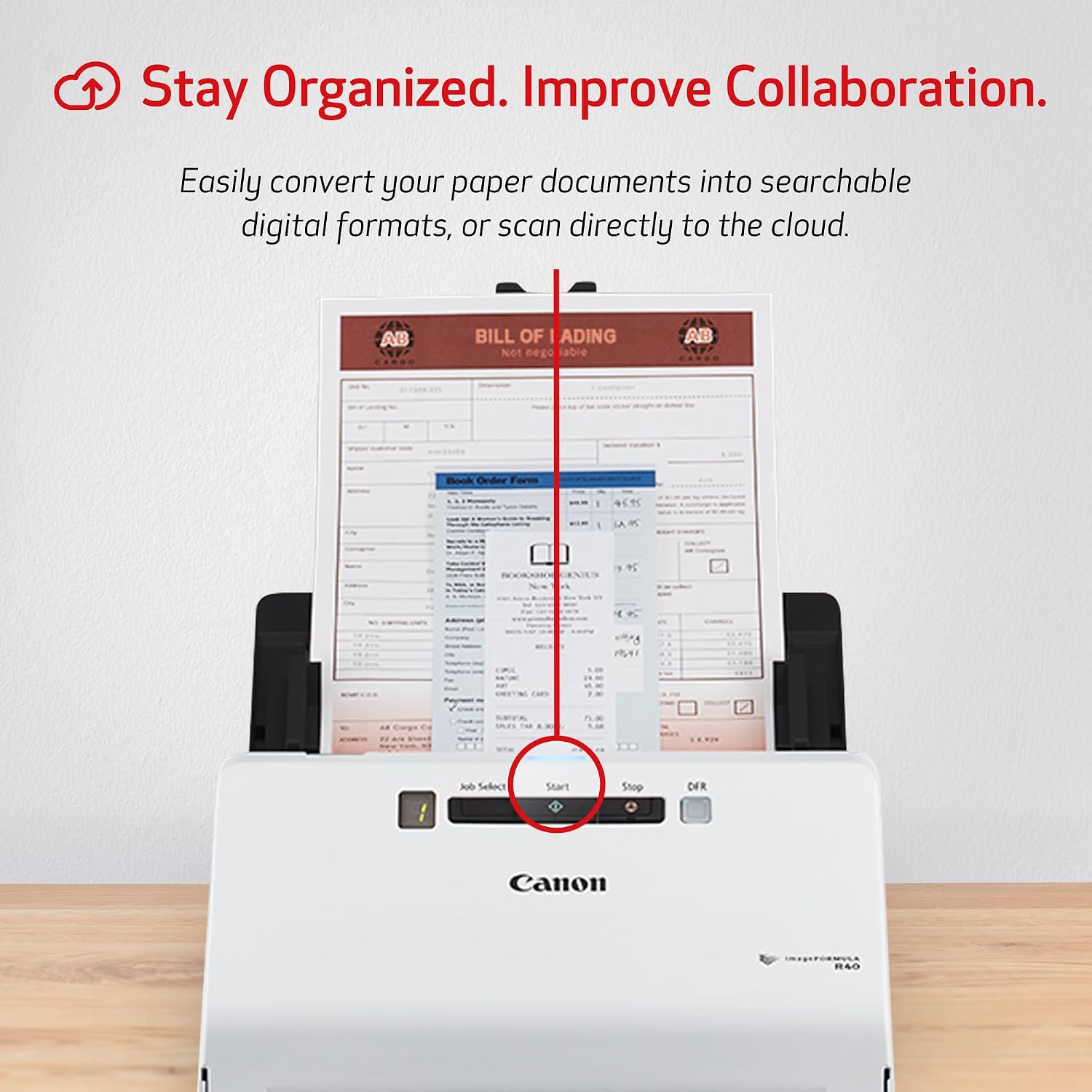
Figure 4: The scanner actively digitizing a document, converting it into a searchable digital file.
Maintenance
Regular maintenance ensures the longevity and optimal performance of your Canon imageFORMULA R40 scanner.
- Cleaning the Scanner: Periodically clean the scanner's exterior with a soft, dry cloth. For the interior, refer to the detailed cleaning instructions in the full product manual, typically involving cleaning the rollers and glass surfaces with a lint-free cloth and a mild cleaner.
- Dust Removal: Keep the scanner in a clean environment and cover it when not in use to prevent dust accumulation, which can affect scan quality.
- Roller Replacement: Over time, the document feeder rollers may wear out. If you experience frequent paper jams or misfeeds, consult the full manual for instructions on inspecting and replacing the rollers.
Troubleshooting
If you encounter issues with your Canon imageFORMULA R40 scanner, try the following common troubleshooting steps:
- Scanner Not Detected:
- Ensure the USB cable is securely connected to both the scanner and the computer.
- Verify the power adapter is properly connected and the scanner is powered on.
- Try connecting to a different USB port on your computer.
- Restart both the scanner and your computer.
- Paper Jams:
- Turn off the scanner and carefully remove any jammed paper following the instructions in the full manual.
- Ensure documents are properly aligned in the feeder and not creased or torn.
- Clean the feed rollers if they appear dirty or worn.
- Poor Scan Quality:
- Clean the scanner's glass and rollers.
- Adjust the scan settings in the CaptureOnTouch software (e.g., resolution, brightness, contrast).
- Ensure the original document is clean and free from smudges.
- Software/Driver Issues (Windows 11):
- Some users have reported compatibility challenges with Windows 11. Ensure you have downloaded the absolute latest drivers and software directly from the official Canon support website.
- If issues persist, try running the software in compatibility mode for an earlier Windows version (e.g., Windows 10).
- Consider reinstalling the software and drivers if initial installation was problematic.
Specifications
| Product Dimensions | 10 x 12 x 10 inches (9.9"D x 11.4"W x 9.6"H) |
| Item Weight | 6.17 pounds (6.2 Pounds) |
| ASIN | B07YNK4S9Y |
| Item Model Number | 4229C001AA |
| Date First Available | October 8, 2019 |
| Manufacturer | Canon |
| Media Type | Business Card, Paper, Photo, Receipt |
| Scanner Type | Business Card, Document |
| Brand | Canon |
| Model Name | Canon imageFORMULA R40 Office Document Scanner |
| Connectivity Technology | USB |
| Resolution | 600 DPI |
| Wattage | 22 watts (On-mode power consumption) |
Warranty and Support
The Canon imageFORMULA R40 Document Scanner is backed by a one-year warranty. For any technical assistance or support inquiries, please contact Canon's US-based technical support team. Detailed contact information can be found on the official Canon website or within your product's documentation.