
1. Introduction
This manual provides detailed instructions for the installation, operation, and maintenance of your Lapetus 4-channel 1080N Hybrid 5-in-1 AHD DVR. This Digital Video Recorder is designed for comprehensive surveillance, supporting multiple camera technologies including Analog, HD-TVI, CVI, AHD, and wired IP cameras. It features H.265+ video compression for efficient storage and offers various recording and remote viewing capabilities.
Key Features:
- 5-in-1 Hybrid Compatibility: Supports CVBS, AHD, TVI, CVI, and wired IP cameras.
- 1080N Resolution: Provides clear and detailed video footage.
- H.265+ Video Compression: Advanced compression technology for reduced storage space and improved efficiency compared to H.264.
- Motion Detection: Configurable motion detection zones and real-time alerts.
- Remote Viewing: Access live and recorded footage via smartphone, tablet, or PC using the XMEYE app.
- Multiple Recording Modes: Continuous, scheduled, and motion-triggered recording options.


2. What's in the Box
Upon unboxing your Lapetus DVR, please verify that all the following components are included:
- Lapetus 4CH 1080N Hybrid 5-in-1 AHD DVR Unit
- Power Adapter
- USB Mouse
- User Manual (this document)
- Mounting Screws for HDD (if applicable)

3. Setup
3.1 Hardware Installation
Follow these steps to connect your DVR to a monitor and input devices:
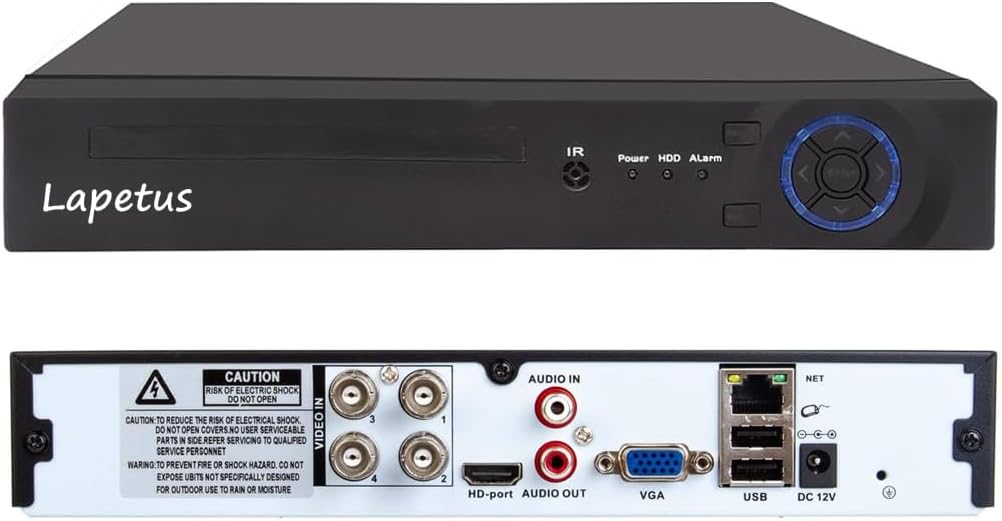
- Connect your monitor to the DVR using either the HDMI or VGA port.
- Plug the USB mouse into one of the USB ports on the back of the DVR.
- Connect the power adapter to the DVR's DC 12V input and then to a power outlet.
- Connect your surveillance cameras to the 'VIDEO IN' BNC ports on the back of the DVR. Ensure each camera is also powered.
- For remote access, connect an Ethernet cable from the DVR's LAN port to your router.
3.2 Hard Drive Installation
The DVR unit does not include a hard drive. A hard drive is required for recording and playback. It is recommended to use a surveillance-grade HDD. Make sure to turn off the DVR before installing or replacing the hard drive.
- Unscrew the top cover of the DVR unit.
- Connect the SATA data cable and power cable from the DVR to the corresponding ports on the hard drive.
- Secure the hard drive to the bottom of the DVR casing using the provided screws.
- Replace the top cover and secure it with screws.
3.3 Initial Configuration
Upon first power-up, the DVR will guide you through an initial setup wizard. This typically includes:
- Selecting your preferred language.
- Setting the date and time, including time zone.
- Creating a strong password for the administrator account.
- Configuring network settings (DHCP is usually enabled by default).
- Adjusting display resolution to match your monitor (e.g., 1920x1080).
3.4 Mobile App Setup
To enable remote viewing, download and configure the XMEYE mobile application:
- Scan the QR code displayed on your DVR's monitor or search for "XMEYE" in your device's app store (iOS App Store, Android APK).
- Install and open the XMEYE app. Register a user account and log in.
- Tap the "+" icon to add a new device. Scan the QR code on your DVR's monitor or manually enter the device's serial number.
- Once successfully connected, you can view live feeds and manage your DVR remotely.

4. Operating
4.1 Live View
After successful setup, the DVR will display live feeds from connected cameras on your monitor. You can switch between single-camera view, multi-camera grid view (e.g., 1+7, 2+2), and customize the display layout using the mouse.
4.2 Recording & Playback
The DVR supports various recording methods and allows for easy playback of recorded footage.
- Continuous Recording: Records 24/7.
- Scheduled Recording: Set specific times for recording.
- Motion Detection Recording: Records only when motion is detected, saving storage space.
To play back footage, access the playback menu, select the desired date and camera, and use the timeline to navigate through recordings. Options for fast forward, fast retreat, and single-frame play are available.

4.3 Motion Detection
Configure motion detection settings to enhance security and optimize storage:
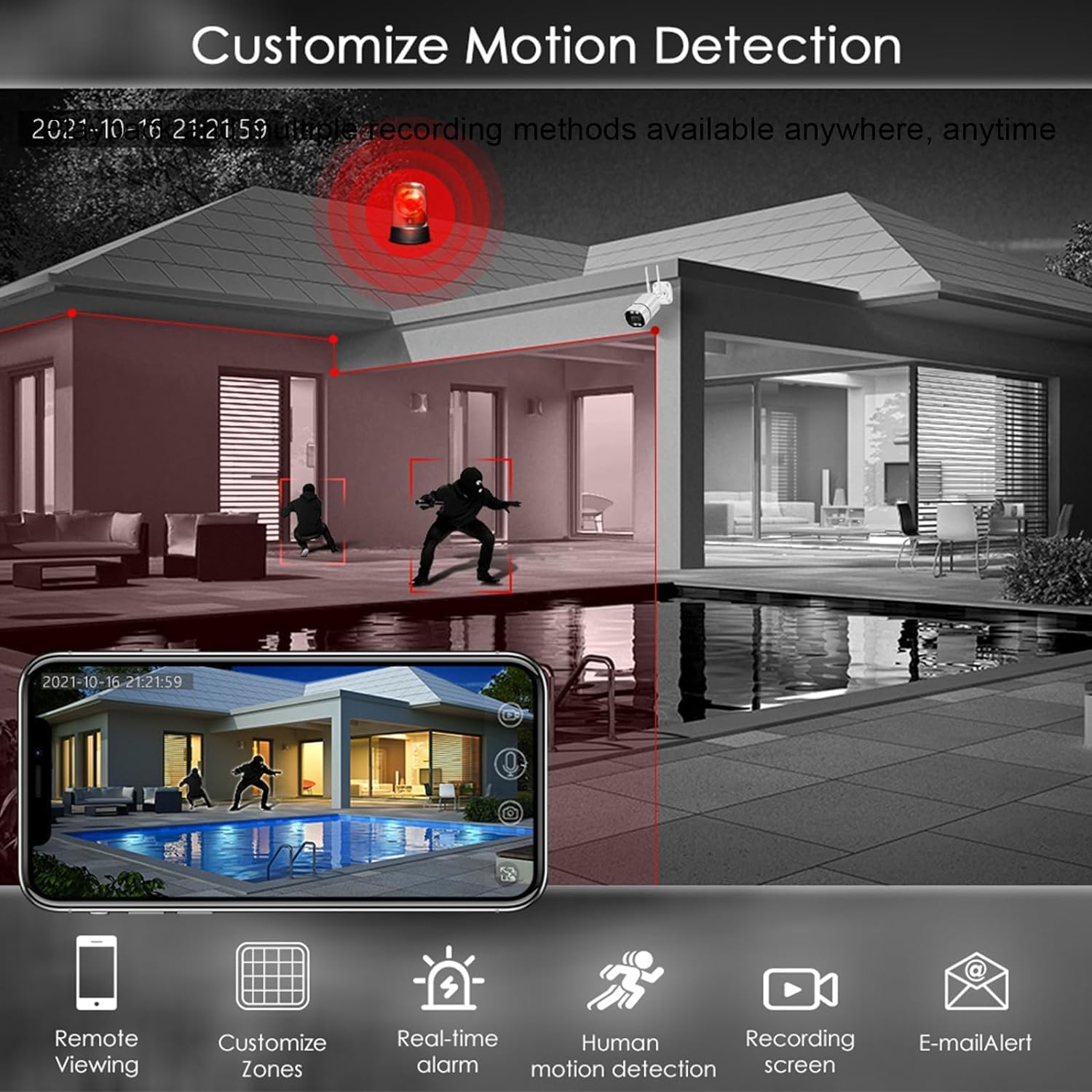
- Customize Zones: Define specific areas within the camera's view for motion detection.
- Real-time Alarm: Receive instant alerts when motion is detected.
- Human Motion Detection: Advanced detection to minimize false alarms.
- E-mail Alert: Receive notifications via email.
4.4 Remote Viewing
Utilize the XMEYE mobile app to view your camera feeds and recorded footage from anywhere with an internet connection. The app provides a user-friendly interface for managing your surveillance system on the go.
5. Maintenance
5.1 General Maintenance
- Keep the DVR unit in a well-ventilated area to prevent overheating.
- Regularly clean the exterior of the DVR with a soft, dry cloth.
- Ensure all cable connections are secure.
5.2 Storage Management
Periodically check the hard drive status and free space. If the hard drive becomes full, older footage will be overwritten unless configured otherwise. You can format the hard drive through the DVR's system settings if needed.
6. Troubleshooting
- No Video Output: Check monitor cable connections (HDMI/VGA) and ensure the monitor is set to the correct input. Verify DVR power.
- No Recording: Ensure a hard drive is installed and properly formatted. Check recording schedules and motion detection settings.
- Remote Viewing Issues: Verify the DVR has an active internet connection (LAN cable connected to router). Ensure the XMEYE app is correctly configured and the device is added.
- Poor Image Quality: Check camera connections. Ensure the DVR's display resolution matches your monitor's capabilities.
- DVR Not Powering On: Check the power adapter and power outlet.
7. Specifications
- Model Number: LT-6704NS
- Number of Channels: 4
- Video Compression: H.265+
- Video Inputs: CVBS, AHD, TVI, CVI, Wired IP
- Video Outputs: HDMI, VGA
- Audio Inputs: RCA
- USB Ports: Yes
- Network Interface: LAN (Ethernet)
- Power Supply: DC 12V
- Dimensions: 13.8 x 10.9 x 3 inches
- Item Weight: 2.49 pounds
8. Warranty & Support
For warranty information and technical support, please refer to the documentation provided with your purchase or contact Lapetus customer service. Protection plans may be available for extended coverage.