
1. Introduction
This manual provides detailed instructions for the operation and maintenance of your Microware EZCAP230 Cassette to MP3 Converter. This device allows you to convert your old cassette tapes into digital MP3 format, preserving your audio memories. It can function as a standalone converter or connect to a computer for conversion and playback.
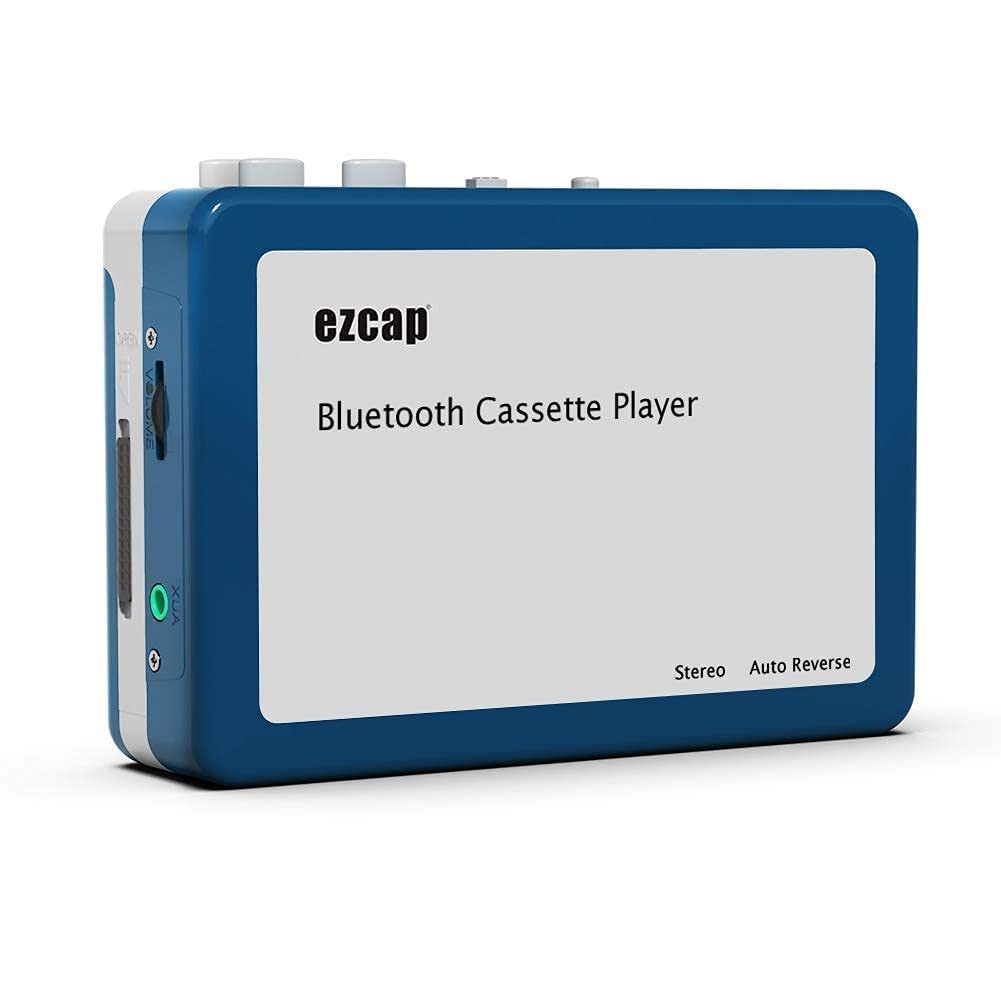
Image 1.1: The Microware EZCAP230 Cassette to MP3 Converter.
2. Product Overview
2.1 Key Features
- Converts cassette tapes to MP3 format.
- Standalone operation: No computer required for conversion.
- USB connectivity for power and data transfer.
- Playback function to check recorded music.
- Compact and portable design.
- Supports FAT, FAT32, exFAT USB formats up to 64GB. NTFS format is not supported.
2.2 Package Contents
- Microware EZCAP230 Cassette to MP3 Converter
- USB Cable
- Earphones
- User Manual (this document)

Image 2.1: The converter unit, USB cable, and earphones.
3. Setup
3.1 Power Supply
The device can be powered in two ways:
- USB Power: Connect the provided USB cable to the device and a computer USB port or a 5V DC power adapter (not included).
- Battery Power: Insert 2 x AA batteries (not included) into the battery compartment.
3.2 Inserting a Cassette Tape
- Open the cassette compartment cover.
- Insert your cassette tape with the open side facing up.
- Close the cassette compartment cover securely.

Image 3.1: Proper insertion of a cassette tape.
3.3 Connecting Earphones/Speakers and USB Flash Drive
- Connect the earphones to the 3.5mm audio output jack for private listening.
- To save converted MP3 files, insert a USB flash drive into the USB port. The device supports FAT, FAT32, and exFAT formats up to 64GB.

Image 3.2: Connecting earphones and a USB flash drive to the converter.
4. Operating Instructions
4.1 Standalone Cassette to MP3 Conversion
Follow these steps to convert your cassette tapes directly to MP3 format without a computer:
- Power On: Ensure the device is powered via USB or batteries.
- Insert Cassette: Place a cassette tape into the compartment.
- Connect USB Drive: Insert a USB flash drive into the USB port. A green light will flash, indicating it's ready.
- Start Playback: Press the "Play" button on top of the device to begin playing the tape.
- Start Recording: Press the "Record" button to start recording. The default mode is manual division. To divide tracks, press the "Record/Stop" button each time you want a new MP3 file.
- Stop Recording: Press the "Record" button again to stop recording. The MP3 files will be saved to your USB flash drive.

Image 4.1: Step-by-step guide for independent cassette to MP3 conversion.
4.2 Playing Cassette Tapes
To use the device as a cassette player:
- Insert a cassette tape.
- Connect earphones or external speakers to the 3.5mm audio output jack.
- Press the "Play" button.
- Adjust the volume using the volume control.
4.3 Connecting to a Computer
The device can be connected to a computer via USB for power and to transfer recorded MP3 files. While the device primarily functions for standalone conversion, you can manage the converted files on your computer.
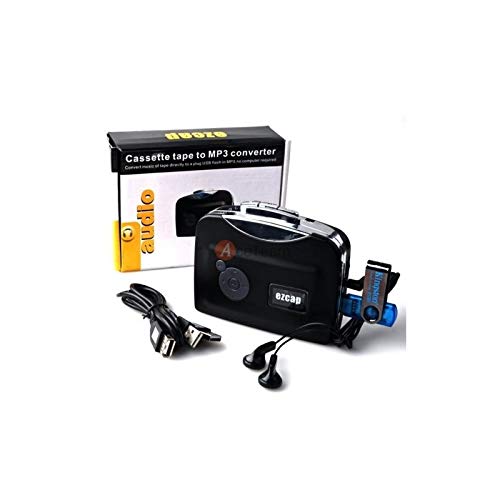
Image 4.2: The converter connected to a laptop, illustrating the digital conversion process.
4.4 Playback Function
The device includes a playback function to review the recorded MP3 files directly on the device. This allows you to verify the quality of your conversions.
Video 4.1: An overview of the Microware Cassette to MP3 Converter's features and operation, demonstrating its ease of use for digitizing old tapes.
5. Maintenance
- Keep the device clean and free from dust. Use a soft, dry cloth for cleaning.
- Avoid exposing the device to extreme temperatures, humidity, or direct sunlight.
- Do not use abrasive cleaners or solvents.
- When not in use for extended periods, remove batteries to prevent leakage.
6. Troubleshooting
6.1 No Power
- Check if the USB cable is securely connected to a power source.
- If using batteries, ensure they are inserted correctly and are not depleted.
6.2 Poor Audio Quality During Playback/Recording
- Ensure the cassette tape is clean and in good condition.
- Check earphone connections.
- Clean the tape head and pinch rollers with a cotton swab lightly dampened with isopropyl alcohol.
6.3 MP3 Files Not Saving to USB Drive
- Ensure the USB flash drive is properly inserted.
- Verify that the USB drive is formatted to FAT, FAT32, or exFAT. NTFS is not supported.
- Check if the USB drive has sufficient free space.
7. Specifications
| Feature | Specification |
|---|---|
| Brand | MICROWARE |
| Model | EZCAP230 |
| Item Weight | 150 g |
| Package Dimensions | 14 x 10.01 x 5.99 cm |
| Power Source | USB Power (5V DC) or 2 x AA Batteries |
| USB Format Support | FAT, FAT32, exFAT (up to 64GB). NTFS not supported. |
8. Warranty and Support
For warranty information and technical support, please refer to the official MICROWARE website or contact your retailer. Keep your purchase receipt as proof of purchase.
Manufacturer: MICROWARE
Date First Available: 24 September 2019
For further assistance, please visit the MICROWARE Store on Amazon.