
1. Introduction
This manual provides detailed instructions for the installation, operation, and maintenance of your Lapetus 8-Channel 1080N Hybrid 5-in-1 AHD Digital Video Recorder (DVR). This DVR supports multiple video input types, including Analog, AHD, HD-TVI, CVI, and 1080P NVR, offering a versatile solution for your surveillance needs. Please read this manual thoroughly before using the device to ensure proper setup and functionality.
2. Package Contents
Verify that all items listed below are included in your package:
- 1 x Lapetus 8CH Digital Video Recorder (Model LT-6708NH)
- 1 x 12V/2000mA Power Supply for DVR
- 1 x USB Mouse
- 1 x User Guide
Note: Hard Disk Drive (HDD) and cameras are not included and must be purchased separately for recording functionality.
3. Product Overview
3.1 Front Panel

Image: Front view of the Lapetus 8CH DVR, showing the brand logo, status indicators, and navigation buttons.
The front panel features status indicators and control buttons:
- IR: Infrared receiver for remote control (if applicable).
- Power: Indicates the DVR is powered on.
- HDD: Indicates Hard Disk Drive activity.
- Alarm: Indicates an active alarm event.
- Navigation Buttons: Used to navigate menus and settings on a connected display.
3.2 Rear Panel
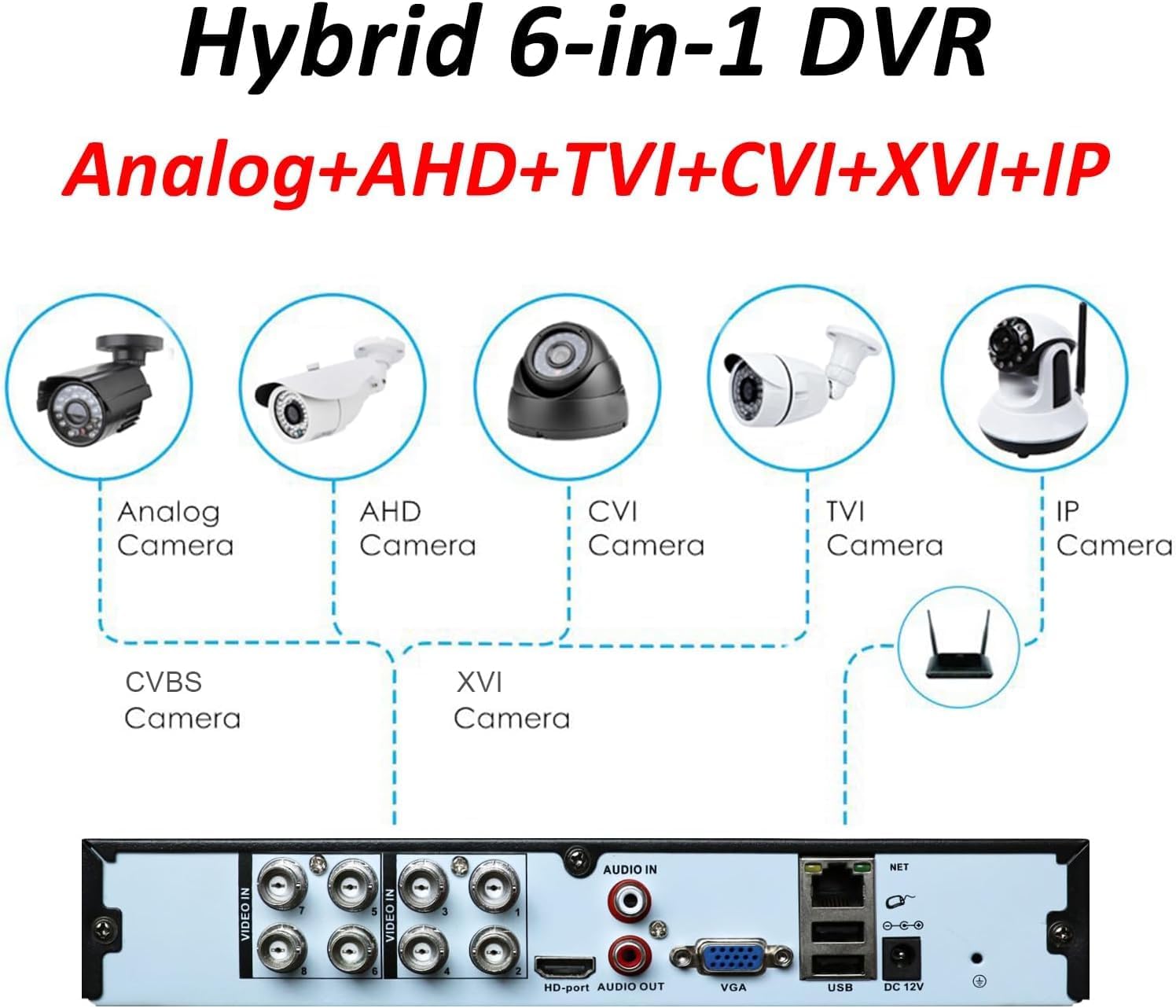
Image: Rear view of the Lapetus 8CH DVR, displaying various input and output ports for video, audio, network, and power.
The rear panel provides all necessary connection ports:
- VIDEO IN (1-8): BNC connectors for connecting up to 8 surveillance cameras.
- AUDIO IN (4CH): RCA connectors for audio input from microphones.
- AUDIO OUT (1CH): RCA connector for audio output to a speaker or amplifier.
- HDMI: High-Definition Multimedia Interface output for connecting to a monitor or TV.
- VGA: Video Graphics Array output for connecting to a monitor.
- USB: USB ports for connecting the included mouse, USB flash drives for backup, or external storage.
- NET (RJ-45): Ethernet port for network connection.
- DC 12V: Power input for the DVR.
- PTZ Control: RS485 port for controlling Pan-Tilt-Zoom cameras.
- Alarm In/Out: Ports for connecting external alarm sensors and output devices.
3.3 Hybrid Compatibility

Image: Diagram illustrating the 5-in-1 hybrid compatibility of the DVR, showing connections for Analog, AHD, CVI, TVI, and IP cameras.
The Lapetus DVR is a 5-in-1 hybrid system, supporting the following camera types:
- Analog Cameras: Traditional CCTV cameras.
- AHD Cameras: Analog High Definition cameras.
- HD-TVI Cameras: High Definition Transport Video Interface cameras.
- CVI Cameras: Composite Video Interface cameras.
- IP Cameras: Internet Protocol cameras (via NVR mode).
4. Setup
4.1 Hardware Installation
- Hard Disk Drive (HDD) Installation:
- Unscrew the top cover of the DVR.
- Connect the SATA data cable and power cable from the DVR to the HDD.
- Secure the HDD to the DVR chassis using the provided screws.
- Replace the top cover.
- Connect Cameras: Connect your surveillance cameras to the BNC "VIDEO IN" ports on the rear panel. Ensure cameras are powered separately.
- Connect Display: Connect a monitor or TV to the DVR using either the HDMI or VGA port.
- Connect Mouse: Plug the USB mouse into one of the USB ports on the rear panel.
- Connect Network (Optional): For remote viewing and network features, connect an Ethernet cable from your router to the "NET" (RJ-45) port.
- Power On: Connect the 12V/2000mA power adapter to the "DC 12V" port and plug it into a power outlet. The DVR will power on automatically.
4.2 Initial Configuration
Upon first boot, the DVR may guide you through an initial setup wizard. Follow the on-screen prompts to set the language, date/time, network settings, and format the installed HDD. Formatting the HDD is crucial for recording.
4.3 Mobile App Setup (XMEye)

Image: Step-by-step guide for downloading and connecting to the DVR using the XMEye mobile application.
To access your DVR remotely via a smartphone, download and configure the XMEye app:
- Download the App: Scan the QR code displayed on the DVR's interface or download directly:
- For Android: http://xmeye.net/android/xmeye.apk
- For iOS: https://itunes.apple.com/en/app/id884006786
- Register and Login: Open the XMEye app, register a new user account, and log in.
- Add Device: Tap the "+" icon or select "Add Device". You can add the device manually by entering its serial number (found in the DVR's system information) or by scanning a QR code if available.
- Connect and Preview: Once the device is added, you should be able to connect and view live video feeds from your cameras.
5. Operating
5.1 Recording Modes
The DVR supports various recording modes:
- Manual: Start and stop recording manually.
- Scheduled: Set specific times for continuous recording.
- Motion Detection: Recording starts automatically when motion is detected in the camera's view.
- Alarm: Recording triggered by external alarm inputs.
You can configure recording intervals from 1 to 120 minutes per segment.
5.2 Playback
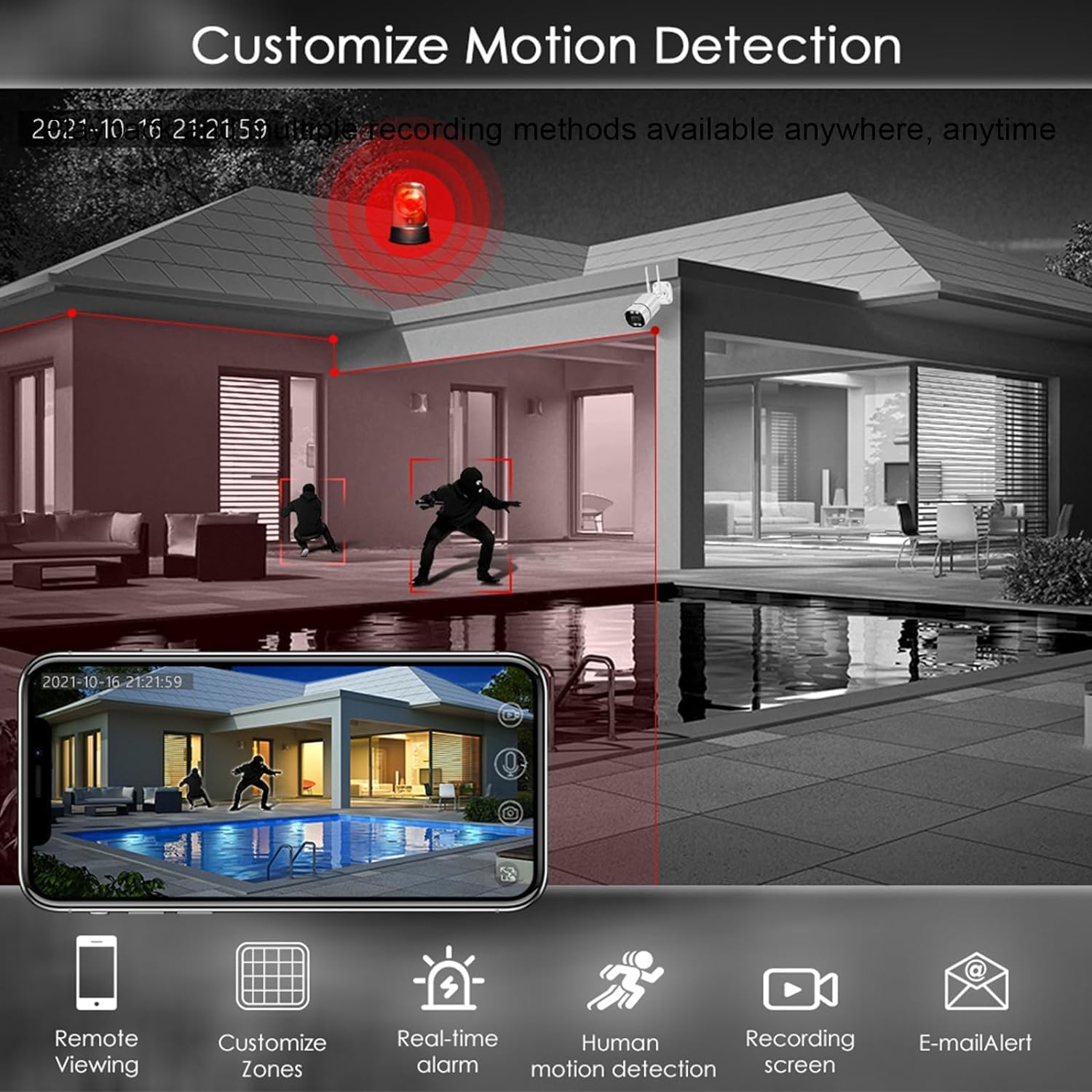
Image: Graphical representation of the DVR's playback interface, showing timeline navigation, fast forward, fast retreat, and single-frame play options.
To review recorded footage:
- Access the playback menu from the main interface.
- Select the desired date and time using the on-screen calendar and timeline.
- Use the control buttons (fast forward, fast retreat, pause, single-frame play) to navigate through the footage.
5.3 Motion Detection

Image: Screenshot showing the motion detection customization interface, allowing users to define detection zones and set up alerts.
Configure motion detection to optimize recording and receive alerts:
- Navigate to the "Alarm" or "Motion Detection" settings in the DVR menu.
- Select the camera channel you wish to configure.
- Define specific detection zones within the camera's view to minimize false alarms.
- Set up actions upon motion detection, such as recording, email notification, mobile push alerts, or buzzer activation.
5.4 Remote Viewing
Once the mobile app (XMEye) is configured and the DVR is connected to the internet, you can view live feeds and playback recorded footage from your smartphone or tablet anytime, anywhere, provided you have an internet connection.
5.5 Video Compression (H.265+)

Image: Comparison illustrating the efficiency of H.265+ video compression, showing significantly reduced file sizes compared to H.264 for the same video content.
The DVR utilizes H.265+ video compression technology. This advanced format provides more efficient video storage, reducing file sizes compared to the older H.264 standard, while maintaining video quality. This allows for longer recording times on the same hard disk capacity.
6. Specifications
| Feature | Specification |
|---|---|
| Operating System | Embedded LINUX |
| System Resources | Pentaplex function: live, recording, playback, backup & remote access |
| Encode & Decode Capacity | 8x 1080N@30fps |
| Video Inputs | 8CH (Analog, AHD, HD-TVI, CVI, IP) |
| Video Outputs | 1CH HDMI, 1CH VGA, 1CH CVBS |
| Audio Inputs/Outputs | 4CH / 1CH |
| Alarm Inputs/Outputs | 4CH / 1CH |
| Net Interface | RJ-45 Ethernet |
| PTZ Control | Support (RS485) |
| Hard Disk Support | 1 SATA HDD, up to 6TB (HDD not included) |
| USB Ports | Multiple (for mouse, backup) |
| Power Supply | DC 12V |
| Item Model Number | LT-6708NH |
| Item Weight | 2.57 pounds |
| Package Dimensions | 13.66 x 10.91 x 3.15 inches |
7. Troubleshooting
This section addresses common issues you might encounter with your DVR.
- No Video Output on Monitor:
- Ensure the monitor is powered on and set to the correct input source (HDMI/VGA).
- Check that the HDMI/VGA cable is securely connected to both the DVR and the monitor.
- Try connecting to a different display or using an alternative video output port (e.g., switch from HDMI to VGA).
- No Camera Image / Black and White Image:
- Verify that cameras are powered on and their cables are securely connected to the DVR's "VIDEO IN" ports.
- Ensure camera type (Analog, AHD, TVI, CVI, IP) is compatible with the DVR and correctly configured in the DVR's camera settings.
- Check cable integrity; damaged cables can cause signal loss or color issues.
- For black and white images, ensure sufficient lighting for color cameras or check camera settings for day/night mode.
- No Recording:
- Confirm that a Hard Disk Drive (HDD) is installed and properly connected inside the DVR.
- Access the DVR menu and ensure the HDD has been formatted.
- Check recording schedules and motion detection settings to ensure they are correctly configured and active.
- Verify that the HDD is not full. If it is, enable overwrite mode or replace the HDD.
- DVR Keeps Rebooting:
- Ensure the power adapter is the correct voltage and amperage (12V/2000mA) and is functioning properly.
- Disconnect the HDD temporarily to see if the issue persists; a faulty HDD can cause reboots.
- Ensure adequate ventilation around the DVR to prevent overheating.
- Mobile App Connection Issues:
- Verify the DVR is connected to the internet via the RJ-45 port and has a stable network connection.
- Ensure your smartphone has an active internet connection (Wi-Fi or mobile data).
- Double-check the device ID or serial number entered in the XMEye app.
- Ensure the DVR's network settings (e.g., DHCP, DNS) are correctly configured.
- Night Vision Not Working:
- Confirm that your cameras are equipped with infrared (IR) night vision capabilities.
- Ensure there are no obstructions blocking the camera's IR LEDs.
- Check camera settings for IR control or day/night mode.
8. Maintenance
- Cleaning: Regularly clean the DVR's exterior with a soft, dry cloth. Avoid using liquid cleaners directly on the device. Ensure ventilation openings are free from dust and debris.
- Ventilation: Place the DVR in a well-ventilated area, away from direct sunlight, heat sources, and excessive dust. Do not block any ventilation holes.
- Firmware Updates: Periodically check the manufacturer's website for firmware updates. Updating firmware can improve performance, add features, and fix bugs. Follow update instructions carefully.
- Data Backup: Regularly back up important recorded footage to an external USB drive or network storage to prevent data loss.
- Power Cycle: If the DVR experiences minor glitches, try power cycling it (unplug, wait 30 seconds, then plug back in).
9. Warranty and Support
For warranty information, please refer to the documentation provided at the time of purchase or contact your retailer. For technical support, please reach out to the manufacturer, Lapetus, through their official support channels.