
Sony SF-M256/T2
Sony M Series SDXC UHS-II Card User Manual
Model: SF-M256/T2
Brand: Sony
Introduction
This manual provides essential information for the proper use, maintenance, and troubleshooting of your Sony M series SDXC UHS-II Card. Designed for high-performance cameras, this memory card offers exceptional speed and reliability for capturing high-resolution photos and 4K video.
Product Overview

Front view of the Sony M series SDXC UHS-II Card 256GB in its retail packaging.

Detailed view of the Sony M series SDXC UHS-II Card, highlighting its specifications.
The Sony M series SDXC UHS-II Card is designed for professional and enthusiast photographers and videographers. It features high read and write speeds, making it ideal for capturing high-resolution images and 4K video without interruption. Its robust design ensures durability in various environments.
Key Features:
- Fast UHS-II interface for compatible UHS-II devices.
- Maximum read speed of 277MB/s and maximum write speed of 150MB/s.
- V60, Class 10, U3 speed ratings for consistent performance.
- File Rescue software available to help recover lost or damaged photos and videos.
- X-Ray Proof, Water Proof, and Temperature Proof for enhanced durability.
Setup
Inserting the SD Card:
- Locate the SD card slot on your compatible device (e.g., camera, camcorder, computer card reader). Refer to your device's manual for the exact location.
- Ensure the SD card is oriented correctly. The gold contacts on the card should align with the contacts in the device's slot.
- Gently push the card into the slot until it clicks into place. Do not force the card, as this may damage the card or the device.
Initial Formatting:
For optimal performance and to ensure compatibility, it is recommended to format the SD card using the device it will primarily be used with (e.g., your camera) before its first use. Formatting will erase all data on the card, so ensure no important data is present.
- Insert the SD card into your device.
- Turn on your device.
- Navigate to the device's menu settings. Look for an option related to "Format," "Card Format," or "Initialize."
- Select the format option and confirm. The device will format the card.
- Once formatting is complete, the card is ready for use.
Operating the SD Card
Recording Photos and Videos:
Once the SD card is inserted and formatted, your device will automatically recognize it as storage. You can begin capturing photos and videos according to your device's operating instructions.
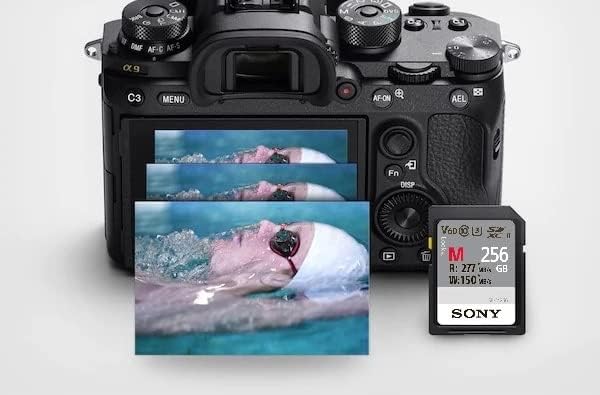
The Sony M series SD card facilitates high-speed continuous shooting and 4K video recording.
- For optimal performance, especially with 4K video or high-speed burst photography, ensure your camera supports UHS-II.
- Monitor your device's display for remaining storage capacity.
Transferring Data to a Computer:
To transfer files from the SD card to your computer, you can use a compatible card reader or connect your camera directly to the computer.
- Using a Card Reader:
- Safely remove the SD card from your device.
- Insert the SD card into a UHS-II compatible card reader connected to your computer. A UHS-II reader (such as Sony MRW-S1) is needed to realize maximum transfer speeds.
- The card will appear as a removable drive on your computer. Open the drive to access your files.
- Copy or move the desired files to your computer.
- Connecting Camera Directly:
- Ensure the SD card is in your camera.
- Connect your camera to the computer using a USB cable.
- Follow your camera's instructions for connecting to a computer and transferring files.
Safely Removing the SD Card:
Always safely eject the SD card from your computer or device before physically removing it to prevent data corruption.
- From Computer (Windows): Right-click on the drive representing the SD card in "This PC" or "My Computer" and select "Eject."
- From Computer (macOS): Drag the SD card icon from the desktop to the Trash, or click the Eject button next to the drive in Finder.
- From Camera/Device: Turn off the device before removing the card, or follow the device's specific instructions for card removal.
Maintenance
Care and Handling:
- Avoid touching the gold contacts on the card.
- Keep the card clean and free from dust, dirt, and moisture. Use a soft, dry cloth if cleaning is necessary.
- Store the card in its protective case when not in use to prevent physical damage.
- Do not bend, drop, or subject the card to excessive force.
- The card is X-Ray Proof, Water Proof, and Temperature Proof, but extreme conditions should still be avoided for prolonged periods.

The Sony M series SD card is designed to be water-resistant, offering enhanced durability.
Regular Formatting:
It is good practice to periodically format your SD card, especially after transferring all important files to your computer. This helps maintain optimal performance and prevents potential data corruption.
Troubleshooting
| Problem | Possible Cause | Solution |
|---|---|---|
| Card not recognized by device. | Incorrect insertion, incompatible device, card lock switch engaged, or corrupted card. |
|
| Slow recording or transfer speeds. | Device not UHS-II compatible, using a non-UHS-II card reader, or card fragmentation. |
|
| Cannot write or delete files. | Write-protect switch engaged, card is full, or file system error. |
|
| Lost or corrupted files. | Improper card removal, power loss during writing, or card damage. |
|
Specifications
| Feature | Detail |
|---|---|
| Model Number | SF-M256/T2 |
| Capacity | 256 GB |
| Flash Memory Type | SDXC |
| Hardware Interface | UHS-II |
| Read Speed (Max) | 277 MB/s |
| Write Speed (Max) | 150 MB/s |
| Speed Class | V60, Class 10, U3 |
| Special Features | X-Ray Proof, Water Proof, Temperature Proof |
| Dimensions (LxWxH) | 1.26 x 1.26 x 0.08 inches |
| Weight | 0.071 ounces (2 grams) |
Warranty and Support
Warranty Information:
The Sony M series SDXC UHS-II Card comes with a limited warranty. Please refer to the product packaging or Sony's official website for specific warranty terms and conditions applicable to your region. Retain your proof of purchase for warranty claims.
Customer Support:
For technical assistance, product inquiries, or to download the File Rescue software, please visit the official Sony support website or contact Sony customer service in your region. You can often find support resources, FAQs, and driver downloads online.
Official Sony Support Website: http://www.sony.net/memorycard/