1. Introduction
This user manual provides comprehensive instructions for the setup, operation, and maintenance of your ASUS 27" 1440P Professional Monitor (PB278QV). Designed for multitaskers, this monitor features a 27-inch WQHD (2560 x 1440) display, a 75Hz refresh rate, and a 5ms (GTG) response time. It incorporates ASUS exclusive functions to enhance productivity and ASUS Eye Care technology to minimize eye strain during prolonged use. With extensive connectivity options including DisplayPort, HDMI, and Dual-Link DVI, the PB278QV ensures broad compatibility and a smooth user experience.

Figure 1.1: Front view of the ASUS PB278QV Professional Monitor, showcasing its sleek design and large display.
2. Safety Information
Please read all instructions carefully before using the monitor. Keep this manual for future reference.
- Power Source: Use only the power adapter supplied with your monitor. Ensure the power cord is properly grounded.
- Ventilation: Do not block ventilation openings. Allow adequate space around the monitor for proper airflow.
- Liquid and Moisture: Keep the monitor away from liquids. Do not expose it to rain or moisture.
- Cleaning: Unplug the monitor before cleaning. Use a soft, dry cloth. Do not use liquid or aerosol cleaners.
- Placement: Place the monitor on a stable, flat surface. Avoid placing it in direct sunlight or near heat sources.
- Servicing: Do not attempt to service the monitor yourself. Refer all servicing to qualified service personnel.
- Eye Care: Take regular breaks to reduce eye strain. Adjust screen brightness and contrast to comfortable levels.
3. Setup
3.1 Package Contents
Verify that all items are present in your package. If any item is missing or damaged, contact your retailer immediately.
- ASUS PB278QV Monitor
- Power Cord
- HDMI Cable
- DisplayPort Cable
- Dual-Link DVI Cable
- Quick Start Guide
- Warranty Card
3.2 Assembling the Monitor Stand
- Carefully place the monitor face down on a soft, clean surface to prevent scratches.
- Attach the stand base to the stand neck, ensuring it clicks into place or is secured with the provided screw.
- Align the assembled stand with the mounting holes on the back of the monitor and secure it firmly.
3.3 Connecting the Monitor
Connect the appropriate cables from your computer or video source to the monitor's input ports.
- Power Connection: Connect the power cord to the monitor's power input and then to a power outlet.
- Video Input:
- DisplayPort: For optimal performance, connect a DisplayPort cable from your computer to the monitor's DisplayPort input.
- HDMI: Connect an HDMI cable from your computer to the monitor's HDMI input.
- Dual-Link DVI: Connect a Dual-Link DVI cable from your computer to the monitor's DVI input.
- VGA: Connect a VGA cable from your computer to the monitor's VGA input.
- Audio (if applicable): If using an analog audio source, connect an audio cable from your computer's audio output to the monitor's audio input.
- USB (if applicable): Connect the USB upstream cable from your computer to the monitor's USB upstream port to enable the monitor's USB downstream ports.
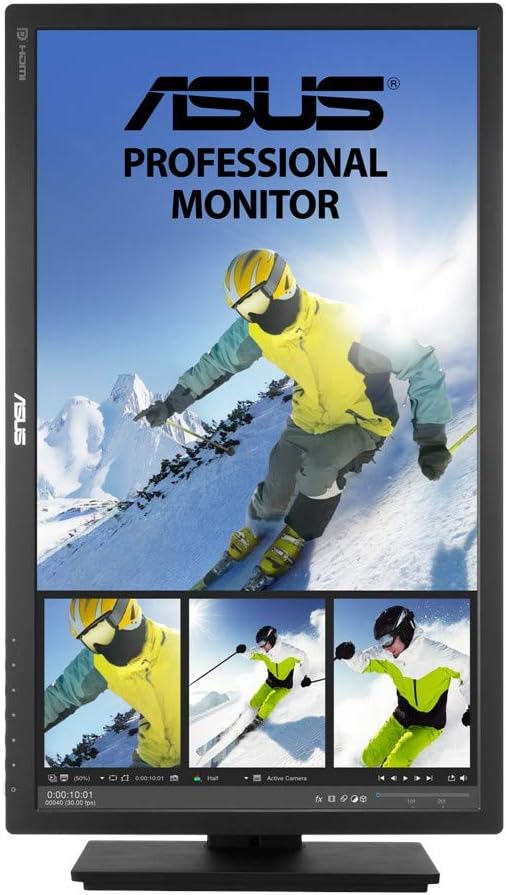
Figure 3.1: Rear view of the ASUS PB278QV monitor, highlighting the DisplayPort, HDMI, Dual-Link DVI, and VGA input ports.
4. Operating the Monitor
4.1 Power On/Off
Press the power button located on the front or side of the monitor to turn it on or off. The power indicator light will illuminate when the monitor is active.
4.2 On-Screen Display (OSD) Menu Navigation
The monitor features an intuitive OSD menu for adjusting various settings. Use the physical buttons on the monitor's bezel to navigate and select options.
- Menu Button: Press to open the OSD menu.
- Navigation Buttons: Use the directional buttons (up/down/left/right) to move through menu options.
- Select Button: Press to confirm a selection or enter a sub-menu.
- Exit Button: Press to exit the current menu or return to the previous level.
4.3 Key Features and Adjustments
- Adaptive-Sync Technology: Enables a smooth visual experience by synchronizing the monitor's refresh rate with your graphics card's frame rate, reducing screen tearing and stuttering.
- ASUS Eye Care Technology:
- Flicker-Free: Reduces screen flickering to minimize eye strain during extended viewing.
- Ultra-low Blue Light: Offers multiple blue light filter levels to protect your eyes from harmful blue light emissions.
- Quick Fit Function: Provides an on-screen overlay of actual size documents and photos, allowing you to preview them in their true size before printing.
- MultiFrame Management: Helps organize multiple windows on your desktop for improved productivity and screen usage.
- Ergonomic Adjustments: The monitor stand allows for versatile positioning:
- Tilt: Adjust the screen angle vertically.
- Swivel: Rotate the screen horizontally on its base.
- Pivot: Rotate the screen 90 degrees for portrait mode viewing.
- Height Adjustment: Raise or lower the screen to your preferred viewing height.

Figure 4.1: The ASUS PB278QV monitor shown in portrait orientation, demonstrating its pivot capability for vertical content viewing.
5. Maintenance
5.1 Cleaning the Monitor
Regular cleaning helps maintain the monitor's appearance and performance.
- Screen: Gently wipe the screen with a soft, lint-free cloth. For stubborn marks, lightly dampen the cloth with water or a specialized screen cleaner (do not spray directly onto the screen).
- Casing: Use a soft, dry cloth to wipe the monitor casing. Avoid abrasive cleaners or solvents.
- Before Cleaning: Always unplug the monitor from the power outlet before cleaning.
5.2 Storage
If storing the monitor for an extended period, ensure it is kept in a cool, dry place, away from direct sunlight and extreme temperatures. It is recommended to store it in its original packaging if possible.
6. Troubleshooting
| Problem | Possible Solution |
|---|---|
| No image on screen |
|
| Image is blurry or distorted |
|
| Screen flickering |
|
| No audio |
|
7. Specifications
| Feature | Detail |
|---|---|
| Brand | ASUS |
| Model | PB278QV |
| Screen Size | 27 Inches |
| Resolution | WQHD (2560 x 1440) |
| Refresh Rate | 75Hz |
| Response Time | 5ms (GTG) |
| Panel Type | IPS (In-Plane Switching) |
| Aspect Ratio | 16:9 |
| Color Gamut | 100% sRGB |
| Viewing Angle | 178° (H)/178° (V) |
| Connectivity | DisplayPort, HDMI, Dual-Link DVI, VGA |
| USB Ports | 1x USB 2.0, 1x USB 3.0 |
| Ergonomics | Tilt, Swivel, Pivot, Height Adjustment |
| Eye Care Features | Flicker-Free, Ultra-low Blue Light |
| Weight | 17.16 pounds |
| Dimensions (LxWxH) | 10 x 0.2 x 1 inches |
8. Warranty & Support
8.1 Warranty Information
The ASUS PB278QV Professional Monitor typically comes with a Three-Year Warranty across all series, covering manufacturing defects and hardware malfunctions under normal use. Please refer to the warranty card included in your package for specific terms and conditions, including coverage details and limitations. Keep your proof of purchase for warranty claims.
8.2 Customer Support
For technical assistance, troubleshooting, or service inquiries, please contact ASUS customer support.
- ASUS Support Website: Visit the official ASUS support website for drivers, FAQs, and online troubleshooting resources.
- Contact Information: Refer to the ASUS website or your product documentation for regional contact numbers and email support.
- Online Resources: Explore the ASUS Store on Amazon for additional product information and related accessories.


