
1. Introduction
This manual provides detailed instructions for the installation, operation, and maintenance of your Suuonee 50A PWM Solar Charge Controller. This industrial-grade controller is designed for efficient energy management in solar power systems, featuring a built-in controller, LCD display, and advanced 3-stage PWM charging. Please read this manual thoroughly before installation and use to ensure optimal performance and safety.

Figure 1: Front view of the Suuonee 50A PWM Solar Charge Controller, showing the LCD screen, control buttons, and USB ports.
2. Safety Information
Please observe the following safety precautions during installation and operation:
- Ensure all wiring is correctly connected before powering on the controller. Incorrect wiring can damage the device or connected components.
- Connect the battery first, then the solar panel, and finally the load. Disconnect in the reverse order.
- The controller is designed for 12V/24V lead-acid batteries. Do not use it with other battery types unless specified.
- Install the controller in a well-ventilated area, away from flammable materials and direct sunlight.
- Avoid touching live terminals. Use insulated tools.
- This device is for indoor use only. Protect it from water and moisture.
3. Product Features
The Suuonee 50A PWM Solar Charge Controller offers the following key features:
- Industrial-Grade Controller: Built-in industrial controller for stable and efficient energy management in various weather conditions.
- Clear LCD Display: Large LCD screen provides real-time data visibility and allows easy customization of parameters.
- Advanced 3-Stage PWM Charging: Fully optimized 3-stage Pulse Width Modulation (PWM) management system for efficient battery charging and prolonged battery lifespan.
- Comprehensive System Protections: Equipped with built-in safeguards including short-circuit protection, open-circuit protection, reverse polarity protection, and overload protection to prevent damage to connected devices.
- MOSFET Technology: Incorporates MOSFET technology to minimize reverse current and reduce heat generation, enhancing energy efficiency and extending product operational life.
- Dual USB Output: Features two 5V/2A USB ports for charging external devices.

Figure 2: The controller features a 3-stage PWM charge management system and a large LCD display for adjustable parameters.
4. Specifications
Detailed specifications for the Suuonee 50A PWM Solar Charge Controller:
| Parameter | Value |
|---|---|
| Model | 50A |
| Battery Voltage | 12V / 24V Auto |
| Solar Panel Voltage | 12V system: 18V solar panel; 24V system: 36V solar panel |
| Charge Stop Voltage | 13.7V (default, adjustable) |
| Discharge Stop Voltage | 10.7V (default, adjustable) |
| Discharge Reconnect Voltage | 12.6V (default, adjustable) |
| Self-Consume | <10mA |
| USB Output | 5V / 2A (Dual USB) |
| Material | ABS |
| Product Dimensions | Approximately 3.94 x 3.94 x 3.94 inches (100 x 100 x 100 mm) |
| Item Weight | Approximately 3.52 ounces (0.1 kg) |
5. Product Overview
The solar charge controller features a compact design with a clear LCD display and intuitive controls.
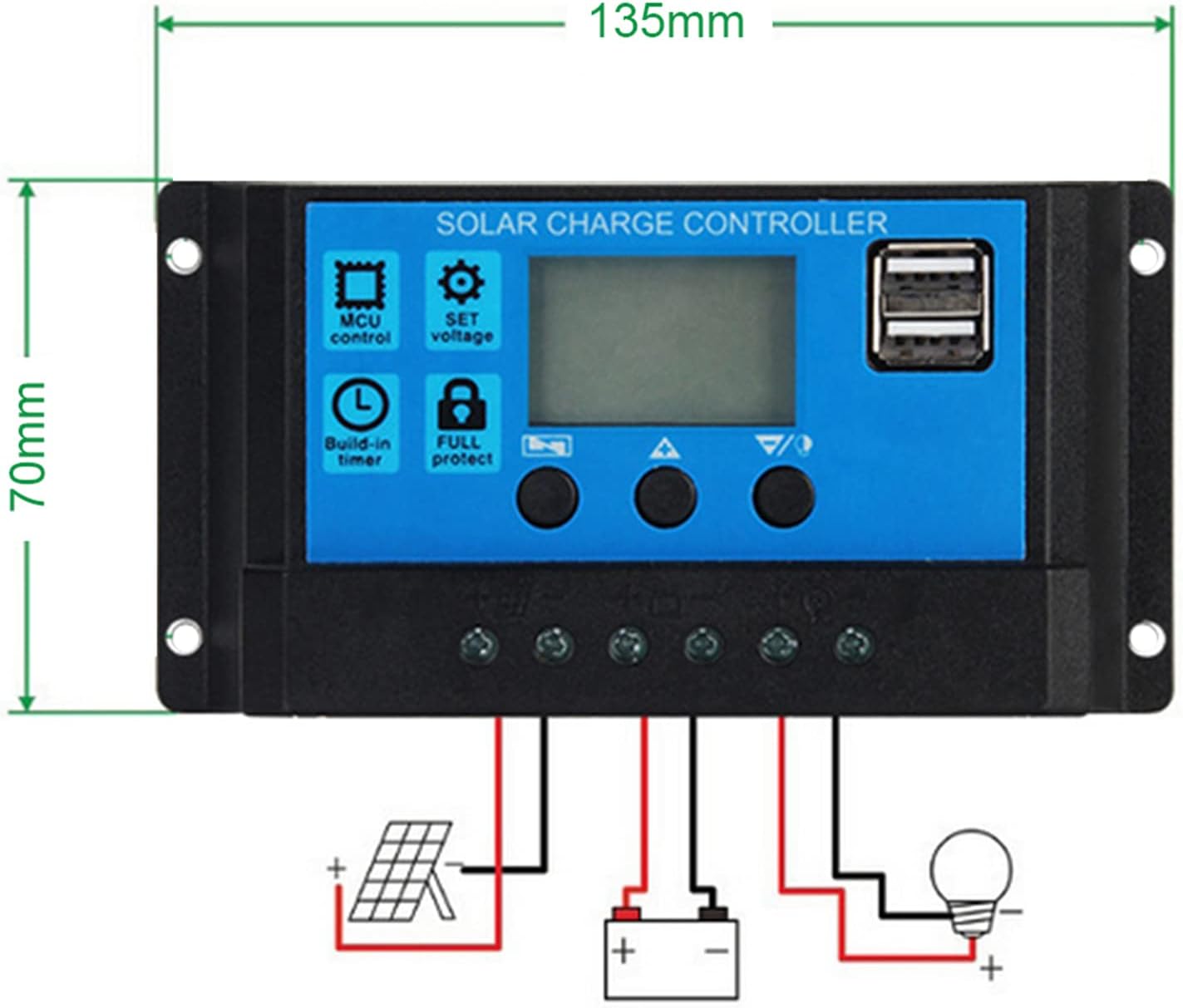
Figure 3: Front and back views of the controller, showing terminals and mounting points.

Figure 4: Controller dimensions (135mm x 70mm) and a basic wiring diagram indicating connections for solar panel, battery, and load.
5.1. Components
- LCD Display: Shows system status, parameters, and error codes.
- Control Buttons: Three buttons for navigation and parameter adjustment.
- USB Ports: Two 5V/2A USB outputs for charging mobile devices.
- Terminal Blocks: Clearly labeled terminals for connecting solar panels, battery, and DC load.
6. Setup and Installation
Follow these steps for proper installation:
- Prepare Wiring: Ensure all wires are of appropriate gauge for the current and length, and that they are properly stripped.
- Connect Battery: Connect the battery to the charge controller first. Ensure correct polarity (+ to + and - to -). The LCD will light up.
- Connect Solar Panel: Connect the solar panel to the charge controller. Ensure correct polarity.
- Connect DC Load: Connect the DC load to the charge controller. Ensure correct polarity.
- Mounting: Mount the controller in a dry, well-ventilated area, away from direct sunlight and heat sources.
Important: Always connect the battery first and disconnect the battery last. Failure to follow this order may damage the controller.
7. Operating Instructions
The controller's LCD display provides real-time information about your solar system. The three buttons allow for navigation and parameter adjustment.
7.1. LCD Display Modes
Press the 'Up' or 'Down' button to cycle through different display modes:
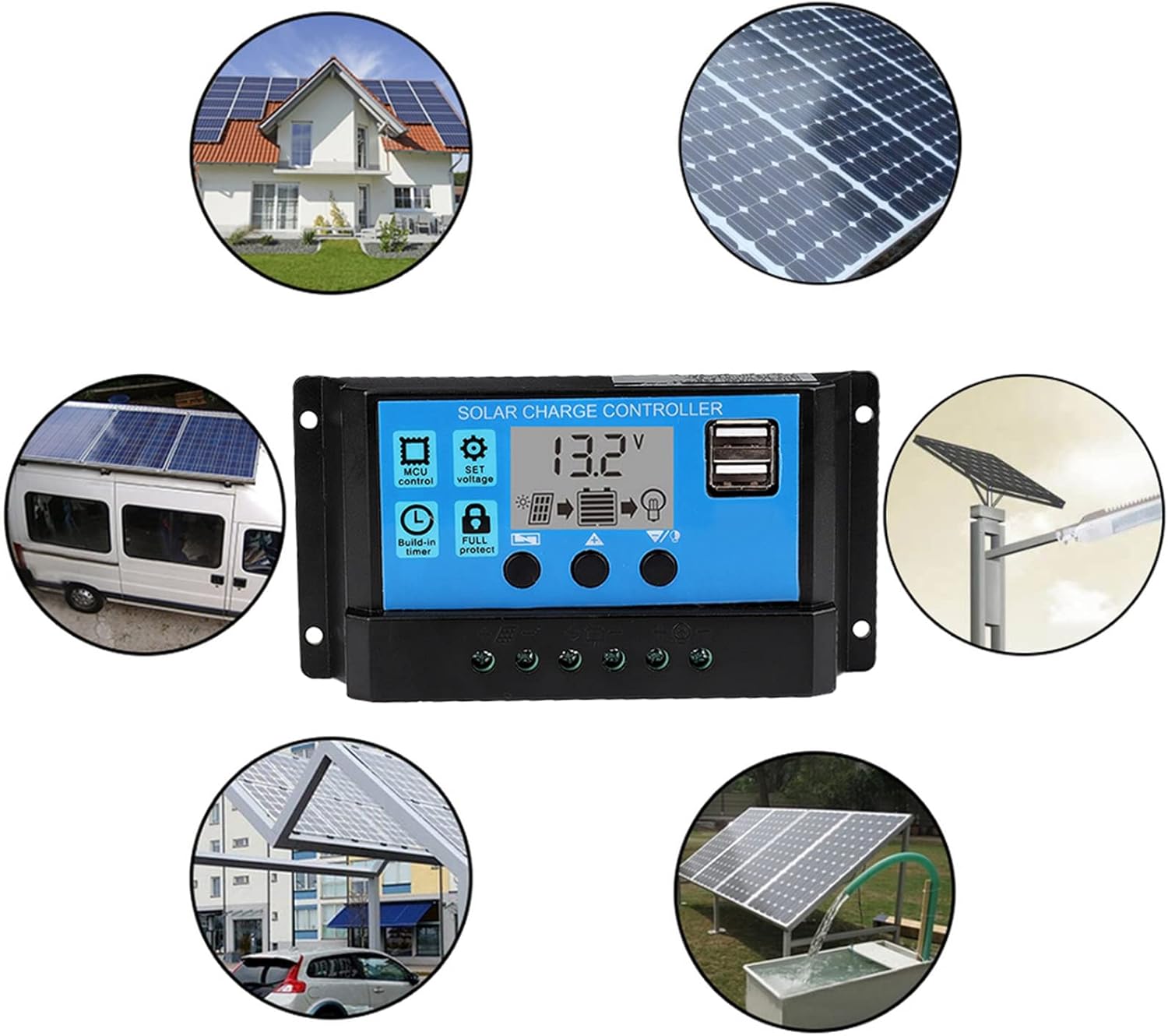
Figure 5: Flowchart illustrating the main interface and various adjustable parameters displayed on the LCD, including floating charging voltage, battery type, discharge recovery voltage, load work mode, and discharge cut-off voltage.
- Main Interface: Displays current battery voltage and charging status.
- Floating Charging Voltage (13.7V default): The voltage at which the battery is maintained after full charge.
- Battery Type (b01 default): Selects the battery type (e.g., b01 for sealed, b02 for gel, b03 for flooded).
- Discharge Recovery Voltage (12.6V default): The voltage at which the load will reconnect after low voltage disconnection.
- Load Work Mode (24H default): Controls when the load output is active (e.g., 24 hours, dusk to dawn, timed).
- Discharge Cut-off Voltage (10.7V default): The voltage at which the load will disconnect to protect the battery from over-discharge.
7.2. Button Functions
- Menu Button (Left): Enters/exits parameter setting mode.
- Up Button (Middle): Increases parameter value or navigates up.
- Down Button (Right): Decreases parameter value or navigates down.
8. Parameter Settings
To adjust parameters:
- From the main display, press and hold the Menu button for 5 seconds to enter parameter setting mode. The current parameter will start flashing.
- Use the Up and Down buttons to adjust the value.
- Press the Menu button again to confirm the setting and move to the next parameter.
- To exit setting mode, press and hold the Menu button for 5 seconds, or wait for 10 seconds without any operation.
Note: Adjusting parameters incorrectly can affect system performance and battery life. Refer to your battery manufacturer's specifications for optimal voltage settings.
9. Maintenance
Regular maintenance ensures the longevity and efficiency of your solar charge controller:
- Clean Terminals: Periodically check and clean all terminal connections to ensure they are tight and free from corrosion.
- Inspect Wiring: Check all wiring for signs of wear, damage, or loose connections.
- Keep Clean: Keep the controller's surface clean and free from dust and debris. Use a dry cloth.
- Ventilation: Ensure the installation area remains well-ventilated to prevent overheating.
10. Troubleshooting
If you encounter issues, refer to the following common problems and solutions:
| Problem | Possible Cause | Solution |
|---|---|---|
| LCD not displaying | Battery not connected or low voltage | Check battery connections and ensure battery voltage is above 8V. |
| No charging current | Solar panel not connected, low sunlight, or reverse polarity | Check solar panel connections, ensure sufficient sunlight, verify polarity. |
| Load not working | Load disconnected, battery low, or load work mode setting | Check load connections, charge battery, adjust load work mode. |
| Overload protection activated | Load current exceeds controller's rating | Reduce load or use a higher-rated controller. Disconnect load and reconnect after 30 seconds. |
| Short-circuit protection activated | Short circuit in load or wiring | Identify and fix the short circuit. The controller will automatically recover. |
11. Warranty and Support
For warranty information or technical support, please refer to the product packaging or contact your retailer. Keep your purchase receipt as proof of purchase.