
1. Introduction
The 8Bitdo SN30 Pro+ is a versatile Bluetooth gamepad designed for a wide range of gaming platforms. It offers a classic gamepad layout combined with modern features, providing an enhanced gaming experience across various devices.
This controller is compatible with:
- Nintendo Switch
- Windows
- Android
- macOS
- Steam
- Raspberry Pi
Key features include rumble feedback, a 6-axis motion sensor, adjustable hair triggers, and a customizable turbo function. The controller supports both wireless Bluetooth and direct USB connectivity, powered by a 1000mAh rechargeable battery pack or standard AA batteries.

Figure 1: Front view of the 8Bitdo SN30 Pro+ Bluetooth Gamepad.
2. Package Contents
- 1 x SN30 Pro+ Bluetooth Gamepad
- 1 x USB-C Cable
- 1 x Instruction Manual
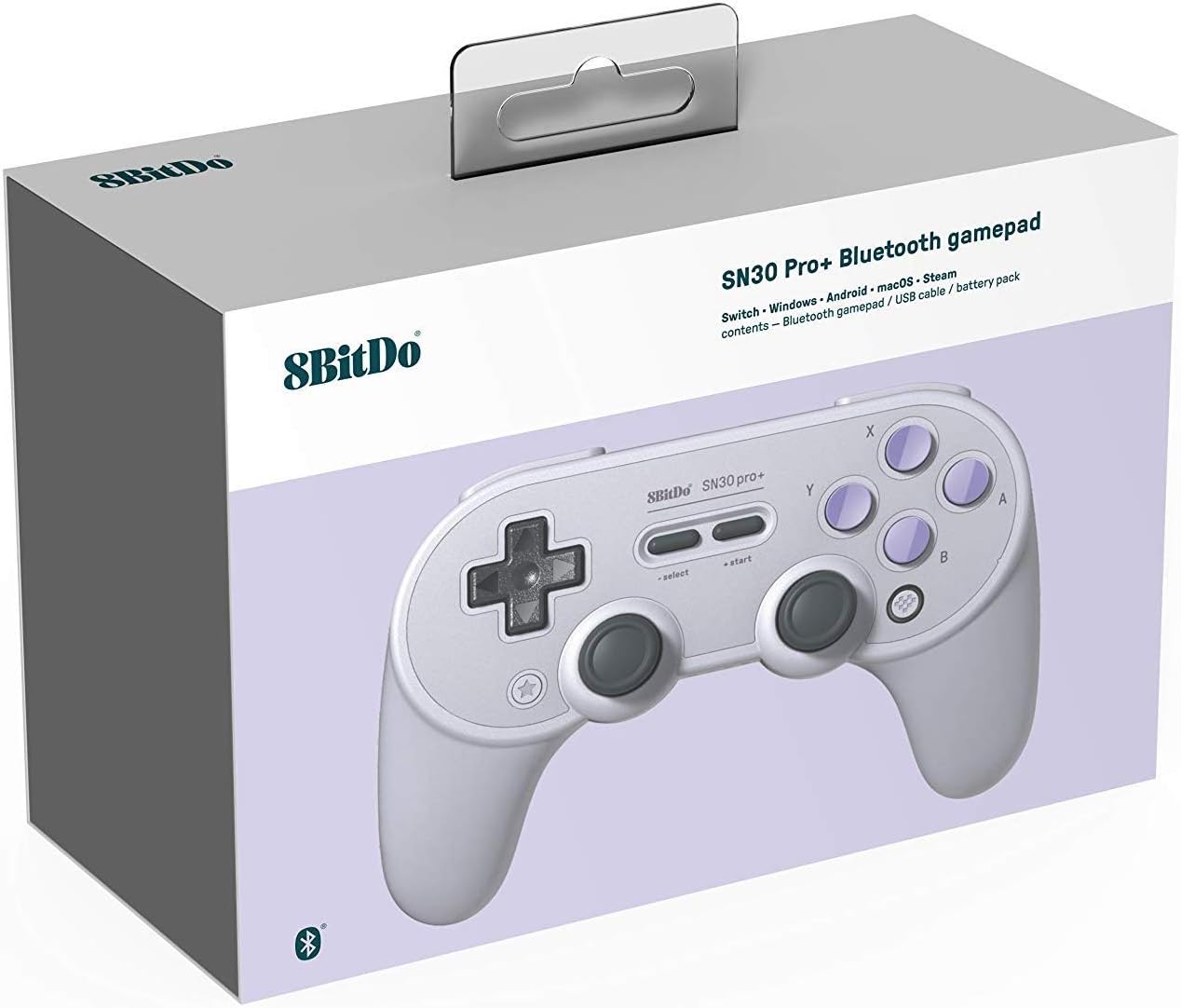
Figure 2: Packaging of the 8Bitdo SN30 Pro+ Bluetooth Gamepad.
3. Setup and Connection
The SN30 Pro+ gamepad supports various connection modes to ensure compatibility with your preferred gaming platform. Follow the instructions below for initial setup and pairing.
General Pairing Instructions:
- Press and hold the designated button combination (Y+Start for Switch, B+Start for Android, X+Start for Windows, A+Start for macOS) to turn on the controller. The LED lights will start to rotate from left to right.
- Press the pair button for 3 seconds to enter pairing mode. The LED will become solid when connection is successful.
- The controller will auto-reconnect to your device with the press of the Start button once it has been paired.
- For wired connection, connect the controller to your device via the USB-C cable.
Specific Connection Modes:
- Switch Mode: Press & hold Y + Start to turn on the controller, then press the pair button for 3 seconds. Go to your Switch Home Page, click on 'Controllers', then 'Change Grip/Order'. The LED will become solid when connection is successful. The controller will auto-reconnect to your Switch with the press of Start once it has been paired. When connected to your Switch, the Star button acts as the Screenshot button, and the Home button acts as the Switch HOME button.
- Android (D-input) Mode: Press & hold B + Start to turn on the controller, then press the pair button for 3 seconds. Go to your Android device's Bluetooth setting, pair with '8BitDo SN30 Pro+'. The LED will become solid when connection is successful. The controller will auto-reconnect to your Android device with the press of Start once it has been paired. USB connection connects your 8BitDo controller to your Android device via USB cable after step 1.
- Windows (X-input) Mode: Press & hold X + Start to turn on the controller, then press the pair button for 3 seconds. Go to your Windows device's Bluetooth setting, pair with '8BitDo SN30 Pro+'. The LED will become solid when connection is successful. The controller will auto-reconnect to your Windows device with the press of Start once it has been paired. USB connection connects your 8BitDo controller to your Windows device via USB cable after step 1.
- macOS Mode: Press & hold A + Start to turn on the controller, then press the pair button for 3 seconds. Go to your macOS device's Bluetooth setting, pair with 'Wireless Controller'. The LED will become solid when connection is successful. The controller will auto-reconnect to your macOS device with the press of Start once it has been paired. USB connection connects your 8BitDo controller to your macOS device via USB cable after step 1.
Video 1: Demonstrating the 8Bitdo SN30 Pro+ Bluetooth Gamepad's features and connectivity with Nintendo Switch and PC.
4. Operating Modes
The SN30 Pro+ supports different controller input modes to ensure optimal performance across various platforms:
- X-input Mode: Standard input mode for Windows and Steam.
- D-input Mode: Standard input mode for Android.
- Mac Mode: Specific input mode for macOS devices.
- Nintendo Switch Mode: Optimized for Nintendo Switch functionality.
5. Button Mapping and Customization
The 8Bitdo Ultimate Software allows for comprehensive customization of your gamepad. This software provides complete control over button mapping, joystick sensitivity, trigger sensitivity, vibration sensitivity, macros, and profiles.
- Button Mapping: Remap any button for personalized control.
- Joystick Sensitivity: Adjust the sensitivity of both analog sticks for higher precision.
- Trigger Sensitivity: Modify the maximum and minimum ranges of your triggers for faster response.
- Vibration Sensitivity: Adjust the intensity of the controller's vibration for a comfortable gaming experience.
- Macros: Create and assign complex button sequences to a single button.
- Customizable Turbo Function: Hold the button you would like to set turbo functionality to and then press the Star button to activate/deactivate its turbo functionality. (Note: D-pad and analogue sticks are not included. This does not apply to Switch mode.)
Download the 8Bitdo Ultimate Software from support.8bitdo.com.

Figure 3: Button layout of the 8Bitdo SN30 Pro+ Gamepad.
6. Battery Information
The SN30 Pro+ is equipped with a 1000mAh rechargeable Lithium Polymer battery, providing approximately 20 hours of play time on a full charge. It takes about 4 hours to fully charge the battery.
Battery Status LED Indicator:
- Red LED blinks: Low battery mode.
- Red LED stays solid: Battery charging.
- LED turns off: Battery fully charged.
The controller also supports the use of two AA batteries as an alternative power source, offering flexibility for extended gaming sessions.

Figure 4: Bottom view of the controller with the battery compartment open.
7. Maintenance
To ensure the longevity and optimal performance of your 8Bitdo SN30 Pro+ Gamepad, follow these maintenance guidelines:
- Cleaning: Regularly wipe the controller with a soft, dry cloth to remove dust and grime. Avoid using harsh chemicals or abrasive materials.
- Storage: Store the controller in a cool, dry place away from direct sunlight and extreme temperatures. If storing for an extended period, ensure the battery is partially charged (around 50%) and remove it if using AA batteries.
- Handling: Avoid dropping the controller or subjecting it to strong impacts. Do not attempt to disassemble the controller, as this may void the warranty.
- Charging: Use only the provided USB-C cable or a certified equivalent for charging. Avoid overcharging the battery.
8. Troubleshooting
If you encounter issues with your 8Bitdo SN30 Pro+ Gamepad, refer to the following common troubleshooting steps:
- Controller Not Connecting: Ensure the controller is fully charged. Verify that you are using the correct pairing mode for your device (Switch, Android, Windows, macOS). Try restarting both the controller and your device.
- Input Lag or Unresponsiveness: Ensure the controller is within range of your device. Check for any wireless interference from other devices. If using a wired connection, ensure the USB-C cable is securely connected.
- Battery Not Charging: Ensure the USB-C cable is properly connected to both the controller and a power source. Check if the power source is functional. If using AA batteries, ensure they are inserted correctly with the correct polarity.
- Firmware Update: If issues persist, check the 8Bitdo support website (support.8bitdo.com) for the latest firmware updates and installation instructions.
- Button Drift/Malfunction: If you experience unintended inputs or button malfunctions, try recalibrating the controller through your device's settings or the 8Bitdo Ultimate Software.
9. Specifications
| Feature | Specification |
|---|---|
| Brand | 8Bitdo |
| Model | SN30 Pro+ |
| Connectivity Technology | Bluetooth, USB |
| Compatible Devices | Nintendo Switch, Windows, macOS, Android, Steam, Raspberry Pi |
| Controller Type | Gamepad |
| Item Weight | 12.3 ounces |
| Package Dimensions | 7.13 x 5.16 x 2.95 inches |
| Power Source | Battery Powered, Corded Electric |
| Batteries | 1 Lithium Polymer battery required (included) or 2 AA batteries |
| Battery Life | Approx. 20 hours (rechargeable battery pack) |
| Charging Time | Approx. 4 hours |
10. Warranty and Support
The 8Bitdo SN30 Pro+ Bluetooth Gamepad comes with a manufacturer's warranty. Please refer to the official 8Bitdo website or the warranty card included in your package for specific terms and conditions.
For technical support, firmware updates, or additional product information, please visit the official 8Bitdo support website: support.8bitdo.com.


