
1. Introduction
Thank you for choosing the Dioche Smart Bulb Security Camera. This device integrates a full HD 1080P Wi-Fi IP camera into a standard light bulb form factor, offering 360-degree panoramic surveillance for indoor and outdoor use. It features night vision, motion detection, and two-way audio, making it suitable for monitoring babies, pets, or general home security. Please read this manual carefully before installation and operation to ensure proper use and optimal performance.
2. Safety Information
- Ensure the power supply is disconnected before installing or removing the camera.
- Install the camera in a standard E27 light bulb socket.
- Do not expose the camera to extreme temperatures, humidity, or corrosive environments.
- Avoid direct exposure to water unless the installation area is specifically rated for such conditions (IP67 waterproof rating applies to the camera itself, but ensure the socket is protected).
- Keep the device out of reach of children.
- Use only the power adapter and accessories specified by the manufacturer.
3. Package Contents
Verify that all items are present in your package:
- Dioche Smart Bulb Security Camera
- E27 Bulb Socket Adapter
- Mounting Screws and Wall Plugs
- Reset Pin / L-shaped Tool
- User Manual (this document)

Image: The Dioche Smart Bulb Security Camera shown with its included E27 bulb socket adapter, mounting screws, and an L-shaped tool.
4. Product Overview
The Dioche Smart Bulb Security Camera offers comprehensive surveillance features in a discreet design.
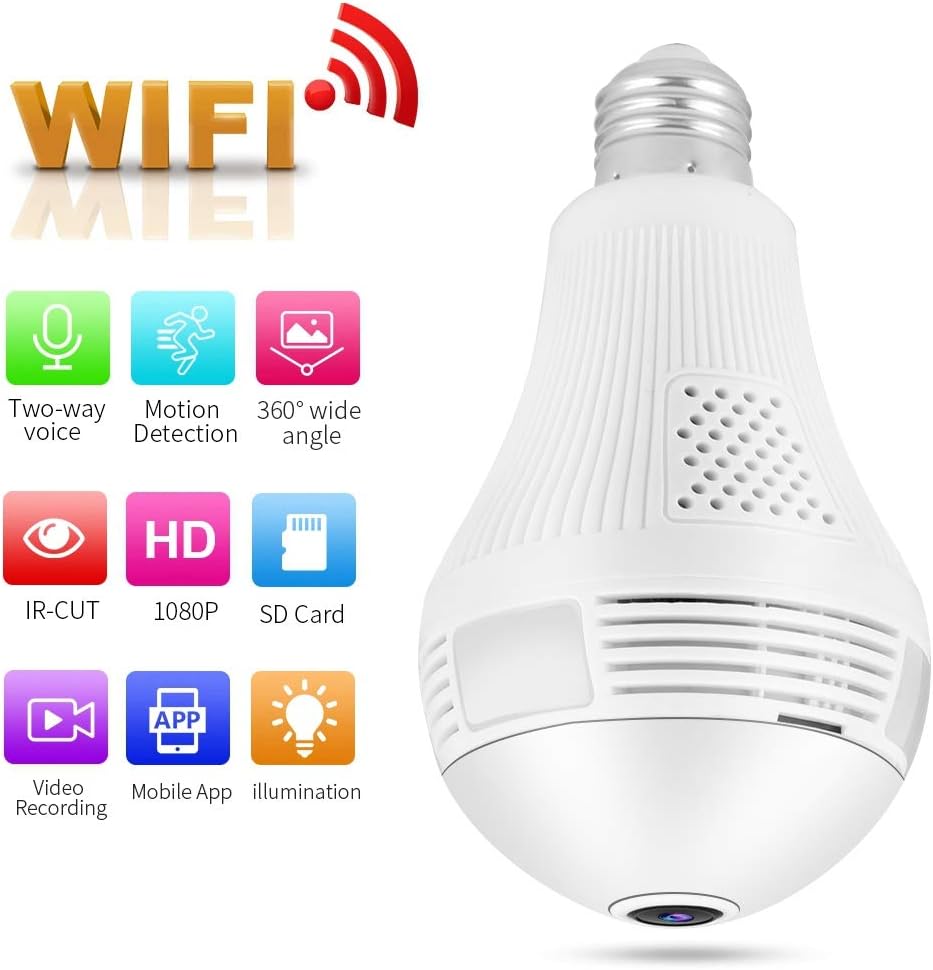
Image: The Dioche Smart Bulb Security Camera highlighting its key features: Two-way voice, Motion Detection, 360-degree wide angle, IR-CUT, HD 1080P, SD Card support, Video Recording, Mobile App control, and Illumination.
Key Features:
- Full HD 1080P Resolution: Provides clear video footage.
- 360-Degree Panoramic View: Eliminates blind spots for comprehensive coverage.
- Wi-Fi Connectivity: Easy wireless connection to your home network.
- Night Vision: Built-in IR-CUT dual filter for clear monitoring in low light conditions up to 10 meters.
- Motion Detection: Automatically detects movement and sends alerts to your mobile device.
- Two-Way Audio: Allows for real-time communication through the camera.
- Local Storage: Supports Micro SD card up to 128GB for video recording.
- Mobile App Control: Remote viewing and control via a dedicated smartphone application.

Image: The Dioche Smart Bulb Security Camera installed in a room, illustrating its 360-degree wide viewing capability with no blind areas.
5. Setup Instructions
5.1. Physical Installation
- Power Off: Ensure the power to the light socket is turned off at the circuit breaker before installation.
- Install Camera: Screw the Dioche Smart Bulb Security Camera into a standard E27 light bulb socket. Ensure it is securely tightened. If using the included adapter, first install the adapter, then screw in the camera.
- Power On: Restore power to the light socket. The camera will power on and initiate its startup sequence.
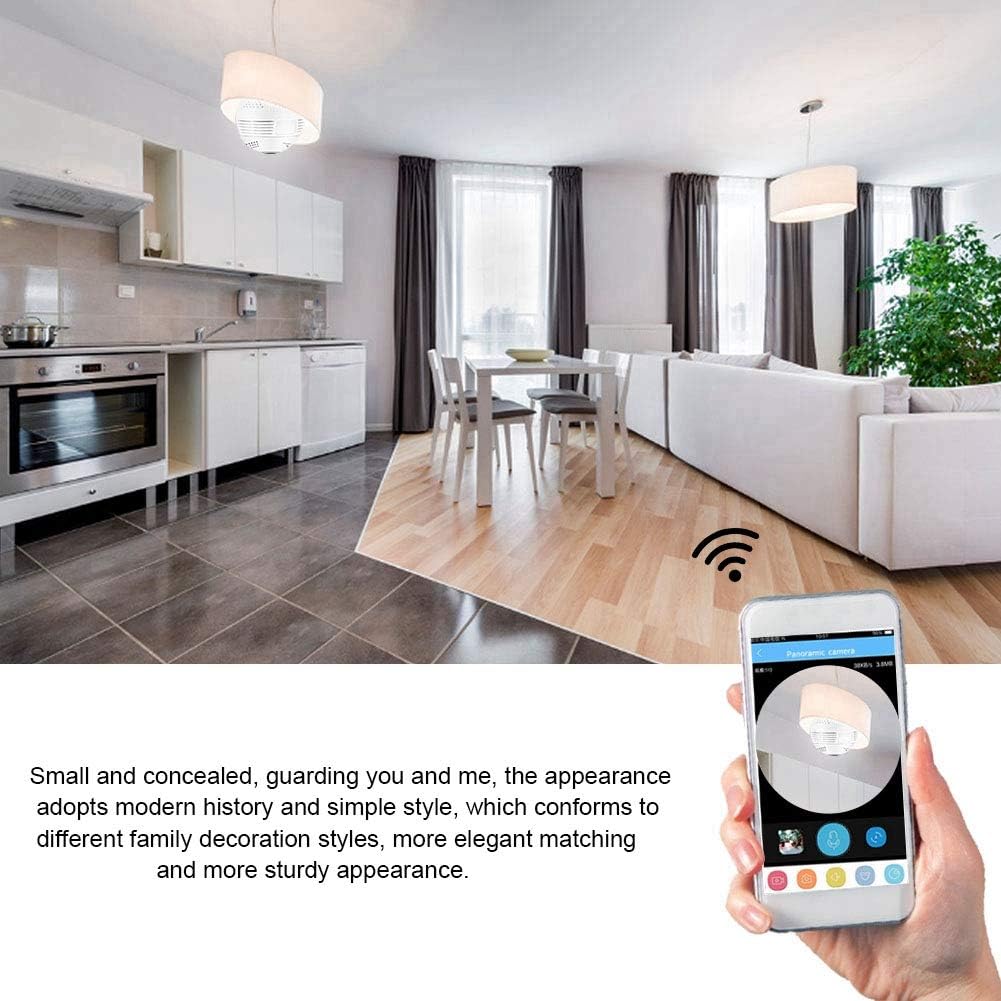
Image: The Dioche Smart Bulb Security Camera discreetly installed in a ceiling fixture, demonstrating its concealed appearance and remote monitoring via a smartphone application.
5.2. App Download and Account Creation
- Download App: Search for the recommended camera application (e.g., "V380 Pro" or similar, check packaging for exact app name) in your smartphone's app store (Google Play Store for Android, Apple App Store for iOS).
- Install App: Download and install the application.
- Register Account: Open the app and follow the on-screen instructions to register a new account using your email or phone number.
5.3. Camera Pairing (Wi-Fi Connection)
- Reset Camera: If this is the first time setting up or if you encounter issues, use the provided reset pin to press and hold the 'Reset' button on the camera for approximately 5-10 seconds until you hear a voice prompt indicating a reset.
- Add Device: In the app, tap the "+" icon or "Add Device" to begin the pairing process.
- Select Device Type: Choose the appropriate device type, usually "Smart Camera" or "Wi-Fi Camera."
- Wi-Fi Configuration: Follow the app's instructions to connect the camera to your 2.4GHz Wi-Fi network. You may need to scan a QR code displayed on your phone with the camera, or enter your Wi-Fi password directly.
- Completion: Once connected, the camera will announce "Wi-Fi connected" or similar. You can then name your camera and begin live viewing.
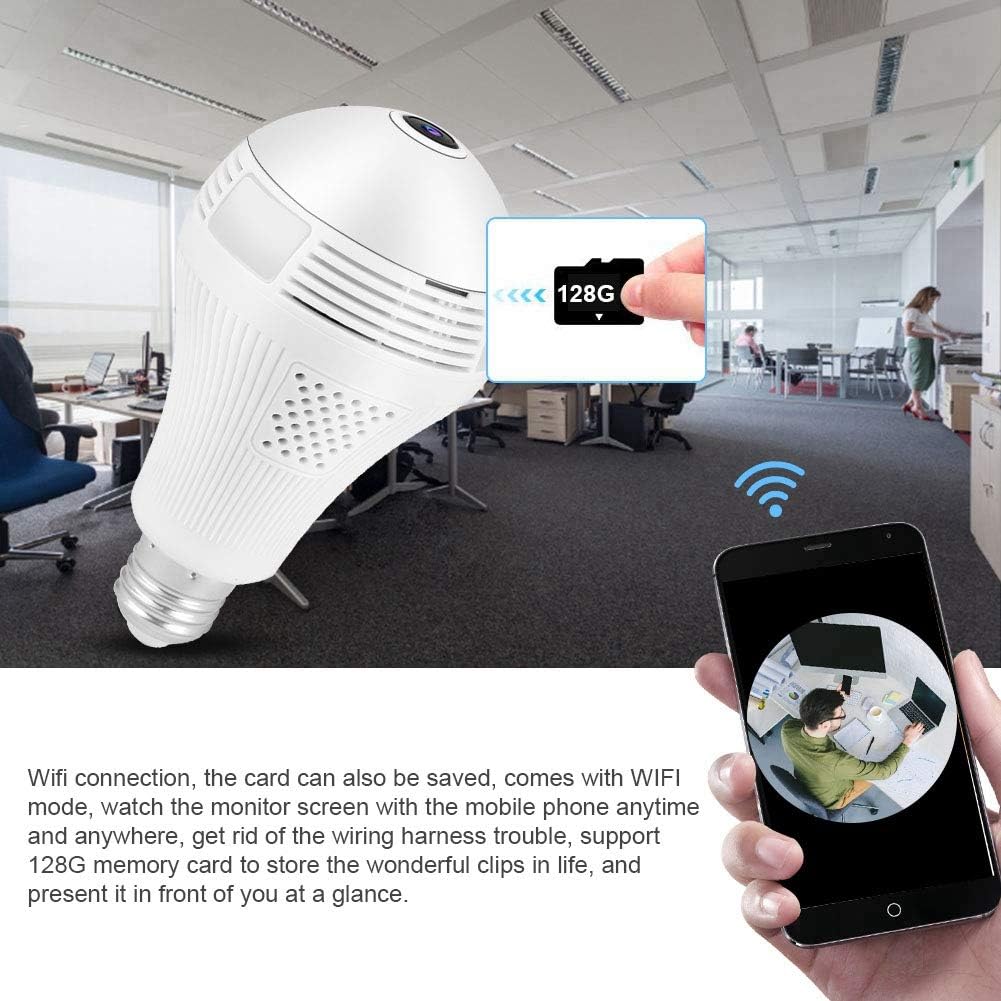
Image: The Dioche Smart Bulb Security Camera demonstrating its Wi-Fi connectivity, allowing users to view the monitor screen on their mobile phone anytime and anywhere. The image also shows the camera's support for a 128GB memory card for local storage.
6. Operating Instructions
6.1. Live View
Open the app and select your camera from the device list to access the live video feed. You can pan and tilt the view by swiping on the screen for a full 360-degree panoramic experience.
6.2. Two-Way Audio
Tap the microphone icon in the app to enable two-way audio. You can speak through your phone, and your voice will be transmitted through the camera's speaker. Similarly, you can hear audio from the camera's environment through your phone.

Image: A person interacting with the Dioche Smart Bulb Security Camera using its two-way audio feature, demonstrating clear communication with noise filtering algorithms.
6.3. Motion Detection and Alerts
Enable motion detection in the app settings. When motion is detected, the camera will automatically capture images or record video and send an alert notification to your smartphone.

Image: The Dioche Smart Bulb Security Camera's motion detection feature in action, showing a detected intruder and an alert message pushed to a mobile device.
6.4. Video Recording and Playback
Insert a Micro SD card (up to 128GB, not included) into the camera's slot for continuous or motion-triggered recording. Access recorded footage through the app's playback feature.
6.5. Night Vision
The camera automatically switches to night vision mode in low light conditions, providing clear black and white (or color night vision if supported by specific models) video up to 10 meters.

Image: A split view demonstrating the Dioche Smart Bulb Security Camera's infrared night vision capability, showing a clear view in low light compared to a well-lit scene.
7. Maintenance
- Cleaning: Gently wipe the camera lens and body with a soft, dry cloth. Do not use harsh chemicals or abrasive cleaners.
- Firmware Updates: Regularly check the app for available firmware updates to ensure optimal performance and security.
- Storage: If storing the camera for an extended period, disconnect it from power and store it in a cool, dry place.
8. Troubleshooting
| Problem | Possible Cause | Solution |
|---|---|---|
| Camera fails to connect to Wi-Fi | Incorrect Wi-Fi password; Camera too far from router; Only 5GHz Wi-Fi network available; Router firewall settings. | Verify Wi-Fi password; Move camera closer to router; Ensure you are connecting to a 2.4GHz Wi-Fi network; Check router settings or temporarily disable firewall. |
| No image or black screen in live view | Camera offline; Poor network connection; Power issue. | Check camera's power supply; Verify Wi-Fi connection; Restart camera and app; Check internet stability. |
| SD card not recording | SD card full or corrupted; Incorrect recording settings; SD card not inserted correctly. | Format SD card via app (this will erase data); Check recording schedule/motion detection settings; Reinsert SD card; Try a different SD card. |
| Motion detection alerts not received | Motion detection disabled; App notifications blocked; Poor network connection. | Enable motion detection in app settings; Allow notifications for the app in your phone settings; Ensure stable internet connection. |
9. Specifications
| Feature | Specification |
|---|---|
| Model | B07XB64GYZ |
| Resolution | 1080P (Full HD), 720P |
| Photo Sensor Resolution | 2 MP |
| Frame Rate | 15 fps |
| Connectivity | Wi-Fi (2.4GHz only) |
| Field of View | 360-degree Panoramic |
| Night Vision Distance | Up to 10 meters |
| Storage | Micro SD Card (up to 128GB) |
| Two-Way Audio | Supported |
| Motion Detection | Supported (Motion Only alerts) |
| Indoor/Outdoor Usage | Indoor, Outdoor |
| Waterproof Rating | IP67 |
| Power Source | AC/DC |
| Wattage | 1 Watt |
| Operating Temperature | Up to 50 Degrees Celsius |
| Compatible Devices | Smartphone, Tablet (Android, iOS) |
| Mount Type | Wall Mount (via E27 socket) |
10. Warranty and Support
Dioche products come with a standard manufacturer's warranty. For specific warranty details, please refer to the warranty card included with your purchase or contact Dioche customer support. If you encounter any issues or have questions regarding your Smart Bulb Security Camera, please contact our support team through the contact information provided on the product packaging or our official website.