1. Introduction
The KONNWEI KW903 is a compact and versatile Bluetooth OBD-II diagnostic scan tool designed to provide real-time vehicle data and diagnostic capabilities. It connects to your vehicle's On-Board Diagnostics (OBD-II) port and communicates wirelessly with compatible devices.
This device is compatible with Android smartphones, Windows PCs, and iOS devices, allowing users to monitor vehicle performance, read and clear diagnostic trouble codes (DTCs), and access various sensor data.
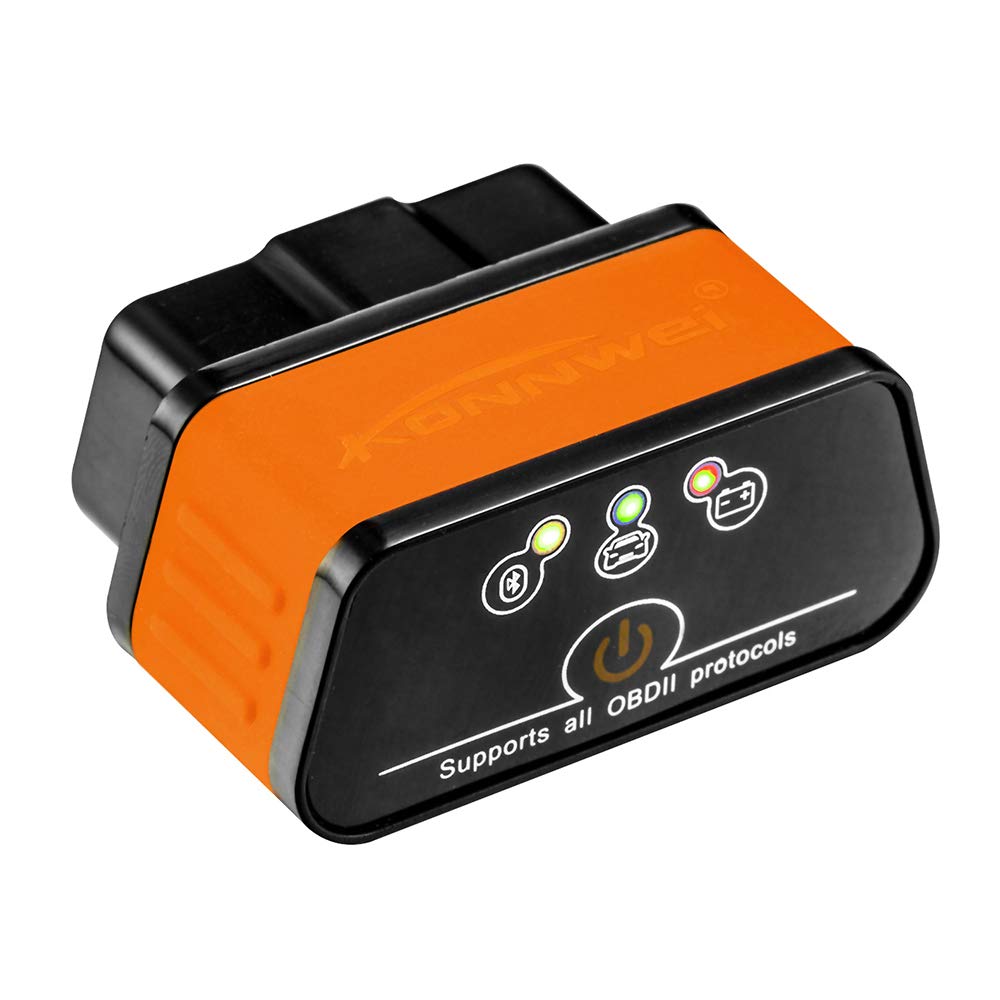
Image 1.1: The KONNWEI KW903 Mini Bluetooth OBD-II Diagnostic Scan Tool.
2. Package Contents
Upon opening the package, verify that all items are present:
- KONNWEI KW903 Mini Bluetooth OBD-II Device
- Quick Start Guide
- Software CD (for Windows PC applications)

Image 2.1: Contents of the KONNWEI KW903 package, including the device, quick start guide, and software CD.
3. Product Features
The KONNWEI KW903 offers a range of features for vehicle diagnostics and monitoring:
- Real-time Performance Display: View vehicle parameters such as speed, engine RPM, oil pressure, coolant temperature, engine load, intake manifold pressure, throttle position, and air intake temperature.
- Automatic Sleep Mode: The device automatically enters sleep mode after 30 minutes of communication termination to conserve power.
- Stable Wireless Connection: Utilizes fast and reliable chips for a consistent Bluetooth connection.
- Broad Protocol Support: Supports all standard OBDII protocols, including J1850 VPW, J1850 PWM, ISO9141-2, KWP2000, and CAN.
- Compact Design: Small size and compact structure for easy plug-and-play operation.
- External App Connectivity: Can be connected to various external diagnostic applications.

Image 3.1: Diagram illustrating the powerful functions of the KW903, including check engine, sensor data display, fault code detection/clearing, vehicle information, real-time connection, and data logging.
4. Setup Guide
Follow these steps to set up your KONNWEI KW903 device:
4.1. Locate the OBD-II Port
The OBD-II port is typically located under the dashboard on the driver's side of the vehicle, often near the steering column. Refer to your vehicle's owner's manual if you have difficulty locating it.
4.2. Connect the Device
With the vehicle's ignition off, firmly plug the KONNWEI KW903 into the OBD-II port. Ensure a secure connection. The device will power on automatically once connected.

Image 4.1: The KONNWEI KW903 device with its 16-pin connector, ready to be plugged into a vehicle's OBD-II port.
4.3. Install Software/Application
For Android/iOS: Download a compatible OBD-II diagnostic application from your device's app store (e.g., Torque Lite/Pro for Android, Car Scanner ELM OBD2 for iOS). Many applications are available, some free and some paid.
For Windows PC: Insert the provided software CD into your computer's CD-ROM drive and follow the on-screen instructions to install the necessary drivers and diagnostic software. Alternatively, compatible software can be downloaded online.
4.4. Pair via Bluetooth
- Turn on your vehicle's ignition (do not start the engine).
- Enable Bluetooth on your Android/iOS device or Windows PC.
- Search for available Bluetooth devices. The KW903 will typically appear as "OBDII" or "V-LINK".
- Select the device and enter the pairing code if prompted. Common pairing codes are "1234" or "0000".
- Once paired, open your diagnostic application and select the KONNWEI KW903 as the Bluetooth device for connection.
5. Operating Instructions
After successful setup and pairing, you can begin using the KW903 to monitor your vehicle.
5.1. Starting the Diagnostic Session
Ensure the KW903 is plugged into the OBD-II port and your vehicle's ignition is on. Launch your chosen diagnostic application on your paired device. The application should automatically attempt to connect to the KW903 and then to the vehicle's Engine Control Unit (ECU).
5.2. Viewing Real-time Data
Most diagnostic applications provide a dashboard or data display section where you can view various real-time parameters. These may include:
- Engine RPM (Revolutions Per Minute)
- Vehicle Speed
- Coolant Temperature
- Fuel System Status
- Short Term Fuel Trim
- Long Term Fuel Trim
- Intake Manifold Pressure
- Timing Advance
- Air Flow Rate (MAF)
- Throttle Position
- Oxygen Sensor Voltages
5.3. Reading and Clearing Diagnostic Trouble Codes (DTCs)
If your Check Engine Light (CEL) is illuminated, the KW903 can help identify the cause. Navigate to the "Read Codes" or "DTCs" section within your application. The application will display any stored trouble codes and their descriptions. To clear codes, select the "Clear Codes" or "Erase DTCs" option. Clearing codes will turn off the Check Engine Light, but if the underlying issue is not resolved, the light will reappear.

Image 5.1: Diagram illustrating how the KW903 connects to the car's OBDII port and an Android app to read diagnostic trouble codes and view real-time data.
5.4. Data Logging
Many applications allow you to log real-time sensor data over a period. This feature is useful for diagnosing intermittent problems or analyzing vehicle performance under specific driving conditions. Consult your application's manual for instructions on how to initiate and save data logs.
5.5. Automatic Sleep Mode
The KW903 is designed to enter a low-power sleep mode automatically if no communication is detected for approximately 30 minutes. This prevents battery drain when the device is left plugged into the vehicle's OBD-II port after the ignition is turned off.
6. Maintenance
Proper care and maintenance will ensure the longevity and reliable operation of your KONNWEI KW903.
- Cleaning: Use a soft, dry cloth to clean the exterior of the device. Do not use liquid cleaners or solvents, as they may damage the electronics.
- Storage: When not in use, store the device in a cool, dry place, away from direct sunlight and extreme temperatures.
- Handling: Avoid dropping the device or subjecting it to strong impacts. Do not attempt to disassemble the device, as this will void the warranty.
- Connector Care: Keep the 16-pin OBD-II connector free from dirt and debris to ensure a good connection.
7. Troubleshooting
If you encounter issues with your KONNWEI KW903, refer to the following troubleshooting steps:
7.1. Device Not Powering On
- Ensure the device is firmly plugged into the vehicle's OBD-II port.
- Verify that the vehicle's ignition is turned on.
- Check the vehicle's OBD-II port for any damage or debris.
7.2. Bluetooth Connection Issues
- Make sure Bluetooth is enabled on your smartphone or PC.
- Ensure the KW903 is within range of your device.
- Try unpairing and re-pairing the KW903 from your device's Bluetooth settings.
- Restart your smartphone/PC and the diagnostic application.
- Confirm the correct pairing code (1234 or 0000) is used.
7.3. No Data Display or Connection to ECU
- Verify that your vehicle is OBD-II compliant (most vehicles manufactured after 1996 are).
- Ensure the diagnostic application is correctly configured to use the KW903 Bluetooth device.
- Try a different diagnostic application to rule out software issues.
- Check for any vehicle-specific issues that might prevent ECU communication.
7.4. Error Codes Not Clearing
- If the underlying fault that triggered the code is still present, the code will reappear after being cleared. Address the vehicle issue first.
- Some critical codes may require multiple drive cycles or specific conditions to clear permanently.
8. Specifications
| Feature | Specification |
|---|---|
| Model | KW903 |
| Brand | KONNWEI |
| Connectivity | Bluetooth 4.0-5.0 |
| Supported Operating Systems | Android, Windows PC, iOS |
| Supported Protocols | J1850 VPW, J1850 PWM, ISO9141-2, KWP2000, CAN |
| Dimensions (L x W x H) | Approx. 5 cm x 2.5 cm x 3.5 cm (1.96 in x 0.98 in x 1.37 in) |
| Item Weight | Approx. 36.3 g |
| Power Source | Vehicle OBD-II Port |
| Color | Orange & Black |
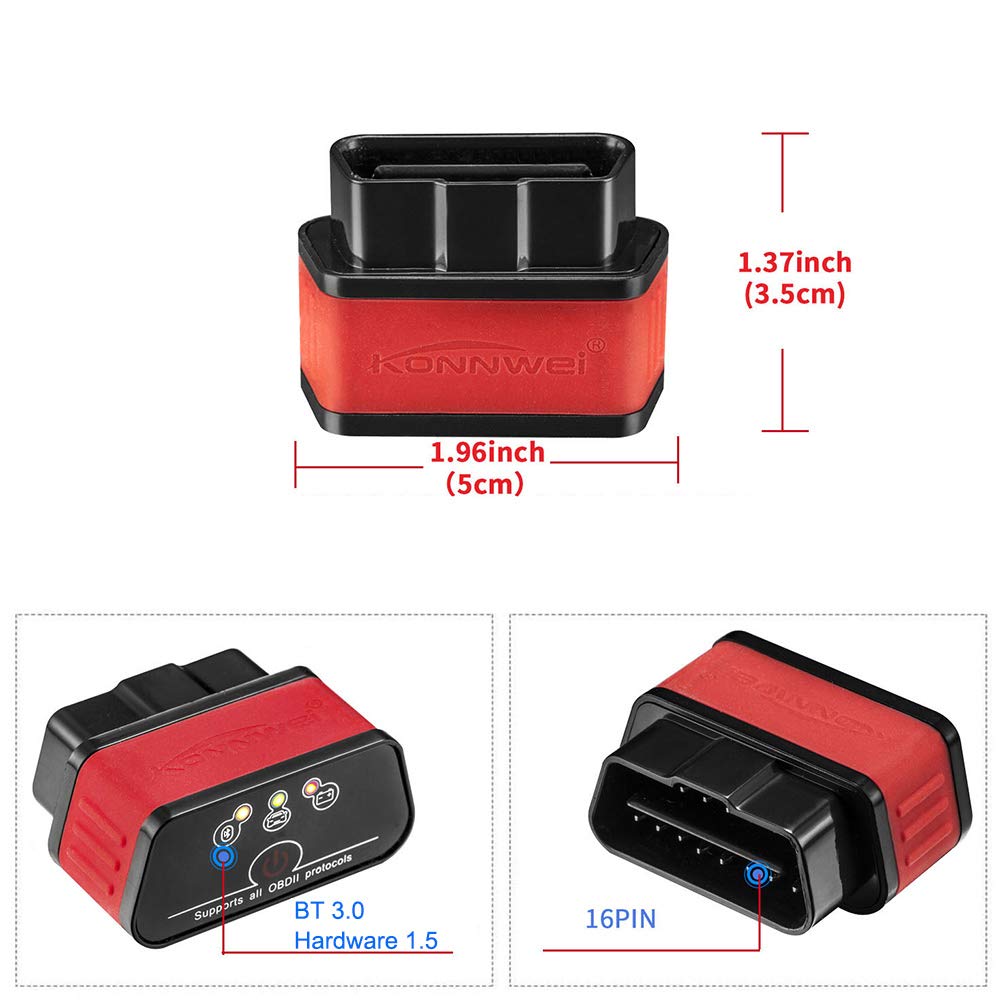
Image 8.1: Visual representation of the KONNWEI KW903's dimensions and its 16-pin OBD-II connector.
9. Warranty and Support
For warranty information, please refer to the documentation provided with your purchase or contact the retailer. Warranty terms typically cover manufacturing defects for a specified period from the date of purchase.
For technical support or further assistance, please visit the official KONNWEI website or contact their customer service department. Ensure you have your product model (KW903) and purchase details available when seeking support.


