
EZVIZ C1C-720P
EZVIZ C1C Indoor WiFi Security Camera User Manual
Model: C1C-720P
1. Introduction
The EZVIZ C1C 720p Indoor WiFi Security Camera is designed to provide reliable indoor surveillance with smart features. This manual provides comprehensive instructions for setting up, operating, and maintaining your camera to ensure optimal performance and security.
Key features include HD 720p video, 40ft super night vision, smart motion detection zones, full duplex two-way audio, and flexible installation options.

Figure 1: EZVIZ C1C Indoor WiFi Security Camera
2. Package Contents
Before proceeding with installation, please verify that all components are present in your package:
- EZVIZ C1C Camera
- Power Adapter
- USB Cable
- Mounting Plate
- Foam Sticker
- Quick Start Guide
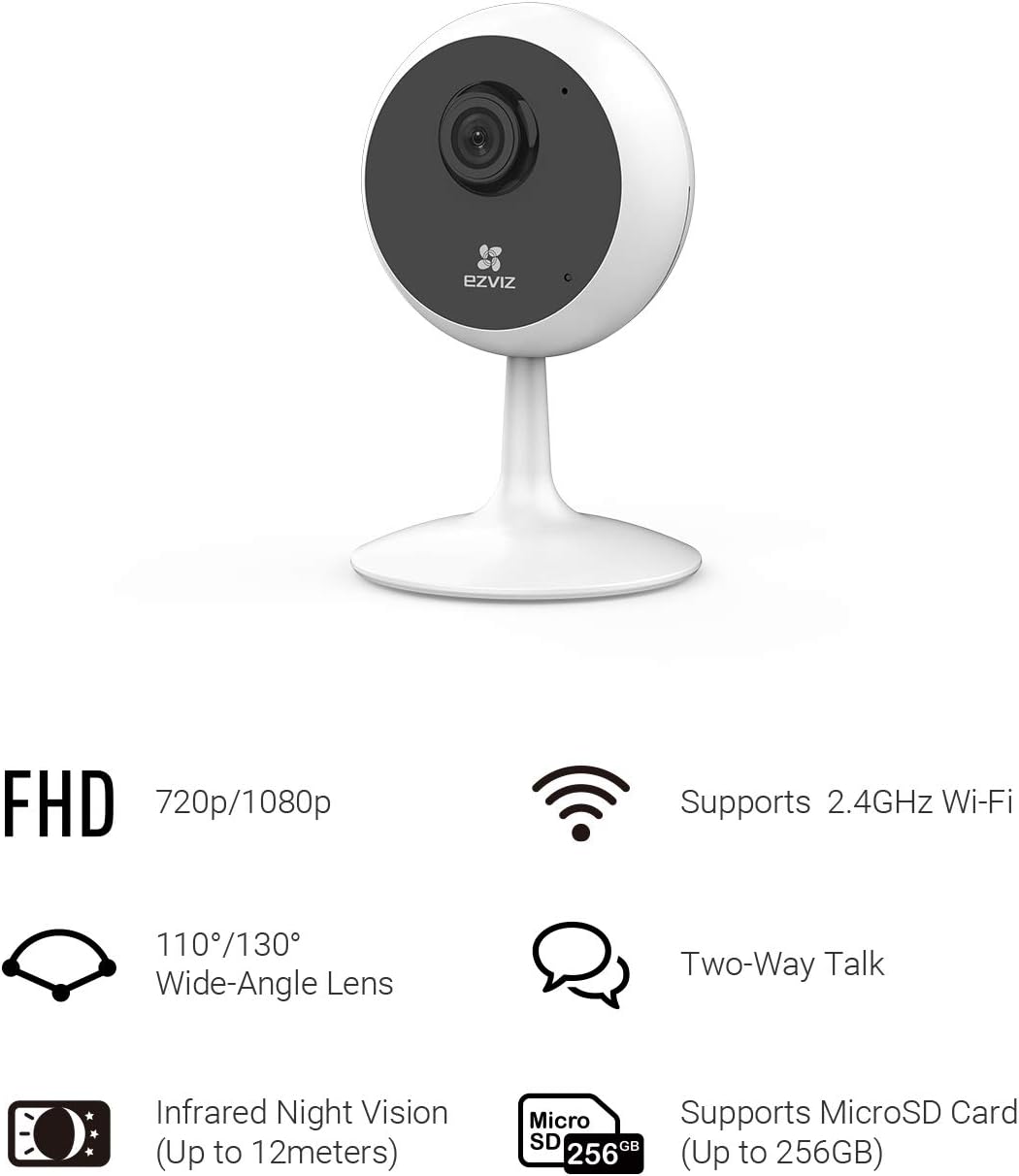
Figure 2: Package contents including camera, power adapter, cables, and mounting hardware.
3. Setup Guide
Follow these steps to set up your EZVIZ C1C camera:
- Power On: Connect the camera to a power outlet using the provided USB cable and power adapter. The camera will power on and the indicator light will flash blue.
- Download EZVIZ App: Download and install the "EZVIZ" app from your smartphone's app store (available on iOS and Android).
- Create Account: Open the EZVIZ app and create a new user account, or log in if you already have one.
- Add Device: In the app, tap the "+" icon to add a new device. Scan the QR code located on the bottom of your C1C camera. Follow the on-screen prompts to connect the camera to your 2.4GHz Wi-Fi network. Ensure your phone and camera are within 1.5 meters of your Wi-Fi router during setup.
- Mounting: The C1C camera features a built-in magnetic base for easy placement on metallic surfaces. A metal plate is also included for mounting on non-metallic surfaces. Secure the metal plate to your desired location using screws or adhesive, then attach the camera magnetically.
Video 1: Official EZVIZ tutorial on how to get started with the C1C camera, covering initial setup steps.

Figure 3: The EZVIZ C1C camera demonstrating its magnetic base for flexible placement.
4. Operating Instructions
4.1 Live View and Remote Access
Once connected, you can access the live video feed from your camera anytime, anywhere via the EZVIZ app. The app allows for real-time monitoring, instant alerts, and access to video history.

Figure 4: The EZVIZ Smart App provides live viewing, real-time talk, instant alerts, video history, and zoom functions.
4.2 Two-Way Audio
The C1C camera supports full duplex two-way audio, allowing you to listen and speak through the camera using the EZVIZ app. Tap the microphone icon in the app to activate this feature.

Figure 5: Hands-free communication is enabled through the full-duplex two-way audio feature.
4.3 Smart Motion Detection
Configure smart motion detection zones within the EZVIZ app to receive real-time notifications when activity is detected in specific areas. This helps reduce false alarms and focuses on critical areas.
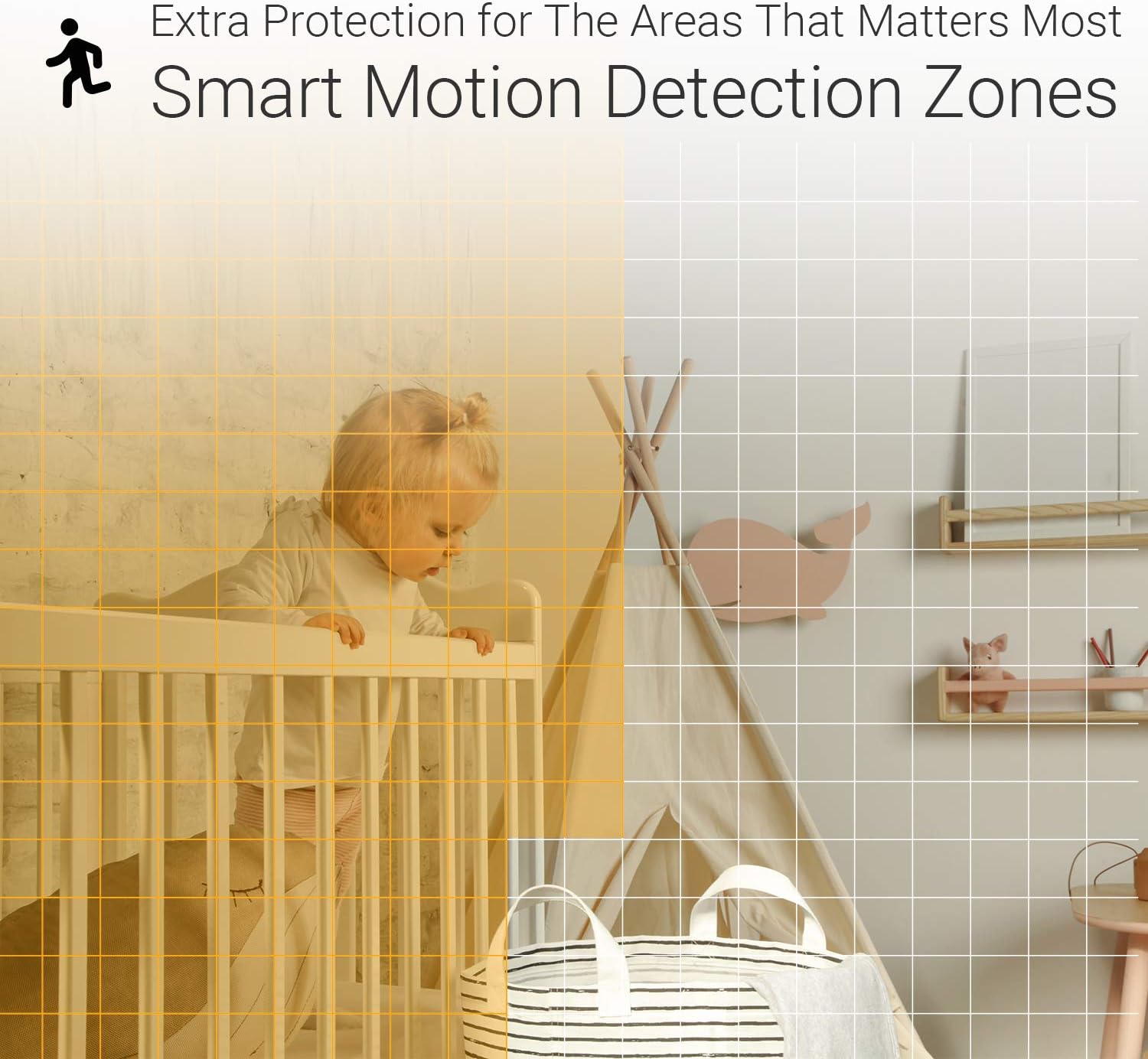
Figure 6: Smart Motion Detection Zones provide extra protection for areas that matter most.
4.4 Night Vision
The C1C camera is equipped with super night vision, providing clear video up to 40 feet (12 meters) in low-light conditions. The camera automatically switches to night vision mode when ambient light is insufficient.

Figure 7: Industry-leading video clarity and night vision up to 40ft.
4.5 Video Storage
The camera supports local storage via a MicroSD card (up to 256GB, sold separately). You can also opt for subscription-based cloud storage for additional backup, though it is not required for basic functionality.
The MicroSD card slot and reset button are located on the side of the camera.
Figure 8: Side view of the camera showing the MicroSD card slot and reset button.
5. Maintenance
- Cleaning: Gently wipe the camera lens and body with a soft, dry cloth. Avoid using harsh chemicals or abrasive cleaners.
- Firmware Updates: Regularly check for and install firmware updates via the EZVIZ app to ensure optimal performance and security.
- MicroSD Card: If using a MicroSD card, periodically check its status and format it through the app to maintain recording efficiency.
- Placement: Ensure the camera is placed in a stable location, away from direct sunlight, heat sources, and excessive moisture.
6. Troubleshooting
| Problem | Possible Solution |
|---|---|
| Camera offline in app |
|
| Poor video quality |
|
| Motion detection not working |
|
| Two-way audio issues |
|
7. Specifications
| Feature | Detail |
|---|---|
| Model | C1C-720P |
| Video Capture Resolution | 720p |
| Night Vision Range | Up to 40ft (12 meters) |
| Connectivity Technology | Wi-Fi (2.4GHz) |
| Storage | MicroSD Card Slot (up to 256GB) |
| Audio | Full Duplex Two-Way Audio |
| Motion Detection | Smart Motion Detection Zones |
| Power Source | AC/DC |
| Dimensions (L x W x H) | 2.52 x 2.52 x 4.06 inches |
| Item Weight | 3.38 ounces (0.1 Kilograms) |
| Indoor/Outdoor Usage | Indoor |
| Material | Metal |
8. Warranty and Support
For warranty information and technical support, please refer to the official EZVIZ website or contact their customer service. Keep your purchase receipt for warranty claims.
You can find more resources and contact information on the EZVIZ Store on Amazon.