Introduction
Thank you for choosing the DUDIOS Shuttle True Wireless Earbuds. These earbuds are designed to provide a high-quality audio experience with convenient features. This manual will guide you through the setup, operation, and maintenance of your new earbuds.
Package Contents
Please ensure all items are present in your package:
- DUDIOS Shuttle True Wireless Earbuds (L/R)
- Charging Case
- USB Charging Cable
- Eartips (various sizes)
- User Manual

Image: Contents of the DUDIOS Shuttle earbuds package, including the earbuds, charging case, USB cable, and extra eartips.
Product Overview
The DUDIOS Shuttle earbuds feature a compact design with smart touch controls and a portable charging case.
Earbuds and Charging Case

Image: The DUDIOS Shuttle earbuds securely placed inside their charging case.
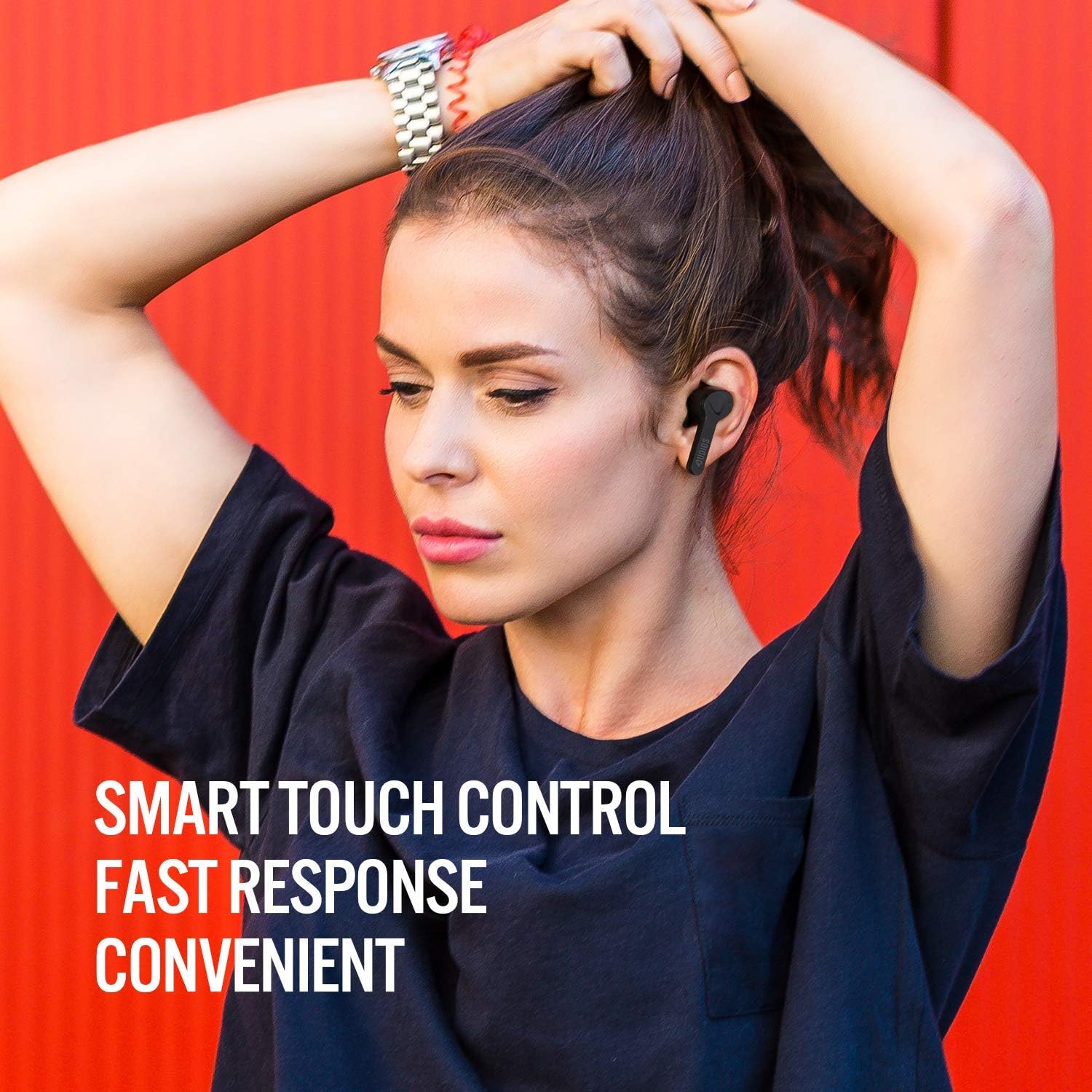
Image: A close-up view of the DUDIOS Shuttle earbuds, highlighting their ergonomic design.

Image: A person wearing the DUDIOS Shuttle earbuds, demonstrating their in-ear fit.
Setup
1. Initial Charging
Before first use, fully charge the earbuds and the charging case. Place the earbuds into the charging case and connect the USB cable to the charging port on the case and a power source. The indicator lights on the case will show charging status.
2. Pairing with Your Device
- Take both earbuds out of the charging case. They will automatically power on and enter pairing mode. The LED indicator on one earbud will flash white and red alternately, indicating it is ready to pair.
- Enable Bluetooth on your device (smartphone, tablet, etc.).
- Search for "Dudios Shuttle" in the list of available Bluetooth devices and select it to connect.
- Once connected, the LED indicator on both earbuds will turn off or flash slowly, and you will hear a voice prompt confirming the connection.

Image: A smartphone screen displaying the Bluetooth settings, showing "Dudios shuttle" as an available device for pairing.
Operating Instructions
Touch Controls
The DUDIOS Shuttle earbuds feature smart touch controls for easy management of music and calls.
- Play/Pause: Single tap on either earbud.
- Next Track: Double tap the right earbud.
- Previous Track: Double tap the left earbud.
- Answer/End Call: Single tap on either earbud.
- Reject Call: Press and hold either earbud for 2 seconds.
- Activate Voice Assistant: Triple tap on either earbud.

Image: A graphic illustrating the smart touch control functions on the DUDIOS Shuttle earbuds.
Official Product Video: Touch Control Demonstration
Video: This video demonstrates the unboxing, features, and smart touch controls of the DUDIOS Shuttle True Wireless Earbuds.
Charging the Earbuds and Case
To charge the earbuds, place them back into the charging case. The earbuds will automatically begin charging. To charge the case, connect it to a USB power source using the provided cable. The LED indicators on the case will show the charging status and battery level.

Image: The DUDIOS charging case displaying its battery level indicators.
Maintenance
To ensure the longevity and optimal performance of your DUDIOS Shuttle earbuds, follow these maintenance guidelines:
- Cleaning: Regularly clean the earbuds and charging case with a soft, dry, lint-free cloth. Do not use harsh chemicals or abrasive materials.
- Eartips: Remove and clean the eartips periodically. Ensure they are completely dry before reattaching.
- Storage: When not in use, store the earbuds in their charging case to protect them from dust and damage.
- Avoid Water: While the earbuds are water-resistant, avoid prolonged exposure to water or submersion.
Troubleshooting
If you encounter issues with your DUDIOS Shuttle earbuds, refer to the following common solutions:
- Earbuds not pairing: Ensure both earbuds are fully charged and out of the case. Turn off and on your device's Bluetooth, then try pairing again. If issues persist, try resetting the earbuds (refer to specific reset instructions if available in a full product manual).
- Only one earbud working: Place both earbuds back into the charging case, then take them out again. Ensure they are properly paired as a stereo pair.
- No sound: Check the volume level on your device and ensure the earbuds are connected. Try playing audio from a different application or device.
- Charging issues: Ensure the charging cable is securely connected to both the case and the power source. Check for any debris in the charging ports.
- Poor call quality: Ensure the microphone is not obstructed. Move closer to your connected device to improve signal strength.
Specifications
| Model Name | Shuttle |
| Connectivity Technology | Wireless (Bluetooth) |
| Bluetooth Version | 5.0 |
| Bluetooth Range | 10 Meters |
| Control Type | Touch, Voice |
| Charging Case Capacity | 650mAh (estimated from product title) |
| Playtime | Up to 24 hours (with charging case, estimated from product title) |
| Water Resistance Level | Water Resistant |
| Item Weight (Earbud) | 10 Grams |
| Carrying Case Weight | 35 Grams |
| Product Dimensions | 1.67 x 0.93 x 0.98 inches |
Image: A graphic detailing the playtime per charge, recharging times, and total playtime for the DUDIOS Shuttle earbuds.
Warranty and Support
DUDIOS products are manufactured to the highest quality standards. For warranty information or technical support, please refer to the contact details provided in your product packaging or visit the official DUDIOS website. Keep your purchase receipt for warranty claims.


