
1. Introduction
This manual provides detailed instructions for the setup, operation, and maintenance of your visiPower H885 8MP Trail Camera. Please read this manual thoroughly before using the camera to ensure optimal performance and longevity.
The visiPower H885 is a high-performance trail camera designed for capturing wildlife images and videos. It features an 8-megapixel sensor, 2.4-inch TFT LCD, infrared flash for night vision, and three PIR sensors for motion detection. Its waterproof design ensures reliable operation in various outdoor conditions.
2. Package Contents
Verify that all items are present in your package:
- visiPower H885 Trail Camera
- USB Cable
- AV Cable
- Mounting Strap
- Wall Mount Bracket and Screws
- User Manual (this document)

Image: Contents of the visiPower H885 Trail Camera package.
3. Camera Overview

Image: Front view of the visiPower H885 Trail Camera.

Image: Side view of the visiPower H885 Trail Camera.
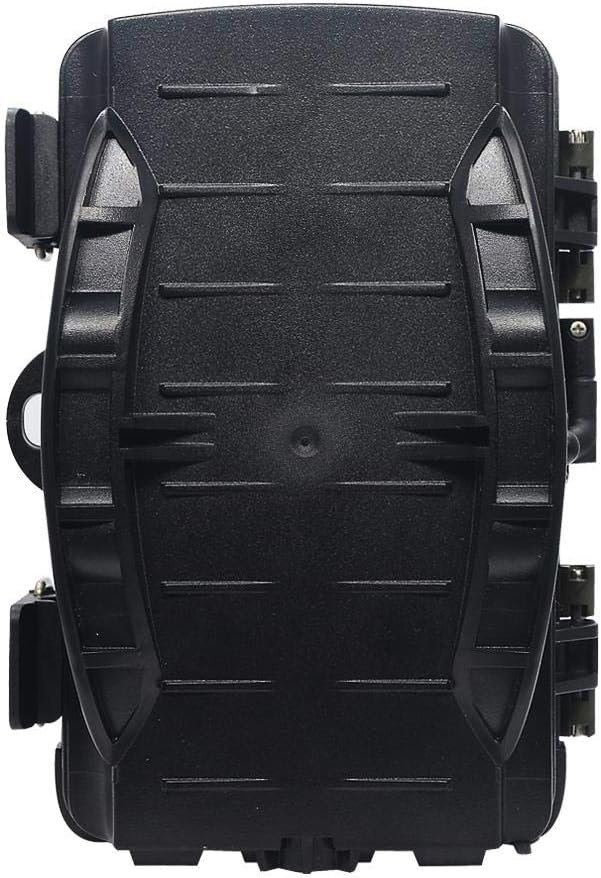
Image: Back view of the visiPower H885 Trail Camera.
4. Setup
4.1. Battery Installation
- Open the camera's housing by releasing the side latches.
- Locate the battery compartment.
- Insert 8 AA batteries, ensuring correct polarity (+/-).
- Close the battery compartment securely.
Note: The camera also supports an external 6V/1.5A power source and is compatible with solar batteries (sold separately).
4.2. SD Card Installation
- With the camera powered off, locate the SD card slot.
- Insert a TF (Micro SD) card (up to 32GB) into the slot until it clicks into place.
- To remove, press the card gently until it springs out.
Important: Format the SD card using the camera's menu settings before first use to ensure compatibility.
4.3. Mounting the Camera
The camera can be mounted using the included strap or wall mount bracket.
- Strap Mounting: Thread the mounting strap through the slots on the back of the camera and secure it around a tree or pole.
- Wall Mount: Use the provided screws and wall anchors to attach the bracket to a flat surface. Then, attach the camera to the bracket.
Position the camera to cover the desired area, ensuring no obstructions block the PIR sensors or lens.
5. Operating the Camera
5.1. Powering On/Off
Locate the power switch inside the camera housing. Switch it to the "ON" position to power on the camera. Switch to "OFF" to power off.
5.2. Operating Modes
The camera typically operates in three modes:
- OFF: Camera is powered off.
- SETUP: Allows access to the menu for configuring settings, viewing images/videos, and manually taking photos/videos.
- ON (Active): The camera is armed and will capture images or videos based on motion detection and configured settings. The LCD screen will turn off after a few seconds to conserve power.
5.3. Menu Settings
In SETUP mode, use the navigation buttons to access and adjust settings on the 2.4-inch TFT LCD. Common settings include:
- Mode: Photo, Video, or Photo + Video.
- Photo Resolution: 16MP, 12MP, 8MP, 5MP.
- Video Resolution: 1080p (25fps), 720p (30fps).
- PIR Sensitivity: High, Medium, Low.
- Trigger Interval: Time delay between detections.
- Time Lapse: For capturing images at set intervals.
- Date/Time: Set current date and time.
- Format SD Card: Erase all data on the SD card.
- Endless Capture: On/Off (Loop recording).

Image: Camera displaying captured content on its LCD screen.
5.4. Capturing Images and Videos
Once settings are configured, switch the camera to the "ON" position. The camera will enter active mode and begin monitoring for motion. When motion is detected by the PIR sensors, the camera will trigger and capture photos or videos according to your settings.

Image: Illustration of the camera's 20-meter detection range.
6. Maintenance
- Cleaning: Use a soft, dry cloth to clean the camera lens and PIR sensors. Avoid abrasive materials or harsh chemicals.
- Battery Replacement: Replace all batteries when the low battery indicator appears or when performance degrades.
- SD Card Management: Regularly check the SD card capacity and transfer important files to a computer. Format the card periodically.
- Storage: When not in use for extended periods, remove batteries and store the camera in a cool, dry place.
7. Troubleshooting
- Camera not powering on:
- Ensure batteries are inserted correctly with proper polarity.
- Check if batteries are fully charged or replace them.
- Verify the power switch is in the "ON" or "SETUP" position.
- Camera not capturing images/videos:
- Check if the SD card is inserted correctly and has sufficient free space.
- Format the SD card.
- Adjust PIR sensitivity settings.
- Ensure the camera is in "ON" mode, not "SETUP".
- Poor image/video quality:
- Clean the camera lens.
- Check resolution settings in the menu.
- Ensure adequate lighting for daytime shots; for night shots, ensure objects are within IR flash range.
- False triggers:
- Reduce PIR sensitivity.
- Avoid placing the camera near heat sources or moving branches that could trigger the sensor.
8. Specifications
| Feature | Detail |
|---|---|
| Still Image Resolution | 8MP (Effective), 16MP/12MP/5MP selectable |
| Video Resolution | 1080p @ 25fps, 720p @ 30fps |
| Display | 2.4-inch TFT LCD |
| PIR Sensors | 3 PIR sensors (Main PIR 60°, Side PIRs for 120° total sensing angle) |
| IR Flash Distance | Up to 20 meters (65 feet) |
| Trigger Speed | 0.6 seconds (Pre-boot 0.2 seconds) |
| Water Resistance | IP56 Waterproof |
| Memory | Supports TF (Micro SD) card up to 32GB |
| Power Source | 8x AA batteries; External 6V/1.5A DC; Supports solar battery (optional) |
| Standby Time | Up to 12 months |
| Audio | Built-in microphone & speaker |
| Lens Angle | 108 degrees |
| Video Capture Format | MPEG-4 |
| UPC | 614024391237 |
9. Warranty and Support
For warranty information and technical support, please refer to the documentation provided at the time of purchase or contact visiPower customer service. Keep your purchase receipt as proof of purchase.
For further assistance, visit the official visiPower website or contact their support team directly.