
Introduction
This manual provides essential information for the installation, operation, and maintenance of your XFX RX 5700 XT Raw II graphics card. Please read this manual thoroughly before installation to ensure proper setup and optimal performance. The XFX RX 5700 XT Raw II is designed for high-fidelity gaming, featuring AMD's RDNA architecture, 8GB of GDDR6 memory, and PCI Express 4.0 support.
Safety Information
- Always disconnect power from your computer before installing or removing any components.
- Handle the graphics card by its edges to avoid touching sensitive components.
- Use an anti-static wrist strap or discharge static electricity by touching a grounded metal object before handling the card.
- Ensure proper ventilation within your computer case to prevent overheating.
- Do not expose the graphics card to moisture or extreme temperatures.
Package Contents
Verify that all items are present in the package:
- XFX RX 5700 XT Raw II Graphics Card
- Quick Install Guide
- Driver CD (Note: Latest drivers are recommended from the manufacturer's website)

Image: Front of the XFX RX 5700 XT Raw II retail packaging, showing the product name and key features.
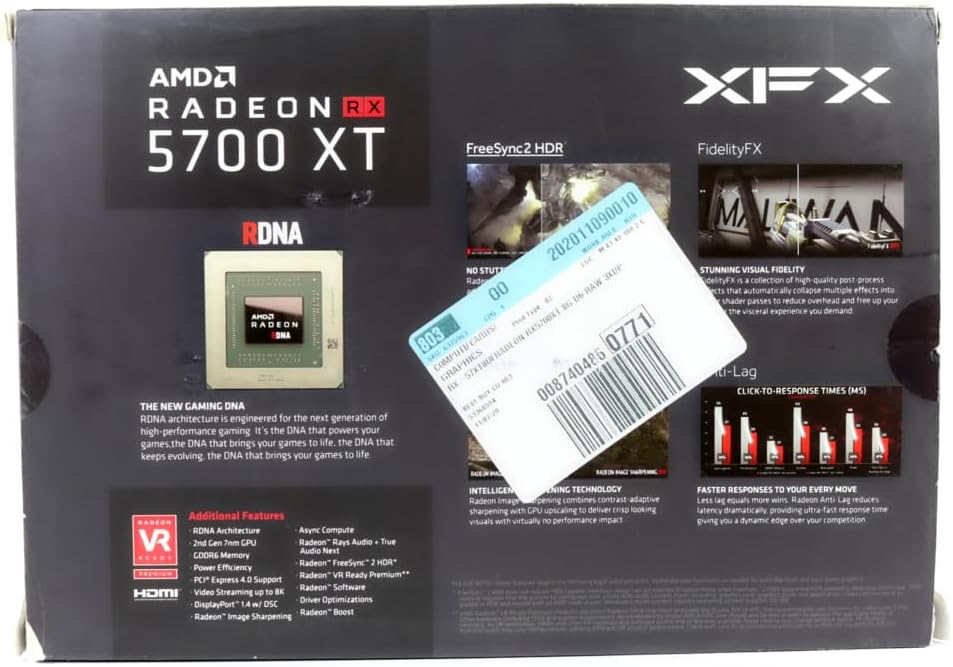
Image: Back of the XFX RX 5700 XT Raw II retail packaging, detailing RDNA architecture and additional features.
Setup
1. Physical Installation
- Prepare your system: Power off your computer and disconnect the power cable. Open the computer case.
- Locate a PCI Express 4.0 slot: Identify an available PCI Express 4.0 x16 slot on your motherboard. This graphics card occupies approximately 2.9 slots due to its cooling solution. Ensure sufficient clearance.
- Remove slot covers: Remove the necessary expansion slot covers from your computer case corresponding to the chosen PCIe slot.
- Insert the graphics card: Carefully align the graphics card with the PCIe slot and press down firmly until it is securely seated. The retention clip on the motherboard should click into place.
- Secure the card: Fasten the graphics card to the computer case using the screw or latch mechanism provided by your case.
- Connect power cables: The XFX RX 5700 XT Raw II requires both an 8-pin and a 6-pin PCI Express power connector from your power supply. Connect these cables securely to the corresponding ports on the graphics card. Ensure your power supply meets the recommended wattage (typically 600W or higher).

Image: Angled view of the XFX RX 5700 XT Raw II, showing the dual-fan cooling system and heatsink fins.

Image: Top view of the XFX RX 5700 XT Raw II, highlighting the XFX logo and the dual 8-pin and 6-pin power connectors.
2. Driver Installation
- Reconnect power and boot: Close your computer case, reconnect the power cable, and turn on your computer.
- Connect display: Connect your monitor to one of the DisplayPort or HDMI outputs on the graphics card.
- Install drivers:
- Insert the provided Driver CD and follow the on-screen instructions.
- Alternatively, and highly recommended: Download the latest AMD Radeon drivers directly from the official AMD website (www.amd.com/support). Select your graphics card model (Radeon RX 5700 XT) and operating system.
- Follow installation prompts: Complete the driver installation process, which may require a system restart.

Image: Rear view of the XFX RX 5700 XT Raw II, displaying three DisplayPort outputs and one HDMI output.
Operating Instructions
Display Connections
The XFX RX 5700 XT Raw II features multiple display outputs:
- DisplayPort 1.4 HDR: Connect up to three DisplayPort monitors for high-resolution and high-refresh-rate gaming.
- HDMI 2.0b: Connect one HDMI monitor or TV.
You can use a combination of these outputs for multi-monitor setups. Ensure your cables are securely connected to both the graphics card and your display devices.
Software Configuration (AMD Radeon Software)
After driver installation, the AMD Radeon Software will be available. This software allows you to:
- Monitor performance: View GPU temperature, clock speeds, and fan speeds.
- Adjust game settings: Optimize game performance and visual quality.
- Tune performance (Wattman): Utilize AMD Wattman within the Radeon Software to adjust GPU clock speeds, memory clock speeds, and voltage settings. This can help optimize performance or reduce power consumption and heat. Adjusting fan curves can also help manage noise levels.
- Enable features: Access features like Radeon FreeSync, Radeon Image Sharpening, and Radeon Anti-Lag.
Refer to the AMD Radeon Software documentation for detailed instructions on using these features.
Maintenance
- Cleaning: Periodically clean dust from the graphics card fans and heatsink fins using compressed air. Ensure the computer is powered off and unplugged before cleaning. Hold the fan blades gently to prevent them from spinning rapidly during cleaning, which can damage the bearings.
- Driver Updates: Regularly check the official AMD website for the latest graphics drivers. Keeping your drivers updated ensures optimal performance, stability, and access to new features.
- System Ventilation: Ensure your computer case has adequate airflow to prevent heat buildup, which can affect the longevity and performance of your graphics card.
Troubleshooting
If you encounter issues with your graphics card, consider the following steps:
- No Display Output:
- Ensure the monitor is powered on and connected securely to the graphics card.
- Verify that the graphics card is fully seated in the PCIe slot.
- Confirm that all required power cables (8-pin and 6-pin) are connected to the graphics card from the power supply.
- Test with a different display cable or monitor if possible.
- Performance Issues / Low FPS:
- Ensure you have the latest graphics drivers installed from AMD's official website.
- Check in-game graphics settings; reduce settings if necessary.
- Monitor GPU temperature using AMD Radeon Software. High temperatures can lead to thermal throttling.
- Verify that your power supply is sufficient for your system components.
- Excessive Heat or Fan Noise:
- Ensure adequate airflow within your computer case.
- Clean dust from the graphics card fans and heatsink.
- Use AMD Radeon Software (Wattman) to adjust fan curves or undervolt the GPU. Some users have found success in reducing temperatures and noise by adjusting voltage and clock speeds to stock specifications.
- Check the BIOS switch on the card; some cards have a "silent" or "performance" BIOS.
- System Instability / Crashes:
- Ensure drivers are correctly installed and up to date.
- Check for system memory (RAM) issues.
- If you have applied any overclocking, revert to default settings.
- Ensure your power supply is stable and provides sufficient power.
Specifications
| Feature | Detail |
|---|---|
| Graphics Coprocessor | AMD Radeon RX 5700 XT |
| Brand | XFX |
| Graphics RAM Size | 8 GB |
| Video Output Interface | DisplayPort, HDMI |
| Graphics Processor Manufacturer | AMD |
| Graphics RAM Type | GDDR6 |
| Compatible Devices | Desktop |
| Display Resolution Maximum | 3840x2160 |
| Graphics Card Interface | PCI Express 4.0 |
| Memory Clock Speed | 14 Gbps (14 GHz effective) |
| Number of Fans | 2 |
| Model Name | Radeon RX 5700 XT RAW II Graphic Card |
| Base Clock | 1605MHz |
| Game Clock | 1755MHz |
| Boost Clock | Up to 1905MHz |
| Stream Processors | 2560 |
| Memory Bus | 256 bit |
| Card Profile | 2.9 slot |
Warranty Information
The XFX RX 5700 XT Raw II graphics card comes with a 3 Year Manufacturer Warranty. For specific terms and conditions, please refer to the warranty documentation included with your product or visit the official XFX website.
Support
For further assistance, technical support, or driver downloads, please visit the official XFX support website:
You may also refer to the AMD support website for general Radeon software and driver information:
