
Introduction
This manual provides detailed instructions for the setup, operation, and maintenance of your SDETER A8 Wireless Security Camera. This versatile camera is designed for both indoor and outdoor monitoring, offering high-definition video, two-way audio, and advanced motion detection features to enhance your security.
Product Overview
The SDETER A8 camera features a compact dome design with a wide range of motion for comprehensive coverage.
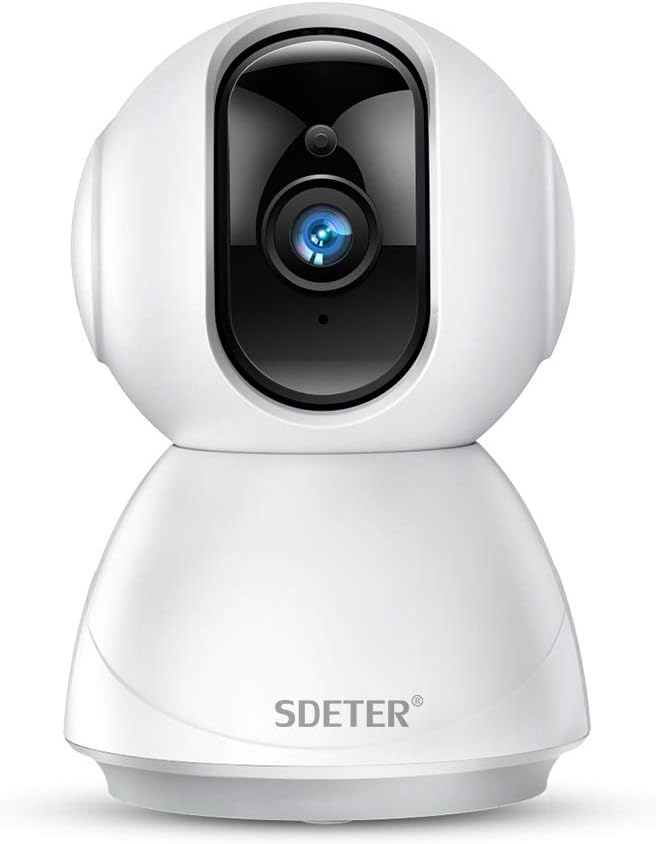
Image description: A white, dome-shaped wireless security camera with a black lens area, featuring the "SDETER" logo on its base.

Image description: A rear view diagram of the SDETER A8 camera, highlighting the "SOUNDS" (speaker grille), "CHARGING PORT" (micro USB), and "RESET KEY" (button) locations.
Key Features
- 1080P HD Video: Captures clear, high-definition video for detailed monitoring.
- Night Vision: Equipped with LED light sources for clear visibility up to 60 feet in low-light conditions.
- Two-Way Audio: Built-in microphone and speaker allow for real-time communication.
- Motion Detection & Alerts: Automatically detects movement and sends app notifications to your smartphone.
- Flexible Storage Options: Supports local storage via TF (micro SD) card (up to 128GB) and optional cloud storage service.
- Wide Coverage: Offers 355° horizontal and 110° vertical rotation for extensive area monitoring.
- Multi-User Access: Share access with family or friends via password-protected accounts.
- IP65 Rating: Suitable for both indoor and outdoor environments.
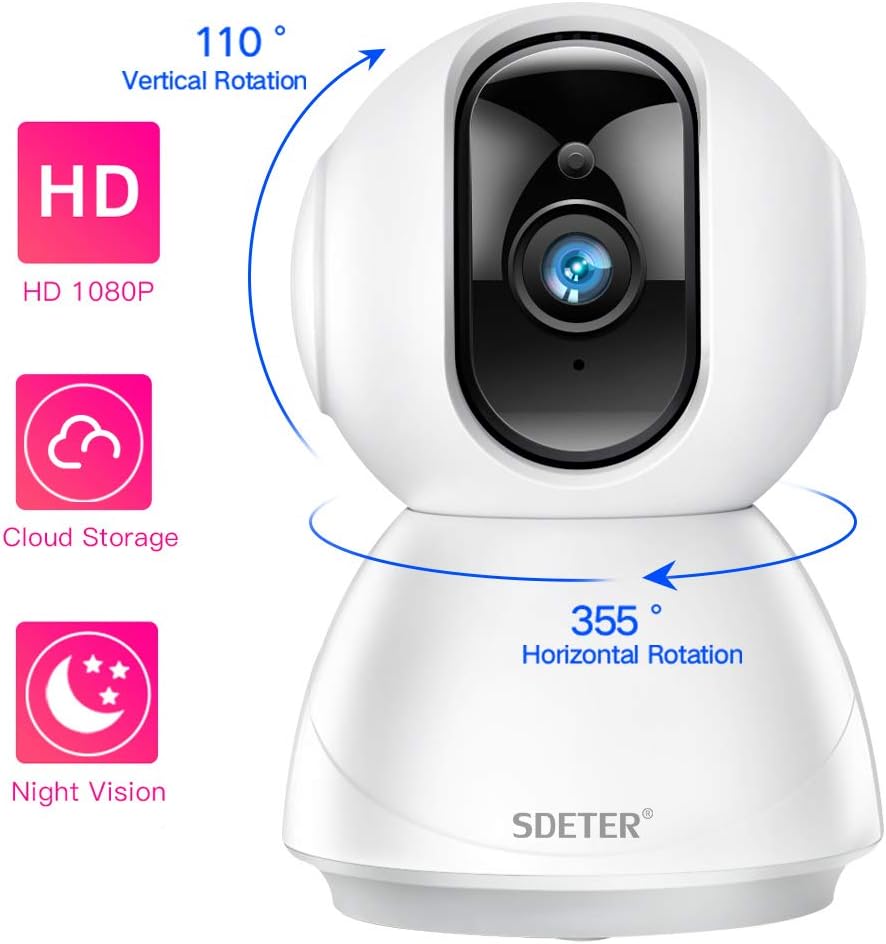
Image description: A graphic illustrating the camera's 1080P HD capability, alongside icons for Cloud Storage and Night Vision, and arrows indicating 110-degree vertical and 355-degree horizontal rotation.

Image description: A split image showing the camera's view in daylight (color) and night vision (monochrome) modes, demonstrating its 24/7 monitoring capability.
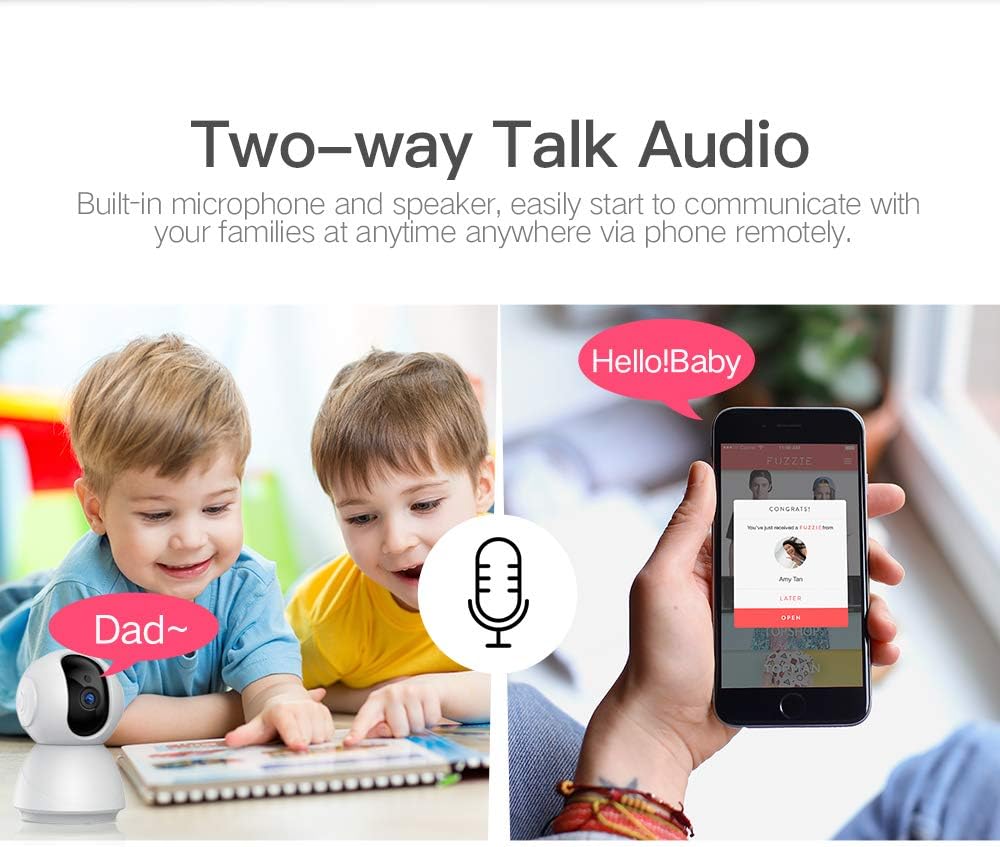
Image description: An illustration depicting two children interacting with the camera, and a smartphone screen showing the two-way audio interface.

Image description: A scene showing the camera detecting motion from a person, with a smartphone displaying an alarm notification from the V380 app.
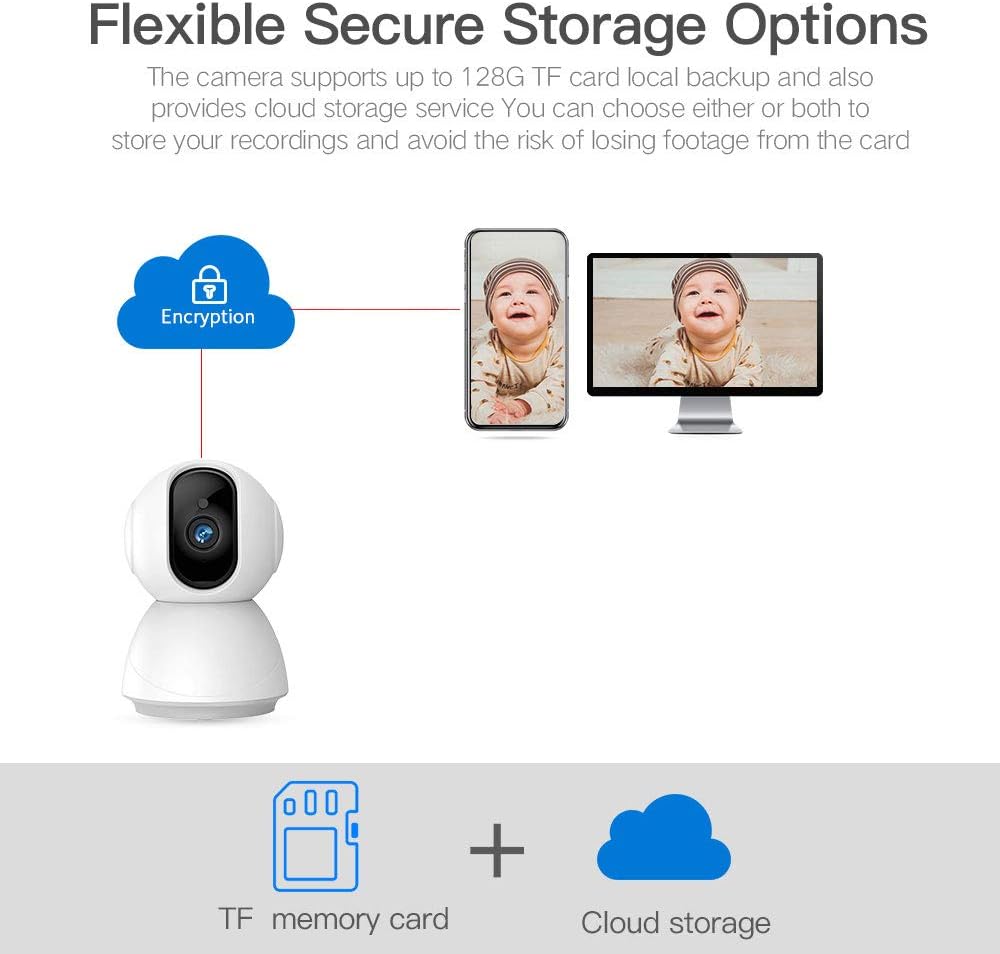
Image description: A diagram showing the camera connected to both TF memory card and cloud storage options, emphasizing encryption for secure recordings.
Setup Guide
- Power On: Connect the camera to a power source using the provided USB cable and adapter. The system will announce "System is starting" and then "System startup completed. Access point preparing."
- App Download: Download the companion mobile application (e.g., V380 Pro App, as mentioned in reviews) from your device's app store.
- Account Creation: Register for an account within the app and log in.
- Add Device: Follow the in-app instructions to add your camera. This typically involves scanning a QR code on the camera or connecting to its temporary Wi-Fi hotspot. The camera will announce "Access point ready" when it's ready for connection.
- Wi-Fi Configuration: Connect the camera to your home Wi-Fi network through the app.
- Placement: Position the camera in your desired monitoring location.

Image description: An illustration showing various installation methods for the camera: "Flat" (on a surface), "Ceiling Mounting," and "Wall Mounted."
Operating Instructions
Live View
Access the live video feed from your camera through the mobile app. You can remotely control the camera's pan (horizontal) and tilt (vertical) movements to adjust the viewing angle.
Two-Way Audio
Use the microphone icon in the app to speak through the camera's speaker, and listen to audio from the camera's built-in microphone.
Motion Detection
Enable motion detection in the app settings to receive instant notifications on your smartphone when movement is detected.
Video Playback
Review recorded footage stored on the TF card or in cloud storage directly from the app.
Maintenance
- Cleaning: Gently wipe the camera lens and body with a soft, dry cloth. Avoid using harsh chemicals.
- Firmware Updates: Regularly check the app for available firmware updates to ensure optimal performance and security.
- Network Stability: Ensure a stable Wi-Fi connection for uninterrupted operation.
Troubleshooting
Camera Offline
- Check power connection.
- Verify Wi-Fi signal strength.
- Restart the camera by unplugging and re-plugging it.
- If issues persist, perform a factory reset using the reset key (refer to Product Overview for location) and reconfigure the camera.
Poor Video Quality
- Ensure adequate lighting in the monitored area.
- Check your internet connection speed.
- Clean the camera lens.
No Motion Alerts
- Verify motion detection is enabled in the app settings.
- Check app notification permissions on your smartphone.
- Adjust motion sensitivity settings.
Technical Specifications
| Feature | Detail |
|---|---|
| Video Capture Resolution | 1080p |
| Connectivity Technology | Wireless (Wi-Fi) |
| Power Source | Wired (3 watts) |
| Night Vision Range | 60 Feet |
| Frame Rate | 25 fps |
| Audio | 2-Way Audio |
| Motion Detection | Yes (Audio and Motion Alert Type) |
| Storage | SD Card Slot (up to 128GB), Cloud Storage |
| Pan/Tilt | 355° Horizontal, 110° Vertical |
| Dimensions | 6 x 3 x 3 inches |
| Weight | 0.88 Pounds (14.1 ounces) |
| International Protection Rating | IP65 |
| Form Factor | Dome |
| Compatible Devices | Smartphone (Android, likely iOS) |
| Recommended Uses | Security, Surveillance |
Warranty and Support
For warranty information and technical support, please refer to the official SDETER website or contact their customer service.
Manufacturer: Shenzhen Anba Technology CO.,LTD.
Date First Available: August 17, 2019.