
Logilink ID0184
Logilink ID0185 Gaming Set User Manual
Model: ID0184
Introduction
Thank you for purchasing the Logilink ID0185 Gaming Set. This comprehensive set includes a high-performance gaming keyboard with stunning metal surface and rainbow LED backlighting, an illuminated gaming mouse with adjustable DPI (800-2400dpi), and a gaming mouse pad (35 x 25 cm). This manual provides detailed instructions for setup, operation, maintenance, and troubleshooting to ensure optimal performance and longevity of your gaming peripherals.
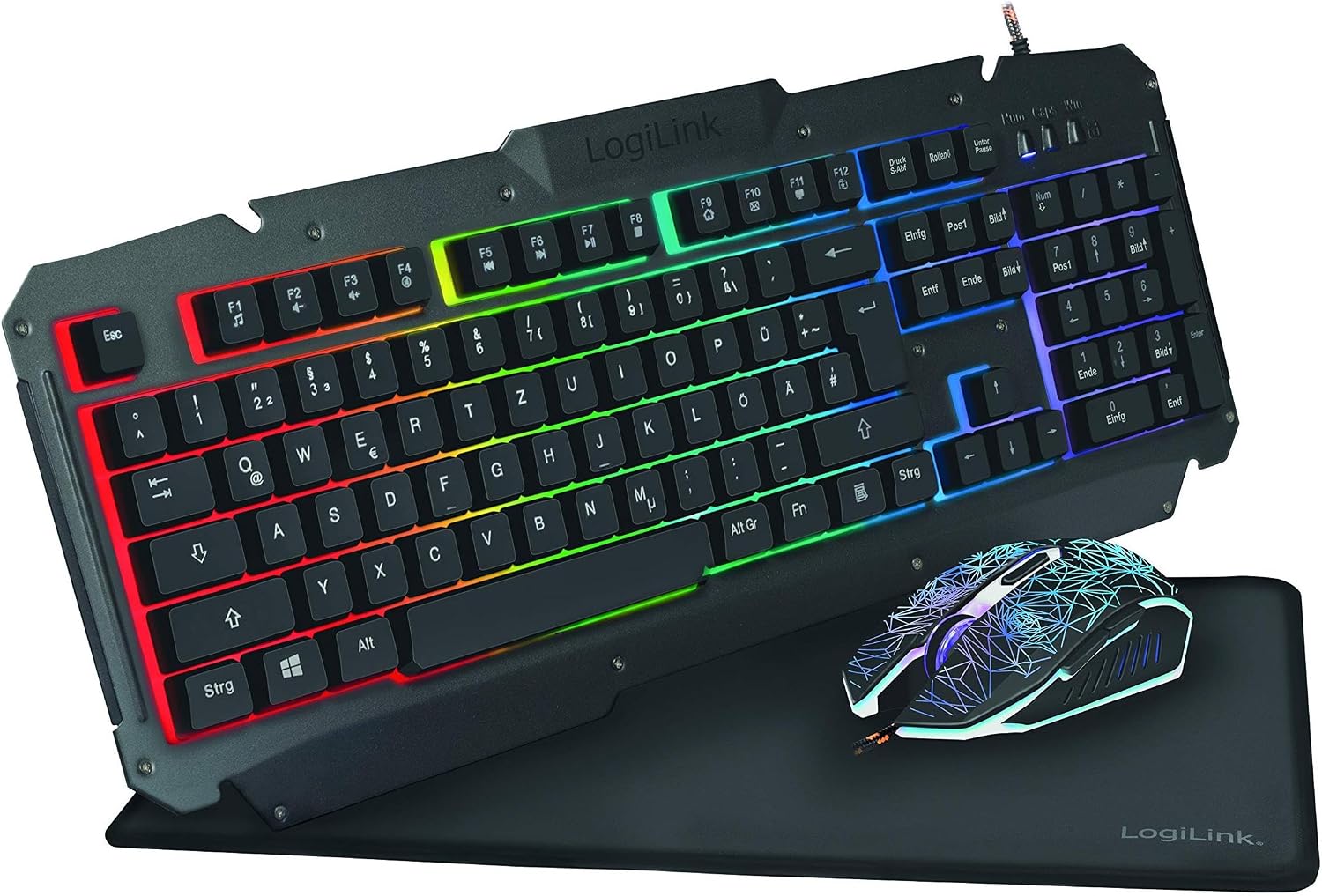
Figure 1: Logilink ID0185 Gaming Set components.
Package Contents
Please verify that all items are present in the package:
- Logilink Gaming Keyboard (Model: ID0184)
- Logilink Gaming Mouse
- Logilink Gaming Mouse Pad (35 x 25 cm)
- User Manual (this document)
System Requirements
- Available USB 2.0 or 3.0 port
- Operating System: Windows XP/Vista/7/8/10/11, macOS, Linux (basic functionality)
Setup
1. Connecting the Keyboard
- Unpack the Logilink Gaming Keyboard from its packaging.
- Locate an available USB port on your computer.
- Insert the USB connector of the keyboard firmly into the USB port.
- The operating system will automatically detect and install the necessary drivers. This may take a few moments.
- The keyboard's rainbow LED backlighting should illuminate upon successful connection.
2. Connecting the Mouse
- Unpack the Logilink Gaming Mouse.
- Locate another available USB port on your computer.
- Insert the USB connector of the mouse firmly into the USB port.
- The operating system will automatically detect and install the necessary drivers.
- The mouse's illumination should activate.
3. Positioning the Mouse Pad
- Place the Logilink Gaming Mouse Pad on a flat, stable surface where you intend to use the mouse.
- Ensure the surface is clean and free of debris for optimal mouse tracking.
Operating Instructions
Keyboard Functions
The Logilink Gaming Keyboard features a standard QWERTY layout with additional multimedia and function keys.
| Key/Function | Description |
|---|---|
| Standard Keys | All standard alphanumeric and symbol keys for typing. |
| Function Keys (F1-F12) | Perform various system or application-specific functions. |
| Rainbow LED Backlighting | The keyboard features static rainbow backlighting. There are no specific controls mentioned for changing modes or brightness based on product description. |
| Fn + F1 | Media Player |
| Fn + F2 | Volume Down |
| Fn + F3 | Volume Up |
| Fn + F4 | Mute |
| Fn + F5 | Stop |
| Fn + F6 | Previous Track |
| Fn + F7 | Play/Pause |
| Fn + F8 | Next Track |
| Fn + F9 | |
| Fn + F10 | Web Browser |
| Fn + F11 | My Computer |
| Fn + F12 | Calculator |
Mouse Functions
The Logilink Gaming Mouse offers adjustable DPI settings for precise control.
- Left Click Button: Standard primary action.
- Right Click Button: Standard secondary action (context menu).
- Scroll Wheel: For scrolling through documents and web pages. Can also be clicked for middle-click functionality.
- DPI Adjustment Button: Located typically behind the scroll wheel. Press to cycle through available DPI settings (800-2400dpi). The illumination may change to indicate the current DPI level.
- Side Buttons: These are typically programmable for forward/back actions in web browsers or custom in-game commands.
Maintenance
Proper maintenance ensures the longevity and performance of your gaming set.
- Cleaning the Keyboard:
- Disconnect the keyboard from the computer before cleaning.
- Use a soft, dry cloth to wipe down the surface.
- For dust between keys, use compressed air.
- Avoid using harsh chemicals or abrasive cleaners.
- Cleaning the Mouse:
- Disconnect the mouse from the computer.
- Wipe the surface with a soft, slightly damp cloth.
- Clean the optical sensor area on the bottom with a cotton swab if tracking issues occur.
- Cleaning the Mouse Pad:
- Wipe with a damp cloth and mild soap if necessary.
- Allow to air dry completely before use.
- Storage: Store the gaming set in a cool, dry place away from direct sunlight and extreme temperatures when not in use for extended periods.
Troubleshooting
| Problem | Possible Solution |
|---|---|
| Keyboard/Mouse not responding |
|
| Keyboard backlighting not working |
|
| Mouse tracking issues |
|
| DPI adjustment not working |
|
Specifications
| Feature | Detail |
|---|---|
| Model Number | ID0184 |
| Brand | Logilink |
| Keyboard Type | Gaming Keyboard with Metal Surface |
| Keyboard Backlighting | Rainbow LED (Static) |
| Mouse DPI | 800-2400dpi (Adjustable) |
| Mouse Illumination | Yes |
| Mouse Pad Dimensions | 35 x 25 cm |
| Connectivity | USB Wired |
| Product Dimensions (Set) | 17.32 x 5.39 x 1.38 inches |
| Item Weight (Set) | 3.08 pounds |
| Color | Black |
Warranty Information
Logilink products are designed for reliability and performance. For specific warranty terms and conditions, please refer to the warranty card included with your product or visit the official Logilink website. Keep your proof of purchase for warranty claims.
Customer Support
If you encounter any issues not covered in this manual or require further assistance, please contact Logilink customer support. Contact information can typically be found on the Logilink website or on the product packaging.
For the latest drivers, FAQs, and support resources, please visit: www.logilink.eu
Ask a question about this manual
Ask about setup, troubleshooting, compatibility, parts, safety, or missing instructions. Manuals+ will review the question and use this page’s manual context to help answer it.