1. Introduction
The Plegium Smart Pepper Spray is a personal safety device designed to provide multiple layers of protection. It integrates a maximum-strength pepper spray with smart features including GPS location alerts, emergency text messages, a 130dB siren, and a blinding LED strobe light. This manual provides instructions for the proper setup, operation, and maintenance of your Plegium Smart Pepper Spray.

Image 1.1: The Plegium Smart Pepper Spray in mint green, shown alongside a smartphone displaying its integrated app features for automatic alerts, live tracking, and live audio.
2. Safety Information
Please read all safety warnings and instructions carefully before using this product. Failure to follow these instructions may result in injury or property damage.
- For Self-Defense Only: This product is intended for self-defense purposes only. Misuse may result in severe legal consequences.
- Keep Out of Reach of Children: Store the device in a secure location inaccessible to children.
- Avoid Accidental Discharge: Do not point the nozzle at yourself or others unless in a self-defense situation. Keep the safety tab engaged when not in use.
- Environmental Conditions: Do not expose the device to extreme temperatures or direct sunlight for prolonged periods.
- Ventilation: Use in well-ventilated areas. Avoid inhaling the spray.
- First Aid: In case of accidental exposure, flush affected areas with large amounts of cool water. Seek medical attention if irritation persists.
- Legal Restrictions: Be aware of and comply with all local, state, and federal laws regarding the purchase, possession, and use of pepper spray.

Image 2.1: Graphic illustrating the 10-foot (3-meter) effective spray range of the Plegium Smart Pepper Spray, along with the stream spray pattern and the use of red and UV dye for identification.
3. Setup Guide
3.1. Download the Plegium App
- Locate the Plegium app in your smartphone's app store (App Store for iOS, Google Play Store for Android).
- Download and install the application.
- Open the app and follow the on-screen instructions to create an account or log in.
3.2. Pairing Your Device
- Ensure your smartphone's Bluetooth is enabled.
- In the Plegium app, navigate to the 'Add Device' or 'Pair Device' section.
- Follow the app's prompts to connect your Plegium Smart Pepper Spray. The app will guide you through the pairing process, which may involve pressing a button on the device.
- A successful connection will be indicated within the app.
3.3. Setting Up Emergency Contacts
The Plegium app allows you to designate up to 5 emergency contacts who will receive alerts upon device activation.
- Within the Plegium app, go to the 'Emergency Contacts' or 'Settings' section.
- Add contacts from your phone's address book or manually enter their details.
- Ensure that the app has the necessary permissions to send text messages and make calls.
- It is recommended to inform your emergency contacts about the system and what to do if they receive an alert.

Image 3.1: A screenshot of the Plegium app interface, demonstrating the process of adding and managing emergency contacts for receiving alerts.
4. Operating Instructions
4.1. Activating the Pepper Spray
- In an emergency, remove the safety tab.
- Aim the nozzle towards the face of the threat.
- Press the spray button firmly to discharge the pepper spray. The device will simultaneously activate the siren and strobe light.
- The spray has a range of up to 10 feet (3 meters) and contains maximum-strength OC formula with UV dye for identification.
4.2. Understanding the Alarm and Strobe Light
- The integrated 130dB siren will emit a loud, piercing sound to attract attention and deter an assailant.
- The blinding LED strobe light will flash rapidly to disorient the threat and improve visibility in low-light conditions.
- Both features activate automatically upon discharge of the pepper spray.
4.3. GPS Location Alerts and Emergency Texts
- When the device is activated, it will automatically send your real-time GPS location and emergency text messages to your pre-selected emergency contacts via the Plegium app.
- Ensure your smartphone is within Bluetooth range of the device, has an active data connection, and the Plegium app is running (even in the background) for these features to function correctly.
4.4. Testing the Device
It is important to test the electronic functions of your Plegium Smart Pepper Spray periodically without discharging the spray.
- Locate the test button on your device (refer to product diagrams if needed).
- Press and hold the test button for a few seconds. The siren should sound, and the strobe light should flash.
- Check your emergency contacts' phones to confirm they received the test alert messages.
- Do NOT press the main spray button for testing, as this will discharge the pepper spray and deplete the canister.
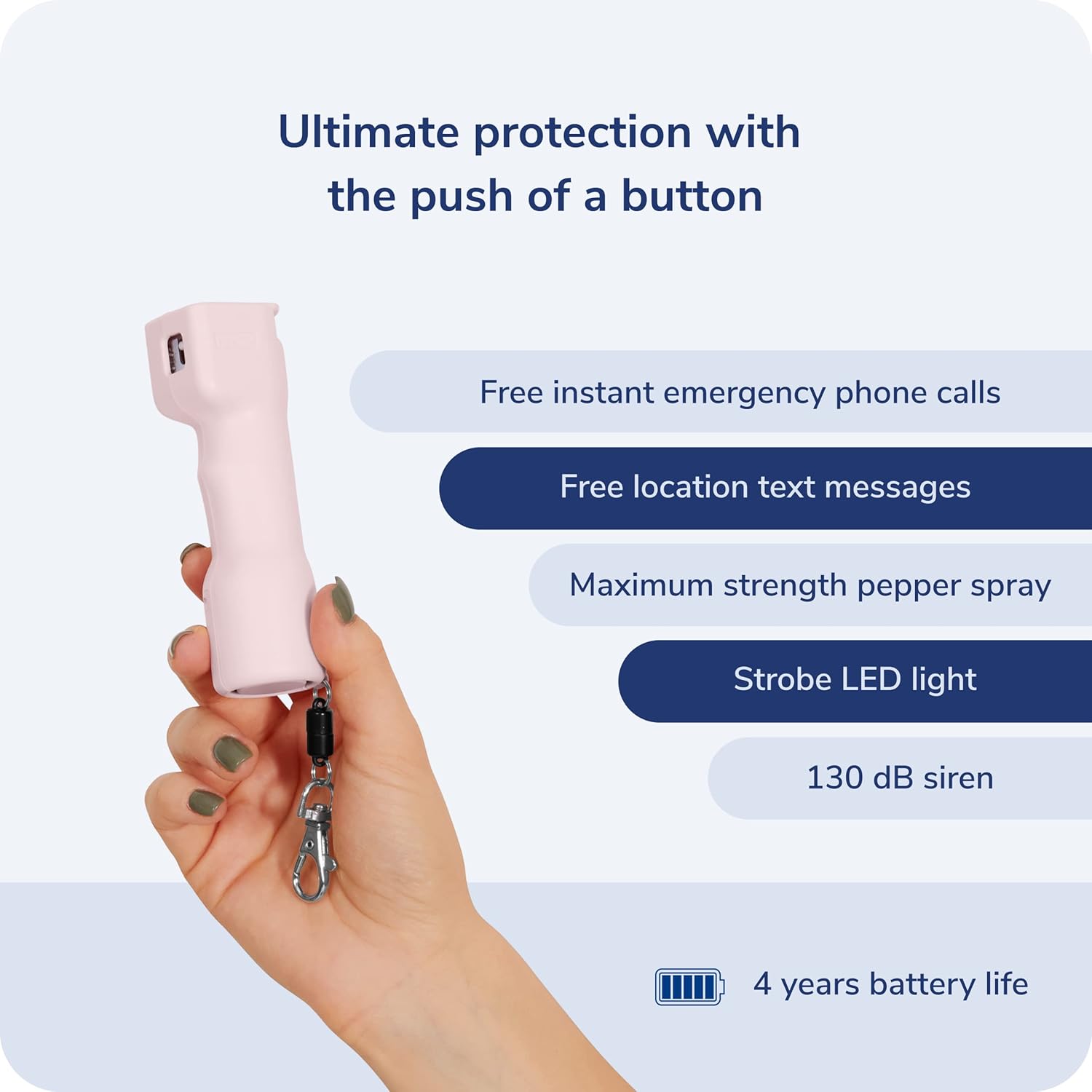
Image 4.1: The Plegium Smart Pepper Spray in pink, illustrating its integrated features including emergency calls, location texts, maximum strength spray, strobe LED, 130 dB siren, and a 4-year battery life.
5. Maintenance and Care
5.1. Battery Life
- The Plegium Smart Pepper Spray features an ultra-reliable, non-rechargeable battery with a 4-year lifespan.
- No charging or battery replacement is required during its operational life.
- The device should be replaced after 4 years or if the pepper spray has been discharged.
5.2. Storage
- Store the device in a cool, dry place, away from direct sunlight and extreme temperatures.
- Keep the safety tab engaged when not in use to prevent accidental discharge.
5.3. Replacement Policy
Plegium offers a free replacement unit if your device is used in a police-reported attack. Contact Plegium customer support for details and to arrange a replacement.
6. Troubleshooting
- Device Not Pairing with App:
- Ensure Bluetooth is active on your smartphone.
- Verify the Plegium app is updated to the latest version.
- Restart your smartphone and try the pairing process again.
- Ensure the device is within close proximity to your phone during pairing.
- Emergency Alerts Not Sending:
- Confirm your smartphone has an active internet connection (cellular data or Wi-Fi).
- Ensure the Plegium app is open and running, even in the background.
- Check app permissions to ensure it can send messages and access location services.
- Verify that emergency contacts are correctly set up in the app.
- Alarm/Strobe Not Activating During Test:
- Ensure you are pressing the dedicated test button, not the main spray button.
- If the device is old, the battery may be depleted. The device has a 4-year battery life and should be replaced after this period.
- Contact Plegium support if the issue persists.
7. Product Specifications
| Feature | Detail |
|---|---|
| Model Number | SPS-P-S-ENG-G-U |
| Dimensions (L x W x H) | 2.5 x 2.5 x 1.5 inches (approx.) |
| Weight | 2.47 ounces (70 grams) |
| Pepper Spray Range | Up to 10 feet (3 meters) |
| Alarm Volume | 130 dB |
| Battery Life | 4 years (non-rechargeable) |
| Connectivity | Bluetooth (for smartphone pairing) |
| Dye | UV Dye for identification |
| UPC | 850005519218 |
8. Warranty and Support
8.1. Product Replacement
Plegium offers a free replacement of your Smart Pepper Spray if it is used in a police-reported self-defense incident. To claim a replacement, please contact Plegium customer support with relevant documentation.
8.2. Optional Professional Monitoring
For enhanced security, Plegium offers an optional 24/7 professional monitoring service. This service provides real-time tracking and live audio streaming to emergency services upon activation. Details and subscription information can be found within the Plegium app or on the official Plegium website.

Image 8.1: The Plegium Smart Pepper Spray in black, displayed with a smartphone showcasing the Plegium Premium subscription features, including 24/7 professional monitoring and live tracking.
8.3. Customer Support
For further assistance, technical support, or inquiries regarding your Plegium Smart Pepper Spray, please visit the official Plegium website or contact their customer service department. Contact information is typically available within the Plegium app or on the product packaging.