Introduction
This manual provides comprehensive instructions for the safe and effective use of your Tosuny USB Programming Cable. This cable is designed to facilitate communication between your computer and compatible two-way radios, enabling programming, data transfer, and frequency writing. Please read this manual thoroughly before use to ensure proper operation and to maximize the cable's lifespan.
Product Features
- Universal Compatibility: Designed for a wide range of Motorola two-way radios, including HT750, HT1250, PRO5150, GP328, GP340, GP380, GP640, GP680, GP960, GP1280, PR860, MTX850, and PTX760.
- Efficient Data Transfer: Enables quick and reliable transfer of programming data between your PC and radio.
- Durable Construction: Features an anti-jamming magnetic ring for signal stability and is constructed with robust Acrylonitrile Butadiene Styrene (ABS) outer material for longevity.
- Secure Connection: Equipped with a standard USB Type A connector for your computer and a specific multi-pin connector for your radio.
- Optimal Length: Approximately 1 meter (39.37 inches) in length for convenient use.
This video demonstrates the key features and benefits of the Tosuny USB Programming Cable, including universal compatibility, fast data transfer, and durable construction.
Setup Guide
- Install Drivers: Before connecting the cable, ensure that the necessary USB drivers for the programming cable are installed on your computer. These drivers are typically provided with your radio's programming software or can be downloaded from the radio manufacturer's website.
- Install Programming Software: Install the appropriate radio programming software (CPS - Customer Programming Software) for your specific radio model on your computer. This software is essential for reading and writing radio configurations.
- Connect to PC: Insert the USB Type A end of the programming cable into an available USB port on your computer.
- Connect to Radio: Carefully connect the multi-pin radio-specific connector end of the programming cable to the programming port on your two-way radio. Ensure a firm and secure connection.
- Power On Radio: Turn on your two-way radio.

This image shows the Tosuny USB Programming Cable connected to a laptop, illustrating its use for connecting a radio to a PC for programming.
Operating Instructions
Once the cable is connected and drivers are installed, follow these steps to program your radio:
- Launch Software: Open the radio programming software (CPS) on your computer.
- Select Port/Radio: Within the software, select the correct communication port (COM port) that the USB cable is using. You may also need to select your specific radio model.
- Read Radio Data: Use the software's "Read from Radio" or "Download" function to retrieve the current configuration from your radio. This is recommended before making any changes.
- Modify Settings: Make the desired changes to frequencies, channels, features, or other settings within the programming software.
- Write to Radio: Use the software's "Write to Radio" or "Upload" function to transfer the new configuration to your radio. Follow any on-screen prompts.
- Disconnect: After successful programming, safely close the software and disconnect the cable from both the computer and the radio.

A detailed view of the cable's USB-A connector and the multi-pin radio connector, ready for connection.
Maintenance
- Cleaning: Keep the cable and connectors clean and free from dust and debris. Use a soft, dry cloth for cleaning. Avoid liquid cleaners.
- Storage: Store the cable in a cool, dry place away from direct sunlight and extreme temperatures. Avoid tightly coiling or bending the cable, especially near the connectors, to prevent internal damage.
- Handling: Always grasp the connector housing when plugging or unplugging the cable, rather than pulling on the cable itself.

The cable features an integrated anti-jamming magnetic ring for enhanced signal integrity and durability.
Troubleshooting
| Problem | Possible Cause | Solution |
|---|---|---|
| Cable not recognized by PC. | Missing or incorrect USB drivers. Loose connection. Faulty USB port. |
|
| Programming software cannot connect to radio. | Incorrect COM port selected. Radio not powered on. Incompatible software version. |
|
| Errors during read/write operations. | Interference. Incorrect radio model selected in software. Corrupted data. |
|
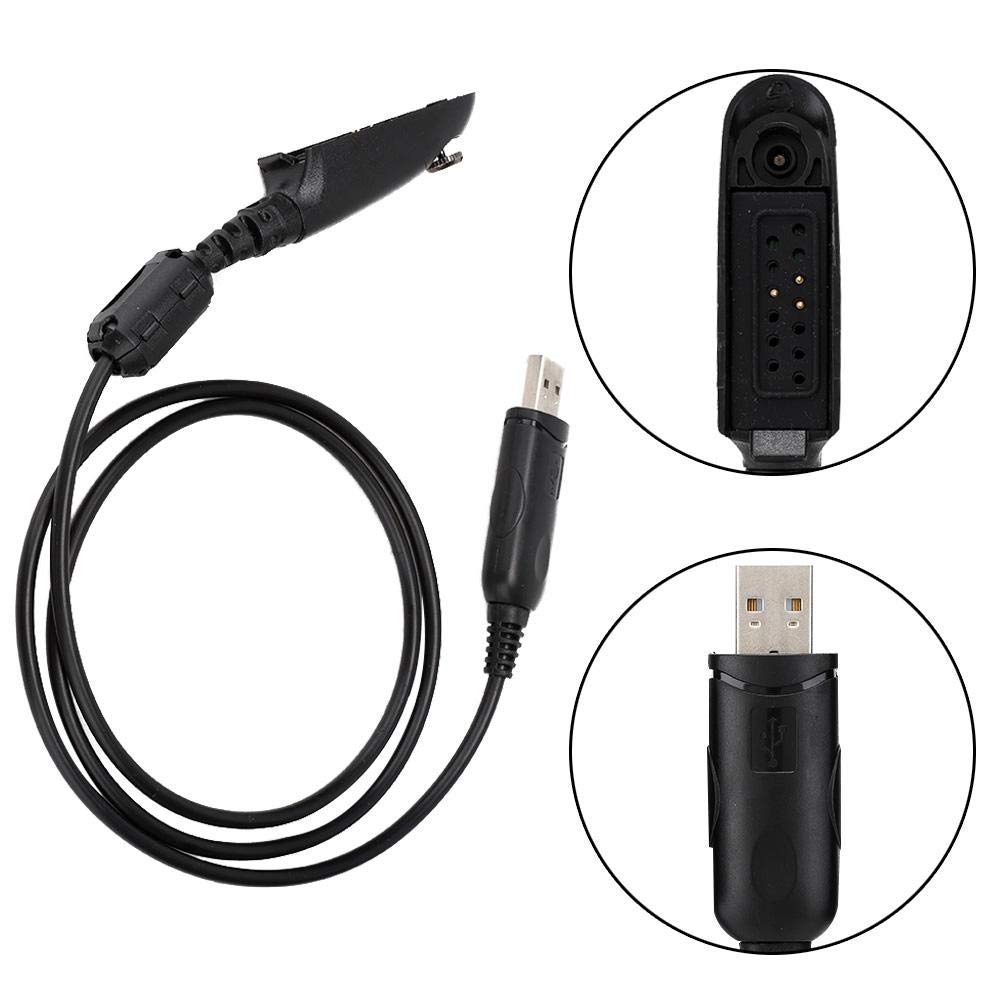
The cable is shown coiled, with inset images highlighting the design of both the USB-A and the radio-specific connectors.
Specifications
- Brand: Tosuny
- Model Number: Tosunywxoygi84f1
- Connector Type: USB Type A
- Cable Type: USB
- Compatible Devices: PC, various Motorola two-way radios (HT750, HT1250, PRO5150, GP328, GP340, GP380, GP640, GP680, GP960, GP1280, PR860, MTX850, PTX760)
- Special Feature: Magnetic (anti-jamming ring)
- Color: Black
- Connector Gender: Male-to-Female
- Outer Material: Acrylonitrile Butadiene Styrene (ABS)
- Product Dimensions: Approximately 1.97 x 1.97 x 0.79 inches (cable coiled)
- Item Weight: Approximately 1.76 ounces (0.05 Kilograms)
- Cable Length: 1 meter / 39.37 inches

An overhead shot of the cable, emphasizing its overall length and the robust construction of its connectors.
Warranty and Support
For warranty information or technical support regarding your Tosuny USB Programming Cable, please refer to the documentation provided with your purchase or contact Tosuny customer service directly. Contact details can typically be found on the manufacturer's official website or on the product packaging.

The programming cable laid out straight, providing a clear view of the USB-A end and the radio connector end.