
1. Introduction
This manual provides detailed instructions for the setup, operation, and maintenance of your Bqeel R2 Plus Android TV Box. The R2 Plus is a high-performance streaming media player designed to transform your television into a smart entertainment hub, offering access to a wide range of applications and 4K UHD content.
2. Package Contents
Please verify that all items listed below are included in your package:
- Bqeel R2 Plus Android TV Box
- Infrared Remote Control (batteries not included)
- HDMI Cable
- Power Adapter (5V2A)
- User Manual

Image: All components included in the Bqeel R2 Plus Android TV Box package, neatly arranged. This includes the main TV box unit, an infrared remote control, an HDMI cable, a power adapter, and the user manual.
3. Product Overview
3.1. Device Features
- Operating System: Android 10.0 for enhanced performance and user interface.
- Processor: RK3318 Quad-Core 64-bit Cortex-A53 for fast processing.
- Memory: 4GB DDR3 RAM for smooth multitasking.
- Storage: 64GB eMMC ROM, expandable up to 128GB via SD card.
- Connectivity: Dual-band Wi-Fi (2.4G/5G), 100M Ethernet, Bluetooth 4.0.
- Video Output: Supports 4K UHD resolution via HDMI 2.0.
- Special Features: Miracast for screen mirroring.

Image: Diagram illustrating the RK3318 Quad-Core 64bit Cortex-A53 CPU and Mali-450 GPU, highlighting the 4GB RAM and 64GB ROM for fast running speed and large memory capacity.
3.2. Ports and Interfaces
The Bqeel R2 Plus TV Box is equipped with various ports for versatile connectivity:
- 1 x USB 2.0 Port
- 1 x USB 3.0 Port
- 1 x SD Card Slot
- 1 x Ethernet Port (10/100M)
- 1 x HDMI Port
- 1 x AV Output Port
- 1 x Power Input Port

Image: Top-down view of the Bqeel R2 Plus TV Box, illustrating the location and type of various ports including TF Card slot, USB 2.0, USB 3.0, AV Output, 4K HDMI, RJ45 (Ethernet), and Power input. Dimensions are also indicated.
4. Setup Instructions
- Connect to TV: Connect the TV Box to your television using the provided HDMI cable. Insert one end into the HDMI port on the TV Box and the other end into an available HDMI input on your TV.
- Connect Power: Plug the power adapter into the DC 5V port on the TV Box, then plug the adapter into a wall outlet.
- Connect to Internet:
- Wi-Fi: After powering on, navigate to "Settings" > "Network" > "Wi-Fi" and select your network. Enter the password if required.
- Ethernet: Connect an Ethernet cable from your router to the RJ45 port on the TV Box. The connection will be established automatically.
- Insert Batteries into Remote: Open the battery compartment on the back of the infrared remote control and insert two AAA batteries (not included), ensuring correct polarity.
- Power On: Turn on your TV and select the correct HDMI input source. The TV Box will boot up automatically.
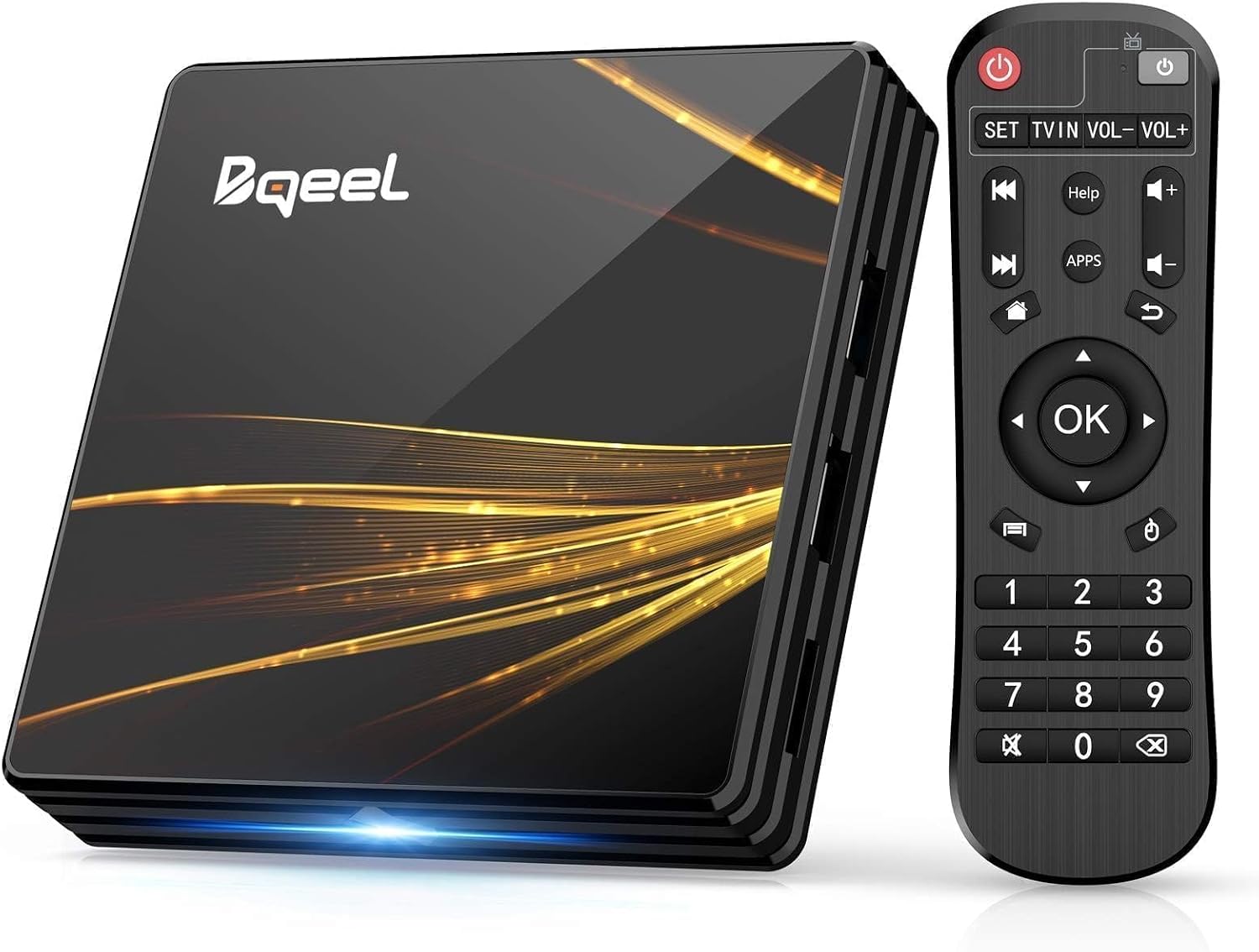
Image: The Bqeel R2 Plus Android TV Box and its accompanying infrared remote control, ready for setup.
5. Operating Instructions
5.1. Basic Navigation
Use the provided remote control to navigate the Android interface. The directional pad (OK button in the center) allows you to move between icons and select items. The "Back" button returns to the previous screen, and the "Home" button takes you to the main launcher.
5.2. App Management
The TV Box comes with Android 10.0 and pre-installed applications like Netflix, Amazon Prime Video, YouTube, and more. You can download additional applications from the Google Play Store.
- Access Google Play Store: From the home screen, select the "Google Play Store" icon.
- Search and Install: Use the search function to find desired apps and select "Install" to add them to your device.

Image: A television screen displaying the Android 10.0 interface of the Bqeel R2 Plus, showing various streaming applications such as Netflix, Prime Video, YouTube, and Disney+, along with the Google Play Store icon.
5.3. 4K UHD Playback
The Bqeel R2 Plus supports 4K Ultra HD video playback at 60Hz via its HDMI 2.0 output. Ensure your television is 4K compatible and connected via an HDMI 2.0 port for the best visual experience.

Image: A split-screen comparison on a television, demonstrating the difference between 1080p and 4K Ultra HD resolution, highlighting the superior clarity of 4K provided by the HDMI 2.0 output.
5.4. Miracast Functionality
The Miracast feature allows you to mirror content from your compatible smartphone, tablet, or laptop directly to your TV screen through the Bqeel R2 Plus. This enables sharing photos, videos, and presentations on a larger display.

Image: A large television screen displaying content mirrored from a smartphone, tablet, and laptop, illustrating the Smartcast (Miracast) feature of the Bqeel R2 Plus TV Box.
6. Maintenance
- Cleaning: Use a soft, dry cloth to clean the device. Avoid liquid cleaners or abrasive materials.
- Ventilation: Ensure the TV Box is placed in a well-ventilated area to prevent overheating. Do not cover ventilation openings.
- Power Off: When not in use for extended periods, disconnect the power adapter.
- Software Updates: Periodically check for system updates in the settings menu to ensure optimal performance and security.
7. Troubleshooting
- No Power:
Ensure the power adapter is securely connected to the TV Box and a working power outlet. Check if the power indicator light on the box is on.
- No Picture on TV:
Verify the HDMI cable is properly connected to both the TV Box and the TV. Ensure your TV is set to the correct HDMI input source.
- No Internet Connection:
For Wi-Fi, check your network settings and ensure the password is correct. For Ethernet, confirm the cable is connected and your router is functioning. Try restarting your router and the TV Box.
- Remote Control Not Working:
Check if the batteries are inserted correctly and are not depleted. Ensure there are no obstructions between the remote and the TV Box's IR receiver.
- Applications Crashing/Slow Performance:
Close unnecessary background applications. Clear the cache of problematic apps in "Settings" > "Apps". If issues persist, consider a factory reset (backup important data first).
8. Specifications
| Feature | Specification |
|---|---|
| Brand | Bqeel |
| Model Name | R2 Plus |
| Operating System | Android 10.0 |
| Processor | RK3318 Quad-Core 64bit Cortex-A53 |
| GPU | Mali-450 |
| RAM | 4GB DDR3 |
| ROM | 64GB eMMC (Expandable via SD Card up to 128GB) |
| Wi-Fi | 2.4G/5G Dual-band |
| Ethernet | 10/100M LAN |
| Bluetooth | 4.0 |
| Video Output | HDMI 2.0 (up to 4K@60Hz) |
| USB Ports | 1 x USB 2.0, 1 x USB 3.0 |
| Other Ports | SD Card Slot, AV Output, Power Input |
| Special Features | Miracast |
| Compatible Devices | Television |
9. Warranty and Support
Information regarding warranty coverage and specific support contact details is typically provided with your purchase documentation or on the manufacturer's official website. Please refer to those resources for the most accurate and up-to-date information.
For general inquiries or technical assistance, you may visit the Bqeel support page or contact their customer service.