
1. Introduction
The Elgato 4K60 Pro MK.2 is an internal capture card designed for high-performance video capture and passthrough. It enables users to stream and record immaculate 4K60 HDR10 content with ultra-low latency, making it suitable for professional content creators and gamers. This manual provides essential information for setting up, operating, maintaining, and troubleshooting your device.
2. Product Overview
The 4K60 Pro MK.2 is a compact PCIe interface card that offers advanced capabilities for capturing gameplay from various sources such as PS5, PS4 Pro, Xbox Series X/S, and Xbox One X. It supports simultaneous access to your video feed in multiple applications and provides up to 240 Hz passthrough for dual-PC setups, ensuring a smooth and uncompromised workflow.
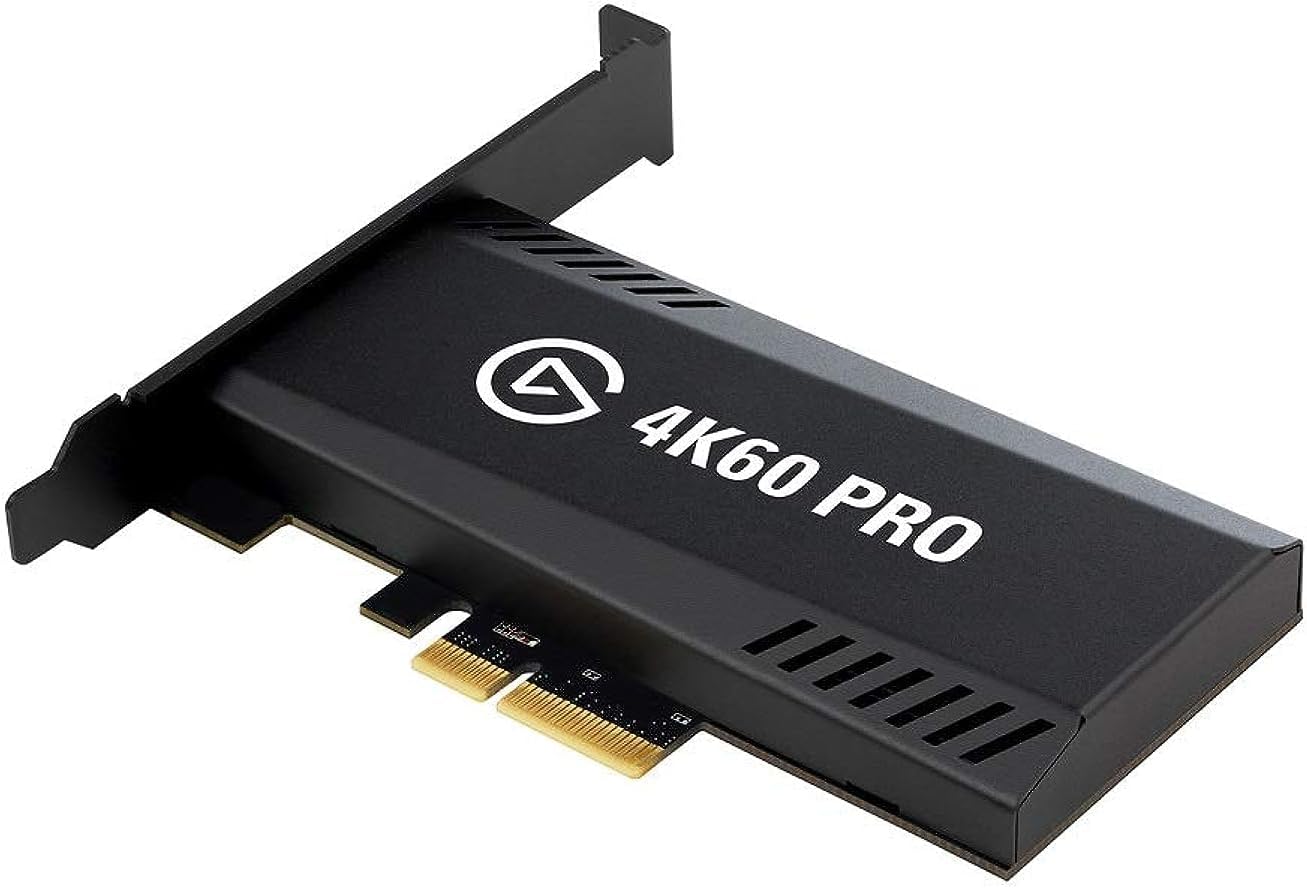
Figure 1: Elgato 4K60 Pro MK.2 Internal Capture Card.
3. System Requirements
- Input: HDMI (unencrypted)
- Output: HDMI (lag-free passthrough)
- Supported Resolutions: Up to 2160p60
- HDR: 10-bit passthrough and recording
- Encoding: HEVC/H.265 HDR, AVC/H.264
- Hardware Interface: PCI Express x4, PCI Express x8
- Operating System: Windows 10 (64-bit) or higher
- Recommended Use: Video Recording
4. Setup & Installation
4.1 Physical Installation
The Elgato 4K60 Pro MK.2 is an internal PCIe card that requires installation into an available PCIe slot on your desktop computer's motherboard. Ensure your computer is powered off and unplugged before opening the case.
- Power off your computer and disconnect all cables.
- Open your computer case to access the motherboard.
- Locate an available PCIe x4 or x8 slot.
- Carefully insert the Elgato 4K60 Pro MK.2 card into the PCIe slot, ensuring it is fully seated.
- Secure the card with the provided screw or retention mechanism on your PC case.
- Close your computer case and reconnect all cables.

Figure 2: Elgato 4K60 Pro MK.2 installed in a desktop PC.
4.2 Driver and Software Installation
After physical installation, you will need to install the necessary drivers and software for the capture card to function correctly.
- Power on your computer.
- Visit the official Elgato website at elgato.com/download.
- Download and install the latest drivers and the Elgato 4K Capture Utility software for your operating system.
- Follow the on-screen instructions to complete the installation. A system reboot may be required.

Figure 3: Installation diagram and software download instructions.
5. Operation
5.1 Connecting Devices
The Elgato 4K60 Pro MK.2 features dedicated HDMI Input and Output ports:
- HDMI IN: Connect your gaming console (PS5, Xbox Series X/S, etc.) or other video source to this port using an HDMI cable.
- HDMI OUT: Connect your gaming monitor or TV to this port. This provides a lag-free passthrough of your video source, allowing you to play directly on your display without delay while the signal is simultaneously sent to your PC for capture.

Figure 4: HDMI Input and Output ports on the capture card.
5.2 Software Usage
The 4K60 Pro MK.2 is compatible with popular streaming and recording software, including:
- Elgato 4K Capture Utility
- OBS Studio
- Streamlabs OBS
- XSplit
Once installed, the capture card will appear as a video input device within these applications, allowing you to select it as your source for streaming or recording.
5.3 Multi-Feed and Multi-Device Support
The card supports simultaneously accessing your video feed in multiple applications, enabling flexible workflows. For example, you can stream to Twitch or YouTube via OBS while recording a higher-quality 4K HDR10 version to your hard drive using the Elgato 4K Capture Utility.

Figure 5: Multi-feed functionality for simultaneous use in multiple applications.
6. Key Features
- 4K60 HDR10 Capture: Record and stream content in stunning 4K resolution at 60 frames per second with HDR10 support for vibrant colors and contrast.
- Ultra-Low Latency Instant Gameview: Experience virtually no delay between your gameplay and your capture feed, ensuring a seamless and responsive experience.
- Up to 240 Hz Passthrough: Enjoy high refresh rate passthrough to your gaming monitor, supporting up to 1440p at 144 Hz, ideal for competitive gaming.

Figure 6: Instant Gameview technology for ultra-low latency.
7. Maintenance
To ensure the longevity and optimal performance of your Elgato 4K60 Pro MK.2, follow these general maintenance guidelines:
- Keep your computer's interior clean and free of dust to prevent overheating.
- Ensure proper airflow within your PC case.
- Handle the capture card with care during installation or removal.
- Regularly update your graphics card drivers and Elgato software.
8. Troubleshooting
If you encounter issues with your Elgato 4K60 Pro MK.2, consider the following troubleshooting steps:
- No Signal: Verify all HDMI cables are securely connected to the correct IN/OUT ports. Ensure your video source is powered on and outputting a compatible resolution.
- Software Not Detecting Card: Confirm that the card is properly seated in its PCIe slot. Ensure the latest drivers and Elgato software are installed. Try restarting your computer.
- Lag/Stuttering: Check your PC's system resources (CPU, GPU, RAM) to ensure they meet the requirements for 4K60 capture. Close unnecessary background applications.
- HDR Issues: Ensure both your source device and display support HDR10. Verify HDR settings in your capture software.
- High Refresh Rate Passthrough: If experiencing issues with 144Hz passthrough, ensure your monitor supports the specific resolution and refresh rate combination.
For persistent issues, refer to the Elgato support website or contact their customer service.
9. Specifications
| Feature | Detail |
|---|---|
| Product Dimensions | 2.2 x 4.76 x 0.75 inches |
| Item Weight | 3.7 ounces |
| ASIN | B07VWXCXM7 |
| Item Model Number | 10GAS9901 |
| Hardware Interface | PCI Express x4, PCI Express x8 |
| Video Capture Resolution | 4K |
| Operating System | Windows 10 (64-bit) or higher |
| Recommended Uses | Video Recording |
10. Official Product Videos
Elgato Game Capture 4K60 Pro MK.2 Unboxing & Install
Video demonstrating the unboxing and installation process of the Elgato 4K60 Pro MK.2 capture card into a PC. This video provides a visual guide to physically installing the card and understanding its components.
Stream and record in 4K! Elgato 4K60 Pro MK.2 Capture Card!
A concise video highlighting the capabilities of the Elgato 4K60 Pro MK.2 for streaming and recording in 4K, showcasing its performance and ease of use.
Installation: Elgato Game Capture 4K60 Pro
This video provides a detailed guide on installing the Elgato Game Capture 4K60 Pro, covering the physical steps required to integrate the card into your computer system.
11. Warranty and Support
For warranty information, technical support, or to access additional resources, please visit the official Elgato support website. Elgato provides comprehensive support to ensure optimal performance and user satisfaction with their products.


