
1. Product Overview
The Bqeel R2 Max Android 10.0 TV Box is a multimedia streaming device designed to transform your television into a smart entertainment hub. It operates on the Android 10.0 system, offering access to a wide range of applications and streaming services. Equipped with a powerful RK3318 Quad-Core processor, 4GB of RAM, and 64GB of internal storage, it ensures smooth performance for 4K UHD video playback and application usage. Connectivity options include dual-band Wi-Fi (2.4G/5G), 100M Ethernet, and Bluetooth 4.0, allowing for versatile connections to networks and peripherals.

Image 1.1: The Bqeel R2 Max Android TV Box and its included infrared remote control.
2. Package Contents
Please check the box for the following items:
- Bqeel R2 Max TV Box
- Infrared Remote Control
- HDMI Cable
- EU Power Adapter
- User Manual (this document)
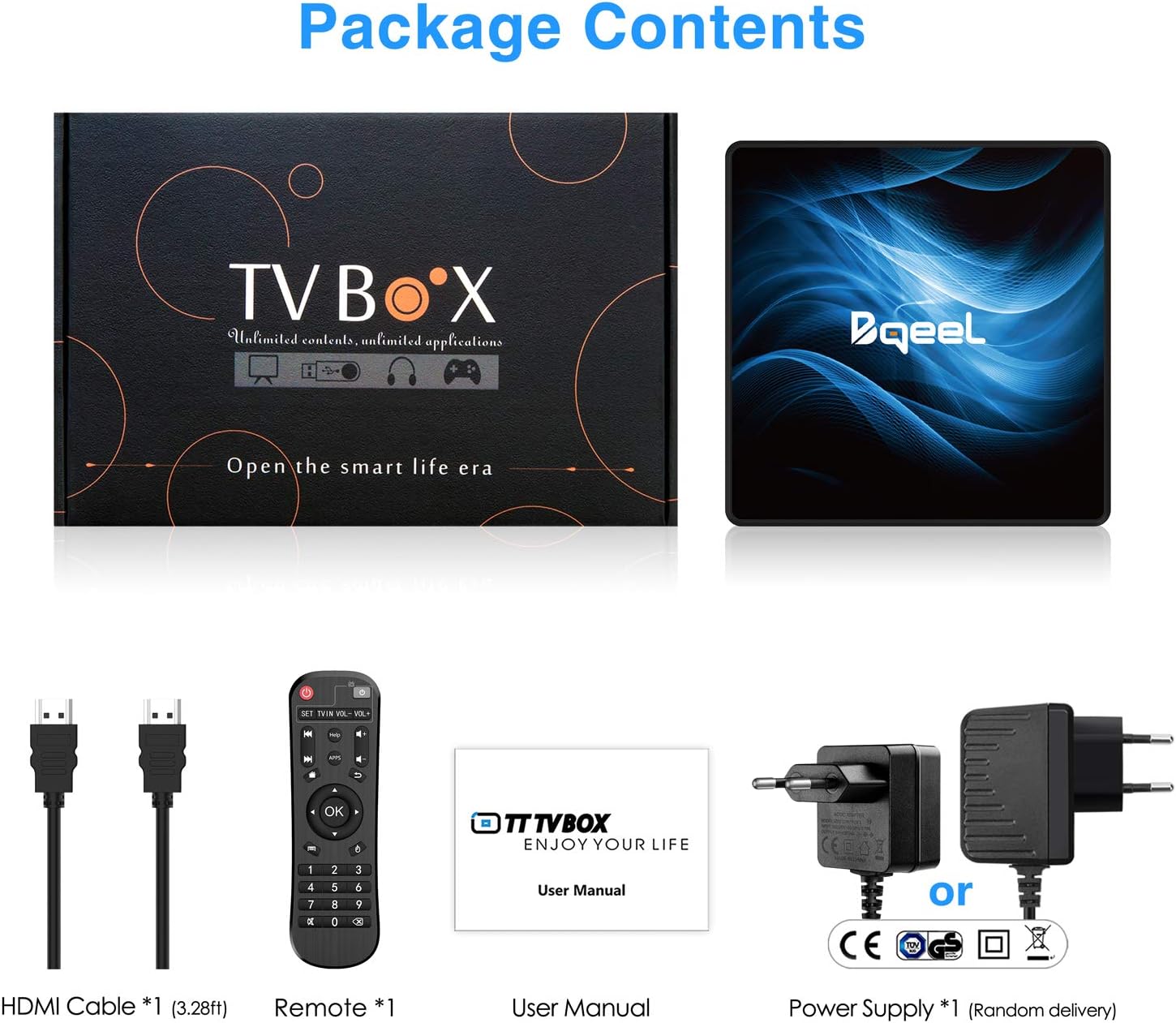
Image 2.1: All components included in the Bqeel R2 Max TV Box package.
3. Setup Guide
Follow these steps to set up your Bqeel R2 Max TV Box:
- Connect to TV: Use the provided HDMI cable to connect the HDMI port on the TV Box to an available HDMI input on your television.
- Connect Power: Plug the EU power adapter into the DC 5V port on the TV Box, then plug the adapter into a wall outlet. The device should power on automatically or can be turned on using the remote control.
- Network Connection:
- Wi-Fi: Once powered on, navigate to the 'Settings' menu, select 'Network', and choose your Wi-Fi network. Enter the password to connect.
- Ethernet: For a wired connection, connect an Ethernet cable from your router to the LAN port on the TV Box. The device will automatically detect the wired connection.
- Initial Setup: Follow the on-screen prompts to complete the initial Android setup, including language selection, time zone, and Google account login.

Image 3.1: Overview of the available ports on the Bqeel R2 Max TV Box for connecting peripherals and power.
4. Operating Instructions
4.1 Remote Control
The included infrared remote control allows navigation through the Android interface. Use the directional buttons to move, 'OK' to select, and 'Back' to return to the previous screen. The 'Mouse' button may activate a pointer for easier navigation in certain applications.
4.2 Navigating the Interface
The home screen provides quick access to installed applications and system settings. You can customize the home screen by adding or removing app shortcuts. Access the full list of installed applications through the 'Apps' icon.

Image 4.1: The Android 10.0 user interface, displaying various pre-installed and downloadable applications.
4.3 Installing and Managing Applications
Applications can be downloaded and installed from the Google Play Store. Navigate to the Play Store app, search for your desired application, and select 'Install'. To uninstall an app, go to 'Settings' > 'Apps' > select the app > 'Uninstall'.
4.4 Media Playback
The R2 Max supports 4K UHD video playback. You can play media files from connected USB drives, SD cards, or stream content from online services like YouTube and Netflix. Ensure your TV supports 4K resolution for optimal viewing experience.
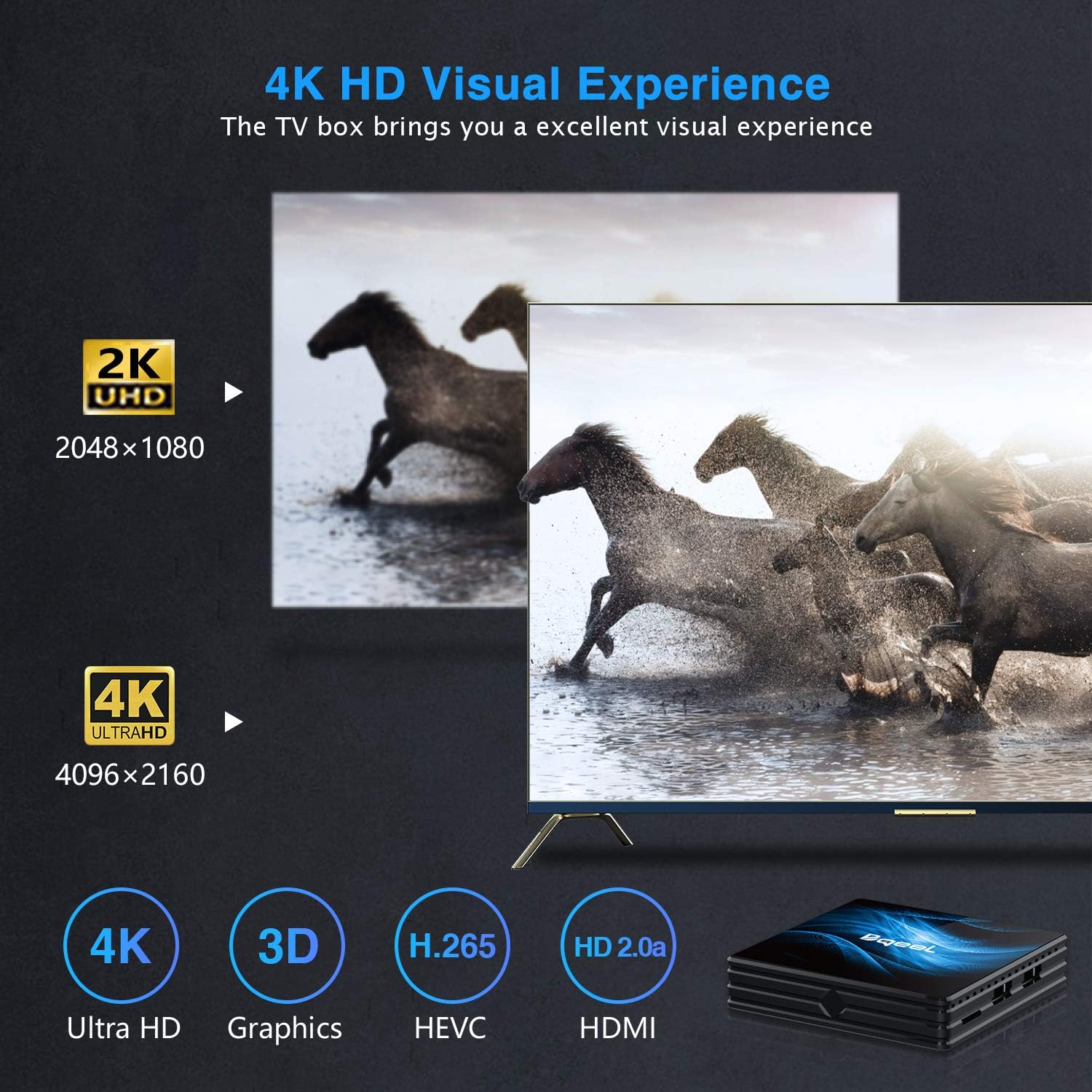
Image 4.2: The Bqeel R2 Max TV Box supports 4K Ultra HD resolution for a high-quality visual experience.
4.5 Screen Mirroring (Miracast/DLNA/Airplay)
The device supports Miracast, DLNA, and Airplay protocols, allowing you to cast content from compatible smartphones, tablets, or computers to your TV screen. Refer to your device's instructions for initiating screen mirroring.
4.6 Connecting External Devices
Utilize the USB 2.0 and USB 3.0 ports to connect external storage devices (USB drives, external hard drives), keyboards, mice, or game controllers. Bluetooth 4.0 allows wireless connection to compatible headphones, speakers, or other Bluetooth peripherals.

Image 4.3: The TV Box offers Bluetooth 4.0 and dual-band Wi-Fi for connecting various devices and ensuring stable internet access.
5. Maintenance
- Cleaning: Use a soft, dry cloth to clean the exterior of the TV Box. Avoid liquid cleaners or abrasive materials.
- Software Updates: Periodically check for system updates in the 'Settings' menu to ensure optimal performance and access to the latest features.
- Ventilation: Ensure the TV Box is placed in a well-ventilated area to prevent overheating. Do not cover ventilation openings.
- Power Cycle: If the device becomes unresponsive, disconnect the power adapter for 10 seconds, then reconnect it to perform a power cycle.
6. Troubleshooting
| Problem | Possible Cause | Solution |
|---|---|---|
| No power | Power adapter not connected; power outlet issue | Ensure power adapter is securely connected to the device and a working power outlet. |
| No signal on TV | Incorrect HDMI input selected; loose HDMI cable | Select the correct HDMI input on your TV. Check HDMI cable connections. Try a different HDMI port or cable. |
| Wi-Fi connection issues | Incorrect password; router issues; signal interference | Verify Wi-Fi password. Restart your router. Ensure the device is within Wi-Fi range. |
| Remote control unresponsive | Low battery; obstructed signal | Replace remote control batteries. Ensure no obstructions between the remote and the TV Box. |
| Applications are slow or crashing | Too many apps running; insufficient storage; outdated app version | Close background applications. Clear app cache. Update applications. Consider a factory reset if issues persist. |
7. Specifications
- Model Name: R2 Max Box
- Operating System: Android 10.0
- Processor: RK3318 Quad-Core 64bit Cortex-A53
- RAM: 4GB DDR3
- ROM: 64GB EMMC
- Wi-Fi: 2.4G/5G Dual-band
- Ethernet: 100M LAN
- Bluetooth: 4.0
- Video Output: 4K UHD (4096x2160)
- HDMI: 1 port
- USB Ports: 1x USB 2.0, 1x USB 3.0
- Card Reader: SD Card slot
- Other Ports: AV Port, Power Port
- Functions: Miracast, DLNA, Airplay
- Supported Internet Services: YouTube, Netflix, Twitter (and others via Google Play Store)
- Color: Black

Image 7.1: High-speed flash memory details, showing 4GB DDR3 RAM and 64GB EMMC ROM.

Image 7.2: The powerful RK3318 Quad-Core 64bit Cortex-A53 processor, ensuring stable and fast performance.
8. Warranty and Support
The Bqeel R2 Max TV Box comes with a standard manufacturer's warranty. For specific warranty terms and conditions, please refer to the documentation provided with your purchase or contact Bqeel customer support.
For technical assistance, troubleshooting not covered in this manual, or warranty claims, please contact Bqeel customer support through their official website or the retailer where the product was purchased. Please have your product model number (R2 Max Box) and purchase details ready when contacting support.